RAW Converter App Review for Apple Photos

A useful RAW converter app review should answer one practical question first: can it make a full Photos library smaller without turning your carefully organized images into loose files and extra work? For Apple users, that question matters more than a long list of editing sliders. RAW files are large by design. Once an edit is finished, keeping every original can put real pressure on iPhone, iPad, Mac, and iCloud storage.
The right converter does not ask you to export files to a folder, rename them, import them again, then repair albums and metadata afterward. It works where your photo library already lives. That is the standard worth using when evaluating a RAW-to-HEIC app for Apple Photos.
What a RAW converter app should actually solve
RAW capture is valuable because it preserves more image data for editing. It is also expensive in storage. A library containing ProRAW images from an iPhone, or RAW files from a Canon, Sony, Nikon, Fujifilm, Olympus, or Panasonic camera, can grow quickly. Keeping every RAW file forever may be sensible for select client work or portfolio images. It is often unnecessary for completed everyday edits, trips, family photos, and images you simply want to enjoy in Photos.
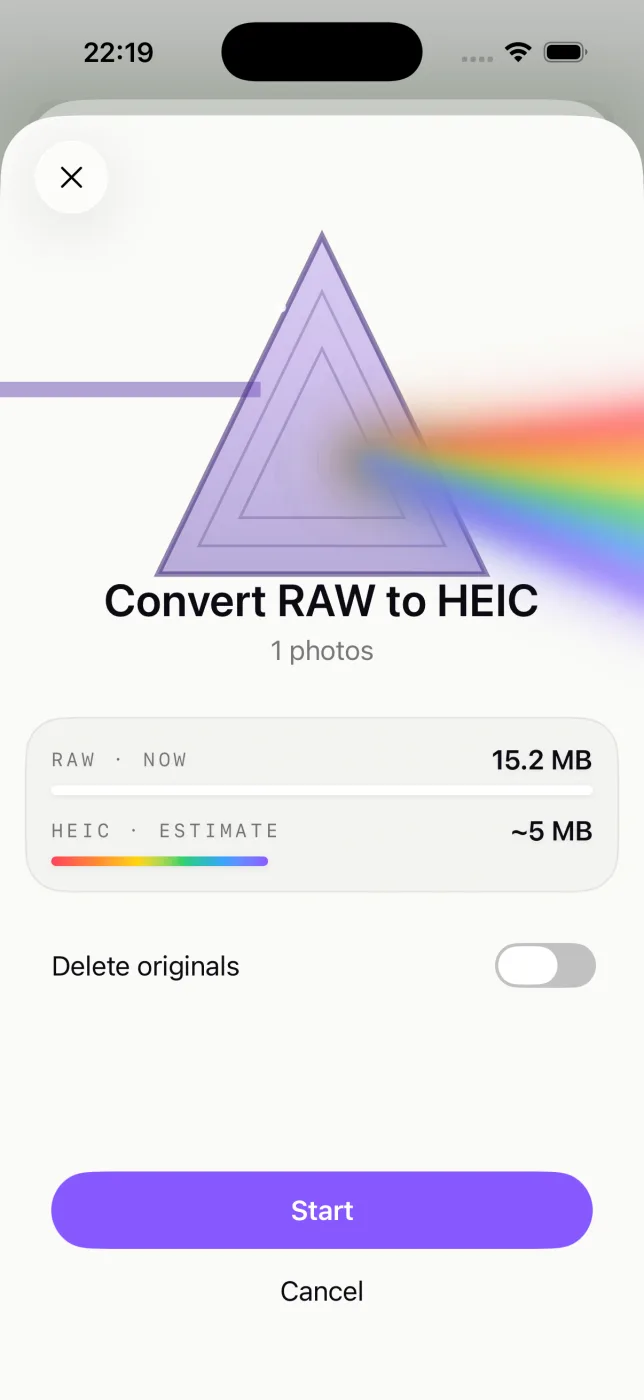
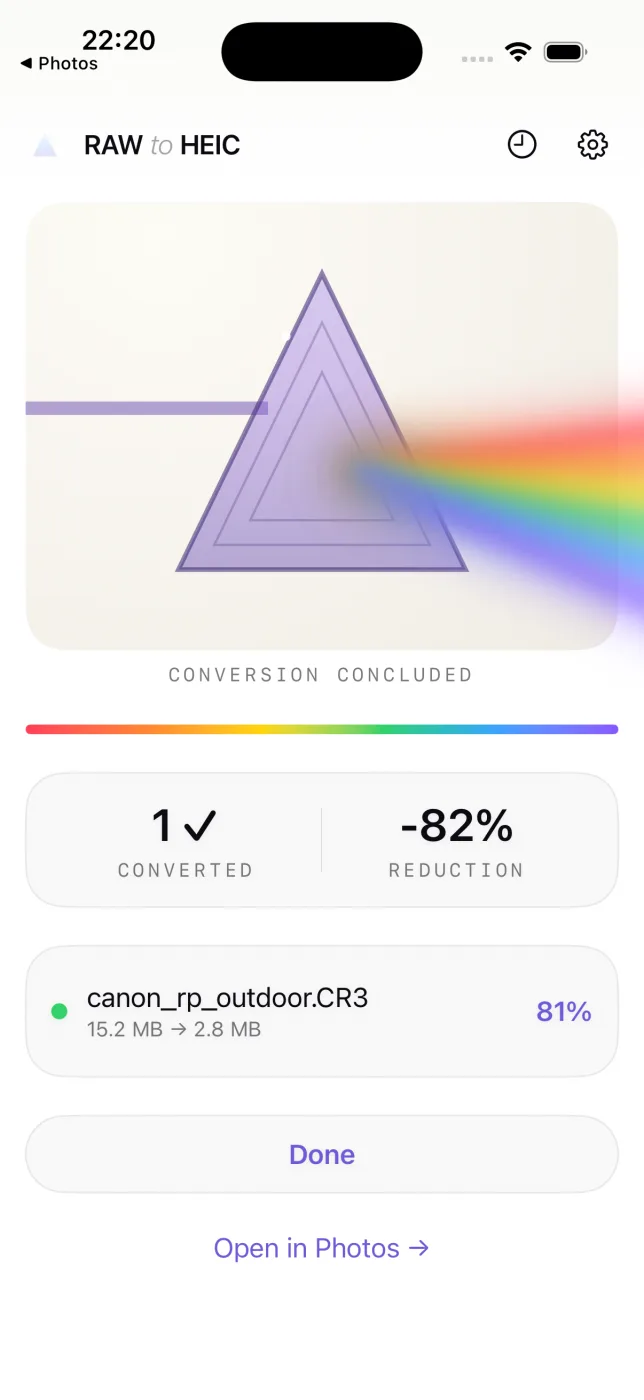
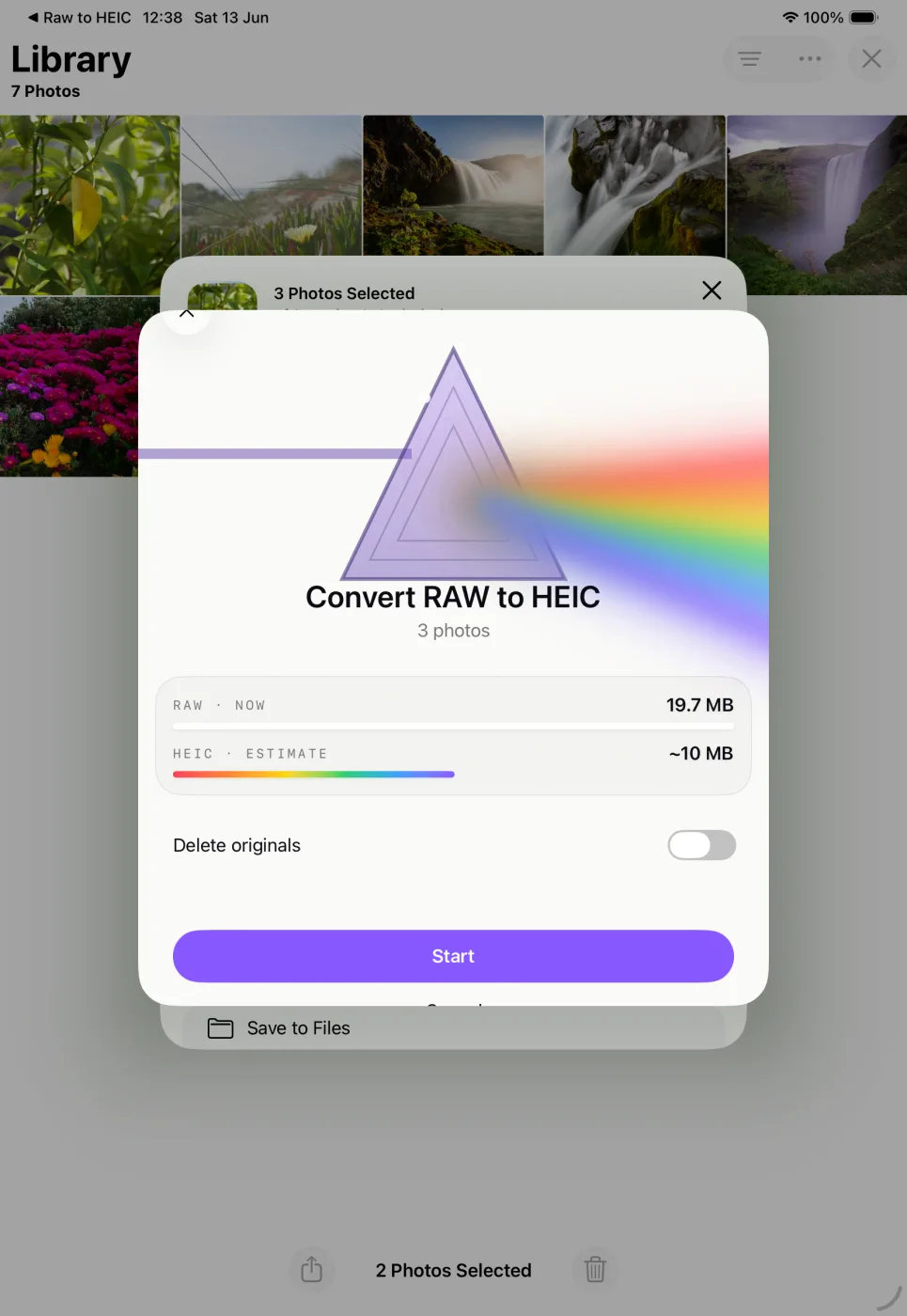
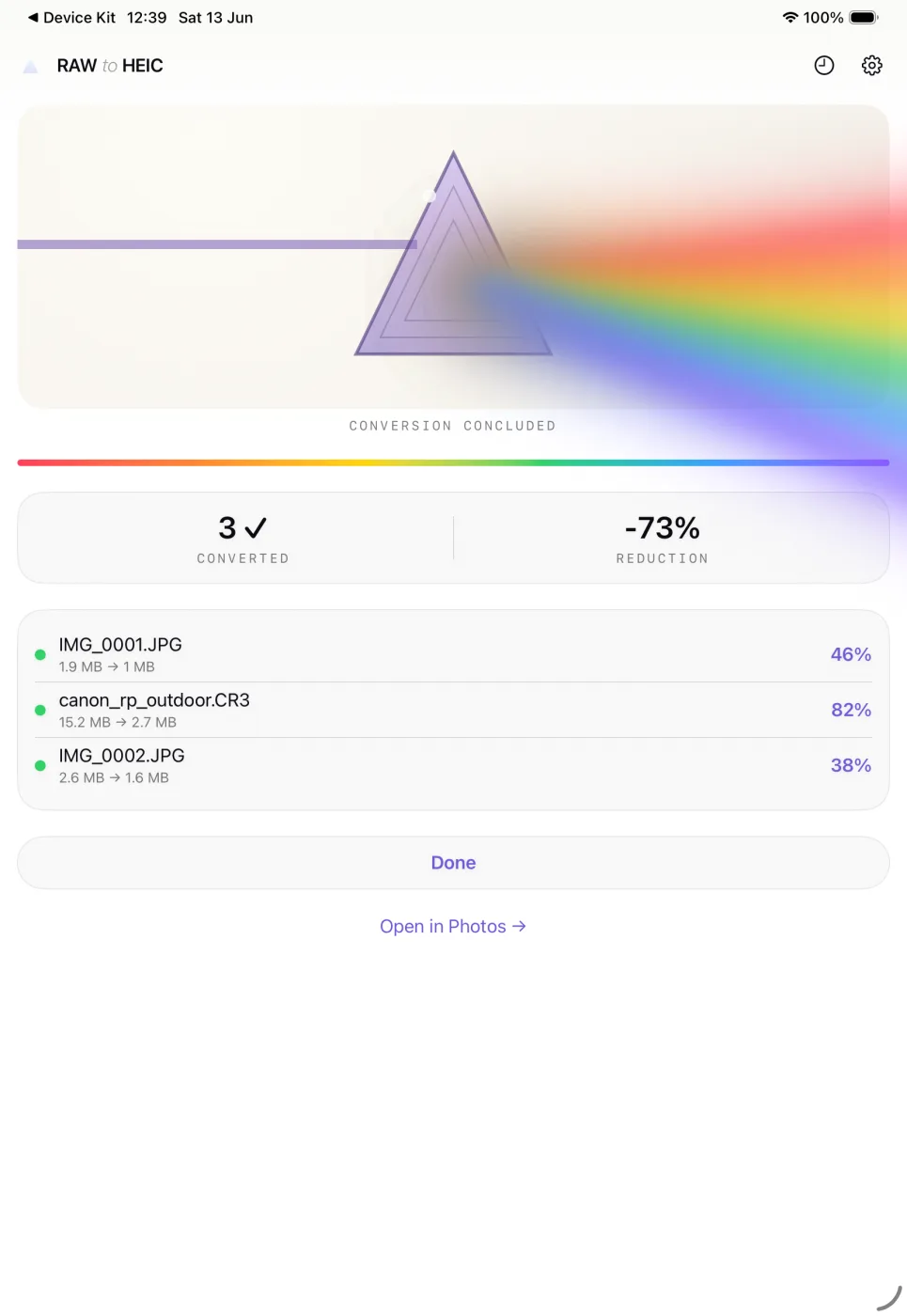
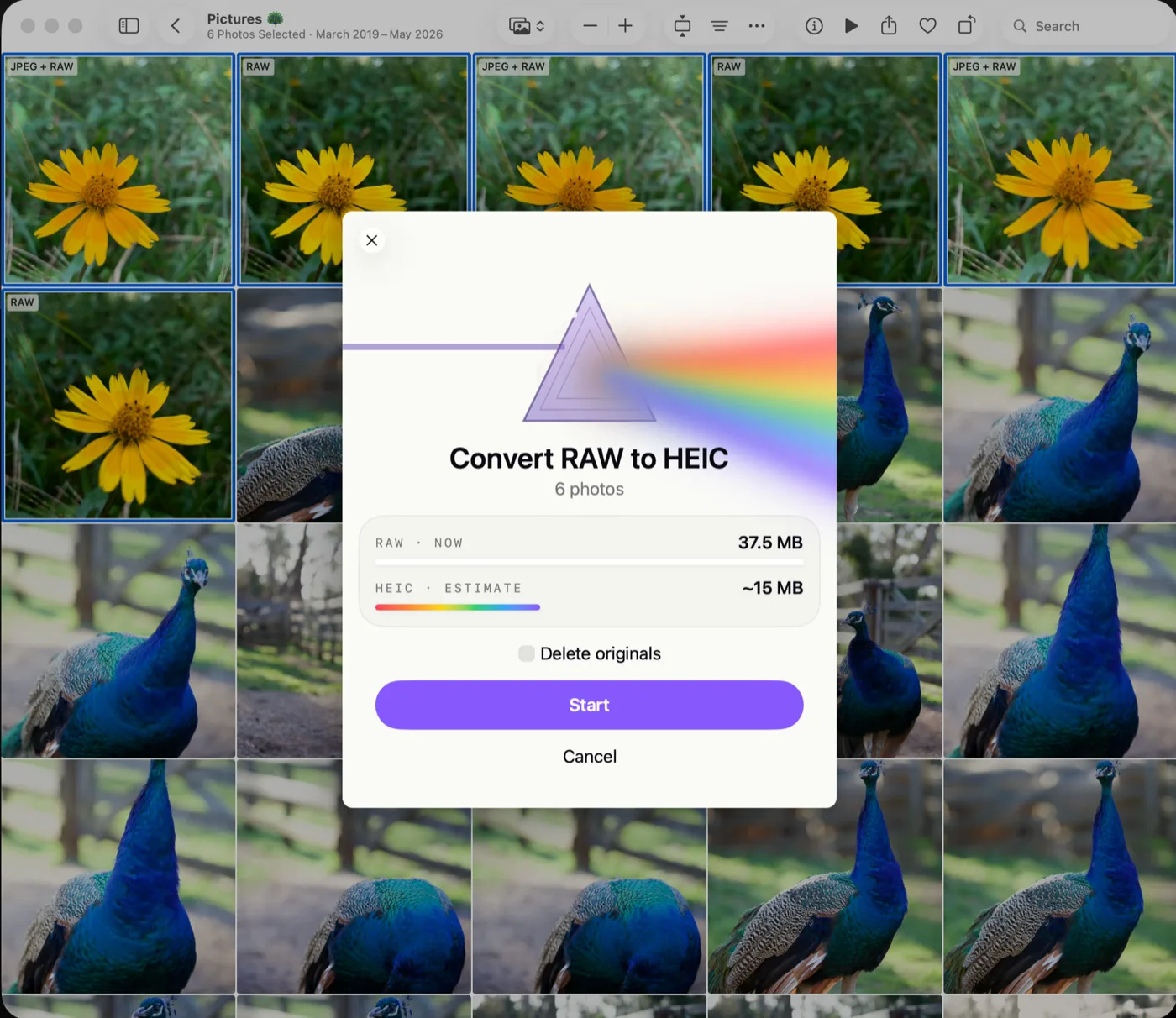
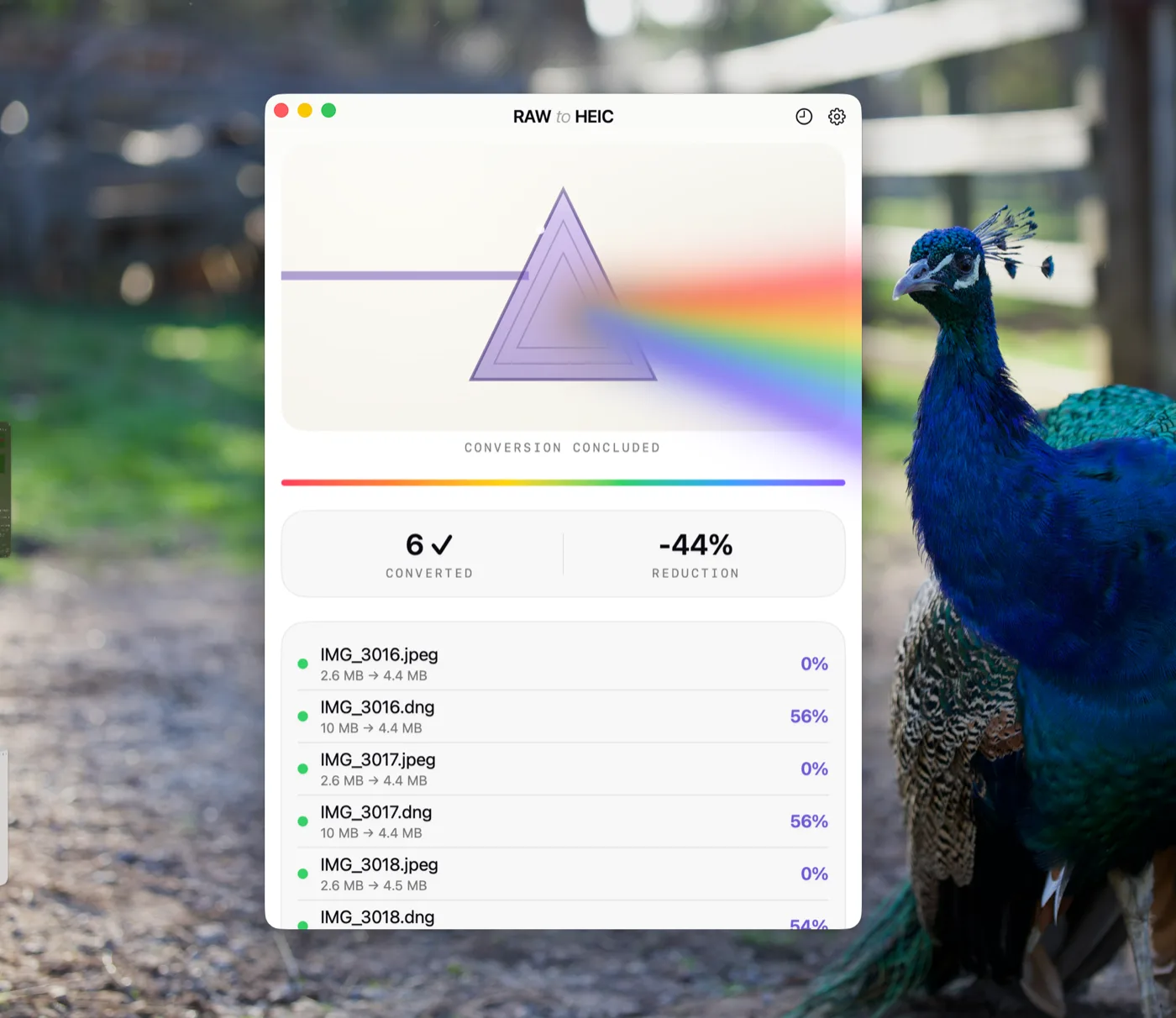
HEIC is a sensible destination for many of those finished images. It delivers high visual quality in a much smaller package than RAW, often reducing storage use by up to 10x depending on the source format and image content. On Apple devices, it is also a native format: it displays, syncs, shares, and works with Photos editing tools without a separate viewer or conversion step.
That does not mean HEIC replaces RAW in every situation. If you expect to revisit a difficult exposure, create a large print, or make substantial color changes later, retain the RAW original. A good converter supports a deliberate archive strategy rather than pretending one format fits every photograph.
RAW converter app review: the workflow test
Most conversion tools handle the technical act of creating a new file. The better question is what happens to the photo library around that file. This is where many general-purpose converters fall short.
A file-based workflow usually begins with an export. The converted HEIC lands in Files, a download folder, or cloud storage. You import it back into Photos, then confirm that the date, location, captions, favorites, albums, and editing history still make sense. If the old RAW is deleted before the new image is verified, the risk increases. If it is not deleted, storage savings never arrive.
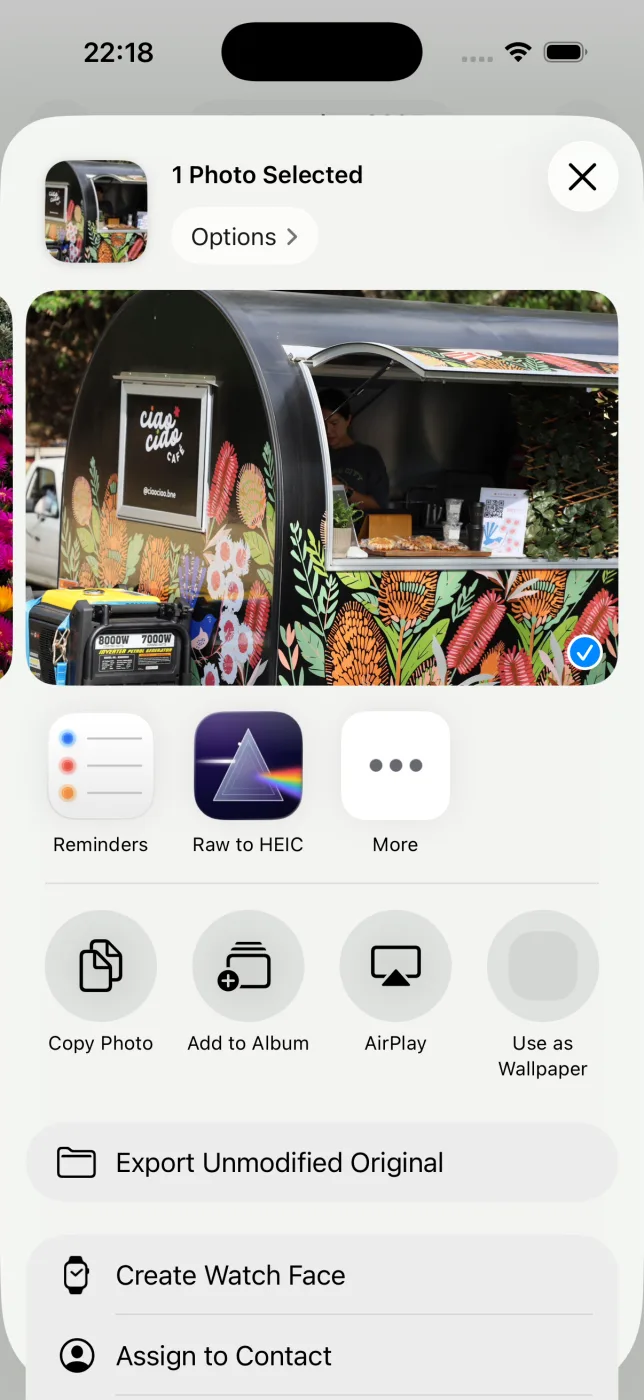
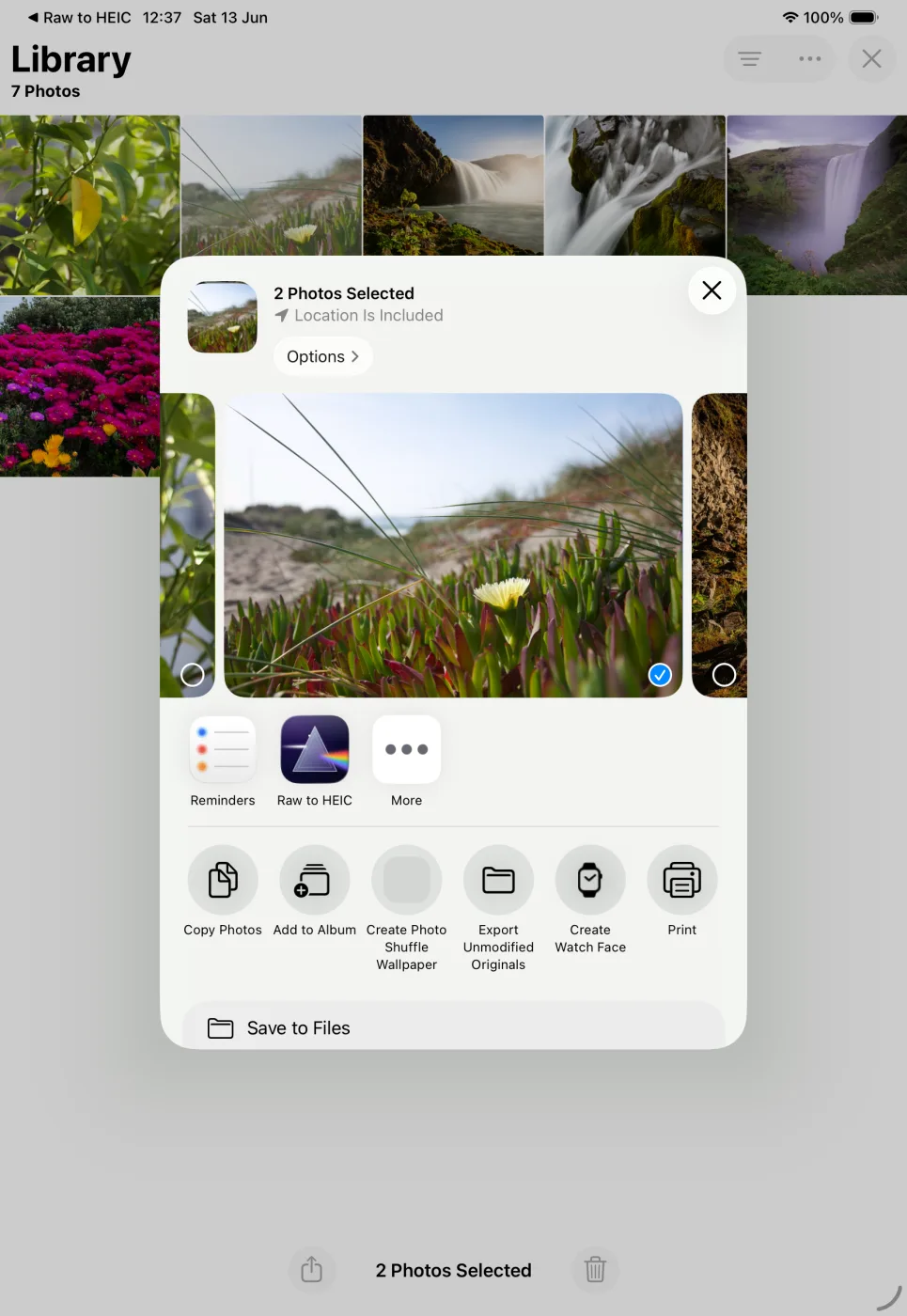
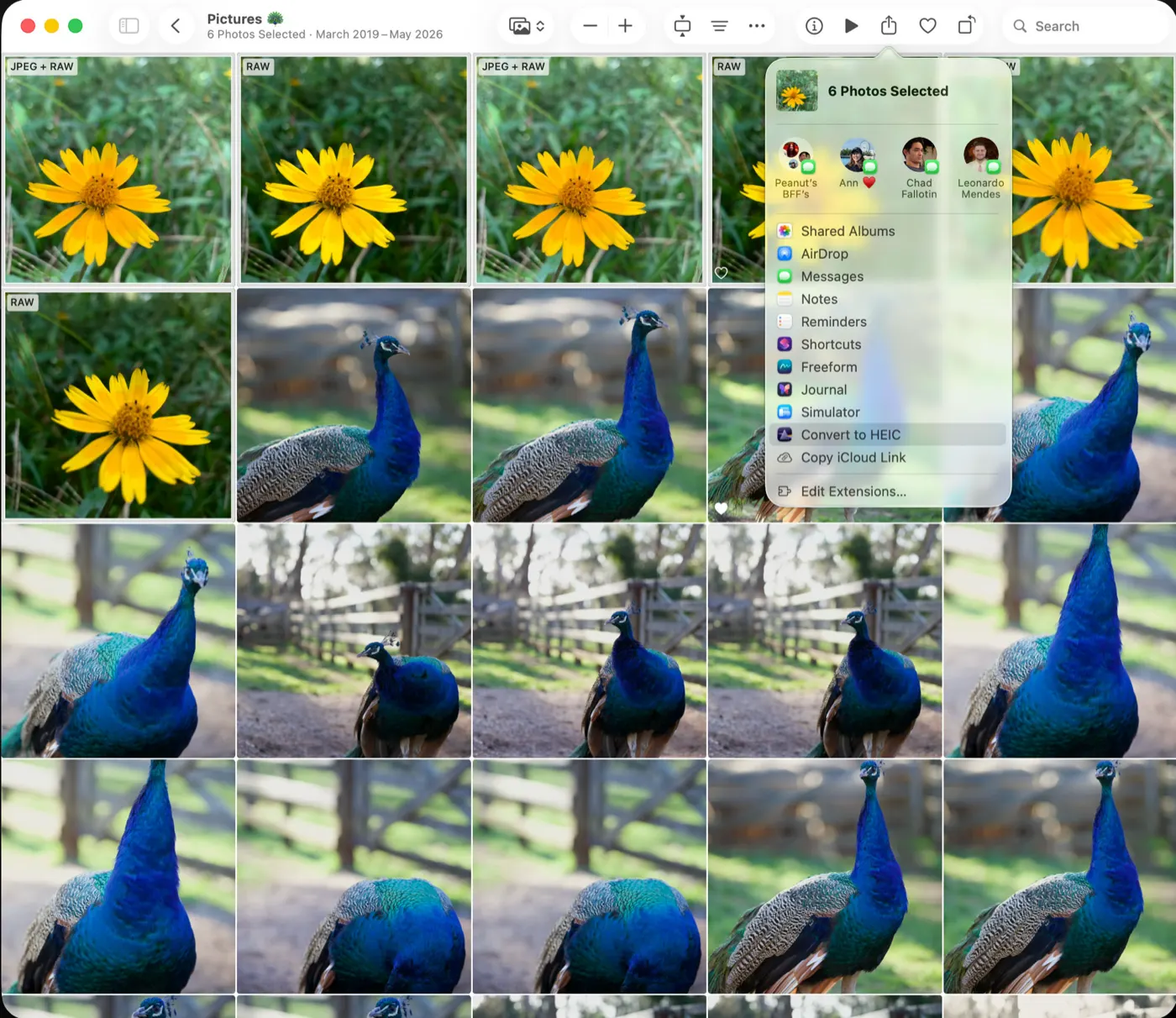
A Photos-native converter avoids that detour. You select images inside Photos, create HEIC versions on-device, verify that the results were saved correctly, and only then remove selected originals. The converted images stay part of the library rather than becoming a collection of unmanaged files.
This matters because a photo library is more than pixels. Albums hold projects and memories. Favorites mark keepers. Captions provide context. Locations make travel photography searchable. Dates preserve chronology. Non-destructive edits represent time you already spent refining an image. A conversion workflow should respect all of it.
The safety check that deserves attention
Deleting large RAW originals is the moment when a converter earns trust. Look for a verified deletion process, not a vague promise that conversion succeeded. The app should create the HEIC asset, confirm it is available in Photos, and make the removal of the original an intentional action.
There is a trade-off here. A cautious workflow may take an extra moment compared with a bulk file utility that immediately overwrites or moves originals. That small pause is worthwhile when the source images cannot be recreated.
For especially important work, keep a separate original archive before reducing a library. A converter is ideal for reclaiming day-to-day storage, but it should not be treated as your only backup plan.
Image quality, HDR, and edit preservation
Conversion quality is not just about whether an image looks acceptable on a phone screen. Apple photographers should check how the result handles tonal range, color, detail, and HDR content. This is particularly relevant for iPhone ProRAW photos, where highlights and shadows can contain more information than a finished compressed image.
A capable app creates high-quality HEIC output while preserving HDR where supported. That gives finished images the look you intended on modern Apple displays without carrying the full weight of the RAW source. The result is best viewed as an efficient final master for your Photos library, not a replacement for the editing latitude of RAW.
Edit handling requires precision. In Photos, edits are typically non-destructive instructions attached to the original asset. A well-designed conversion process should render the edited appearance into the new HEIC while retaining the organizational context that makes the image easy to find. Before converting hundreds of photos, test a small batch that includes cropped images, adjusted ProRAW shots, captions, and photos placed in several albums.
That test also reveals whether the app fits your expectations. If your priority is preserving a finished appearance and reclaiming storage, HEIC conversion is compelling. If your priority is maintaining the ability to completely reinterpret every adjustment years later, keep the RAW files.
Privacy is part of the product decision
Photo conversion does not need a server. For a personal library, on-device processing is the cleanest model: images remain on your Apple device, and the app does its work locally. That reduces the privacy exposure of uploading personal photos to a third-party service and avoids waiting for large RAW files to travel over a connection.
Pay attention to the app’s privacy disclosure as well. “Data Not Collected” is a meaningful signal for a utility that may access a lifetime of personal images. A focused converter should not need analytics profiles, image uploads, or an account system to reduce the size of your library.
Local processing is also practical when you are traveling, working from a camera import, or cleaning up storage before a flight. No connection is required to process a batch already available in Photos.
Device and format support to verify
Compatibility should be specific. The app needs to run where you manage photos, whether that is iPhone, iPad, Mac, or a mix of all three. A universal purchase is valuable because it lets you choose the screen and device that suit the job without buying the same utility repeatedly.
Check support for your camera’s RAW format before committing to a large cleanup. The major systems matter: Canon, Sony, Nikon, Fujifilm, Olympus, Panasonic, and Apple ProRAW. Ongoing format updates are important too, particularly if you upgrade camera bodies over time.
Performance depends on the device, the size of the batch, the source file, and the available storage needed during processing. A newer iPhone, iPad, or Mac will generally complete large conversions faster. Start with a manageable selection, confirm the visual result, and then work through the rest of the library in batches. That approach makes it easier to spot an image you would prefer to retain as RAW.
Pricing: subscription or permanent utility?
A RAW converter is often used intensely during a library cleanup, then occasionally afterward. That usage pattern makes forced subscriptions difficult to justify for many photographers. A free trial allowance is useful because it lets you test compatibility, image quality, and library behavior with your own photos.
For ongoing use, the clearest model is a choice: a $19.99 one-time lifetime purchase for users who prefer to own the app, or $9.99 per year for those who prefer an annual plan. If both plans work across iPhone, iPad, and Mac and include compatibility updates, the lifetime option can be especially attractive for a utility you expect to keep for years.
RawToHEIC fits this model closely. It focuses on one job: converting supported RAW and ProRAW images to HEIC directly in Apple Photos, with on-device processing, HDR support, and safeguards before originals are removed. That narrow focus is a strength. It is not trying to replace a full RAW editor or a professional cataloging system.
Who this approach is for
This workflow is a strong fit if Photos is your primary library and you have a backlog of completed RAW edits taking up space. It is especially practical for iPhone Pro users who shoot ProRAW, enthusiasts importing mirrorless or DSLR photos, and families who want their finished memories available everywhere without paying for more storage sooner than necessary.
It is less suitable if every image is a working negative for future commercial retouching, or if you rely on desktop software and sidecar-based editing as your central archive. In that case, keep the RAW catalog as the source of truth and consider HEIC exports only for sharing or secondary libraries.
The best conversion decision is selective, not automatic. Keep the RAW files that still have creative work ahead of them. Convert the finished photos you want to keep close, organized, private, and ready to enjoy – without letting a completed edit occupy far more storage than it needs.
Shrink your RAW library, right inside Photos.
RawToHEIC converts camera RAW and iPhone ProRAW to HEIC up to 10× smaller — keeping every edit, album, favorite, and location. On-device, no account, one purchase for iPhone, iPad, and Mac.
Not sure yet? Convert a few sample photos free — no install, nothing uploaded.
Try it free — no install →