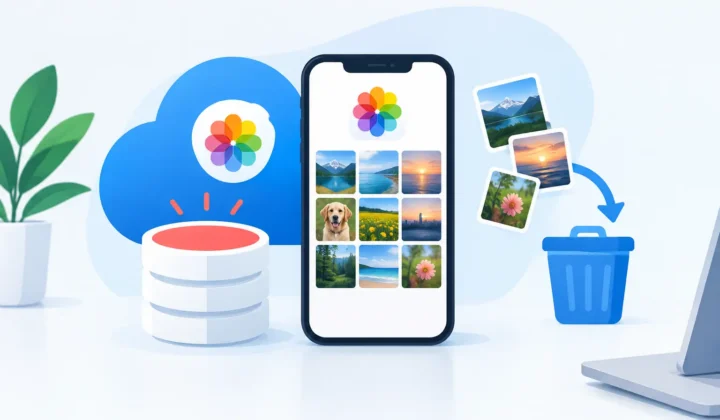
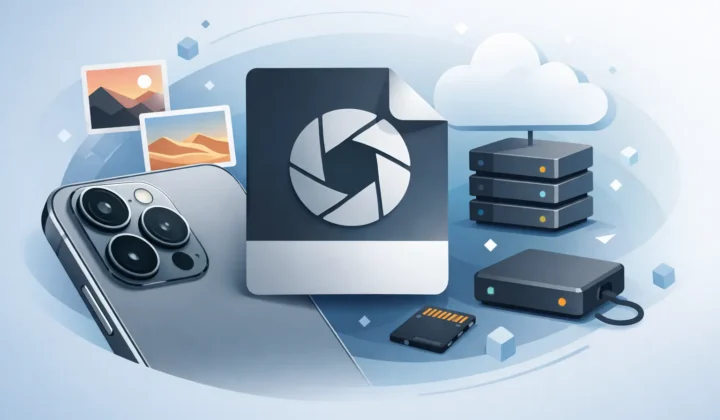
Best One Time Purchase Photo App for Apple
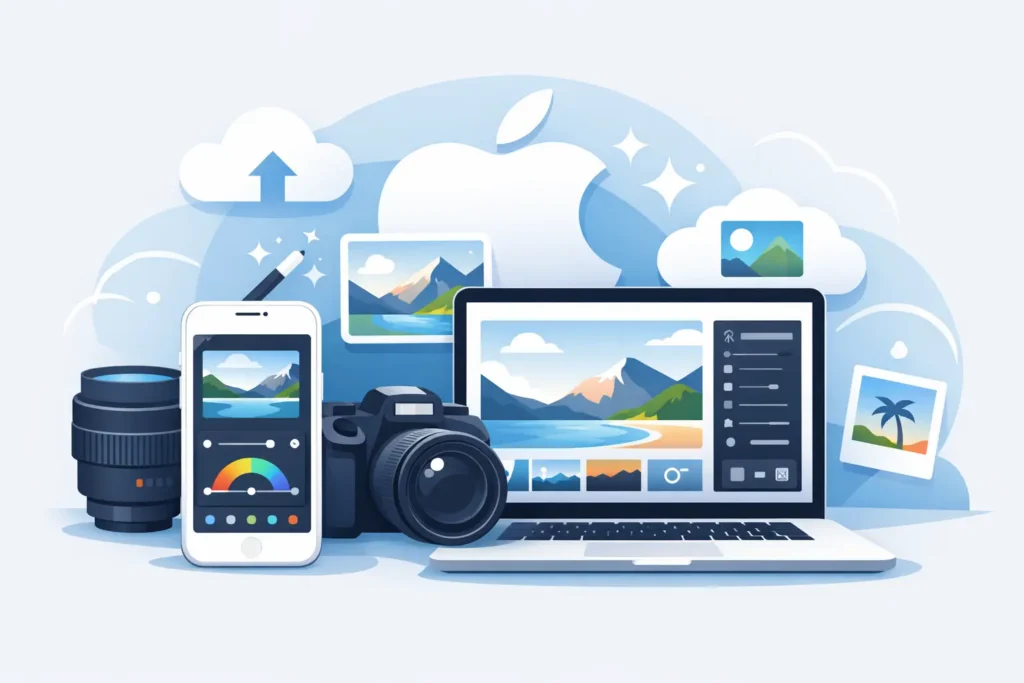
A full RAW library can turn an iPhone, iPad, or Mac into a storage-management project. The right one time purchase photo app should reduce that pressure without forcing you into another subscription, another cloud upload, or another loose-file workflow. For Apple photographers, the better question is not simply which app costs less. It is whether the app protects the photo library you have already organized.
RAW files earn their size. They preserve the latitude needed for serious edits, especially from mirrorless cameras, DSLRs, and iPhone ProRAW. But once an image is finished, keeping every original RAW file in your everyday Photos library can be expensive in storage and inconvenient to manage. A high-quality HEIC version is often the more practical file for viewing, sharing, and keeping close at hand.
What a one time purchase photo app should do
A buy-once photo app is not automatically a better value. A cheap app that creates duplicates, strips metadata, or makes you rebuild albums can cost more in time than a subscription ever would. For photographers who use Apple Photos as their main library, the purchase has to protect the workflow, not just convert a file.
The most useful option works inside the system you already use. It should let you select RAW photos from Photos, convert them to efficient HEIC files, and keep the context attached to those images. That includes albums, favorites, captions, dates, locations, and the edits that make the image yours.
This is where file-based converters often create friction. They export a RAW file, save a converted copy somewhere else, and leave you to import, rename, sort, and verify the result. You may end up with photos in multiple places, uncertain duplicates, and a cleanup task that feels riskier than the storage savings are worth.
A Photos-native approach avoids that detour. The conversion happens as part of your existing Apple Photos workflow, rather than beside it.
Why HEIC is the practical post-edit format
HEIC is not a replacement for RAW during active editing. RAW remains the right choice when you need maximum flexibility with exposure, white balance, shadows, or color. The decision changes after editing is complete or when you are reviewing a large archive of photos that no longer need their full RAW data every day.
HEIC can deliver a major reduction in file size while retaining excellent visual quality. Depending on the camera, scene, and source format, a converted image may be up to 10× smaller than its RAW original. That can mean more room on an iPhone before a trip, fewer storage warnings on an iPad, and less pressure to upgrade a Mac or pay for more cloud storage.
For many photographers, the sensible setup is mixed. Keep RAW files for current projects, portfolio work, irreplaceable images, and photos you expect to revisit heavily. Convert completed shoots, casual keepers, travel selects, and images you primarily want to enjoy and share. There is no need to treat every photo the same way.
HDR support matters here, too. Modern Apple displays and newer camera workflows can capture detail and brightness that standard output formats may flatten. A converter designed for Apple Photos should preserve HDR when the source supports it, so reducing storage does not mean dulling the result.
The difference between conversion and library management
Converting a photo is easy. Managing the consequences is the hard part.
If an app produces a HEIC file but disconnects it from your library organization, it has solved only half the problem. Your Favorites album may no longer reflect your best images. Captions written for search and context may disappear. Location data can be lost, and any non-destructive adjustments you made in Photos may not carry forward as expected.
A better workflow treats the converted HEIC as a proper replacement candidate within Photos. You can confirm the output looks right, ensure key information is preserved, and only then remove the source RAW if that is your goal. The process should feel controlled, not irreversible.
Safety is more valuable than a fast delete button
Deleting a RAW original is the moment that makes most photographers hesitate, and that hesitation is justified. A photo utility should never assume that a successful conversion means the resulting image is safe to keep as the only copy.
Look for verification before deletion. The app should confirm that the HEIC has been created correctly and added to your Photos library before offering any source-file removal. Ideally, the decision remains yours. Some users will keep both versions for key shots; others will remove the RAW after checking the HEIC to reclaim storage immediately.
This is also why on-device processing matters. Your photos do not need to be uploaded to a third-party server for conversion. A privacy-first utility processes the image locally on your Apple device, leaving your photo library under your control. No loose cloud folders, no account required just to convert your own photos, and no analytics-driven reason for an app to inspect your library behavior.
“Data Not Collected” is more than a label for a photography tool. It is a practical promise: your images, locations, captions, and editing history stay where they belong.
The one-time purchase versus subscription question
Subscriptions make sense for services with ongoing hosting costs, shared cloud storage, or a constant stream of new content. They are less compelling for a focused utility that solves a defined task on your own device.
That does not mean every lifetime purchase is equal. Camera formats change, Apple updates Photos, and new devices introduce new image capabilities. Before paying once, check whether the developer includes compatibility updates and supports the formats you actually shoot. Canon, Sony, Nikon, Fujifilm, Olympus, Panasonic, and iPhone ProRAW users all have different source files, but they need the same confidence that the output will fit naturally into Apple Photos.
RawToHEIC offers a clear version of this model: a universal app for iPhone, iPad, and Mac with a $19.99 lifetime option for unlimited conversions. It is free to try with a daily conversion allowance, so you can test your own RAW files, edits, and library behavior before deciding. The lifetime purchase includes ongoing compatibility and RAW format updates, rather than turning basic conversion into a permanently recurring charge.
The yearly plan can still be useful for someone who prefers a lower initial cost or only expects to convert a limited archive over a short period. But photographers who know they will keep shooting RAW may prefer the certainty of buying once and keeping the tool available across their Apple devices.
Questions to ask before you buy
The best one time purchase photo app for you depends on where your photos live and what you need to preserve. Before choosing, check a few practical details.
First, verify that it supports your camera’s RAW files and iPhone ProRAW if you use it. Next, confirm that it works on the Apple devices where you manage your library, not only on one platform. Finally, look beyond image quality: ask whether it preserves metadata, works with your Photos organization, supports HDR, and verifies converted files before any originals are removed.
Those details separate a storage-saving tool from a workflow disruption. If an app requires exporting to Files, uploading to a server, or manually importing the result, it may be capable but not convenient. If it stays inside Photos, keeps the context around your images, and lets you control deletion after verification, it respects the way Apple photographers actually work.
Your RAW photos deserve the space they need while you edit. Once the work is done, your library deserves to be lighter, easier to carry, and just as organized as before.
Shrink your RAW library, right inside Photos.
RawToHEIC converts camera RAW and iPhone ProRAW to HEIC up to 10× smaller — keeping every edit, album, favorite, and location. On-device, no account, one purchase for iPhone, iPad, and Mac.

Not sure yet? Convert a few sample photos free — no install, nothing uploaded.
Try it free — no install →