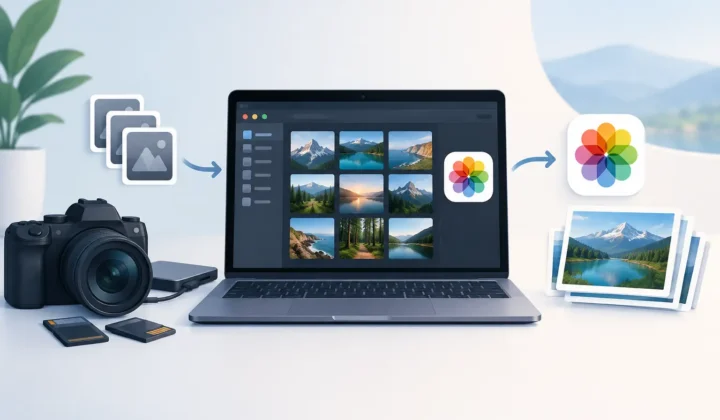
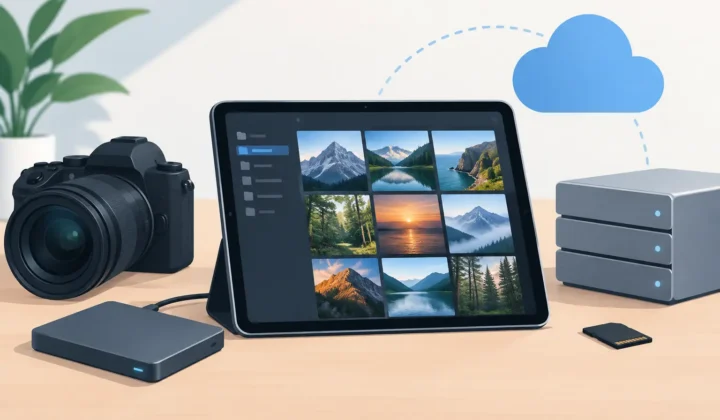
Before After RAW Storage Savings: Real Math
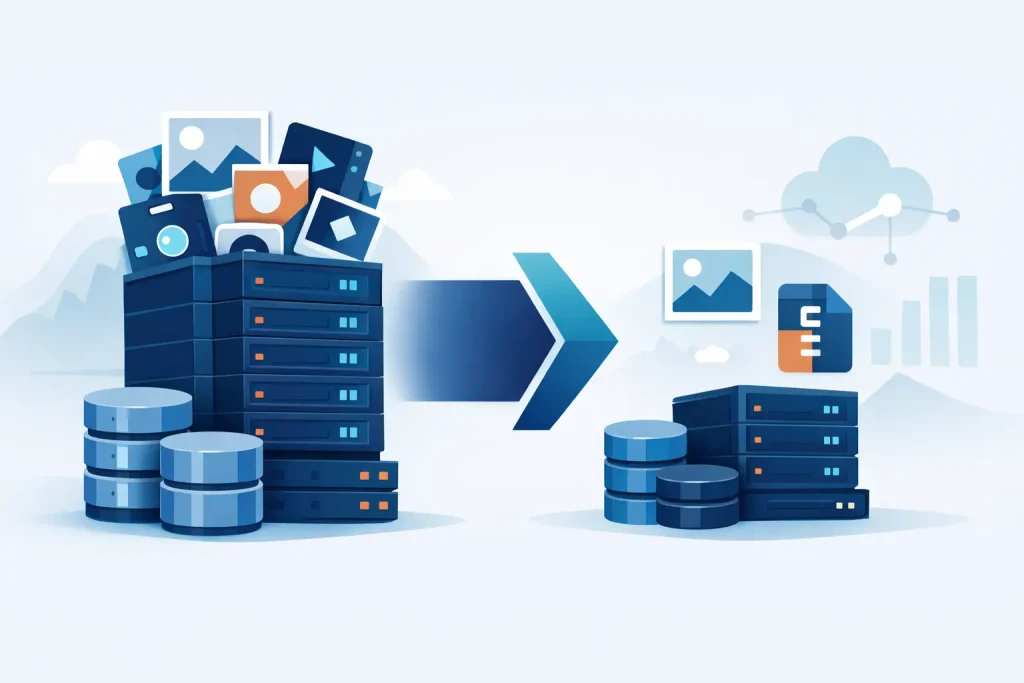
A 48 MB RAW photo does not feel expensive when you take it. Multiply that file by a weekend trip, a growing ProRAW roll, or years of family photos, and the cost becomes obvious: full libraries, slower backups, and pressure to buy more storage. Before after RAW storage savings are not a minor cleanup metric. They can change how comfortably your iPhone, iPad, Mac, and cloud photo library operate.
The goal is not to treat RAW as disposable. RAW is the right capture format when you need editing latitude. The smarter question is what to keep after the edit is finished.
Why RAW files consume so much space
RAW files retain far more image data than JPEG or HEIC. That is precisely why photographers use them. A RAW capture gives editing tools more room to recover highlights, adjust white balance, tune color, and shape exposure without committing those decisions at capture time.
The storage trade-off is substantial. An iPhone ProRAW image can often occupy roughly 25 to 75 MB, depending on resolution and scene detail. RAW files from mirrorless and DSLR cameras may range from 20 MB to well over 100 MB each. A few bursts, a long vacation, or a high-volume event can add tens of gigabytes quickly.
HEIC is built for a different stage of the workflow. It is an efficient, high-quality format for sharing, viewing, and keeping finished images accessible in Photos. For many completed edits, it delivers an excellent visual result in a file that is dramatically smaller than the RAW original.
That difference is where meaningful savings begin.
Before after RAW storage savings in real numbers
File sizes vary by camera, resolution, image content, and export settings, so no single ratio applies to every photo. Still, the following examples show why converting completed RAW images is often worth considering.
| Library scenario | Before: RAW storage | After: HEIC storage | Estimated space recovered | | — | —: | —: | —: | | 1,000 iPhone ProRAW photos at 40 MB each | 40 GB | 4 GB at 4 MB each | 36 GB | | 2,500 mirrorless RAW photos at 30 MB each | 75 GB | 10 GB at 4 MB each | 65 GB | | 5,000 RAW photos at 50 MB each | 250 GB | 25 GB at 5 MB each | 225 GB |
These examples represent approximately 8x to 10x smaller files. Your own result may be lower or higher. Night scenes, fine detail, noise, HDR content, and higher-resolution images can produce larger HEIC files. Even a 5x reduction is meaningful when your library is measured in hundreds of gigabytes.
The practical benefit is not only free space. Smaller libraries generally mean less backup pressure, faster device migrations, fewer storage warnings, and more room for the photos and videos you will take next.
The key decision: archive RAW or keep the finished photo?
You do not need to convert every RAW file. RAW originals remain valuable for images you may revisit, re-edit, print large, license, or use in a client project. Keep them when their future flexibility matters.
But many RAW photos have a shorter useful life as editable masters. Think of casual travel shots, family photos, social posts, duplicate variations, or images you have already edited exactly the way you want. Once the creative work is complete, retaining a high-quality HEIC version can be the more practical choice.
A useful approach is to separate your library into three groups: photos worth preserving as RAW masters, photos worth keeping as finished HEIC images, and photos that can be deleted outright. This protects the images that deserve long-term editing freedom without making every ordinary memory carry a RAW-sized storage bill.
The workflow problem with ordinary conversion tools
Traditional conversion utilities often create a loose-file workflow. You export a RAW file, convert it somewhere else, save the result, import it back into Photos, check the metadata, locate the original, and then decide whether it is safe to delete.
That process creates risk and clutter. Imported copies may lose their place in albums. Captions, favorites, locations, and other library context can become harder to verify. If you use Photos as your primary library, a folder full of exported files is not a photo-management system.
The best conversion workflow should operate where your library already lives. It should create the smaller image in Photos, preserve the context you care about, and make the original-removal decision only after you can confirm that the new file is present and correct.
Keep Photos organization intact
Photos is more than a gallery. For many Apple users, it is the record of where images belong and why they matter. Albums group a trip or project. Favorites identify keepers. Captions add context. Locations make years of images searchable. Non-destructive edits represent time spent getting a photo right.
A storage-saving workflow should respect that structure rather than asking you to rebuild it. With RawToHEIC, conversion happens directly in the native Photos experience on iPhone, iPad, and Mac. The app is designed to preserve your photo-library context, including albums, favorites, captions, locations, metadata, and edits, while creating a compact HEIC replacement.
That matters because a smaller photo is only useful if it remains easy to find. Saving 100 GB is less helpful if the result leaves you with a disorganized library and uncertainty about which version is the keeper.
What to verify before deleting a RAW original
Storage recovery should be deliberate. Before removing originals, inspect a representative set of converted photos at full size. Check faces, detailed textures, smooth gradients, dark areas, and bright skies. Those areas reveal compression artifacts first.
Also confirm that the converted image is in the expected place in Photos. Verify its date, location, caption, favorite status, album membership, and edited appearance. If HDR is part of your library, confirm that the result retains the look you expect on your Apple display.
A well-designed tool can reduce the chance of an error with verified deletion safeguards, but the policy remains yours. Some photographers delete RAW originals after verification. Others keep them temporarily until a backup cycle completes. For irreplaceable images, you may choose to retain both formats indefinitely.
Privacy matters when processing personal photos
Photo conversion can involve deeply personal material: family moments, travel locations, work images, and years of metadata. Sending a full camera roll to a remote service just to reduce file sizes is not necessary for many Apple users.
On-device processing keeps the work on your own hardware. It also avoids the waiting, upload bandwidth, and account concerns that come with cloud-based conversion. RawToHEIC is built around this privacy-first model, with data not collected and no loose-file export step required.
For large libraries, local conversion has another advantage: you can work through selected albums at your own pace. Start with a completed trip, a year of older ProRAW shots, or an album of images already edited and shared. The recovered space becomes visible quickly without forcing an all-or-nothing library decision.
A practical storage-saving plan
Begin with photos that have low re-editing value and high storage cost. A completed vacation album is often ideal. Review the images, mark the few frames you would want as original RAW masters, and convert the finished keepers to HEIC.
After conversion, compare file sizes in the library and inspect the results. Once you are satisfied, use verified deletion for the RAW originals you no longer need. Then repeat the process for another album rather than attempting thousands of photos in one session.
This method is intentionally conservative. It gives you proof of the visual quality and savings in your own camera roll before you make broader changes. It also leaves room for different rules for personal memories, paid work, and images intended for serious printing.
A RAW library should support your photography, not make every device feel full. Keep the masters that protect future creative options. Let finished photos become efficient, easy-to-find HEIC images. The space you recover is useful, but the real gain is a Photos library that stays organized, private, and ready for the next shot.
Shrink your RAW library, right inside Photos.
RawToHEIC converts camera RAW and iPhone ProRAW to HEIC up to 10× smaller — keeping every edit, album, favorite, and location. On-device, no account, one purchase for iPhone, iPad, and Mac.

Not sure yet? Convert a few sample photos free — no install, nothing uploaded.
Try it free — no install →