iPad Photography Storage Guide for RAW Libraries
A full iPad is rarely caused by one bad photo session. It is usually the result of hundreds of finished RAW images still taking up space long after the edit is done. This iPad photography storage guide focuses on the practical decision: what should stay as RAW, what can become HEIC, and how to reduce storage without breaking the Photos library you already trust.
For photographers who use Photos as their main library, storage is not just about file size. Albums, favorites, captions, locations, adjustments, and searchability matter too. Any solution that saves gigabytes but turns your library into a pile of disconnected files is not a clean solution.
Start with the storage numbers that matter
Open Settings, choose General, then iPad Storage. This shows how much local storage Photos is using, but it does not tell you which images are worth keeping at full RAW size. For that, look at your shooting habits.
Apple ProRAW files can easily be tens of megabytes each. RAW files from a mirrorless or DSLR camera may be similar or much larger, depending on the sensor and format. A few hundred images from a trip, wedding, wildlife outing, or client-adjacent project can consume more space than several apps combined.
The key question is not, “Do I need RAW?” It is, “Do I need every finished image to remain RAW forever?” RAW is valuable when you expect to revisit exposure, white balance, highlight recovery, or other source-level editing choices. It is less valuable when the image is final, shared, printed, or simply kept as a finished memory.
That distinction gives you a storage plan that does not compromise the images that still need flexibility.
Use a three-tier photo library
The most reliable iPad storage strategy separates photos by purpose rather than treating every image the same.
Your first tier is active work. Keep new shoots, selects, and images still being edited in RAW. This is where RAW earns its storage cost. You retain maximum editing latitude while decisions are still open.
Your second tier is finished photography. These are images you have already edited and are unlikely to rework from the sensor data. Converting finished RAW images to HEIC can reduce their storage footprint dramatically, often by up to 10x, while keeping excellent image quality for viewing, sharing, and everyday use.
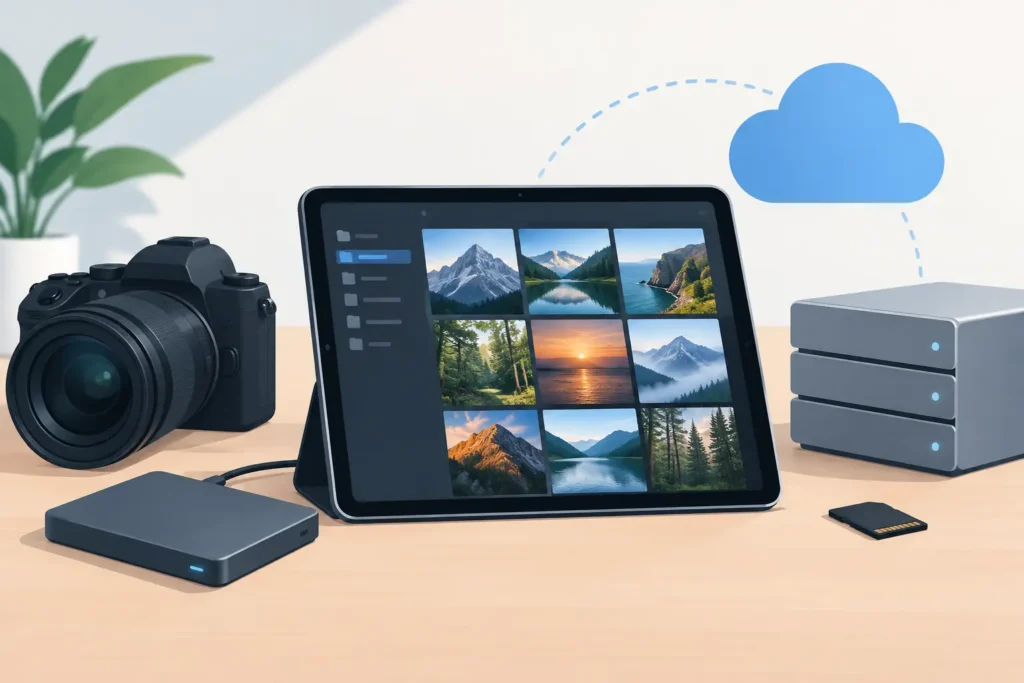
Your third tier is long-term source backup. If a photo has professional, personal, or historical value, keep its original RAW file somewhere separate before removing it from the everyday Photos library. That may be external storage, a desktop archive, or a cloud backup system you control. The point is not to keep every RAW file on the iPad just because it might matter someday.
This approach is more realistic than either extreme: deleting originals recklessly or paying for more storage every time the library grows.
Why HEIC makes sense for finished images
HEIC is not a lesser version of photography. It is a modern, efficient image format designed for Apple platforms. For completed photos, it can preserve high visual quality at a fraction of RAW file size.
The trade-off is straightforward. HEIC does not preserve the same sensor-level editing headroom as RAW. If you later need to pull detail from blown highlights or make a major white-balance correction, the original RAW gives you more room. That is why conversion works best after editing, not before.
For an image that is already finished, however, keeping a 40 MB or 80 MB source file on your iPad may offer little day-to-day benefit. A much smaller HEIC is faster to sync, easier to keep on-device, and more practical in a growing library.
HDR is another consideration. If you shoot HDR content, use a conversion workflow that preserves HDR rather than flattening the image into a standard file. Storage savings should not come at the expense of the look you worked to create.
The iPad photography storage guide for Photos users
The difficult part of photo conversion is usually not converting pixels. It is preserving the context around the image.
A file-based workflow often means exporting a RAW image, converting it in another app, importing the new file, then finding and deleting the original. During that process, it is easy to lose the connection to albums, favorites, captions, locations, and edits. You can also create duplicates, forget which original was safe to delete, or leave converted files scattered across Files and Photos.
For a Photos-based library, choose a workflow that works inside Photos rather than around it. The ideal process converts selected images in place, creates the smaller HEIC version in your library, and preserves the organization you already built.
RawToHEIC is designed for this specific job on iPad, iPhone, and Mac. It converts supported camera RAW files and iPhone ProRAW directly within the native Photos workflow. There is no loose-file export and re-import routine. The app processes images on-device, collects no analytics, and uses verified deletion safeguards so you can confirm the replacement is present before removing the original.
That matters when a library has years of careful organization. Storage cleanup should feel like maintenance, not migration.
Convert in small, deliberate batches
Do not start by selecting your entire library. Begin with one finished album or one older event where you know the edits are complete. A batch of 25 to 100 images is enough to confirm the visual result, measure the storage savings, and build confidence in your process.
Before converting, check a few photos at full size. Pay attention to skin tones, fine textures, deep shadows, bright skies, and HDR scenes. HEIC is highly efficient, but your standards should decide what stays RAW. A portfolio image, a planned large print, or a photograph you may re-edit for a client can remain in the source archive.
After conversion, confirm that the new images appear where you expect in Photos. Check albums, favorites, captions, locations, and dates. Once you are satisfied, remove the RAW originals according to your backup plan. Then empty Recently Deleted when you are ready for the iPad to report the reclaimed space.
This last step is easy to miss. Deleted photos can continue using storage until Recently Deleted is cleared or its retention period expires.
iCloud Photos changes the decision, not the need
If you use iCloud Photos with Optimize iPad Storage enabled, the iPad may keep smaller local versions of some images. That can reduce device pressure, but it does not eliminate the size of the library stored in iCloud. Large RAW originals still count toward your cloud storage total.
Optimization is useful when local space is the immediate problem. Conversion is useful when the library itself has become larger than it needs to be. Many photographers need both: optimized device storage for current use and a smaller finished library for lower long-term storage costs.
Also remember that iCloud Photos is syncing, not a complete archival strategy by itself. If an image is deleted from the library, that deletion can sync across devices. Keep independent backups for images you cannot replace.
What not to delete
Keep RAW originals when the source file has a clear future purpose. That includes photographs you may print large, images with difficult lighting, work still under review, once-in-a-lifetime captures, and photos you know you will edit again with newer tools.
You may also want to retain RAW for a small personal best-of collection. Storage efficiency does not require stripping every photograph down to its smallest possible version. It requires being intentional about the difference between an active negative and a finished photograph.
For everything else, a smaller HEIC can be the more useful file. It keeps the finished image close at hand without allowing old source files to quietly consume the capacity needed for new work.
Your iPad should have room for the next shoot, not just the last one. Review a finished album, convert only the images whose edits are truly complete, verify the result in Photos, and let your library stay organized as it gets smaller.
Shrink your RAW library, right inside Photos.
RawToHEIC converts camera RAW and iPhone ProRAW to HEIC up to 10× smaller — keeping every edit, album, favorite, and location. On-device, no account, one purchase for iPhone, iPad, and Mac.

Not sure yet? Convert a few sample photos free — no install, nothing uploaded.
Try it free — no install →