Are HEIC Conversions Private? What to Check
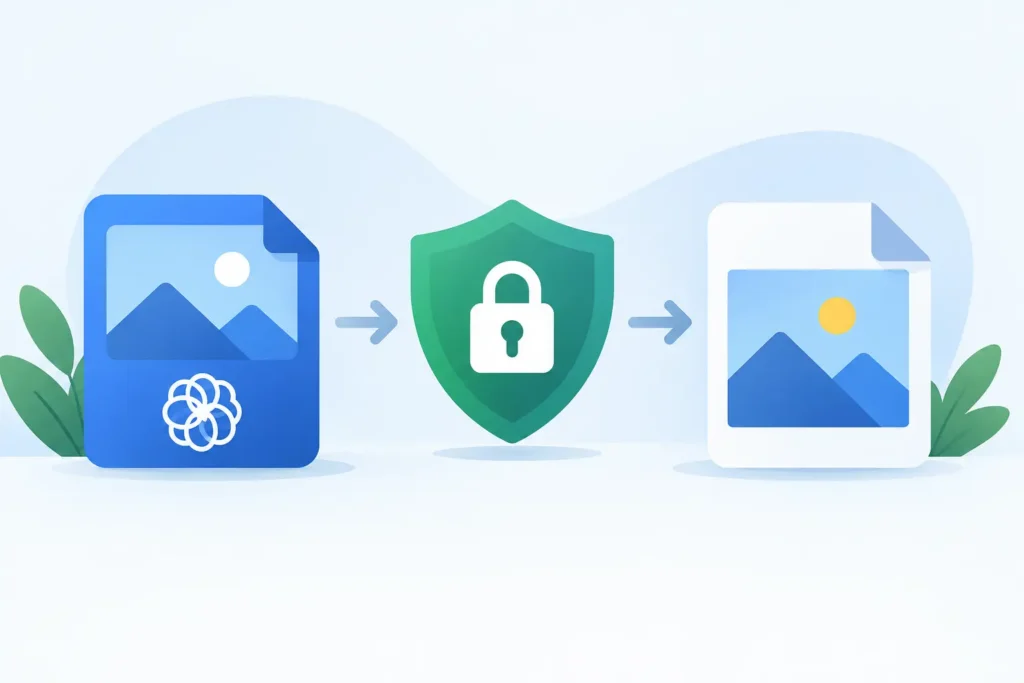
A conversion button can hide a lot of activity. When you turn a large RAW photo into a compact HEIC, the app may process it entirely on your device, upload it to a server, retain a temporary copy, or collect usage data around the task. That is why the right answer to “Are HEIC conversions private?” is: sometimes, but not automatically.
For Apple photographers, privacy is not just about keeping an image out of public view. A photo can contain location coordinates, capture time, camera details, recognizable faces, captions, and the edits you made in Photos. If your library is personal, client-facing, or simply too valuable to hand off casually, the conversion method matters as much as the resulting file size.
Are HEIC Conversions Private by Default?
No. HEIC is a file format, not a privacy promise.
HEIC files use efficient compression and can preserve high-quality images in a fraction of the space used by many RAW originals. But the format itself does not determine where conversion happens or what the converter does with your photos. Privacy depends on the specific app, website, permissions, and policies behind the conversion.
A browser-based converter is the clearest example. You select a RAW, JPEG, PNG, or other supported file, then it is typically uploaded before a converted file is sent back. Some services delete uploads quickly. Others may retain files for a stated period to support downloads, troubleshooting, abuse prevention, or service operations. Even a reputable service creates an additional transfer and storage step outside your Apple devices.
A native app can be more private, but only if it actually converts locally. “Works on iPhone” does not necessarily mean “processes on iPhone.” Check whether the developer explicitly states that conversion occurs on-device and whether the app’s privacy label identifies data collection.
What a Photo Converter Can Access
The privacy question has two parts: what the converter sees during processing, and what it keeps afterward.
When you choose an image from the Files app, an app may only access the files you explicitly select. When you grant Photos access, the scope can be broader. Apple lets you choose limited photo access in many cases, which is useful if you want to test an app with a small set of images first.
The image itself may carry more than pixels. Depending on the source and workflow, that can include EXIF camera settings, the date and time, GPS location, copyright fields, captions, keywords, and orientation data. RAW files may also contain previews and manufacturer-specific information. A converter needs enough access to read the source and write the output, but it does not need to upload that information to a third party if processing stays local.
There is also a difference between preserving metadata and collecting it. A conversion app may preserve the capture date or location in your new HEIC so your Photos library stays organized. That is not the same as sending location data to the developer. The key question is whether the metadata remains in your library or leaves your device.
On-Device HEIC Conversion Is the Private Option
For sensitive photo libraries, on-device conversion is the strongest practical choice. The source image is read locally, the HEIC is created locally, and the finished result is saved locally in Photos or Files. No upload is required for the conversion itself.
This approach also avoids a common quality-of-life problem: the loose-file workflow. With many web and desktop tools, you export an image, convert it elsewhere, download the result, then import it into Photos and manually clean up duplicates. Every extra copy creates another chance to misplace files, lose context, or accidentally leave client work in a downloads folder.
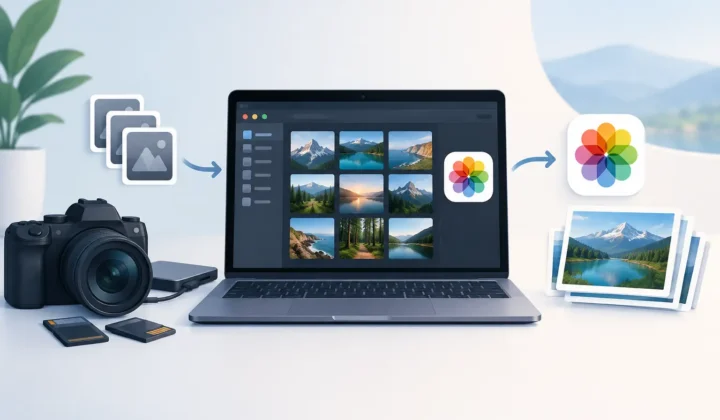
A Photos-native workflow keeps the job where your library already lives. RawToHEIC, for example, converts supported RAW photos directly within Apple Photos on iPhone, iPad, and Mac. The goal is not only smaller files – often up to 10× smaller than RAW – but a conversion process that stays on-device and retains the organization you already built around the photo.
Local processing does have trade-offs. Your device does the work, so large batches can use battery power, generate heat, and take time on older hardware. Cloud-based services can appear convenient for a quick one-off conversion, particularly when you are working from a computer without the right software installed. For an ongoing personal or professional library, though, keeping original images and conversion work on your own devices is usually the better privacy calculation.
Privacy Also Means Protecting Your Photos Context
A private conversion is not very useful if it breaks the details that make a Photos library usable.
After converting a finished RAW image to HEIC, you may want to keep its album placement, favorite status, caption, location, and date. You may also need HDR content to remain HDR. If your library syncs through iCloud Photos, preserving that context prevents an otherwise smaller file from becoming an organizational mess across your Apple devices.
Be precise about what “preserved” means. A converter can preserve photo metadata while still producing a new asset in Photos. Non-destructive edits are another special case. Edits attached to a RAW original are not always transferable as editable instructions to a newly created HEIC, because the formats and rendering pipelines differ. A well-designed workflow should render the intended visual result into the HEIC while leaving the original RAW untouched until you confirm the outcome.
That distinction is especially useful for photographers who have completed their edits and want to reclaim storage. Keep the RAW while the image is still a working file. Convert when you are happy with the result and want an efficient version for your everyday library, sharing, or long-term access.
How to Check a HEIC Converter Before You Use It
You do not need to read a lengthy legal document to make a sensible choice. Start with the product description and look for a direct statement about where conversions happen. “On-device” or “local processing” is meaningful. Vague language about secure uploads is not the same thing.
Then review the app’s privacy information in the App Store. A converter that says “Data Not Collected” gives you a clearer baseline than one that gathers identifiers, usage data, diagnostics, or content-related information. Diagnostics can be legitimate, but privacy-focused users should know the difference between an app improving reliability and an app building a profile of its users.
Also check the permissions requested. An app should request access that matches its job. Be cautious with a simple converter that asks for contacts, microphone access, precise location, or unrelated account permissions. Photos access is expected for a Photos workflow, but limited access is a sensible way to try an unfamiliar app.
Finally, examine deletion behavior. Converting photos is not permission to delete originals without a safeguard. A trustworthy workflow should make the source and output clear, let you verify the new HEIC before removal, and avoid irreversible cleanup steps by default. The best storage savings come from deleting RAW files only after you have confirmed the conversion, not from taking risks with your only copy.
A Private Workflow for Finished RAW Photos
Start by deciding which RAW images are truly finished. For photos you may revisit for deep exposure, color, or white-balance changes, keep the RAW. For completed images that you want available in Photos without the storage burden, convert a small test set first.
Check the output on the device where you use it most. Confirm the image appearance, HDR behavior where applicable, date, location, captions, album membership, and edits you expect to see. Then verify that the new HEIC has synced to your other Apple devices if iCloud Photos is part of your setup.
Only after that check should you remove originals. If the images are irreplaceable, maintain a separate backup before deleting anything. On-device conversion reduces exposure to third parties, but it does not replace a backup strategy.
Your photos do not need to leave your devices just because they need to take up less space. Choose a converter that clearly states where processing occurs, collects no unnecessary data, and respects the Photos library you have already organized. That is how smaller files can stay private without turning photo management into another project.
Shrink your RAW library, right inside Photos.
RawToHEIC converts camera RAW and iPhone ProRAW to HEIC up to 10× smaller — keeping every edit, album, favorite, and location. On-device, no account, one purchase for iPhone, iPad, and Mac.

Not sure yet? Convert a few sample photos free — no install, nothing uploaded.
Try it free — no install →