Better RAW Workflows for Apple Photos Libraries
A 24-megapixel RAW file can be the right choice when you are shooting. It is often the wrong format to keep indefinitely after editing is finished. Better RAW workflows let Apple Photos users retain the images they care about without letting a growing library consume device storage, iCloud storage, and attention.
The goal is not to replace RAW capture. RAW gives you latitude for exposure, color, white balance, and detail recovery. The goal is to decide when that flexibility has done its job, then keep a high-quality, efficient version of the image in the library where you already organize everything.
Why RAW libraries become hard to manage
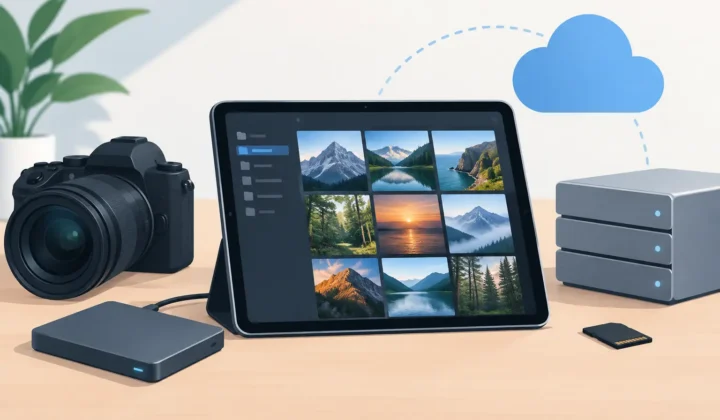
RAW files are designed for editing, not efficient everyday viewing. A single camera RAW file can be many times larger than a finished HEIC image. ProRAW on iPhone brings similar benefits, but it can create storage pressure quickly when you shoot frequently, travel, or keep years of family photos in Photos.
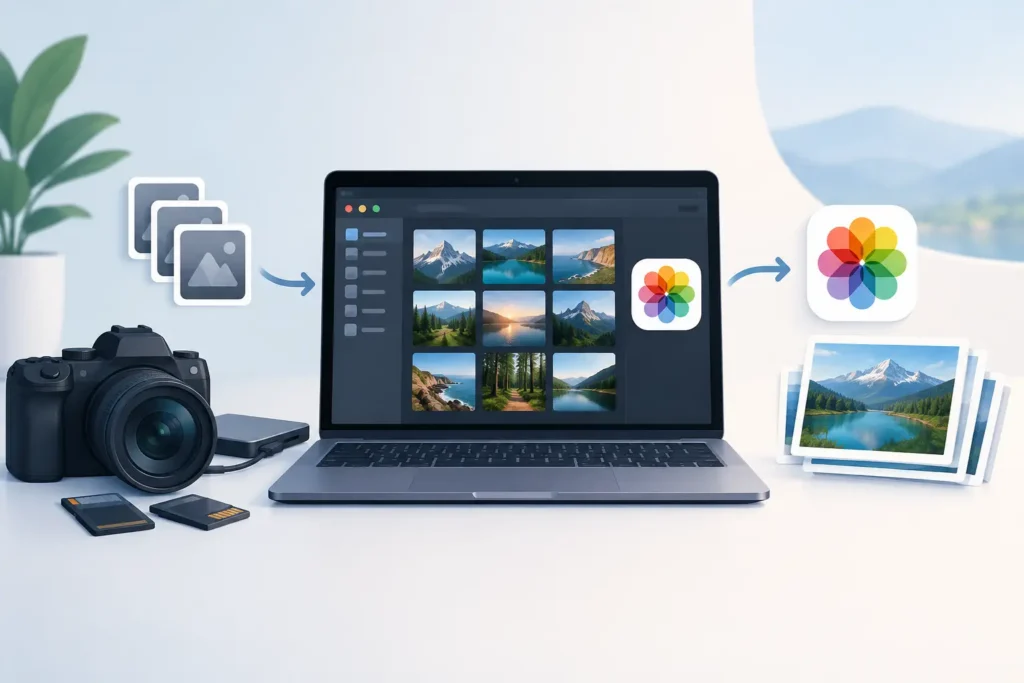
The usual conversion process makes this worse. You export selected images to Files or a desktop folder, convert them in another app, import the results back into Photos, then try to identify and remove the originals. That leaves duplicate images, loose files, inconsistent dates, and uncertainty about whether favorites, albums, captions, locations, and adjustments survived the trip.
For photographers who use Apple Photos as their primary library, a conversion is not just a file-format task. It is a library-management task. A useful workflow must respect that distinction.
The better RAW workflow: edit first, convert with intent
A practical approach has four stages: capture, cull, edit, and optimize. Each stage has a different job.
Start by capturing RAW when the scene benefits from it. High-contrast landscapes, mixed lighting, product work, portraits you expect to refine, and important trips are good candidates. For casual snapshots that need little adjustment, standard HEIC capture is usually more efficient from the start.
Next, cull before you edit. Delete obvious misses, near-duplicates, and test shots while the session is still fresh. There is little value in preserving ten large RAW files when only one frame is worth developing.
Then edit your selects directly in Photos. Crop, adjust tone and color, apply filters if they fit your look, and add the organizational details that make the image easy to find later. Favorites, captions, keywords where applicable, albums, locations, and dates are part of the value of a photo library. They should not become collateral damage in the name of saving space.
Finally, convert completed images to HEIC when you no longer need the original RAW latitude. This is the point where storage optimization makes sense. You keep a polished image that is ready to view, share, search, and enjoy, without carrying the weight of an editing source file forever.
Why HEIC fits finished photos
HEIC is not a compromise format for ordinary photo use. It is a modern, efficient format built into Apple platforms, with excellent visual quality at a substantially smaller file size than RAW. Depending on the camera, scene, and source format, a finished HEIC can be up to 10x smaller than the RAW it replaces.
That difference compounds over time. Saving a few megabytes on one image may not change much. Saving it across hundreds or thousands of completed shots can reduce the pressure to upgrade device storage or pay for more cloud capacity just to hold images that are already finished.
HEIC also belongs naturally in the Apple ecosystem. Photos can display, organize, edit, sync, and share it without a separate viewer or a folder-based archive. HDR content matters here, too. If you captured a photo with extended dynamic range, an efficient workflow should preserve that visual range rather than flattening it during conversion.
There is a trade-off. HEIC is ideal for finished photos and everyday access, but it is not a replacement for every original. Keep RAW files for paid client work, images you may revisit with more advanced editing tools, irreplaceable portfolio pieces, or files where you need maximum future flexibility. The right workflow is selective, not automatic in every case.
Keep the Photos library intact
The biggest workflow failure is treating Photos as a temporary stop before everything moves into loose files. That approach creates friction because the library context is often more valuable than the file alone.
A Photos-native converter should create the HEIC beside the original within your existing library, rather than sending you through export and re-import steps. The finished version can retain the information that gives the photo meaning: its date, location, caption, favorite status, albums, and edits. You do not need to rebuild your organization image by image.
This also makes review simpler. You can compare the original and converted version where you already work, confirm that the result looks right, and decide whether the RAW should remain. No naming conventions, transfer folders, or mystery copies required.
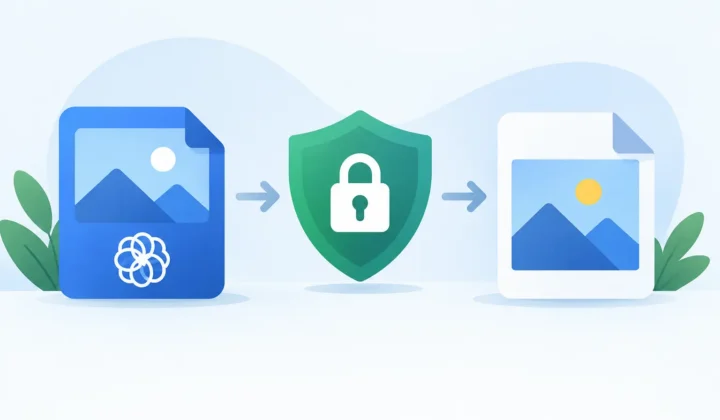
RawToHEIC is built around this specific model for iPhone, iPad, and Mac. It converts supported camera RAW formats and iPhone ProRAW directly inside Photos, with on-device processing and no analytics. The app includes verified deletion safeguards, so removal of the RAW happens only after the converted photo is safely created and checked.
That last detail matters. Storage savings are useful only if the process feels trustworthy. A conversion tool should never ask you to assume that a large original has been handled correctly.
A practical routine for ongoing storage control
You do not need to convert every shoot as soon as you import it. A monthly or post-project review is often more realistic. Create a simple habit: once you have edited and shared a set of images, revisit the RAW files that are now serving no further purpose.
Start with a focused group, such as a completed vacation album or last month’s ProRAW favorites. Review the images at normal viewing size, not at extreme pixel magnification. If the HEIC looks right, retains the intended HDR appearance, and carries the library context you rely on, it is likely ready to become the version you keep.
For images that may need future re-editing, leave the RAW in place. For the rest, convert and remove the original only after the app’s safety checks confirm success. This gives you a repeatable decision framework without turning photo management into a weekend project.
It also helps to separate working images from keepers. RAW is excellent for the working phase. HEIC is excellent for the keeping phase. Treating these as different roles removes much of the anxiety around conversion.
Privacy is part of the workflow
Photo conversion can involve deeply personal material: family images, travel records, home interiors, location data, and years of visual history. Sending a library through a cloud conversion service creates an unnecessary question about where those images go and how long they remain there.
On-device processing keeps the work on your Apple device. Your photos do not need to be uploaded to a third-party server for format conversion, and the process can fit the privacy expectations people already have for their Photos library. For a utility that handles originals and deletion decisions, that is not a minor feature. It is a baseline requirement.
The same principle applies to ownership. If conversion is an occasional maintenance task rather than a daily service, a lifetime purchase can be a better fit than a forced subscription. Try the workflow first, then choose the payment model that makes sense for how you shoot.
Build a library you can actually use
The best photo library is not the one with the most source files. It is the one you can search, browse, share, and back up without hesitation. Keep RAW where it preserves future creative options. Convert finished work where it preserves the photo experience while reducing the storage burden.
That small decision, repeated after each project, keeps RAW workflows practical for the long term: edit with maximum flexibility, keep with maximum efficiency, and leave your Photos library organized exactly where it belongs.
Shrink your RAW library, right inside Photos.
RawToHEIC converts camera RAW and iPhone ProRAW to HEIC up to 10× smaller — keeping every edit, album, favorite, and location. On-device, no account, one purchase for iPhone, iPad, and Mac.

Not sure yet? Convert a few sample photos free — no install, nothing uploaded.
Try it free — no install →