7 Top iPhone Photo Space Savers That Work
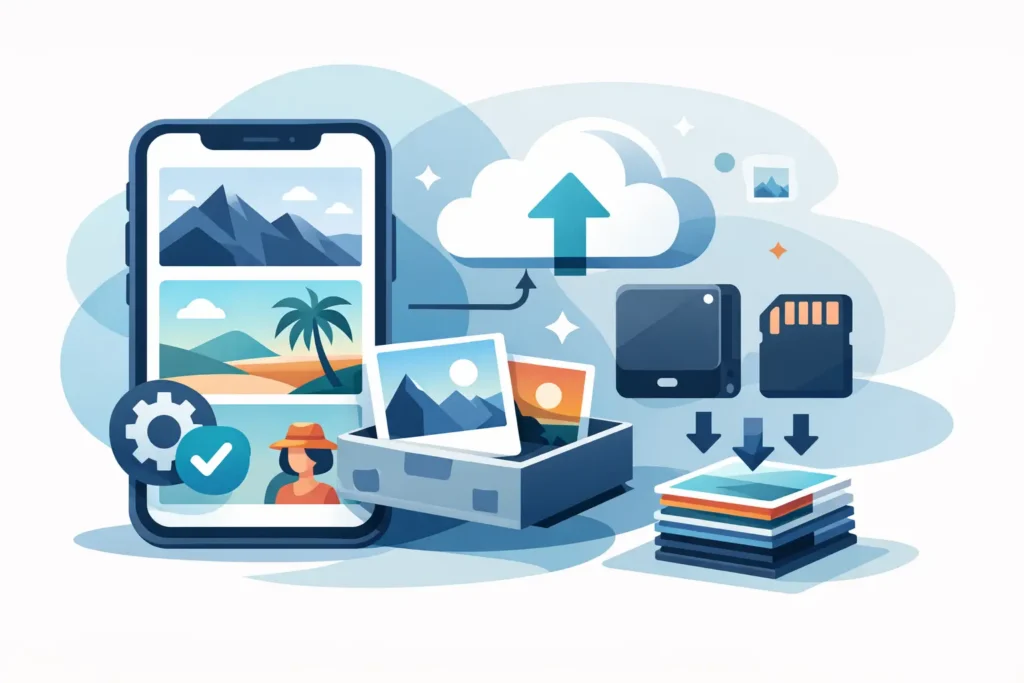
A 48MP ProRAW image can take 60MB to 80MB or more. Shoot a weekend, import a camera card, and an iPhone with plenty of storage can feel full surprisingly fast. The best top iPhone photo space savers do not start with deleting memories. They reduce waste, move only what belongs in the cloud, and shrink finished RAW files without breaking the Photos library you already organized.
For photographers, the distinction matters. A clean library is useful. A smaller library that loses favorites, captions, locations, albums, edits, or HDR is not.
Top iPhone Photo Space Savers, Ranked by Impact
1. Convert finished RAW and ProRAW photos to HEIC
For most serious shooters, this is the highest-impact option. RAW files preserve extensive editing latitude, which is exactly what you want before and during an edit. Once an image is finished, though, keeping that large source file for every keeper can become an expensive storage habit.
HEIC is designed for high-quality, space-efficient photo storage across Apple devices. Converting completed RAW or ProRAW photos to HEIC can make them up to 10x smaller, depending on the original file and image content. The trade-off is straightforward: HEIC is no longer a RAW negative. Do not convert the images you expect to revisit for heavy exposure, white balance, or color recovery work.
The workflow matters as much as the file size. Exporting a RAW image to Files, converting it elsewhere, then importing it back to Photos creates loose copies and invites cleanup mistakes. It can also strip the context that makes a Photos library usable.
RawToHEIC converts supported camera RAW formats and iPhone ProRAW directly inside Apple Photos. Albums, favorites, captions, locations, metadata, and non-destructive edit context stay where you manage them. Processing happens on device, with no analytics and no photo uploads. Before the original is removed, verified safety checks confirm that the converted HEIC is present and usable.
This is the best space saver when your library contains hundreds or thousands of completed RAW images, not just a few accidental duplicates.
2. Turn on Optimize iPhone Storage
If you use iCloud Photos, Optimize iPhone Storage is the fastest way to recover local space without changing the size of your full photo library. Your iPhone keeps smaller, device-friendly versions of photos and videos while originals remain available in iCloud.
This setting is especially practical for a 128GB or 256GB iPhone shared between ProRAW capture, apps, messages, and offline media. You can still browse your entire library, and full-resolution originals download when needed.
There is one important limitation: optimization does not reduce your iCloud storage use. If your issue is a full iCloud account, turning it on will not solve the underlying library size. It helps your phone, not your cloud bill. RAW-to-HEIC conversion reduces the amount of storage the library needs across both places.
3. Use the Duplicates album before manual cleanup
The Duplicates album in Photos is a low-risk place to begin. Apple identifies likely duplicate photos and videos, then lets you merge them. The merge action retains the highest-quality version and combines relevant metadata rather than simply deleting one file at random.
It is a better first pass than scrolling through years of images and making quick decisions. But it is not a substitute for reviewing near-duplicates. A burst sequence, a set of bracketed exposures, or two similar photos with different edits may be intentionally separate files.
Check the Duplicates album periodically, especially after importing from a camera, restoring a device, or receiving images through multiple channels. The savings may be modest compared with converting RAW, but the cleanup is easy and usually worthwhile.
4. Review videos separately from photos
A photo library can look photo-heavy while video is consuming most of the storage. Long 4K clips, Cinematic video, slow motion, screen recordings, and downloaded edits add up quickly. A handful of long recordings can outweigh thousands of HEIC images.
Start in the Media Types section of Photos and review Videos, Screen Recordings, and Slo-mo. Look for abandoned takes, accidental recordings, and clips you already exported or shared. Trim footage when only a short portion matters.
Avoid deleting original videos just because they are large. A family recording, client clip, or travel video may be worth keeping at full quality. The better question is whether each large file has a clear purpose. If it does not, remove it and remember to empty Recently Deleted when you are certain.
5. Stop creating oversized files by default
Storage management gets easier when capture settings match the job. ProRAW and high-resolution capture are valuable tools, not settings that need to be active for every coffee, receipt, or casual snapshot.
Use ProRAW when you expect difficult lighting, detailed editing, large prints, or professional post-processing. For everyday images, standard HEIC capture is dramatically smaller and still delivers excellent quality for sharing, viewing, and most edits in Photos.
The same principle applies to video. High frame rates and 4K resolution are useful when the final project needs them. For routine clips, they may create large files with no visible benefit on the screen where they will actually be watched. Choosing the right format at capture prevents a cleanup task later.
6. Clear message attachments and downloaded media
Photos is not always the only place your visual media lives. Messages can retain years of large attachments, while social apps, browsers, and editing tools may keep downloaded videos and exported copies in their own storage.
Review the largest conversations in Messages and remove attachments you no longer need. In Settings, check iPhone Storage to see which apps are holding documents and data. This is where you may find an editing app with old projects, an offline streaming app with downloads, or a messaging app with duplicated media.
This step does not always reduce the Photos library itself, but it often frees enough device space to keep shooting and editing comfortably. Treat it as a device-storage check, not a replacement for library management.
7. Delete with a retention rule, not a panic swipe
When storage warnings appear, panic deletion is tempting. It is also how good work disappears. A simple retention rule gives you a safer decision process: keep originals while an image is active, preserve select RAW files for portfolio work or future re-edits, and convert or remove files once they are complete and no longer need RAW flexibility.
For camera imports, consider culling obvious misses first: accidental shots, test frames, repeated compositions, and images that are out of focus. Then edit your keepers. After that, convert the finished images that no longer need RAW data.
This approach respects the real lifecycle of a photograph. RAW is a working format. HEIC is often the better long-term format for finished images you want available everywhere in Photos.
What Not to Do When Your iPhone Is Full
Do not rely on screenshots of photos as a storage strategy. They usually create another image, often at lower quality, while the original remains in the library. Do not export images to a random folder and assume they are safely archived, either. A file outside Photos can lose the organization and edit history you depend on.
Also, do not forget Recently Deleted. Deleted photos and videos can continue using storage for up to 30 days. Empty it only after confirming you removed the right items. The same caution applies after a conversion workflow: verify the new HEIC image is present, looks correct, and remains in the right place before removing the source.
A Practical Monthly Photo Storage Routine
Once a month, take ten minutes. Merge confirmed duplicates, review the largest videos, clear unneeded message attachments, and remove obvious rejects from recent shoots. If you shoot RAW, identify the edited images that are now finished and convert the ones you do not need to preserve as editable negatives.
That small routine prevents the familiar cycle of buying more storage, filling it, and then making rushed deletion decisions. Your best images stay accessible, your Photos library stays organized, and your iPhone has room for the next photo worth taking.
Shrink your RAW library, right inside Photos.
RawToHEIC converts camera RAW and iPhone ProRAW to HEIC up to 10× smaller — keeping every edit, album, favorite, and location. On-device, no account, one purchase for iPhone, iPad, and Mac.

Not sure yet? Convert a few sample photos free — no install, nothing uploaded.
Try it free — no install →