HEIF Versus RAW Workflows for Apple Photos
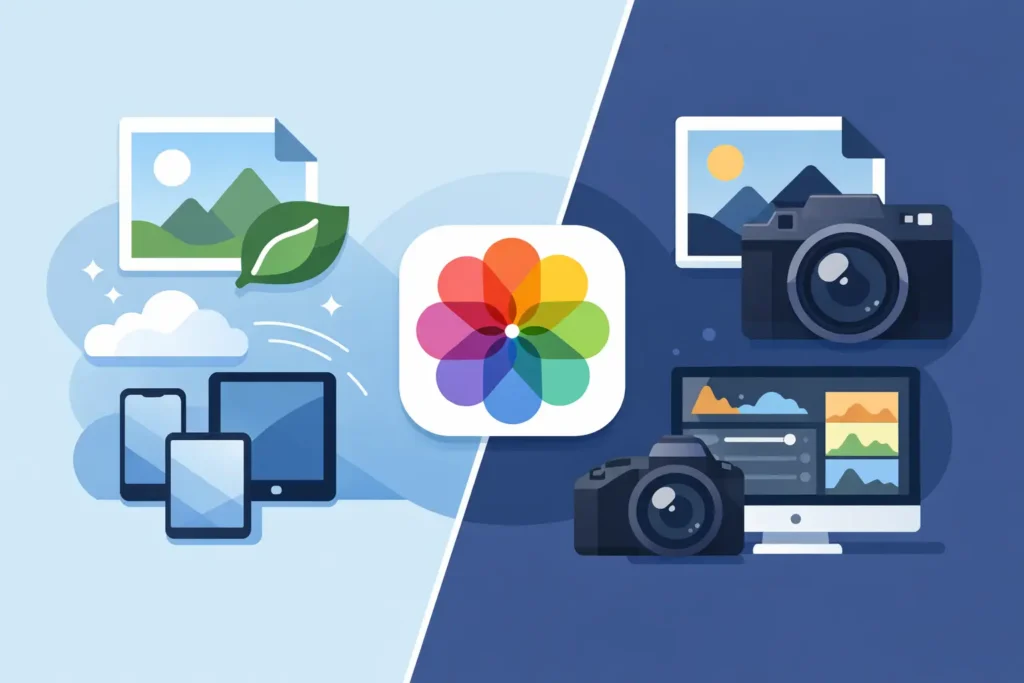
A 24 MP RAW file from a mirrorless camera can easily take 25 MB, 40 MB, or more. Multiply that by a weekend trip, a family archive, or several years of iPhone ProRAW shooting, and your Photos library becomes expensive to keep everywhere. HEIF versus RAW workflows is not really a question of which format is better. It is a decision about where you need editing latitude, where you need efficient storage, and how much disruption you will accept in your Apple Photos library.
For many Apple users, the best answer is not choosing one format forever. It is keeping RAW while an image is actively being edited, then converting the keepers that no longer need RAW flexibility to high-quality HEIC. The critical detail is doing it without turning an organized Photos library into a pile of exported files.
HEIF versus RAW workflows: the practical difference
RAW is camera sensor data with minimal in-camera processing. It gives you the widest room to recover highlights, lift shadows, adjust white balance, and apply a personal color treatment. That flexibility is valuable when the photo matters, the lighting was difficult, or you expect to revisit the edit later with better tools.
HEIF is the modern image format family used by Apple, most commonly as HEIC files. It is designed for efficient, high-quality delivery and storage. A well-rendered HEIC can look excellent in Photos, on Apple displays, and in shared albums while using a fraction of the space of its RAW source. In many everyday viewing situations, the visible difference is none at all.
The trade-off is straightforward. A RAW file retains more original capture information. A HEIC is a rendered image, so it has less room for major recovery work after conversion. If you underexposed a sunset by several stops or need to correct a mixed-lighting portrait for a large print, keep the RAW. If the image is edited, approved, and mainly meant to be enjoyed, shared, or preserved efficiently, HEIC is often the smarter long-term format.
This distinction matters even more with iPhone ProRAW. ProRAW gives iPhone photographers substantial flexibility, but its files can be dramatically larger than standard HEIC captures. That is useful at capture time. It is not always necessary years later for every successful image in the library.
The workflow problem is usually not image quality
Most photographers already understand why RAW exists. The friction begins after the edit is finished.
A conventional conversion process often means exporting a JPEG or HEIC from an editor, saving it to Files, importing it back into Photos, checking dates and locations, then manually finding and deleting the original. Albums, favorites, captions, and carefully built organization can be left behind or need to be recreated. If you have hundreds of images, it is slow enough that storage cleanup never happens.
That loose-file workflow also creates uncertainty. Which version is the final version? Did the imported copy preserve the right capture date? Is the RAW still sitting in the library? Did the edited image make it back into every album where the original appeared?
For Apple-first photographers, a better workflow works inside Photos rather than around it. Your library is not just a folder of pictures. It contains years of edits, search data, people recognition, places, favorites, captions, and album structure. The format decision should respect that context.
Keep RAW during the creative phase
Use RAW when you are still deciding what an image can become. This includes photos waiting for a serious edit, images intended for client delivery or print, difficult high-contrast scenes, and personal favorites you may want to reinterpret later.
There is no prize for converting too early. Storage efficiency should not force you to discard the flexibility that made you shoot RAW in the first place. Think of RAW as your working format and, for selected images, your master archive.
Convert when the photo has reached its final role
Once an image is edited to your satisfaction, ask a simpler question: will I realistically need to make a heavy RAW adjustment again?
If the answer is no, a high-quality HEIC can be a practical final version. It is smaller to store, faster to sync, and easier to keep available across iPhone, iPad, and Mac. For travel shots, family photos, social sharing, and finished personal work, that can mean preserving far more of your library locally instead of paying for more storage or constantly managing device space.
The goal is not to eliminate RAW. It is to stop treating every RAW file as if it requires permanent, premium storage.
What a Photos-native conversion workflow should protect
A conversion tool should do more than produce a smaller file. It should preserve the library experience you already built.
First, the converted image should remain in Photos, where it belongs. Exporting to a separate folder and importing again introduces duplicate management and makes cleanup harder.
Second, your organizational context should stay intact. A practical workflow keeps the details that make Photos useful: albums, favorites, captions, locations, metadata, and the image’s place in your library. Finished edits should remain visible as part of the image history, not become an unrelated file you need to organize from scratch.
Third, deletion needs safeguards. Reclaiming storage only works if you can confidently remove the original after the conversion is verified. A process that asks you to hunt through duplicates is not a storage workflow. It is a new maintenance task.
Finally, processing should happen on your device. Personal photos can include family moments, home interiors, travel patterns, and location data. Sending an archive through an unknown server just to change formats is an unnecessary privacy compromise.
RawToHEIC is built around this exact use case: converting camera RAW files and iPhone ProRAW to HEIC directly inside Apple Photos, with on-device processing, HDR preservation, and checks before original files are removed. There is no loose-file workflow to clean up afterward.
A sensible hybrid setup for Apple Photos
The most efficient library is usually a hybrid one. Keep RAW selectively and use HEIC intentionally.
Start with images that are already complete. Older trip albums, finished event coverage, bursts of similar shots, and personal photos that are edited and approved are often the easiest place to recover space. If a RAW file is large and you have not touched its adjustments in a year, it is a strong conversion candidate.
Keep RAW for your true masters. That may include portfolio work, paid work, favorite landscapes, once-in-a-lifetime events, or photos with challenging exposure that you may revisit. The number is personal, but it is usually far smaller than the total number of RAW files in a long-running library.
Review by album or date rather than trying to solve the whole archive at once. Convert a completed vacation, confirm that the new HEIC images look right on your devices, and check that your organization remains as expected. Then continue. A few focused sessions are more realistic than one giant, stressful library cleanup.
If you use iCloud Photos, smaller finished files also have a practical benefit: less storage pressure follows you across devices. That does not mean you should convert every image simply because you can. It means your iPhone and iPad can hold more of the photos you actually want available.
When HEIC is not the right endpoint
HEIC is efficient, but it is not a replacement for every master file or every delivery format. Some professional clients, print labs, editing pipelines, and archival policies call for RAW, TIFF, JPEG, or another specific format. If an image must move through those systems, follow their requirements.
You may also want to retain RAW when your edit depends on future advances in RAW processing. New camera profiles, improved noise reduction, and better masking tools can sometimes make an older capture worth revisiting. That is most relevant for exceptional images, not necessarily every acceptable frame.
The useful rule is this: keep RAW for possibility. Keep HEIC for finished photography you want to enjoy without carrying unnecessary storage weight.
Your Photos library should not make you choose between quality and order. Preserve the RAW files that still have creative work ahead of them, convert the images that are complete, and let your library stay organized, private, and ready to use wherever you are.
Shrink your RAW library, right inside Photos.
RawToHEIC converts camera RAW and iPhone ProRAW to HEIC up to 10× smaller — keeping every edit, album, favorite, and location. On-device, no account, one purchase for iPhone, iPad, and Mac.

Not sure yet? Convert a few sample photos free — no install, nothing uploaded.
Try it free — no install →