HEIC App Review for Apple Photos Libraries
A RAW library can grow from manageable to expensive faster than most photographers expect. A weekend with a mirrorless camera, a season of iPhone ProRAW, or years of family photos can leave Apple Photos holding hundreds of gigabytes of files you no longer need to edit from the sensor data. This HEIC app review looks at what matters when converting those originals: storage savings, photo-library safety, image quality, and whether the workflow respects the way you already use Photos.
The short version: a useful HEIC converter for Apple users should not turn your photo library into a folder-management project. It should work where your photos already live, preserve the information that makes a library usable, and make deletion of the original a deliberate, verified choice.
HEIC App Review: What Apple Photos Users Need
HEIC is Apple’s modern, high-efficiency photo format. It typically delivers much smaller files than RAW while retaining strong visual quality for viewing, sharing, printing, and everyday editing. That does not make it a replacement for RAW in every situation. RAW still gives you the most latitude for major exposure, white balance, and color corrections.
For many finished photos, though, keeping the original RAW indefinitely is unnecessary. Once an image has been edited to your satisfaction, converted HEIC can be a practical long-term version for your Photos library. The best result is often a hybrid approach: retain RAW files for portfolio work, meaningful once-in-a-lifetime frames, or images you may revisit heavily, and convert completed everyday work where storage matters more than sensor-level flexibility.
A good app should make that decision easy without making you export files, find them in Finder, convert them elsewhere, then import them back into Photos. That familiar workflow is slow, creates duplicates, and can break the organizational context you spent time building.
The real test is library preservation
File size is the headline feature of any HEIC conversion app, but it is not the hard part. The hard part is respecting a live Photos library.
A photo is more than its pixels. In Apple Photos, it may belong to albums, be marked as a favorite, carry a caption, include a location, and sit in a carefully ordered collection. It may also have edits you want to keep visible. If conversion means rebuilding that context manually, the space saved can quickly be offset by the time lost.
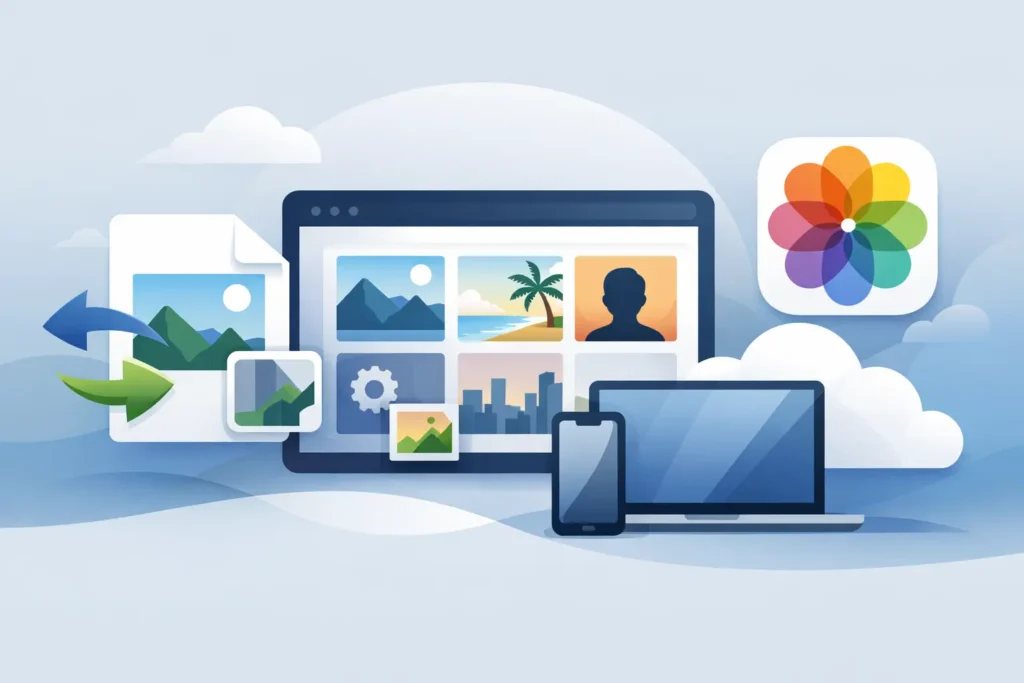
Photos-native conversion is the better design because it keeps the workflow inside the library. The converted image stays part of the environment you use on iPhone, iPad, and Mac instead of becoming a loose file with a vague filename. You can continue finding it through People, Places, albums, search, and the Photos timeline.
This is especially valuable for photographers who use Photos as their main library rather than a separate desktop catalog. You should not need an additional asset-management system just to reclaim storage.
How Much Space Can HEIC Actually Save?
The answer depends on your camera, RAW format, resolution, and subject matter. A 48MP iPhone ProRAW image, for example, can be dramatically larger than a finished HEIC. RAW files from Canon, Sony, Nikon, Fujifilm, Olympus, and Panasonic cameras can also consume substantial space, particularly when you shoot bursts or travel frequently.
In the right cases, a converted HEIC can be up to 10 times smaller than the RAW source. The practical effect is straightforward: a library that is pushing device storage or iCloud capacity may become comfortable again without removing the photos you want to keep.
There is a trade-off. HEIC is a compressed output format, so it is not the right archive choice for every frame. If you expect to make aggressive edits later, create large exhibition prints, or need the original for client delivery requirements, keep the RAW. A well-designed converter should support selective conversion rather than pressure you into an all-or-nothing decision.
The strongest use case is simple: you have already finished editing, the image matters, but the RAW file no longer earns its storage cost.
HDR support should not be an afterthought
HDR is another reason format support matters. Apple displays compatible HDR photos with brighter highlights and more natural tonal range on supported screens. Converting an HDR image to an output that loses that range can make a finished photo look flatter than the original edit.
If HDR is part of your iPhone or camera workflow, verify that the app preserves it. This is not just a technical checkbox. It affects skies, reflections, sunsets, window light, and any scene where subtle highlight detail is central to the image.
Privacy Is Part of the Product
Photo conversion does not require your images to be uploaded to a server. For personal libraries, on-device processing is the clear preference. It keeps your photos on your Apple devices and avoids adding cloud transfer time to a job that may involve hundreds or thousands of images.
Look for a clear privacy position, ideally one that states Data Not Collected. This matters for family photos, location-tagged travel images, client-adjacent work, and any library you simply do not want analyzed for product telemetry.
On-device processing also makes conversion more predictable when you are away from reliable Wi-Fi. Your workflow should not pause because a large RAW batch needs to travel to a remote service and back.
Safety Matters More Than a Fast Convert Button
The biggest hesitation around RAW conversion is reasonable: what happens to the original? Storage recovery is only meaningful if you can remove the RAW after conversion, yet no one wants an app to delete the wrong photo or leave them with an incomplete output.
The safest workflow verifies that a HEIC was created successfully before the original is eligible for deletion. It should make the deletion step explicit rather than hiding it behind an automatic cleanup setting. You should know whether you are keeping both versions or replacing the RAW after confirmation.
This is where Photos-native behavior has another advantage. There is less room for confusion when the source and converted image are handled in the same library. With a loose-file converter, you may be comparing filenames across folders, wondering which import is the final one, or discovering that an old duplicate is still consuming space.
For large libraries, start with a small set of photos. Check the converted images on the devices you use most, confirm metadata and organization are where you expect them, then expand the workflow. That is not because HEIC needs to be complicated. It is because your photo library deserves a process you trust before you apply it at scale.
Compatibility and Device Flexibility
Apple users often move between iPhone, iPad, and Mac. A converter that works on only one device adds unnecessary friction, especially if your camera imports happen on iPad while your larger library lives on a Mac.
A universal app is the practical choice. It lets you convert wherever the images are most convenient, while Photos and iCloud keep the library available across your devices. Support for major camera RAW formats and iPhone ProRAW is equally important. There is little value in a storage workflow that works for one camera but excludes the files you shoot most often.
RawToHEIC is built around this specific use case: converting supported camera RAW files and iPhone ProRAW directly inside Apple Photos. It is free to try with a daily conversion allowance, then offers unlimited conversions through either a $19.99 lifetime purchase or a $9.99 annual plan. Both options work across iPhone, iPad, and Mac. For buyers who prefer ownership over another recurring charge, the lifetime option is a meaningful distinction.
Who Should Convert RAW to HEIC?
HEIC conversion makes the most sense for Apple Photos users who have completed their edit and want a smaller, high-quality version for daily access. That includes travel photos you want searchable on every device, family libraries that have outgrown storage, and personal camera work where retaining every sensor original is not necessary.
It is less suitable for photos still in progress, files intended for intensive future retouching, or images with professional archival obligations. You can also keep a separate backup of selected RAW originals before converting. Storage efficiency and careful preservation are not opposing goals when you choose the right photos for each role.
The best HEIC app does not ask you to change how you organize, edit, or enjoy your images. It gives finished photos a smaller footprint while leaving your library recognizable, private, and under your control. Start with the RAW files that have already done their job, and let the space you recover make room for the photos you have not taken yet.
Shrink your RAW library, right inside Photos.
RawToHEIC converts camera RAW and iPhone ProRAW to HEIC up to 10× smaller — keeping every edit, album, favorite, and location. On-device, no account, one purchase for iPhone, iPad, and Mac.

Not sure yet? Convert a few sample photos free — no install, nothing uploaded.
Try it free — no install →