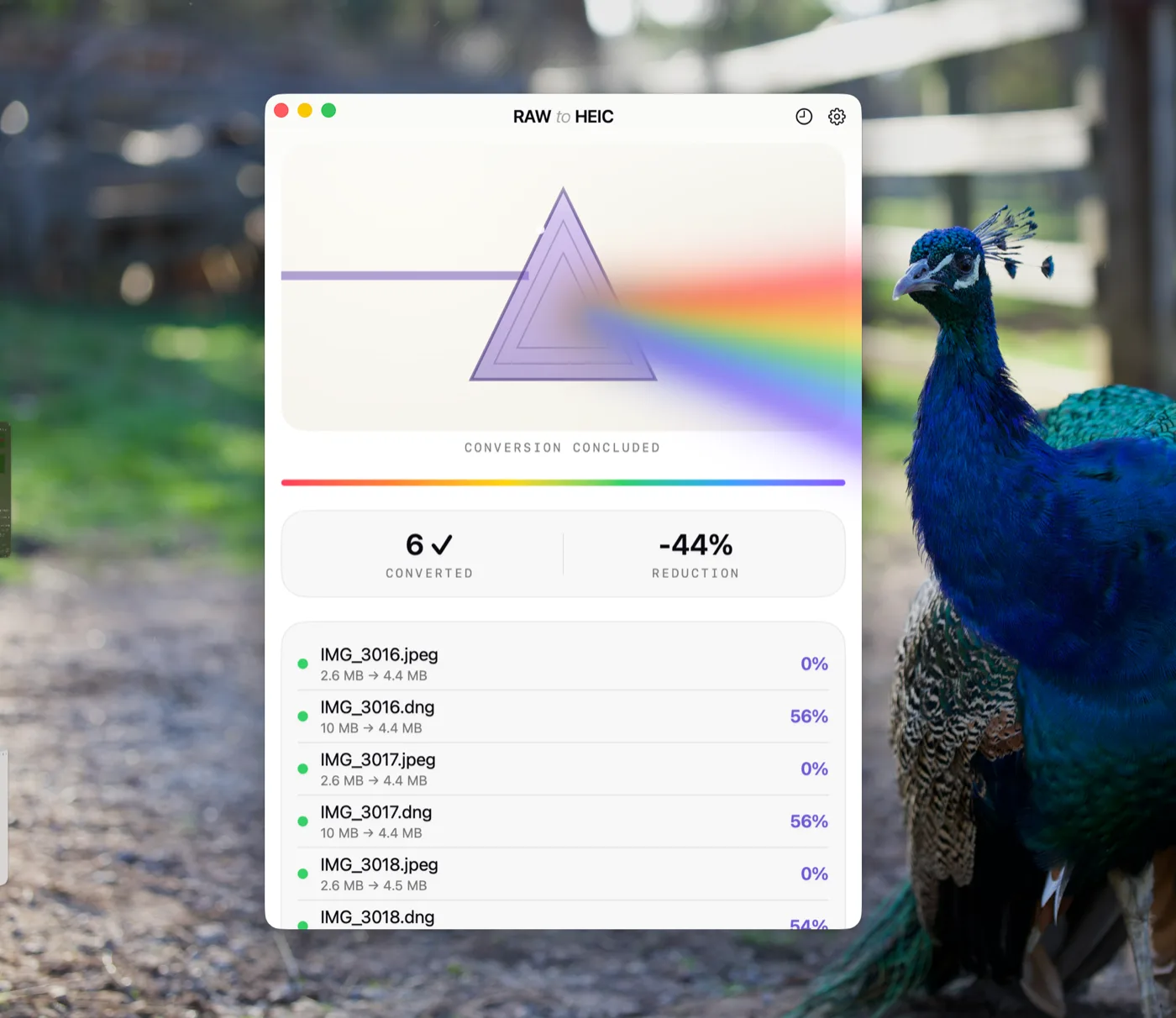
RawToHEIC is an on-device app that converts camera RAW and iPhone ProRAW files to HEIC inside Apple Photos on iPhone, iPad, and Mac — up to 10× smaller, with edits, albums, favorites, and metadata kept intact. Free for 50 conversions a day; unlimited for $19.99 once or $9.99/year.
IPHONE · IPAD · MAC — FREE TO START. UNLIMITED $19.99 ONCE · ★ 4.7 · 19 APP STORE RATINGS
68 GB freed on a typical 2,500-photo library.
52.4 MB CR3 → 5.8 MB HEIC · visually identical
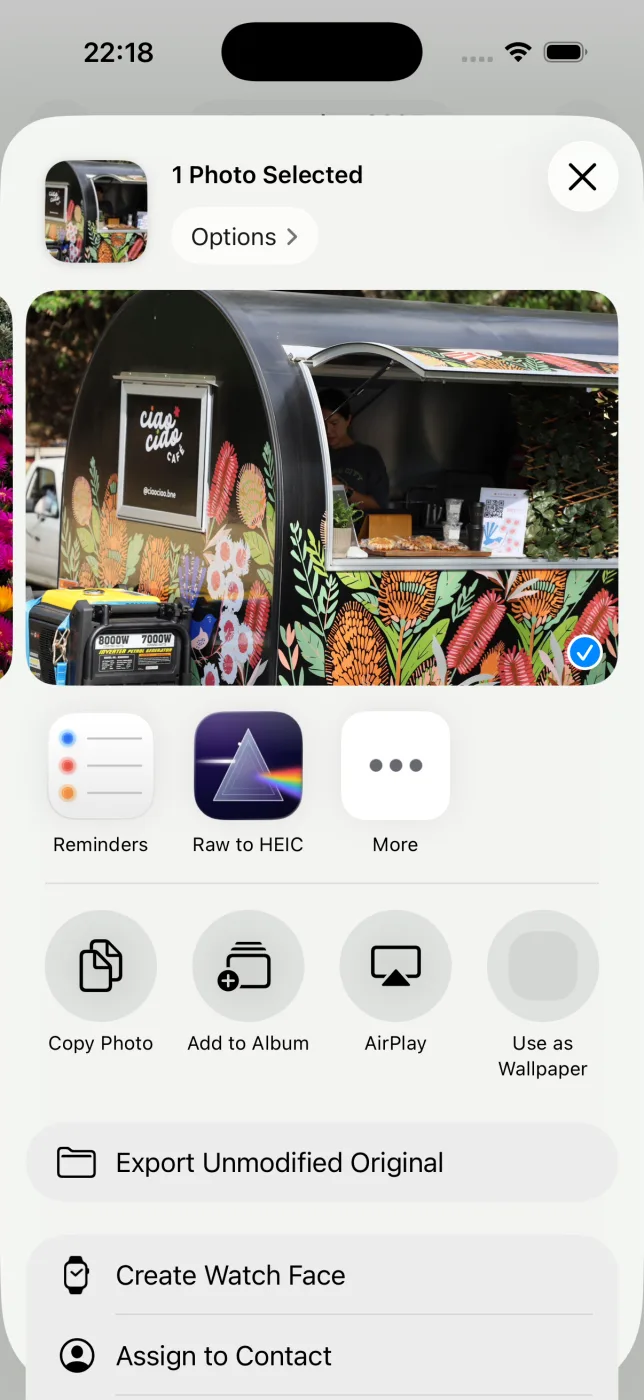
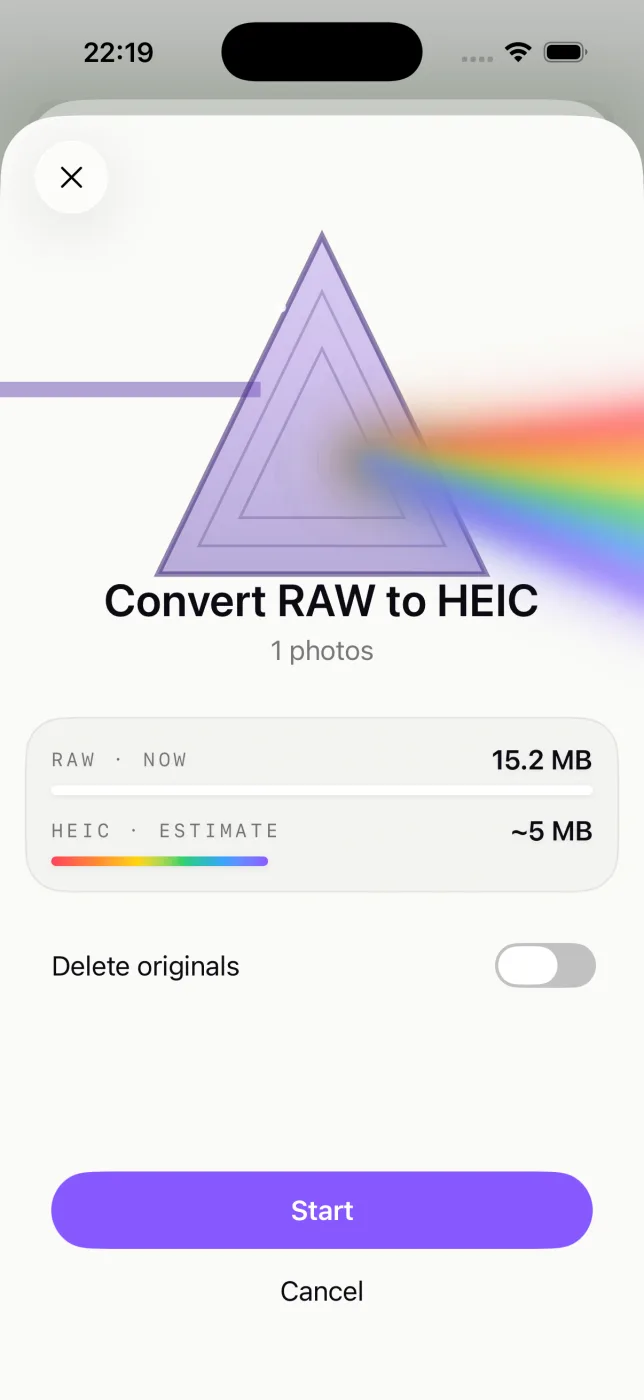
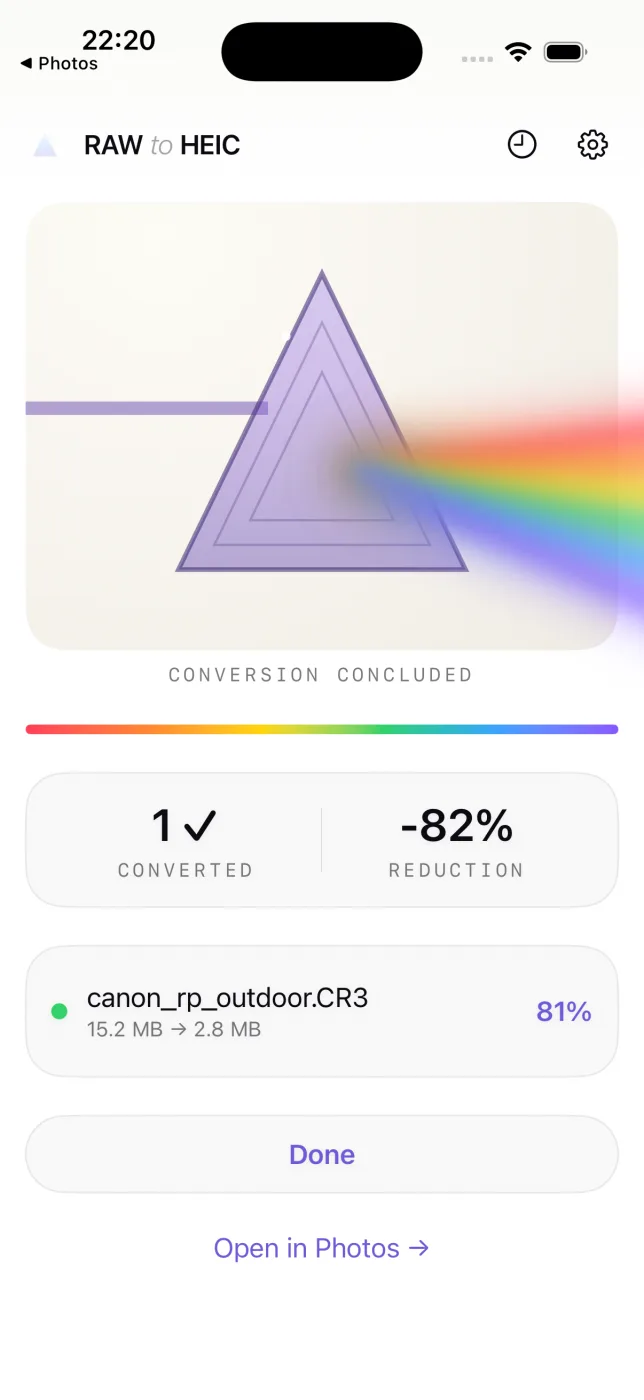
Three steps, inside Photos.
01
Select your RAWs
Pick any photos in Apple Photos and open the Share sheet. RawToHEIC is right there.
02
Confirm the estimate
See how much space you'll get back before anything happens, and decide whether the originals stay or go.
03
Keep using your phone
Conversion runs in the background with a Live Activity. Albums, edits, and favorites stay exactly where they were.
01
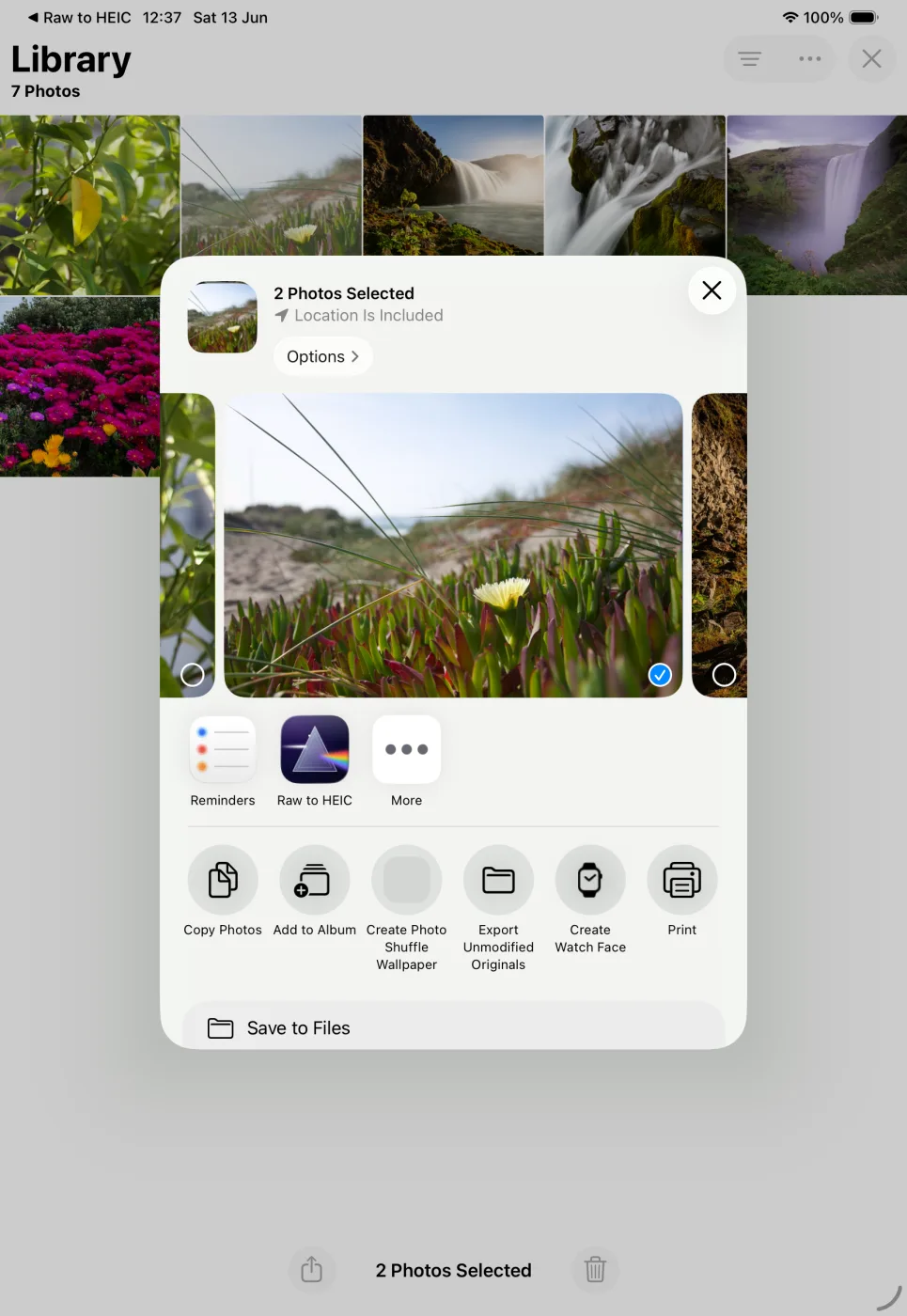
Select your RAWs
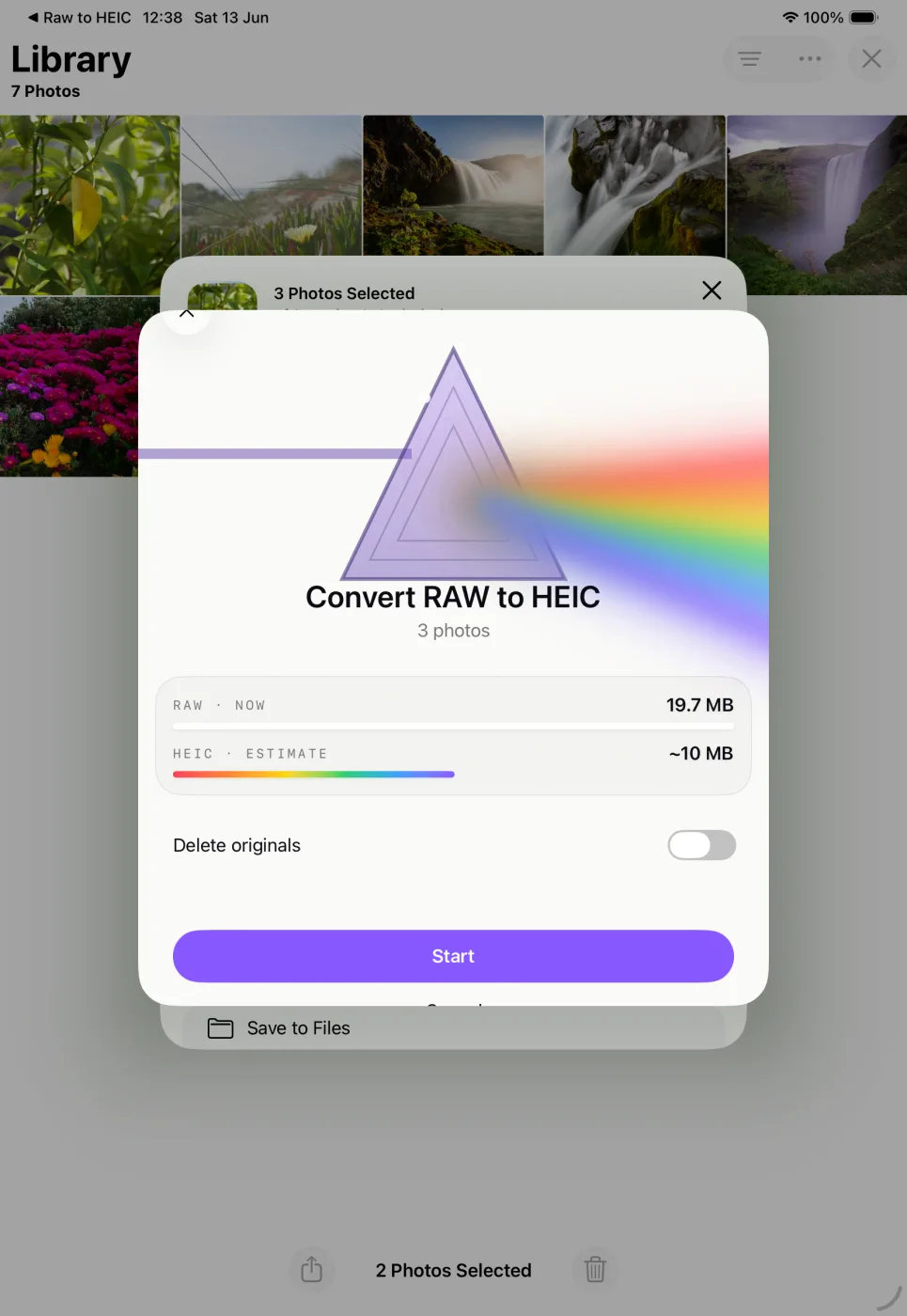
Pick photos in Apple Photos, tap Share, and choose RawToHEIC.
02
Confirm the estimate
See how much space you'll get back before anything happens, and decide whether the originals stay or go.
03
Keep using your iPad
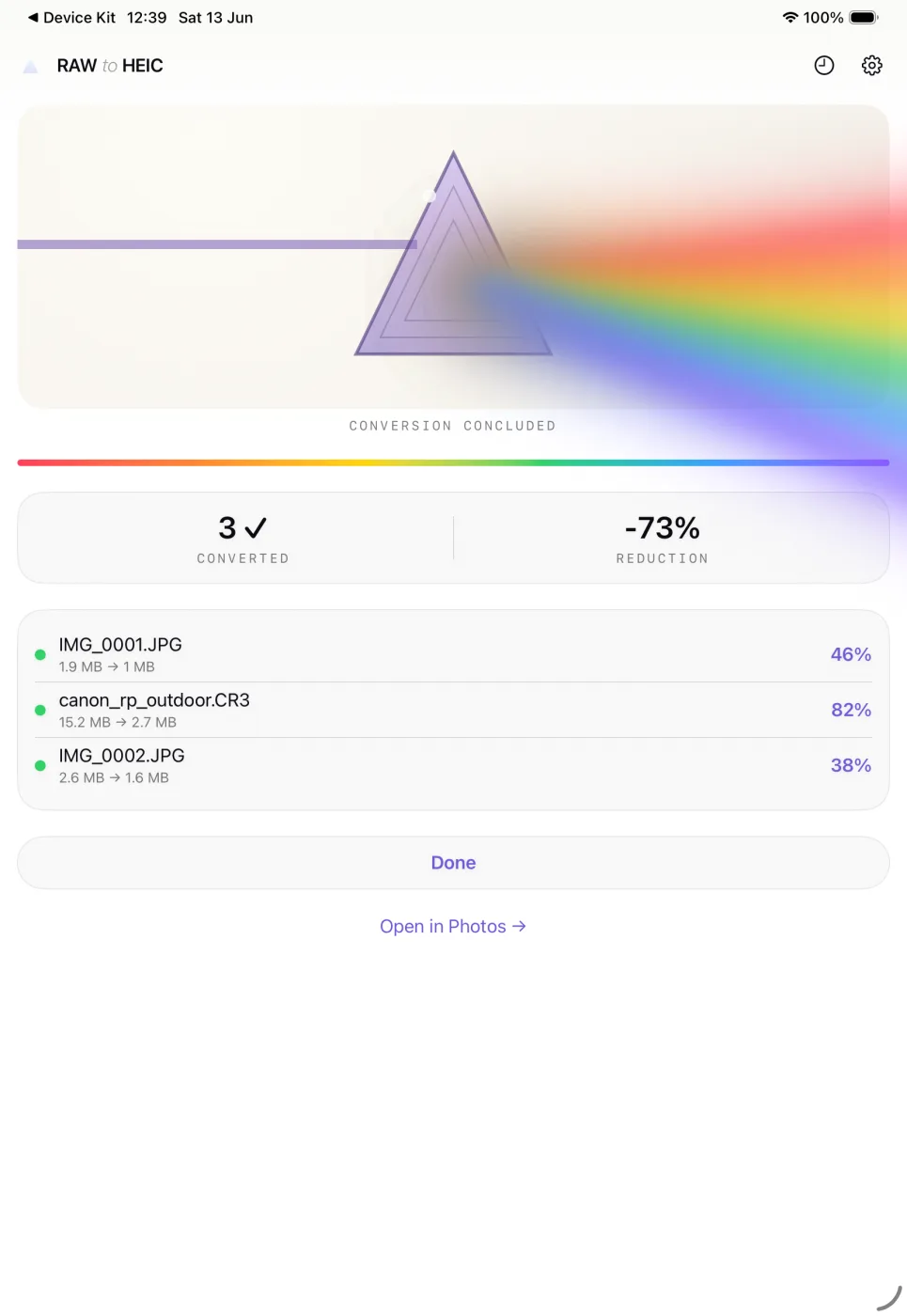
Conversion runs in the background. Albums, edits, and favorites stay exactly where they were.
01
Select your RAWs
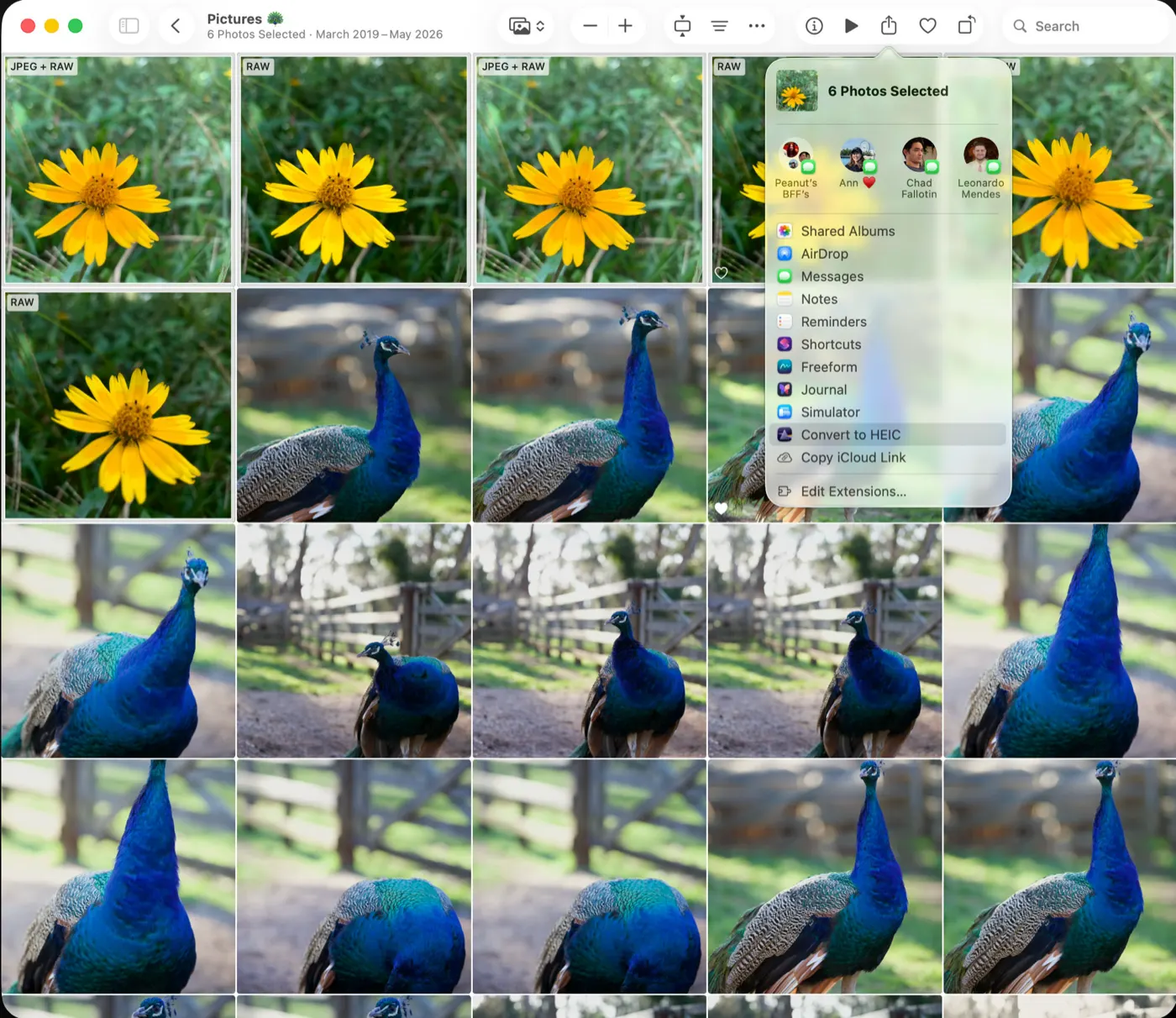
Select photos in Apple Photos, hit Share, and choose Convert to HEIC.
02
Confirm the estimate
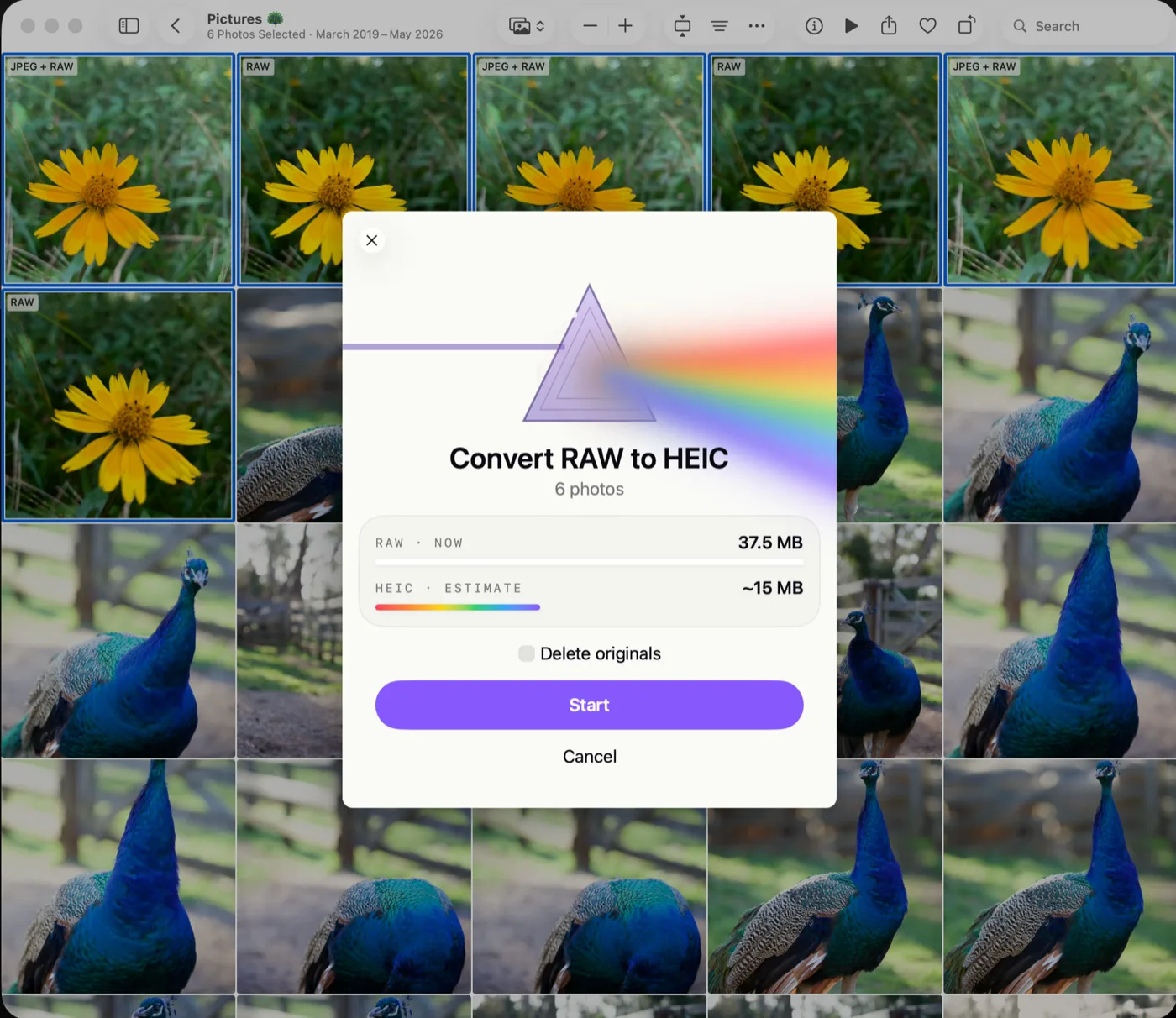
See how much space you'll get back before anything happens, and decide whether the originals stay or go.
03
Let it run
Batches convert with Turbo Mode and live progress, then show per-photo savings and the total reduction when it's done.
4.7★★★★★19 ratings in 9 countries on the App Store
5 out of 5 stars★★★★★
Absolute game-changer to a long-term issue
I have uploaded everything from my camera in RAW over the years, resulting in 30K images on my library that could be smaller. There was before no automated way without including auto-upload to Photos, maintaining their chronological order and position in albums. This does it all!
5 out of 5 stars★★★★★
Perfection all round
Super clean app, very stable and handles long running batch runs super well! Highly recommend
5 out of 5 stars★★★★★
Accidentally had phone in RAW. This solved it…
Well, thanks to the BING search engine A.I. recommending this, this became the fasted in-app purchase I have ever made. My camera got set to RAW accidentally earlier this week. I could not find an easy way to convert, and let a robot give me all kinds of options.
This program seemed to be the easiest. I tried it and it went so well, I bought the full version instantly. It can also compress PNG screenshots down to HEIX saving space, which is a nice bonus. I have screenshots going back to 2007 or whenever that feature first came to the iPhone ;-)
Nice job. I need to figure out how to filter by PNG, as it let me select screenshots twice, converting HEIC to HEIC. Since it showed the same before/after size, I assume it didn’t really reconvert… but the UI was not clear on what it was doing.
4 out of 5 stars★★★★☆
The essential tool when using RAW format on the iphone
Wonderful tool to find and convert raw photos to jpg. The workflow is to transfer raws away from the iphone for photo editing and then converting such raws on the phone to jpgs to free up the precious space for your next raw shoot.
The only very minor caveat is with Onedrive Photo Backup: once the uploaded raws are converted to jpg, the are uploaded again on the next sync so that every uploaded raw has an uploaded jpg copy.. hm.
5 out of 5 stars★★★★★
Easy and simple
Claiming back screenshots space in 3 taps 🚀
4 out of 5 stars★★★★☆
Really nice app but clashes every 734 pics
I don’t know why but I really clashes every 734 pics.
5 out of 5 stars★★★★★
Funciona perfecta
Aunque sea de pago permite hacer 50 transformaciones al día y lo hace perfectamente, manteniendo el mapa HDR como en el original
5 out of 5 stars★★★★★
Free up 50GB in minutes
Was running out of space after shooting in JPEG-XL Lossless for a long time. Instead of deleting old photos and/or setting my iPhone Camera to a lower quality setting I can keep shooting RAW, edits the ones I like, and easily convert the rest to jpeg with this app. What a time and storage saver! Also the developer is very friendly and responds to bug reports promptly.
5 out of 5 stars★★★★★
Awesome app for RAW conversion
I have been searching for a way to convert my quite large library of RAW images to smaller format to save some storage space. This app does exactly that. And I highly appreciate quick response from the author of the app, Sandro, who quickly resolved my issue. Highly recommended!
Reviews from the App Store, as written.
Try it free, go unlimited when you're ready
Try it without installing.
Point your iPhone camera at the code to convert a few photos right now. Nothing to install, nothing leaves your device.
Convert a few photos right now with the free App Clip. Nothing to install, nothing leaves your device.
Canon CR3, CR2, and CRW; Sony ARW and SR2; Nikon NEF and NRW; Fujifilm RAF; Olympus ORF; Panasonic RW2; Pentax PEF; Hasselblad 3FR and FFF; Adobe DNG and iPhone ProRAW — plus JPEG, PNG, TIFF, and HEIC files.
Will it delete my RAW originals?
Only if you ask it to. Deleting is a per-batch choice, and a RAW is removed only after its HEIC is saved and verified in your library. Deleted originals stay in Recently Deleted for 30 days.
Does it work with iCloud Photos?
Yes. Originals download automatically if they aren't on your device, and converted HEICs sync like any other photo.
What about edits made in Photos?
Edits carry over. The converted photo keeps your adjustments exactly as they look in Photos.
Does it preserve HDR?
Yes. RawToHEIC writes an HDR gain map into the converted HEIC, so photos keep their pop on HDR displays.
Is my data collected?
No. Conversion is entirely on-device. The app has no analytics, no account, and no tracking of any kind.
One-time purchase or subscription?
Your choice. The app is free for 50 conversions a day; unlimited is $19.99 once (yours forever) or $9.99/year — one purchase covers iPhone, iPad, and Mac.