Four Ways to Protect Photo Metadata Safely
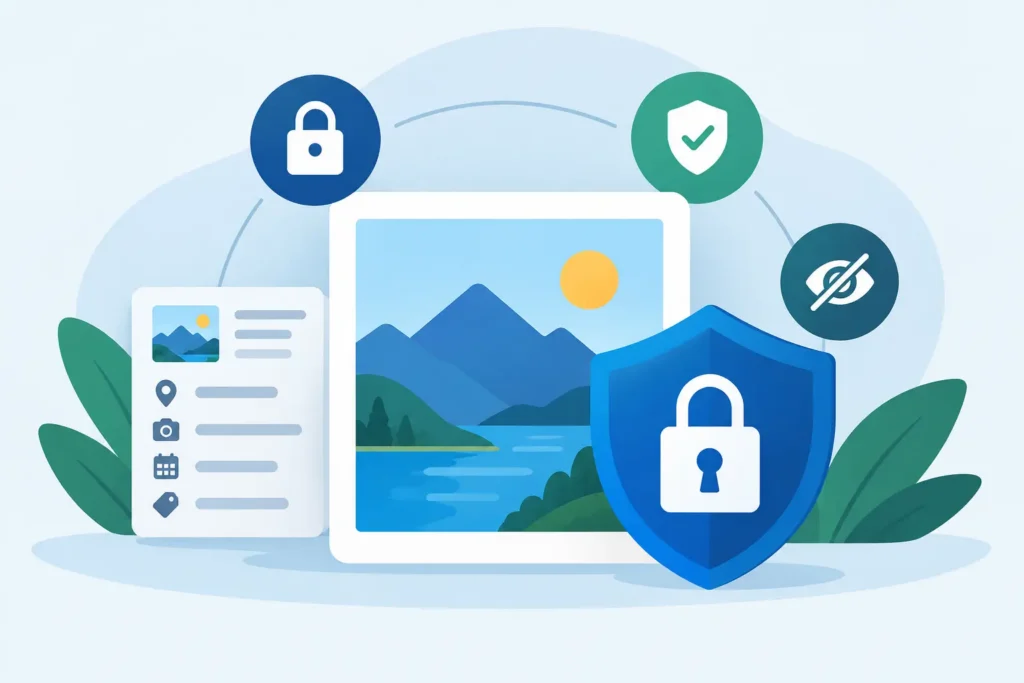
A conversion can save gigabytes and still cost you the information that makes a photo usable. The four ways protect photo metadata below focus on the details that matter in an Apple Photos library: capture dates, locations, captions, favorites, albums, edits, and the relationship between an image and the moment you took it.
For RAW photographers, this is not a minor technical concern. A filename can be changed. A folder can be reorganized. But a missing caption, wrong capture time, or stripped location can make years of photos harder to find, sort, and trust. The safest workflow keeps your library intact while reducing the storage pressure that led you to convert in the first place.
1. Convert inside your photo library, not through loose files
The most common metadata loss happens before conversion settings are even considered. Exporting a photo to Files, converting it with a separate utility, then importing the result back into Photos creates a handoff between systems. Each handoff can drop or change information.
A file-based workflow may preserve standard EXIF fields such as camera model, lens, shutter speed, and capture date. It may not preserve the Photos-specific context you built around the image: albums, favorites, captions, people associations, keywords, and non-destructive adjustments. You also have to decide whether to delete the original manually, which makes duplicates and accidental loss more likely.
The better approach is a Photos-native conversion workflow. The app should work from the items already in your library and return the converted image directly to that same library. This keeps the conversion close to the place where your organization lives.
There is a trade-off. A dedicated desktop asset manager can offer more export presets, sidecar handling, and batch naming rules. If your archive depends on those tools, use them deliberately. But if Apple Photos is your primary library, moving images out to convert them often adds risk without adding value.
RawToHEIC is built for this specific workflow: select RAW photos in Photos, convert them on-device, and keep the library context you already maintain. There is no loose-file export-import loop to manage.
2. Confirm what “metadata preserved” actually includes
“Metadata preserved” sounds reassuring, but it can mean very different things depending on the app and file format. Before you convert a meaningful batch, distinguish between embedded file metadata and library metadata.
Embedded metadata travels inside the image file. This typically includes capture time, camera and lens information, exposure settings, orientation, GPS coordinates, copyright fields, and sometimes descriptive IPTC data. HEIC can store substantial photographic metadata, but support varies by application and export method.
Library metadata belongs to Photos rather than the individual file alone. Albums, favorites, captions, hidden status, memories, faces, and non-destructive edits may be stored or interpreted by the photo library. A conversion tool that merely creates a new file cannot automatically guarantee that this context follows it.
Run a small test with five or six representative images before converting hundreds. Choose photos with different conditions: a ProRAW image, a camera RAW file, an image with a caption, one in multiple albums, one marked as a favorite, and one with a location. Convert them, then inspect the new versions in Photos on the device where you work most often.
Check the Info panel, not just the thumbnail. Confirm the date and time, location, caption, dimensions, and camera details. Search for the caption or location. Open the album where the original lived. This takes a few minutes and gives you a clear answer for your real library, not a vague promise based on a feature list.
3. Preserve edits by choosing the right point in your workflow
RAW editing is non-destructive by design. Your original sensor data remains available while Photos stores adjustment instructions alongside it. That flexibility is valuable, but it affects how and when you should convert.
If you still expect to revisit white balance, recover highlights, or make a large exposure correction, keep the RAW original. A converted HEIC can look excellent and take far less space, but it does not retain the same RAW latitude for major changes. This is especially relevant for difficult scenes with mixed light, underexposure, or a wide dynamic range.
Once an edit is finished, conversion becomes more practical. Your goal shifts from preserving every possible adjustment option to preserving the finished photograph, its visual quality, and its library context. A high-efficiency HEIC is often a sensible format for day-to-day access, sharing, and long-term storage efficiency.
Be careful with apps that flatten an image without making their behavior clear. “Flattening” can be appropriate when you want the current edited appearance baked into a new image. It is not appropriate if you assumed the new file would remain a RAW master with editable adjustment history.
A safe routine is simple: finish your edit, verify the image looks right, convert a small sample, and inspect the result at full size. Pay particular attention to HDR photos. A converter should preserve HDR where supported, rather than silently turning a high-dynamic-range image into a standard dynamic range result.
4. Keep two protections: a backup and a verified deletion step
Metadata protection is also data protection. Even a well-designed conversion workflow should not be your only copy of important photos. Before replacing originals at scale, make sure your Photos library is syncing properly and that you have an independent backup strategy for the images you cannot recreate.
This matters most with irreplaceable work: family events, client selects, travel, and images captured before a card was formatted. Cloud sync is useful, but sync and backup are not identical. A deletion, corruption, or account issue can propagate. An additional copy gives you a recovery path.
Then treat original deletion as a separate decision, not an automatic afterthought. First confirm that the converted HEIC exists, opens normally, retains the expected information, and appears where you expect in Photos. Only then should you remove the larger RAW source if storage savings are the goal.
The order matters. Convert first. Verify second. Delete last.
For a large library, work in manageable batches. Convert a week, an event, or a specific album instead of selecting every RAW image at once. Smaller batches make it easier to spot a missing caption, unexpected duplicate, or image that deserves to remain in RAW. They also reduce the stress of reversing a decision if your needs change.
A few metadata traps worth avoiding
Sharing is one of the most frequent reasons metadata disappears. Many social platforms, messaging apps, and email workflows create copies optimized for speed and privacy, not archival completeness. They may strip location data, reduce image dimensions, remove camera information, or rewrite dates.
That can be desirable when you do not want to reveal where a photo was taken. It is a problem when the shared copy becomes your only copy. Keep the original or your verified HEIC in Photos, and think of social or messaging versions as delivery copies rather than archive files.
Time zones deserve attention, too. A photo can have a correct capture date but appear to fall on the wrong day after travel, camera clock drift, or import. If chronological order matters for an event or project, inspect a few images captured around midnight and across devices. Fixing a time issue early is far easier than untangling it after an entire trip is sorted incorrectly.
Finally, do not assume a smaller file means less useful information. The right conversion preserves the parts of a photo that make it searchable, identifiable, and ready to revisit. Storage efficiency should make your library easier to live with, not make its history harder to recover.
Your best safeguard is a workflow you can repeat with confidence: keep the master while you need RAW flexibility, convert finished images within the library you use, verify the result, and only then reclaim the space.
Shrink your RAW library, right inside Photos.
RawToHEIC converts camera RAW and iPhone ProRAW to HEIC up to 10× smaller — keeping every edit, album, favorite, and location. On-device, no account, one purchase for iPhone, iPad, and Mac.


Not sure yet? Convert a few sample photos free — no install, nothing uploaded.
Try it free — no install →