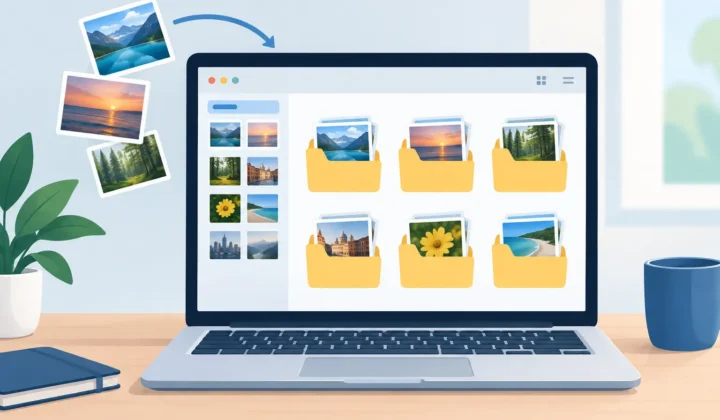
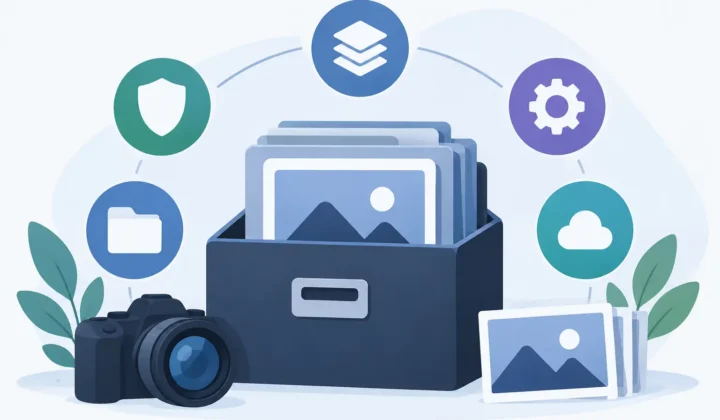
How to Archive RAW Photos Without Losing Work
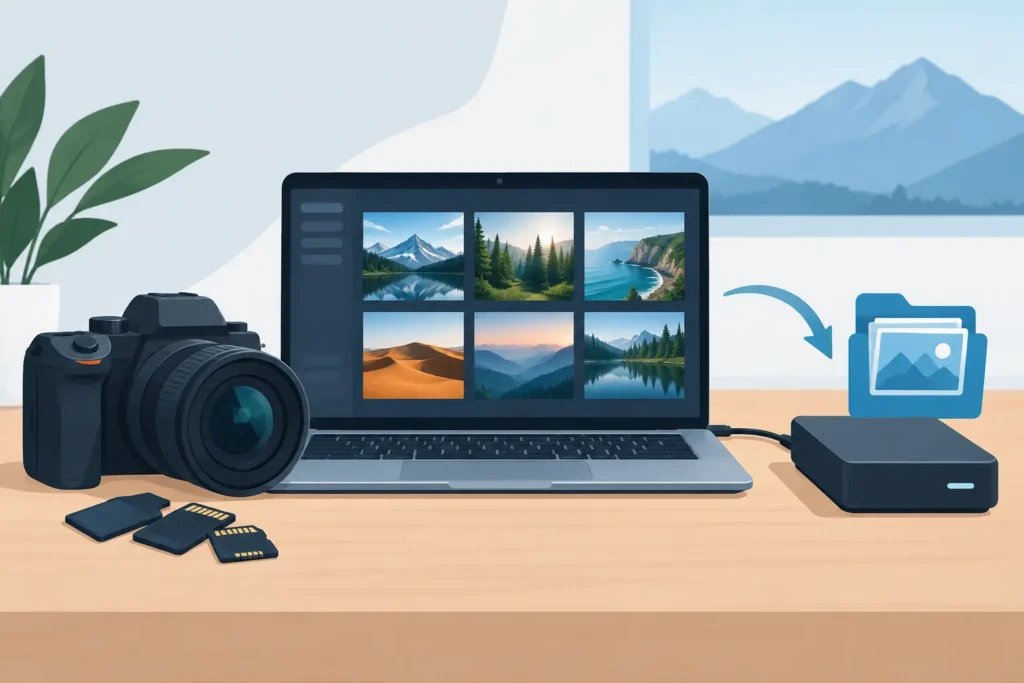
A finished shoot should not keep charging rent on every Apple device you own. When you archive RAW photos, the goal is not simply to make copies somewhere else. It is to reduce storage pressure without breaking the Photos library you already organized – your albums, favorites, captions, locations, edits, and memories.
That distinction matters. A RAW file is valuable when you may revisit an image with different processing choices. But keeping every RAW capture in an active iCloud Photos library can become expensive and inconvenient, especially with ProRAW, mirrorless, and DSLR files. The right archival approach depends on what you need to preserve and how often you expect to edit again.
Start by deciding what “archive” means for your photos
Photographers often use “archive” to mean two different things. The first is long-term preservation of the original camera file. The second is keeping a high-quality final version while removing the large original from everyday storage. These are related, but they are not interchangeable.
If a photo has lasting commercial, personal, or artistic value, keep the original RAW file in a separate, verified archive. That may be an external drive, a second drive stored elsewhere, or a cloud backup built for originals. RAW contains the maximum sensor data and offers the most latitude for future re-editing. A HEIC version, however good it looks, cannot replace that flexibility.
For images you have already edited, delivered, or simply do not expect to process again, a high-quality HEIC can be the practical archive inside Apple Photos. It is far smaller than RAW, supports modern Apple photo workflows, and keeps your day-to-day library manageable. This is not a compromise if your priority is retaining the finished image rather than the editable sensor data.
The strongest setup is often a two-tier system: preserve select RAW originals outside your active library, then keep polished HEIC versions in Photos for browsing, sharing, searching, and enjoying.
Why a folder of exported files is not enough
The traditional conversion workflow sounds simple: export a RAW file, convert it on a computer, import the result, then delete the original. In practice, it creates loose files and uncertainty.
The newly imported image may not sit in the same album. It may lose a favorite flag, caption, location, or keywords. It can appear as a separate photo with a different date or duplicate identity. You also need to confirm that the conversion preserved the look you intended before deleting the original. If iCloud is involved, the timing adds another layer of ambiguity.
For Apple Photos users, organization is part of the photo. An image without its album placement, metadata, and edit history is not a clean archive. It is a file you now have to manage again.
A Photos-native workflow avoids that split. Instead of treating the library as a source of files to export and re-import, it treats the existing Photos item as the thing being preserved. That is the cleaner model for people who use Photos as their primary library, not just a temporary camera roll.
Choose the right photos before conversion
Do not convert blindly just because RAW files are large. Start with images whose editing decisions are settled. A family portrait you have finished, a travel photo you have shared, or a successful client select you no longer expect to reinterpret are all good candidates.
Keep the RAW when any of these conditions apply: you may print large, you may need a different crop or color treatment later, the image is a portfolio-level keeper, or it has professional delivery requirements. RAW is also worth retaining for technically difficult scenes, such as extreme mixed light or high-contrast landscapes, where future software may recover more detail.
For everything else, ask a simpler question: if this photo looked exactly as it does now five years from now, would that be enough? If the answer is yes, storing a finished HEIC can be a sensible move.
Be especially intentional with Apple ProRAW
Apple ProRAW files can be exceptionally large. That makes them an obvious target when your iPhone library is consuming device and iCloud storage faster than expected. But ProRAW also exists for a reason: it gives you more room to adjust white balance, exposure, tone, and detail after capture.
Keep ProRAW for the frames that benefit from that flexibility. Convert the rest after you are happy with the edit. You will usually see a meaningful storage reduction while keeping an image that remains excellent for screens, sharing, and most prints.
Preserve the version you actually want to keep
Archiving is not only about format. It is about preserving intent. If you spent time straightening a horizon, adjusting color, applying a crop, or refining a ProRAW image in Photos, your archive should reflect those decisions.
This is where conversion settings matter. A high-quality HEIC should preserve the rendered appearance of your edit, along with HDR where supported, rather than producing a flat or unexpected result. Review a few converted images at full size before processing a large batch. Check fine detail, bright highlights, shadow areas, skin tones, and any heavy crop.
Metadata deserves the same attention. Capture date, location, camera information, captions, and favorites are useful years later, when you are trying to find one image among tens of thousands. Albums are equally valuable because they represent context: a trip, a project, a person, or a delivery set.
An archive that saves space but loses context creates a slower, messier library. The best workflow preserves both.
Use verified deletion, not blind deletion
The risky point in any conversion process is deleting the original. A conversion should never assume success just because a new file appeared.
Before removing a RAW original, confirm that the new HEIC exists, opens correctly, has the expected dimensions and appearance, and is safely represented in your Photos library. If you use iCloud Photos, allow time for the library to sync across your devices before treating the result as settled. A local backup adds another layer of protection.
RawToHEIC is designed around this specific Apple Photos workflow. It converts supported camera RAW formats and iPhone ProRAW directly in Photos, retains the organizational context you already built, and uses safety checks before deletion. Processing stays on device, with no loose-file export-import loop and no analytics attached to your photo library.
That is particularly useful when you are clearing hundreds of completed RAW edits, not just one or two files. The point is not to make deletion faster. It is to make it deliberate.
Build a simple archive policy you can repeat
A good photo archive should not require a new decision framework every month. Set a rule that fits your shooting volume and follow it consistently.
For example, you might keep RAW originals for your top selections and any paid work, store those originals in two separate backup locations, and convert finished noncritical images to HEIC within Photos. Or you might keep all RAW files for one year, then review older shoots once the chance of re-editing has passed.
The exact timeline depends on your storage budget, shooting habits, and tolerance for losing future editing latitude. What matters is that your policy separates original preservation from active-library convenience.
Also remember that an archive is only as reliable as its backup. A HEIC in Photos is useful, but it should not be the sole copy of irreplaceable work. Keep important originals in at least two places, and periodically test that you can open files from each backup. Drives fail quietly until they do not.
A smaller library is easier to use
When an Apple Photos library is full of multi-megabyte RAW files you no longer need to edit, every device pays the cost. iPhone storage fills sooner. iPad sync becomes less comfortable. Mac backups grow. iCloud upgrades start to feel inevitable.
Converting completed work to HEIC can reduce that pressure dramatically while leaving your library familiar. You can still search by date, person, place, and caption. You can still browse albums and share from the same Photos app. The difference is that finished images no longer occupy RAW-sized space simply because they once needed RAW flexibility.
Keep the originals that deserve a future second look. Let the finished photos live in a format built for the Apple ecosystem you use every day. That balance protects both your best work and the space you need to keep making more of it.
Shrink your RAW library, right inside Photos.
RawToHEIC converts camera RAW and iPhone ProRAW to HEIC up to 10× smaller — keeping every edit, album, favorite, and location. On-device, no account, one purchase for iPhone, iPad, and Mac.


Not sure yet? Convert a few sample photos free — no install, nothing uploaded.
Try it free — no install →