Organize Photos Without Exporting Your Files
A RAW library can feel perfectly organized right up until storage runs low. You have albums for trips, favorites for your best frames, captions, locations, and edits already in place. The last thing you need is a file-conversion workflow that asks you to export everything, sort through duplicate folders, then rebuild that organization from scratch. The better approach is to organize photos without export and keep the work you have already done in Apple Photos.
For photographers who use Photos as their main library, organization is not just folder structure. It is the context around every image. A conversion process should respect that context while helping you reclaim space.
Why exporting breaks an organized Photos library
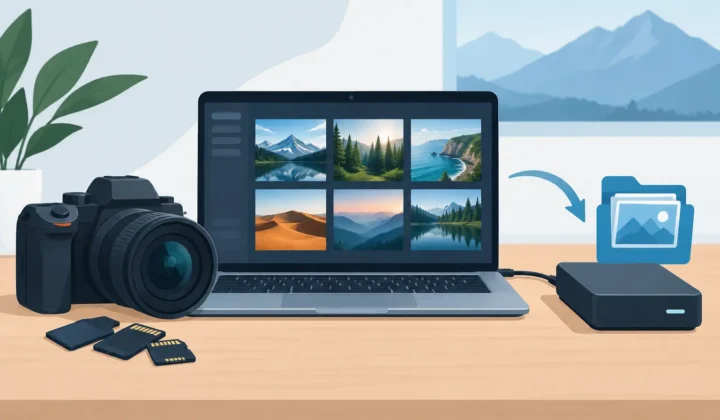
Traditional conversion tools are built around loose files. You select RAW images, export them to Finder or the Files app, convert them elsewhere, then import the new files into Photos. On paper, this sounds manageable. In a large library, it creates a cleanup project.
The exported images may lose their relationship to the original Photos items. Albums may need rebuilding. Favorites can be missed. Captions, location data, keywords, and edited versions may not follow the image in the way you expect. Even when metadata transfers, you still need to identify the new imports, decide what to delete, and make sure iCloud Photos has finished syncing before you trust the result.
Duplicates add another problem. For a while, you may have the original RAW files, exported copies, converted files, and imported copies occupying space across your Mac, iPhone, iPad, and iCloud. That is the opposite of a storage-saving workflow.
Exporting also creates privacy exposure. A file-based workflow can leave copies in Downloads, external drives, temporary folders, or third-party cloud services. If your goal is a cleaner Apple Photos library, moving your images through several locations is unnecessary risk and friction.
How to organize photos without export-and-import work
The practical answer is to convert within the library where the images already live. Rather than treating Photos as a final destination for converted files, treat it as the place where conversion begins and ends.
Start by deciding which RAW images still need full RAW flexibility and which have reached their finished state. A recent commercial shoot, a set you plan to re-edit extensively, or images with demanding print requirements may be worth keeping as RAW. Older travel images, everyday captures, approved edits, and photos you mainly view or share are often strong candidates for HEIC.
This is not an argument for converting everything. It is a way to make intentional decisions. RAW is valuable while you need its latitude. Once an image is complete, keeping a much larger source file may not provide enough practical benefit to justify the storage cost.
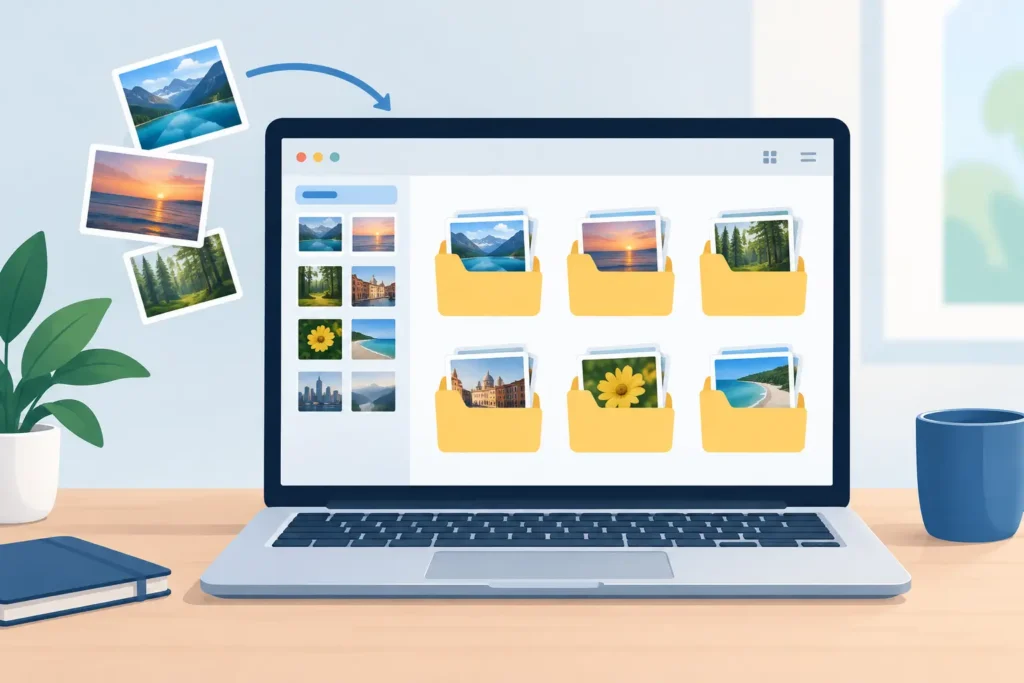
Next, use the organization already in Photos to select candidates. Work from an album, a date range, a Favorites collection, or a search result. Because selection happens inside Photos, you do not have to recreate a folder structure just to process a batch. Your existing library remains the source of truth.
A Photos-native converter such as RawToHEIC can convert supported camera RAW files and iPhone ProRAW directly on your Apple device. The converted HEIC stays in Photos, where your albums, favorites, captions, locations, metadata, and editing context already belong. There is no loose-file workflow to manage.
The organization details worth protecting
Photo organization often looks invisible until it disappears. Before converting a meaningful batch, understand what should remain attached to each image and verify it with a small test selection.
Albums, favorites, and captions
Albums are usually the first thing people notice when an export-import workflow goes wrong. They are how a library becomes usable: client selects, family years, portfolio work, trips, recipes, reference shots, and more. Favorites and captions carry the same weight. They are small pieces of effort accumulated over years.
A library-native workflow avoids asking you to duplicate that effort. You work from the collection you already made, then keep the result in the same Photos environment instead of sending it through a detached file pipeline.
Locations, dates, and camera metadata
Dates and locations make a large library searchable. Camera metadata can matter too, especially when you want to find images from a particular body, lens, or capture format later. If you shoot with Canon, Sony, Nikon, Fujifilm, Olympus, Panasonic, or iPhone ProRAW, the original capture information is part of your photographic record.
Do not assume every converter handles metadata equally. Test a few images with location data, captions, and edits before processing a large archive. Check the converted images on the device you use most, then check that iCloud Photos has synchronized as expected.
Non-destructive edits and HDR appearance
Edits are where file conversion gets complicated. A RAW image can have crop adjustments, color work, exposure changes, filters, and retouching applied in Photos. An effective conversion workflow should preserve the visible result and avoid making you manually replicate adjustments on a separate file.
HDR is another consideration. If you capture in HDR or use iPhone ProRAW, check that the converted image retains the expected tonal range and appearance on compatible Apple displays. Conversion settings and source formats matter. A quick test is better than finding a mismatch after converting hundreds of images.
A safer workflow for freeing storage
Use a measured process, especially for the first large batch. Select a small album or a few dozen completed images, convert them, and inspect the results in Photos. Confirm that the images appear where you expect, look correct, and retain the organization details you rely on.
Only then consider removing originals. The safest tools provide a verified deletion step rather than deleting source RAW files automatically without checks. This distinction matters. Conversion is easy to undo only while the original remains available. Deletion should happen after the app has confirmed that the converted image exists and the library has completed its normal Photos workflow.
If you use iCloud Photos, allow time for syncing before judging your storage savings across devices. A Mac can show a different local storage picture than an iPhone configured with Optimize iPhone Storage. The library can still be organized correctly, but available device space may update gradually as iCloud manages local copies.
Keep a separate backup strategy for images that have long-term professional or personal value. HEIC is an efficient everyday format, but a backup is about resilience, not just format choice. Some photographers retain their original RAW files on an external archive while using HEIC in Photos for daily browsing, sharing, and on-device storage. Others delete verified originals after conversion to keep a single, compact library. The right choice depends on how likely you are to need a future RAW re-edit.
When HEIC makes sense and when RAW should stay
HEIC is particularly useful when the image is finished and the priority is efficient storage, quick sharing, and consistent use across Apple devices. Compared with RAW, it can be dramatically smaller, often up to 10x smaller depending on the source file and image content. That difference becomes meaningful when a library contains thousands of images.
Keep RAW when you expect heavy future grading, large-format output, or major exposure and white-balance corrections. RAW also remains sensible for a small number of portfolio masters. The point is not to flatten your entire photographic archive into one format. It is to stop paying RAW-sized storage costs for every completed image by default.
This approach is especially useful for iPhone ProRAW users. ProRAW offers valuable editing latitude at capture time, but its file sizes add up quickly. Once you have finished editing and want a high-quality image that fits naturally in Photos, HEIC can be a practical next step.
Privacy belongs in the workflow
Photos contain more than pixels. They can reveal where you were, who you were with, and what matters to you. A conversion tool should not need to upload those images to a server merely to change formats.
On-device processing keeps conversion close to your library and reduces unnecessary data handling. Look for clear privacy practices, including no analytics collection, and avoid tools that require a cloud upload for routine format conversion. For a task this personal, privacy should be the default, not an upgrade.
A well-organized library should get easier to maintain as it grows. Keep your best organization inside Apple Photos, convert only the RAW images that are ready to be smaller, and let your storage strategy follow the way you actually use your pictures.
Shrink your RAW library, right inside Photos.
RawToHEIC converts camera RAW and iPhone ProRAW to HEIC up to 10× smaller — keeping every edit, album, favorite, and location. On-device, no account, one purchase for iPhone, iPad, and Mac.


Not sure yet? Convert a few sample photos free — no install, nothing uploaded.
Try it free — no install →