Does HEIC Preserve Locations? What Stays With a Photo
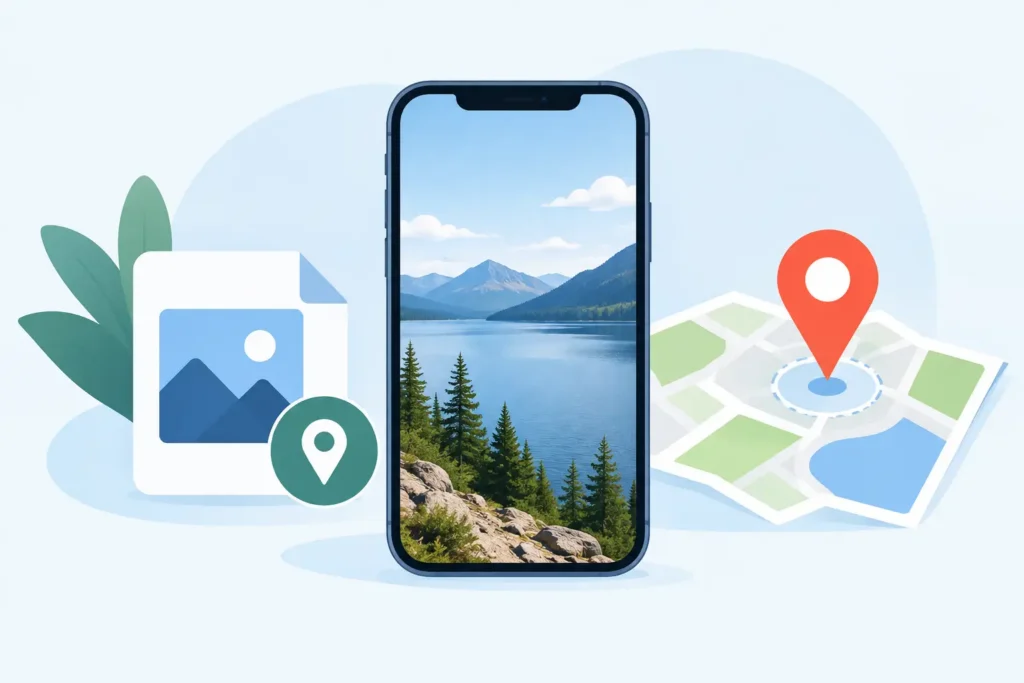
A photo of a mountain trail without its location is more than a missing detail. It can make a favorite trip harder to find, break a map-based album, or separate an image from the story you meant to keep. So, does HEIC preserve locations? Yes – HEIC files can store location data, and a properly handled conversion can retain it. The real question is whether the app and workflow performing the conversion preserve that metadata.
Does HEIC preserve locations?
HEIC is a file format used widely across Apple devices. It is based on HEIF, a modern image container designed to store efficient, high-quality images along with supporting data. That supporting data can include EXIF metadata such as capture date, camera model, lens information, orientation, copyright details, and GPS coordinates.
When location services were enabled when you took the photo, those GPS coordinates may be embedded in the source image. A HEIC file is capable of carrying them forward. Converting an image to HEIC does not inherently strip its location.
That distinction matters. HEIC is not the problem when location data disappears. Metadata loss usually comes from a converter that exports a flattened file, ignores EXIF fields, or deliberately removes location details for privacy. Sharing methods can also remove location data after conversion.
For an Apple Photos library, there is another layer: Photos maintains library information beyond what you see in a loose file. Your image may have a location assigned by the camera, added manually in Photos, or adjusted later. A conversion workflow built around the Photos library needs to respect that existing context, not just write a new image file and hope the details follow.
What location data actually looks like
A photo location is typically stored as GPS metadata: latitude and longitude, and sometimes altitude, direction, or place-related information. Photos uses those coordinates to display a place name, place images on a map, and group memories or searches around where they were taken.
The exact result depends on the source. An iPhone photo captured with Location Services enabled usually has GPS data available to Photos. A mirrorless or DSLR RAW file may have GPS coordinates if the camera has a GPS receiver, received location data from a companion app, or had coordinates added during import or later in Photos.
If the original never had a location, converting it to HEIC cannot create an accurate one. HEIC preserves available metadata; it does not know where a photo was taken unless that information already exists in the file or library.
When location information can disappear
Not every conversion route treats metadata equally. This is where photographers can lose valuable organizational context without realizing it until months later.
A file-based converter may read the pixels from a RAW image, create a HEIC output, and omit the metadata that did not fit its export settings. Some tools include a checkbox for EXIF preservation. Others preserve basic details but exclude GPS by default. Privacy-focused tools may intentionally remove GPS, which can be useful before sharing but is not what you want for an archive.
The same risk applies when exporting from Photos to Files, converting elsewhere, and importing again. That workflow can create a new asset rather than a managed replacement. Even when the loose HEIC retains GPS coordinates, you may still lose Photos-specific organization such as album membership, favorites, captions, adjustments, and relationships within your library.
Sharing is a separate issue. Apple gives you control over whether shared photos include location information. If you turn off Location in the sharing options, the recipient receives a copy without GPS data. That is a good privacy control, but it does not mean the HEIC format cannot hold locations. It means the shared copy was intentionally cleaned.
HEIC location preservation depends on the workflow
For photographers who use Photos as their main library, the safest approach is to convert where the organization already lives. This avoids creating a trail of exports, duplicate imports, and manually rebuilt albums.
A Photos-native conversion process can preserve more than EXIF fields. It can keep the asset connected to the library context you have already built: albums, favorites, captions, locations, and edits. That is especially useful when reducing the storage footprint of finished RAW work. You should not have to choose between smaller files and being able to find last summer’s photos on the map.
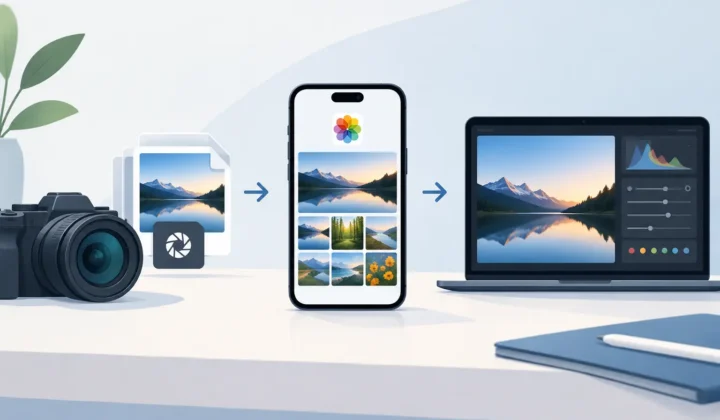
RawToHEIC is designed around that principle. It converts supported RAW photos, including iPhone ProRAW, into HEIC from inside Apple Photos rather than sending you through a loose-file workflow. The goal is straightforward: keep the Photos context intact while creating an efficient HEIC version that can be up to 10× smaller than a RAW original, depending on the file and capture settings.
There is still a trade-off worth understanding. RAW contains much more sensor data than HEIC and offers greater flexibility for significant re-editing. HEIC is a strong choice for photos whose edit is finished or for images you want to keep readily available without carrying the storage cost of every RAW original. Before deleting an original, verify that the converted photo looks right, appears in the expected place, and carries the information you rely on.
How to check whether a HEIC photo has a location
On iPhone or iPad, open the photo in Photos and swipe up, or tap the Info button. If a location is attached, you will see a map and place information beneath the image details. On Mac, open the photo in Photos and use the Info panel to review its metadata and map.
Check a few images before converting a large batch, particularly if they came from different cameras. If your source photos display locations in Photos, verify the converted HEIC images do as well. This small test gives you confidence that your specific camera, import method, and conversion settings are carrying the data you expect.
If a converted image has no map, first inspect the source image. The location may have been absent from the camera file from the beginning. If the source has a location but the converted copy does not, review the converter’s metadata behavior and whether the image was exported, shared, or re-imported along the way.
Keep locations while protecting privacy
Preserving location data in your personal library and removing it when sharing are compatible goals. You do not need to erase GPS information from every archived photo just because you want to share one image privately.
Keep your original location data in Photos if it helps you search, organize, and remember your work. Then use the sharing controls for the specific copy you send. Before sharing from Photos, open the Options panel and disable Location when you do not want coordinates included. This is particularly sensible for photos taken at home, at a child’s school, or in places where precise location information should not travel outside your library.
For client work, consider the context. A landscape photographer may want a broad region visible but not an exact shooting spot. A real-estate image may need an address for the listing but not for every public share. Metadata is useful, but it should remain your choice.
A practical checklist before replacing RAW files
Before treating HEIC as your storage-saving copy, confirm four things: the converted photo looks correct, the date and location remain visible in Photos, its albums and other organization are still where you expect them, and the original has not been removed until you have verified the result.
This is not busywork. RAW libraries often contain years of trips, family events, and paid work. A few seconds of verification is a sensible safeguard before reclaiming substantial device or iCloud storage.
HEIC can preserve locations, and for most Apple Photos users, it should. Choose a conversion workflow that treats metadata and library context as part of the photo, not as optional extras. Your future searches, maps, albums, and memories will be easier to trust because of it.
Shrink your RAW library, right inside Photos.
RawToHEIC converts camera RAW and iPhone ProRAW to HEIC up to 10× smaller — keeping every edit, album, favorite, and location. On-device, no account, one purchase for iPhone, iPad, and Mac.

Not sure yet? Convert a few sample photos free — no install, nothing uploaded.
Try it free — no install →