Apple Photo Privacy Guide for Photos Users
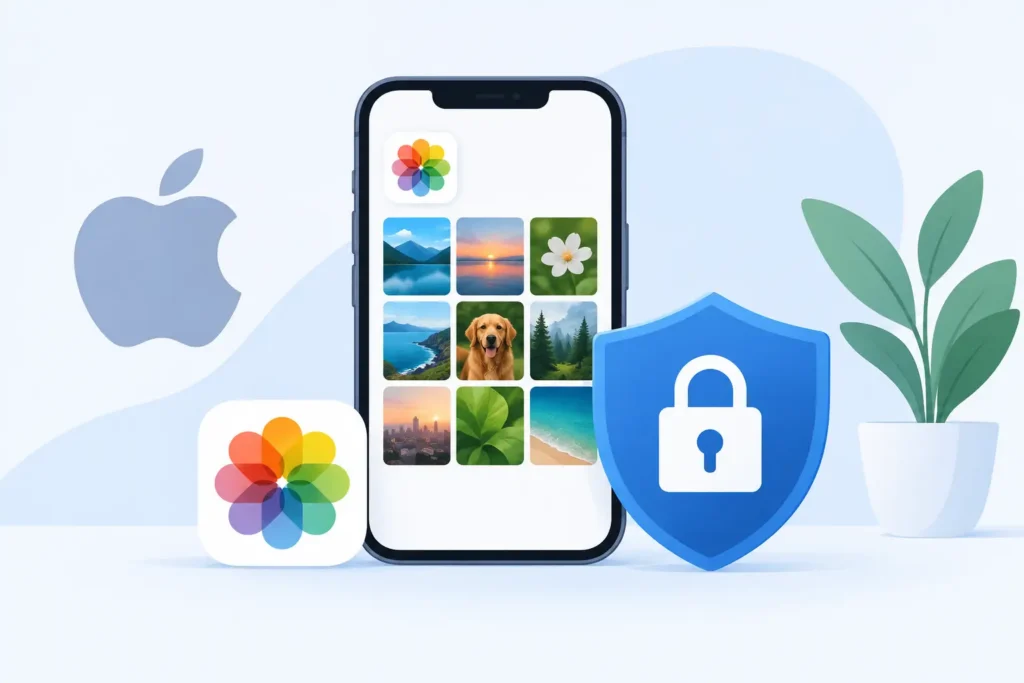
A photo library can reveal far more than a camera roll. It can show where you live, where your children go to school, when you travel, who you spend time with, and which documents you have photographed for convenience. This Apple photo privacy guide focuses on the settings that matter most for people who keep a serious library in Apple Photos, including RAW and ProRAW shooters who want control without breaking their workflow.
Apple gives you strong privacy tools, but they are not all enabled by default, and some come with trade-offs. A private library is less about one switch and more about making deliberate choices around iCloud, sharing, location, device access, and the apps that can see your images.
Start with iPhone, iPad, and Mac access
Your Photos privacy starts with the device itself. If someone can unlock your iPhone, iPad, or Mac, they may be able to browse a large part of your library, change sharing settings, or export images. Use a strong device passcode rather than a simple four-digit code, keep Face ID or Touch ID enabled, and set a short Auto-Lock interval when you are away from your desk or bag.
On iPhone and iPad, review whether Photos is accessible from the Lock Screen through features such as widgets, notifications, or recently used app views. A lock screen should not provide a convenient preview of private work, travel, or family images.
On Mac, use a separate user account if other people regularly use your computer. Photos libraries are personal by design, but a shared macOS login removes much of that separation. FileVault should also be enabled so data on a lost or stolen Mac remains encrypted when the machine is powered off.
Use Hidden for sensitive images, not as an archive
The Hidden album is useful for images you do not want appearing in your main library, search results, or Memories. On current Apple devices, you can require Face ID, Touch ID, or a passcode to open Hidden and Recently Deleted. Confirm that protection is switched on in Photos settings.
Hidden is not a replacement for a carefully secured device or a separate encrypted archive. It is best for everyday discretion: an ID photo, a surprise gift, a medical image, or a personal reference shot. If an image needs stronger long-term separation, keep it outside a shared library and consider whether it belongs in Photos at all.
Apple photo privacy guide: make iCloud a conscious choice
iCloud Photos is exceptionally convenient for a multi-device Apple workflow. Your edits, albums, captions, favorites, and full-resolution originals can remain available across iPhone, iPad, and Mac. The privacy question is not whether iCloud is inherently unsafe. It is whether you understand the protection level and recovery trade-off you are choosing.
Standard iCloud protection encrypts data in transit and on Apple’s servers. Advanced Data Protection can extend end-to-end encryption to more iCloud categories, including Photos, so Apple cannot access the encryption keys for that content. If your library contains client work, family archives, travel documentation, or images with sensitive metadata, it is worth considering.
There is a real trade-off. With Advanced Data Protection, account recovery becomes your responsibility. Set up trusted recovery contacts or a recovery key only if you can store that information safely. Losing access to your Apple Account without a recovery path can mean losing access to your encrypted data.
Also review every device signed into your Apple Account. An old iPad in a drawer, a former work Mac, or a family device you no longer control can still be a window into synced photos. Remove devices you do not recognize or no longer use, and turn on two-factor authentication for your Apple Account.
Strip location data before sharing
Photo location data is easy to forget because it feels useful inside your own library. It powers map views, travel albums, and search. But when a photo leaves your library, the location can reveal a home address, a favorite trail, a school, or the exact place you took an expensive camera.
For one-off sharing from Photos, open the share options before sending and turn off Location. You can also remove location information from selected photos in the Info panel when it is no longer useful to you. This is usually better than disabling location capture for every shot, especially for photographers who rely on location to organize years of work.
Use judgment with public sharing. A landscape photograph may be fine with its location intact. A photo taken at home, a child’s activity, a client property, or a temporary travel location deserves more caution. Metadata can include more than GPS coordinates, so exporting a copy for public use is often the cleaner choice.
Give apps the smallest possible photo permission
Many apps ask for Photos access when they only need one image. Do not automatically grant Full Access. On iPhone and iPad, review permissions under Settings, then Privacy & Security, then Photos. When available, choose Selected Photos and give an app only the images it needs.
This is particularly useful for social apps, AI image tools, marketplace apps, and casual editors. A single upload should not require access to your entire family archive, your RAW originals, or screenshots containing financial and personal information.
Apple’s photo picker lets some apps receive only the item you select without broad library access. Prefer it whenever the app offers it. Revisit permissions occasionally, especially after trying a new editor or scanning app. Delete apps you no longer trust rather than leaving dormant access in place.
For photographers, this matters because a Photos library can include more than finished work. It may hold unedited RAW files, reference images, proofing exports, client material, and private screenshots alongside everyday photos.
Share albums with the same care as individual photos
Shared Albums, Shared Library, and iCloud Shared Photo Library solve different problems. Treat them differently.
A Shared Album is useful for distributing selected images to a defined group. It is not the place for an entire private archive. Check who can view it, whether subscribers can add photos, and whether public website access is enabled. Public access may be convenient for an event, but it changes the privacy model completely.
An iCloud Shared Photo Library is more integrated. It can automatically include photos based on people, dates, or proximity, which is excellent for a household but can be too broad if the rules are not reviewed. Before using automatic contributions, decide which people and places are appropriate. A shared household library should not accidentally absorb work images, private notes, or photos intended only for you.
When sending images through Messages, Mail, or another app, pause at the share sheet. Confirm the recipient, remove location when appropriate, and send a reduced selection rather than an entire album when a few images will do. Convenience is valuable, but permanent copies are difficult to retrieve once shared.
Protect the organization around your photos
Privacy is not only about pixels. Captions, names, dates, places, albums, and facial groupings create a detailed index of your life. That organization is what makes Apple Photos powerful, and it is also why access control matters.
Be careful when screen-sharing Photos during a meeting, family call, or support session. Search suggestions, Recent items, and the sidebar can expose more than the one photo you intended to show. Create a temporary album with only the images you need for a presentation or client review.
The same principle applies to storage optimization. If you shoot RAW or ProRAW, retaining every large original indefinitely can push you toward rushed cloud decisions, external-drive clutter, or duplicate export folders. A Photos-native conversion workflow can reduce that pressure while preserving the organization you already rely on.
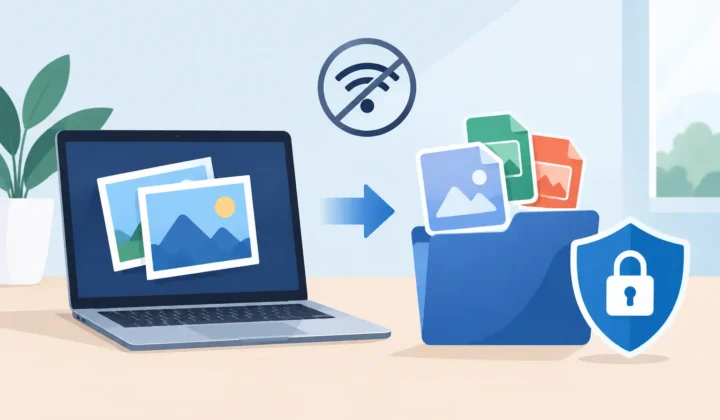
RawToHEIC, for example, converts supported RAW images into HEIC directly in Photos on your device, keeping the workflow out of loose file folders. For images you have finished editing and no longer need as full RAW originals, that can mean substantially smaller files without handing a library to a third-party upload service. Before deleting any original, verify the converted result and confirm which version you want to retain.
Build a privacy routine you can actually maintain
The best privacy setup is one you will continue using. Once every few months, review connected Apple Account devices, app photo permissions, shared albums, and recovery settings. After a major iOS, iPadOS, or macOS update, take a minute to check new Photos sharing features before accepting defaults.
Keep at least one backup strategy that matches your risk tolerance. iCloud Photos is synchronization, not a substitute for independent backup planning. If you remove an image from a synced library, that removal can propagate. For irreplaceable originals, maintain a separate backup you control and test it before you need it.
A well-managed Photos library should feel private by default, not fragile or inconvenient. Keep your sensitive images protected, share with intention, and let your photo workflow stay as organized as the memories it holds.
Shrink your RAW library, right inside Photos.
RawToHEIC converts camera RAW and iPhone ProRAW to HEIC up to 10× smaller — keeping every edit, album, favorite, and location. On-device, no account, one purchase for iPhone, iPad, and Mac.


Not sure yet? Convert a few sample photos free — no install, nothing uploaded.
Try it free — no install →