Is Offline Photo Conversion Safer? What Matters
A 48-megapixel ProRAW image or a RAW file from a mirrorless camera can take up far more room than the finished photo needs. Converting it is an easy storage decision. The harder question is: is offline photo conversion safer when the images already live in Apple Photos, complete with albums, edits, captions, locations, and favorites?
Usually, yes. Processing on your iPhone, iPad, or Mac avoids sending personal images to a third-party server. But offline conversion is not automatically safe by default. The real answer depends on what the app can access, where it writes the converted image, how it handles metadata, and whether it verifies the result before removing anything.
For a photo library you have spent years organizing, safety is more than keeping pixels private. It means keeping the library intact.
Why offline photo conversion is usually safer
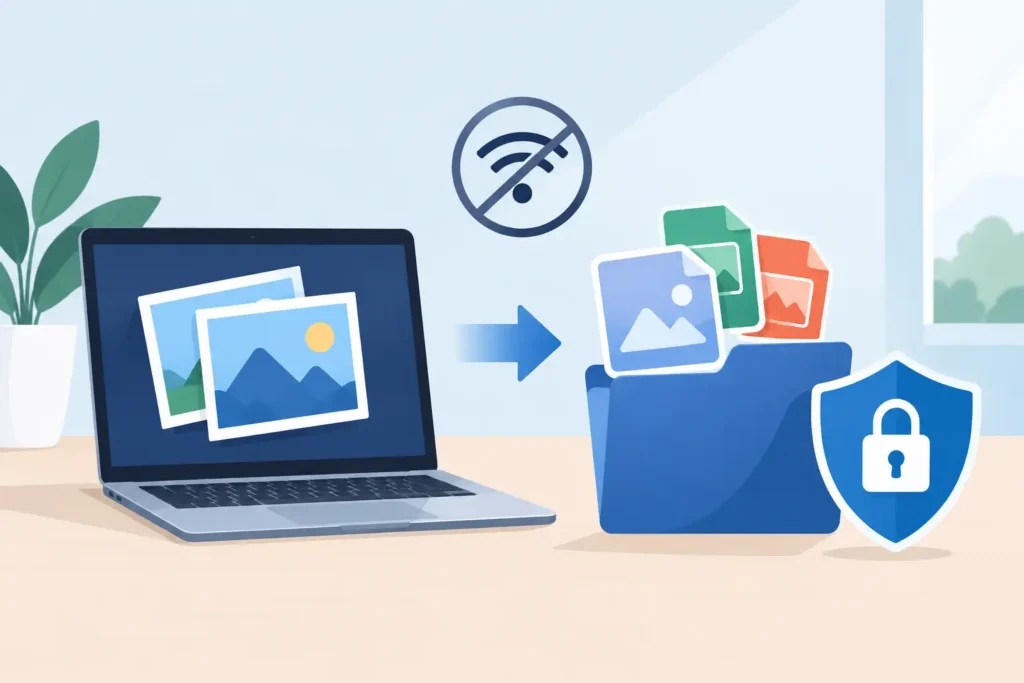
An offline converter does the work locally on your device. Your RAW image does not need to be uploaded, queued on a remote processor, stored temporarily in an unknown cloud bucket, or transmitted back as a finished file. That reduces the number of places where a photo can be exposed, copied, retained, or mishandled.
This matters even when the photo itself is not sensitive. Image files often contain more than the visible frame: capture date, location data, camera details, and sometimes identifying context in the image itself. Family photos, client work, travel images, and unpublished creative work all deserve the same basic protection: they should stay under your control unless there is a clear reason to share them.
Local processing also removes a common point of failure. A web converter depends on an upload completing, a service remaining available, the server processing the right original, and a download arriving intact. A weak connection can turn a simple conversion into a trail of duplicate downloads and uncertain originals. On-device conversion avoids that loose-file cycle.
There is a practical privacy advantage, too. An app designed for offline conversion can operate without analytics tied to your photo content or conversion history. “Data Not Collected” is not just a label. For people managing a personal Photos library, it is a straightforward boundary: your images stay on your Apple device.
Offline is safer, but the workflow matters more
A local tool can still create a risky workflow if it forces you to export files, manage folders, and manually import the results. That process may keep the conversion offline, but it creates several opportunities for mistakes.
The most common problem is duplication. You export a RAW, convert it, import the HEIC, then try to identify which original to delete. If you have multiple similar frames, burst shots, or years of images with similar names, it is easy to remove the wrong file or leave both versions behind. Storage savings disappear, and the library becomes harder to trust.
Metadata loss is another concern. File-based conversion tools may preserve basic EXIF information, but that is not the same as preserving the place a photo occupies in your Photos library. Albums, favorites, captions, keywords, adjustments, and relationships to other library items can be lost, changed, or require manual rebuilding after import.
The safest option is not simply an offline converter. It is an offline converter built directly around the library you actually use.
What safe conversion should preserve
For Apple users, a conversion should feel like a controlled library update, not a file-management project. Before converting an image, look for a workflow that clearly explains what happens to the original and what happens to the new HEIC.
A dependable process should preserve the essentials:
- The converted image should retain its capture date, location, and relevant metadata.
- The result should remain in the same Photos context, including albums and favorites where supported.
- Existing non-destructive edits should be carried forward as the visible result, rather than silently discarded.
- HDR content should remain HDR when the source and destination support it.
- The original should not be removed until the app confirms that conversion and saving succeeded.
That last point deserves special attention. “Delete original after conversion” sounds efficient, but it is only safe when deletion follows verification. A converter should first create the new photo, confirm it is successfully stored in the library, and only then offer or perform removal of the source according to the settings you chose.
If an app cannot explain this sequence clearly, keep your originals. Storage can be recovered later. A lost RAW file cannot.
RAW edits change the question
RAW is valuable because it holds more editing latitude than a finished HEIC. Once you convert, you are committing to the current rendered version of the image. That is often exactly right for photos you have already edited, delivered, or simply do not expect to revisit at a deep RAW level.
It may not be right for every image. Keep the RAW when it is a portfolio favorite, a paid assignment with future licensing potential, an important family milestone, or an image you may want to reinterpret as editing tools improve. Conversion is best treated as intentional library management, not an automatic rule for every photo.
For images that are finished, HEIC is a practical format for Apple Photos. It delivers excellent visual quality with dramatically smaller files, often up to 10x smaller than the original RAW, while remaining native to the ecosystem where you browse, search, edit, and share.
Is offline photo conversion safer than a cloud converter?
For privacy and control, the answer is generally yes. A cloud converter requires you to trust its upload security, retention policy, employee access controls, backups, vendor relationships, and future policy changes. A reputable service may take these responsibilities seriously, but you are still handing your photos to another system.
Offline conversion narrows that trust boundary to your own device and the app installed on it. Your device is not invulnerable, of course. Use a strong passcode, keep iOS, iPadOS, and macOS updated, and protect your Photos library with Apple’s security features. But local processing avoids adding a separate photo-processing service to the chain.
There are cases where cloud tools make sense. A team may need shared access, a desktop workstation may not support a required format, or a large remote workflow may need centralized processing. Those are operational needs, not proof that cloud conversion is safer. For a personal Apple Photos library, local conversion is usually the cleaner choice.
The Photos-native advantage
The safest conversion tool is one that works where your images already live. RawToHEIC converts supported camera RAW formats and iPhone ProRAW into HEIC directly inside Photos on iPhone, iPad, and Mac. There is no export-import loop, no temporary folder to clean up, and no need to reconstruct your organization afterward.
That distinction is easy to underestimate until you have a library with thousands of images. Photos is not just storage. It is where your albums, people, places, favorites, captions, searches, and edits come together. A Photos-native workflow respects that work instead of treating every image as an isolated file.
It also makes the decision easier to reverse at the process level. You can try conversion on a small group of completed images, check the results in the library, confirm the storage savings, and then continue with confidence. Start with a recent album rather than your entire archive. A controlled first pass reveals how the app handles the kinds of images you actually shoot.
A safer way to reclaim storage
Before converting a large batch, make sure your Photos library is syncing and backed up the way you expect. Then begin with photos that are edited and final, not images you may need to reprocess from RAW. Review several converted HEIC files on the device you use most, including HDR images if those matter to you.
Check the details that make the library useful: the date, location, album placement, visible edits, and image quality. Once those look right, convert in manageable groups. This is less about being cautious for its own sake and more about retaining control over a valuable library.
Offline conversion is safer when it keeps your photos on-device and protects the context around them. Choose a tool that verifies its work, preserves what matters, and lets you reduce storage without turning your Photos library into a pile of loose files. The best conversion workflow should leave you with more free space and nothing else to clean up.
Shrink your RAW library, right inside Photos.
RawToHEIC converts camera RAW and iPhone ProRAW to HEIC up to 10× smaller — keeping every edit, album, favorite, and location. On-device, no account, one purchase for iPhone, iPad, and Mac.


Not sure yet? Convert a few sample photos free — no install, nothing uploaded.
Try it free — no install →