Best Offline Raw Photo Converter for Apple
Your Photos library feels fine until RAW files start eating hundreds of gigabytes. Then the usual advice shows its limits fast: export everything, run it through a separate converter, re-import the results, and hope albums, captions, favorites, and edits still make sense afterward. A good offline raw photo converter should solve that problem without turning your library into a file-management project.
For Apple users, that standard matters more than it does on other platforms. Many people already organize their entire photo life inside Photos on iPhone, iPad, or Mac. They are not looking for another asset manager. They want smaller files, local processing, and a clean way to keep their existing library intact.
That is where the real difference between converters shows up. Plenty of apps can technically convert RAW. Far fewer do it in a way that respects how Apple users actually work.
What an offline raw photo converter should actually do
At a basic level, an offline raw photo converter takes a camera RAW file and creates a more storage-efficient format without sending images to a server. That local, on-device part matters for privacy, speed, and predictability. If your photos never leave your device, there is no upload delay, no cloud dependency, and no extra exposure for personal image data.
But privacy alone is not enough. The converter also needs to fit the job you are trying to do. If you are finished editing a set of RAW images and want to shrink your library, the goal is not just format conversion. The goal is to reduce storage while preserving the value you already built around those images – albums, captions, locations, favorites, timestamps, and the edits you made inside Photos.
This is the point where many traditional converters fall short. They treat conversion as a file task. Most users experience it as a library task.
Why file-based conversion creates friction
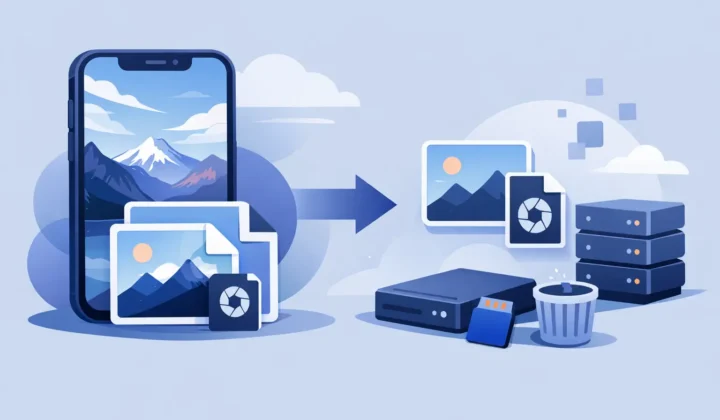
The old workflow is familiar. Export RAW originals. Pick an output format. Save converted copies somewhere else. Re-import. Compare versions. Manually delete the old files if you are feeling brave. Then check whether your organization survived the trip.
It works, but it is messy. You end up with loose files, duplicate images, uncertain metadata handling, and a higher chance of deleting the wrong thing. Even when nothing breaks, the process pulls you out of Photos and into a temporary folder system you probably did not want in the first place.
That trade-off may be acceptable for a desktop-first pro workflow built around folders and external catalogs. It is much less appealing if Photos is your main library and your priority is keeping everything neat across Apple devices.
An offline raw photo converter for Apple should reduce steps, not add them.
The Apple-specific standard
Apple users usually care about three things at once: storage, privacy, and native workflow. The best tool has to hit all three.
Storage is the obvious one. RAW files are large by design, and that is useful while you are shooting and editing. But once you have the image where you want it, continuing to store every photo as RAW can be expensive. Libraries grow fast. Device storage fills up. iCloud storage pressure follows. A more efficient format like HEIC can cut that footprint dramatically while keeping image quality strong for everyday use and long-term personal libraries.
Privacy is equally important. If a converter relies on cloud processing, every batch introduces an unnecessary dependency. For many people, especially those storing family photos, travel images, client selects, or location-rich files, on-device conversion is the safer choice.
Then there is workflow. Apple users tend to value software that behaves like the platform expects. Native integrations are not a luxury here. They are the difference between a tool that gets used once and a tool that becomes part of how you manage photos every month.
Offline raw photo converter vs cloud converter
Cloud-based converters have one clear advantage: they can work from almost anywhere with a browser. If you only need to convert a few files and do not care about library structure, they may be enough.
The downsides are harder to ignore for serious photo libraries. Upload time scales badly with large RAW batches. Privacy depends on the service. Availability depends on the internet. And cloud tools generally do not understand your Photos library as a living system with albums, edits, and metadata relationships.
An offline raw photo converter keeps control local. That means faster starts, no upload queue, and no need to trust a remote server with your originals. For Apple users managing thousands of images, that local approach usually makes more sense.
Why HEIC is often the right destination format
Not every conversion target solves the same problem. JPEG is widely compatible, but it gives up efficiency and modern format advantages. TIFF is useful in some editing workflows, but it is not a storage-saving format. PNG is rarely the answer for photos.
HEIC is different. On Apple devices, it is a practical destination because it combines strong image quality with much smaller file sizes. For many finished images, that means substantial storage savings without the daily penalty of carrying a huge RAW archive everywhere.
There is an it-depends caveat here. If you still expect to revisit heavy exposure or white balance adjustments, keeping the RAW may be the better move. RAW remains the flexible master for deep re-editing. But if your image is done and your main concern is reducing library size while keeping it fully usable inside Photos, HEIC is a strong fit.
The feature checklist that matters
When evaluating an offline raw photo converter, look past the generic promise of conversion support. The real questions are operational.
First, does it process on device? That is the baseline for privacy-first use.
Second, does it work inside or directly with Apple Photos, rather than forcing a separate export-import cycle? This is where a lot of products fail the practical test.
Third, does it preserve metadata and organizational context? Captions, dates, location data, favorites, and album membership are not optional details. They are how your library stays useful.
Fourth, what happens to your original RAW after conversion? Safe deletion matters. The best tools verify results before you remove anything, because storage savings are only helpful if they do not introduce risk.
Fifth, does it support the RAW formats you actually shoot, including popular camera brands and iPhone ProRAW? Broad compatibility is not marketing fluff here. It determines whether the app stays useful as your gear changes.
Finally, check the business model. Subscription pricing for a narrow utility often feels out of proportion to the task. A one-time purchase is easier to justify for a focused workflow tool you will return to over time.
What a better Apple workflow looks like
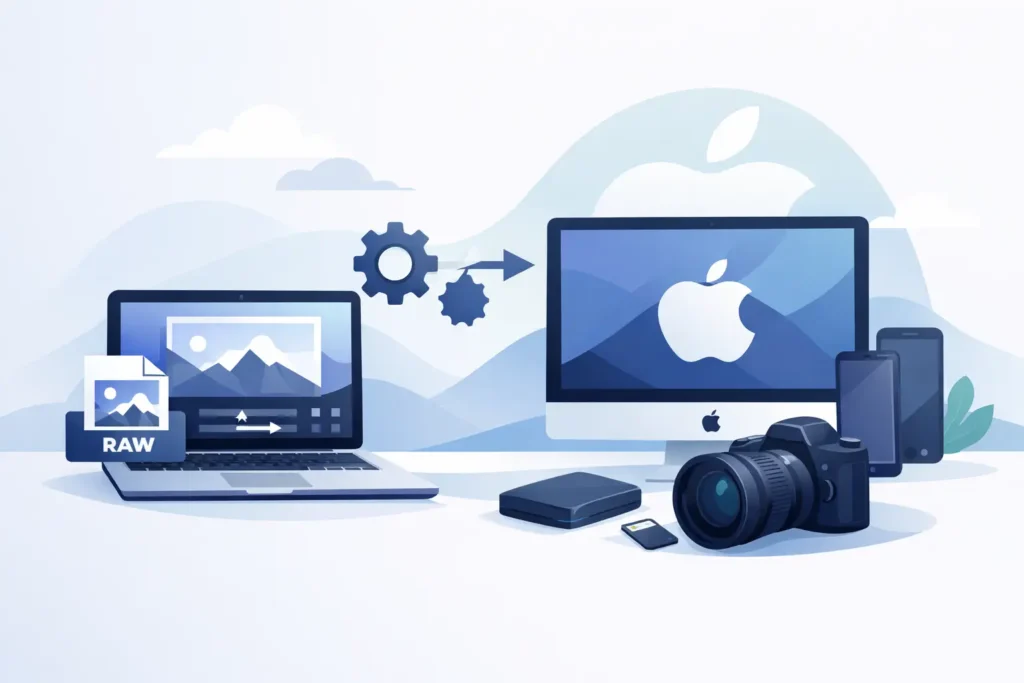
The ideal experience is simple. You select RAW photos in Photos, convert them on device to HEIC, confirm the results, and keep your library organization intact. No desktop export folders. No duplicate chaos. No wondering whether edits or metadata got dropped on the floor.
That kind of workflow is especially useful for users who shoot in bursts, travel with limited local storage, or rely on Photos across iPhone, iPad, and Mac. It turns conversion into routine maintenance instead of a weekend cleanup project.
This is also where product design matters more than raw conversion speed. A fast converter that makes you manually rebuild context is not actually efficient. A slightly more deliberate tool that preserves the structure of your library often saves more time overall.
Where RawToHEIC fits
RawToHEIC is built around this exact Apple-first problem. It converts supported RAW files and iPhone ProRAW to HEIC directly in the native Photos workflow, on device, with no loose-file workflow and no required subscription. The value is straightforward: you can cut storage use dramatically while keeping the Photos context you already rely on, including metadata and organization, with verified safeguards before deletion.
That approach will not replace a full pro editing pipeline for every photographer. It is not trying to. It is for the moment after editing, when the image is done and carrying the RAW everywhere no longer makes sense.
Choosing the right tool for your library
The best offline raw photo converter is not the one with the longest feature list. It is the one that removes the most friction from your actual workflow.
If you live in Finder folders, send files between multiple editing suites, and archive everything externally, a traditional converter may be enough. If your photo life lives in Apple Photos and your biggest pain points are storage pressure, privacy, and keeping your library organized, then native workflow matters more than almost anything else.
That is the practical test. A converter should help you keep the photos you want, in the library you already use, at a size that does not punish you for shooting RAW in the first place. Choose the one that makes that feel simple.
Shrink your RAW library, right inside Photos.
RawToHEIC converts camera RAW and iPhone ProRAW to HEIC up to 10× smaller — keeping every edit, album, favorite, and location. On-device, no account, one purchase for iPhone, iPad, and Mac.

Not sure yet? Convert a few sample photos free — no install, nothing uploaded.
Try it free — no install →