How to Keep Metadata When Converting RAW
A RAW library usually gets messy at the exact moment you try to save space. You finish editing, decide the originals are bigger than you need, convert a batch to HEIC or JPEG, and then realize the real loss was not image quality. It was context. If you want to keep metadata when converting RAW, the hard part is not the file conversion itself. It is preserving everything around the photo that makes your library usable.
For Apple users who rely on Photos, that context matters as much as the image. Dates, locations, captions, favorites, albums, keywords, and edit history are how a large library stays organized. Lose that, and a smaller file comes with a bigger cleanup job.
Why metadata gets lost during RAW conversion
Most conversion tools treat a photo like a loose file. They read the RAW image, write a new file, and stop there. That works if your only goal is to create a smaller version. It does not work well if your photos already live inside Apple Photos and are part of a real library.
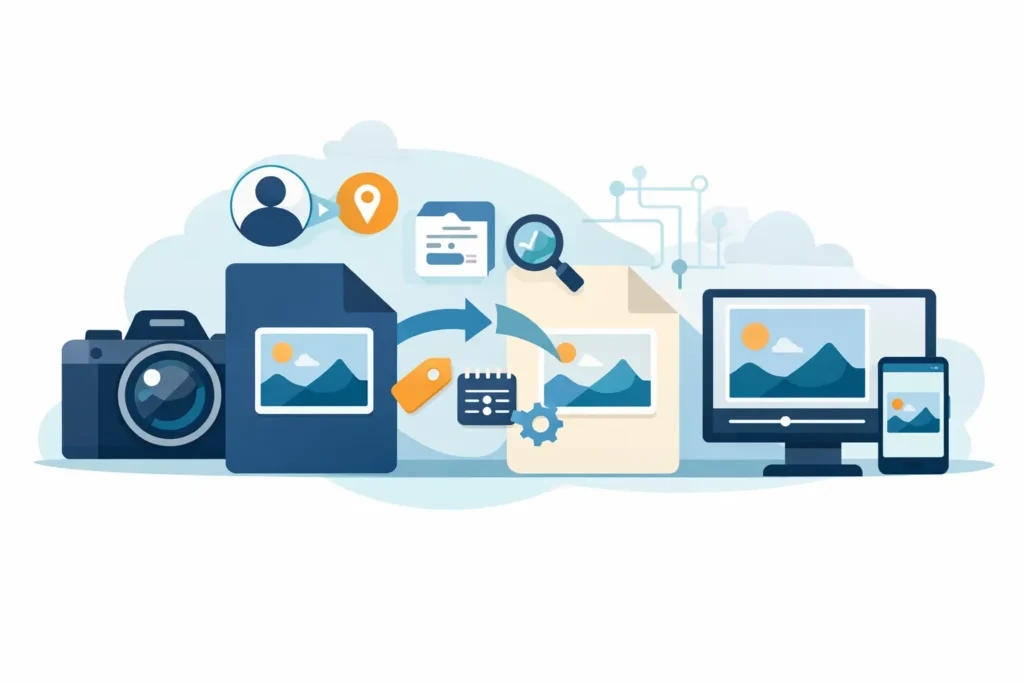
The problem is simple. A RAW file can contain embedded metadata such as capture date, camera model, lens data, and exposure settings. But your Photos library also stores a second layer of information that lives in the library database, not just inside the file. That includes albums, favorites, captions, people recognition, location adjustments, and non-destructive edits made in Photos.
So when people ask how to keep metadata when converting RAW, they are usually talking about both layers. They want the technical EXIF and IPTC data to survive, but they also want the library context to stay intact. That is where many workflows break.
Keep metadata when converting RAW inside Photos
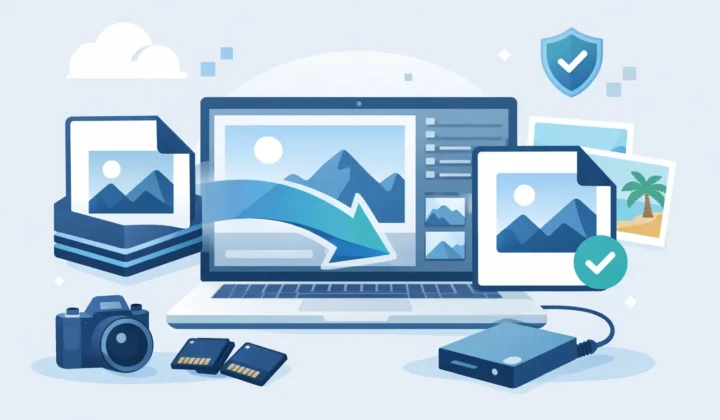
If your current process involves exporting RAW files to Finder, converting them in a separate app, then importing the results back into Photos, metadata loss is almost guaranteed somewhere along the way. Sometimes the EXIF data survives but captions do not. Sometimes the file comes back as a brand-new item with no album placement, no favorite status, and no relationship to the edited original.
This is why the best workflow is usually the one that stays inside Photos. When conversion happens in the same library where the image already lives, you avoid the handoff that strips away context. There is no loose-file stage, no re-import guesswork, and no need to rebuild organization manually.
For Apple users, that difference is practical, not theoretical. A library with thousands of RAW images can save a huge amount of space by converting completed shots to HEIC. But if the trade-off is rebuilding metadata by hand, the storage win stops feeling efficient.
What metadata should survive a RAW conversion?
The answer depends on the tool, the destination format, and where the metadata is stored in the first place.
At a minimum, a good RAW-to-HEIC workflow should preserve the core file-level data: capture date, time, camera make and model, lens details, exposure settings, orientation, and location data when present. If captions and descriptive fields are embedded or synced correctly, those should carry over too.
For Photos users, the higher bar is preserving library-level context as well. That includes whether an image is favorited, which albums it belongs to, any caption you added in Photos, and the edits you already made. This is also where things get more nuanced. Not every edit can be translated from a RAW source into a newly encoded HEIC in the same way, because RAW editing is non-destructive and based on source data that is fundamentally different from a rendered HEIC. But your workflow should still respect the edited result and preserve the organizational state of the image.
That is the real benchmark. Not just does the converted file exist, but does it still fit your library the way the original did.
Why export-and-convert workflows cause problems
Traditional conversion workflows were built around file management, not library management. That is fine for photographers who organize everything in folders and sidecar files. It is less fine for people who use Apple Photos as their primary system.
When you export a RAW file from Photos, you are often making a choice between exporting the original or exporting the edited version. Then you convert it elsewhere, create a new file, and import it back. Even if the new file contains decent embedded metadata, Photos may still see it as a separate asset. That means duplicates, broken album placement, lost favorite status, and no built-in link to the item you started with.
There is also a safety issue. Once you start creating extra copies in Finder or an external drive, deleting the original becomes a manual decision. That adds friction and risk. Many users keep both versions just to be safe, which defeats the storage-saving goal.
The Apple-specific way to keep metadata when converting RAW
On Apple devices, the most reliable approach is a Photos-native conversion workflow that processes images on device and updates your library without forcing an export-import cycle. That is the difference between converting a file and managing a photo library.
A Photos-native approach is better suited to preserving metadata because it works where the metadata already lives. Instead of pulling images out of the library and hoping all the details come back intact, it converts them in place as part of the existing Photos environment.
That matters even more if you shoot iPhone ProRAW or import RAW files from Canon, Sony, Nikon, Fujifilm, Olympus, or Panasonic into Photos. These libraries tend to be large, and the people using them usually care about both storage and organization. If a conversion tool saves space but creates cleanup work, it is solving the wrong problem.
What to look for in a RAW conversion tool
If your goal is to keep metadata when converting RAW, the checklist is fairly strict.
First, the tool should work directly with Apple Photos rather than requiring a file export. Second, it should preserve image context, not just write a technically valid HEIC. Third, it should process on device if privacy matters to you. Fourth, it should include a clear safety flow around deletion, because removing large RAW originals is where most of the storage savings happen.
There is also a format question. HEIC is a strong destination for Apple users because it is efficient, widely supported across the Apple ecosystem, and capable of high-quality output at much smaller sizes than RAW. For many completed edits and day-to-day library management needs, it is the practical middle ground between full RAW flexibility and oversized storage use.
That said, converting RAW is not always the right move for every image. If you expect to revisit a file for major re-editing later, or if it is a critical client image, keeping the RAW may still make sense. This is where a selective workflow works best. Convert the photos that are done. Keep the ones that still need full RAW latitude.
A simpler path for Apple users
This is exactly why tools like RawToHEIC exist. The point is not just to make a smaller file. The point is to reduce library size while preserving the Photos experience you already built – albums, favorites, captions, location data, and the rest of your organization.
That kind of workflow feels different immediately. You are not juggling exports, temp folders, and re-imports. You are not wondering whether metadata came across correctly. You are not sending private images to a server. You stay inside Photos, convert on device, verify the result, and free up space with much less risk.
For users with large Apple Photos libraries, that is the real upgrade. Less storage pressure, fewer moving parts, and no need to rebuild context after conversion.
The trade-off to understand before converting
There is no magic format that keeps full RAW editing flexibility at HEIC file sizes. A converted HEIC is a rendered image, not a RAW negative. So if your question is whether you can keep metadata when converting RAW, the answer is yes, but with a distinction. You can preserve the information and organizational context around the photo, and you can preserve the edited visual result. What you do not keep is the full future editing latitude of the original RAW sensor data.
For most finished photos, that is a reasonable trade. You get major storage savings and keep the structure of your library intact. For a smaller set of images, the original RAW may still deserve a permanent place.
The smartest workflow is not keeping everything or converting everything. It is choosing a method that keeps your metadata, respects your Photos library, and lets storage savings happen without creating a second job afterward.
Shrink your RAW library, right inside Photos.
RawToHEIC converts camera RAW and iPhone ProRAW to HEIC up to 10× smaller — keeping every edit, album, favorite, and location. On-device, no account, one purchase for iPhone, iPad, and Mac.

Not sure yet? Convert a few sample photos free — no install, nothing uploaded.
Try it free — no install →