RAW vs HEIC Storage: What You Actually Keep
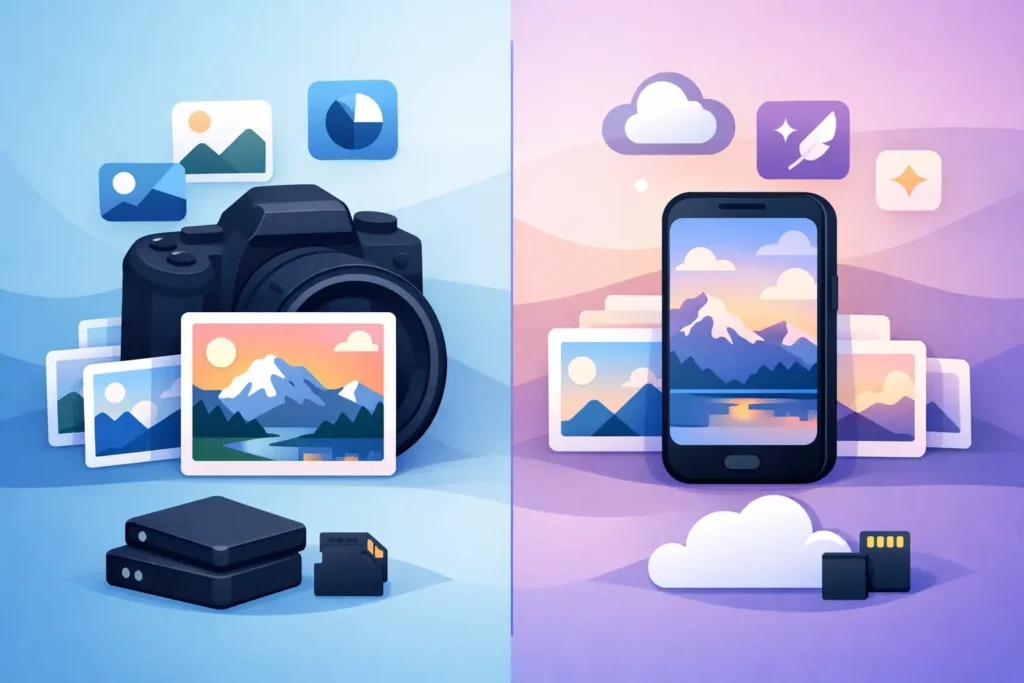
A single afternoon shooting ProRAW, a mirrorless camera, or a DSLR can add tens of gigabytes to your Photos library. The RAW vs HEIC storage decision is not simply about making files smaller. It is about deciding which photos still need maximum editing latitude and which are ready to become compact, high-quality images you can keep, share, and find for years.
For most Apple Photos users, the best answer is not RAW or HEIC for everything. It is a practical split: keep RAW for work in progress and irreplaceable masters, then convert completed images to HEIC when storage, sync speed, and library usability matter more than further sensor-level editing.
RAW vs HEIC storage at a glance
RAW files preserve far more image data than a finished photo format. That is their purpose. They retain the original camera capture with broad room to recover highlights, lift shadows, correct white balance, and make major color decisions without locking in a rendered result.
That flexibility costs space. A RAW file from a modern mirrorless or DSLR camera may be 20 MB, 40 MB, or much more. Apple ProRAW files can also be substantially larger than standard iPhone photos. Multiply that by years of trips, family events, paid shoots, or daily iPhone captures, and storage pressure arrives quickly.
HEIC is Apple’s efficient high-quality image format. It delivers excellent visual results at a fraction of the size of a typical RAW file, often making a completed image up to 10× smaller depending on the camera, subject, and original format. Smaller files mean more available device storage, faster iCloud Photos syncing, quicker backups, and less pressure to upgrade storage simply to hold finished images.
The trade-off is straightforward: a HEIC is a rendered photo, not a sensor-data master. You can still edit it in Photos, crop it, adjust color, apply filters, and make many meaningful changes. What you lose is the deep recovery range that made the original RAW valuable in the first place.
File size is only part of the cost
A large RAW library affects more than the storage number shown in Settings. It changes how your library behaves across every Apple device.
When iCloud Photos needs to upload or download thousands of large RAW files, syncing can take longer and consume more bandwidth. A Mac may have room for the originals while an iPhone or iPad has less local headroom. Backups become larger. Sharing a single image may be easy, but maintaining a growing library of originals can feel expensive and slow.
HEIC reduces that ongoing friction. A photo that is smaller to store is also smaller to sync, cache, transfer, and back up. For a library managed primarily in Photos, that matters because your photos are not sitting in a cold archive. They appear in Memories, search results, albums, shared selections, and everyday browsing.
There is also a financial angle. If a smaller finished library delays a higher iCloud storage tier or a device upgrade, conversion can pay for itself over time. The exact savings depend on your library, but the pattern is consistent: retaining every RAW indefinitely is the most storage-intensive choice.
When RAW is worth keeping
Do not treat conversion as a rule that every RAW must follow. Some originals are worth their size.
Keep the RAW when the image has long-term creative or commercial value. That can include a once-in-a-lifetime event, a client deliverable that may require a new crop later, a difficult high-contrast scene, or an image you expect to print large. RAW is also the sensible choice while you are still deciding how the photo should look.
A RAW master gives you options when editing tools improve, your style changes, or you revisit an old image with a clearer idea. If a photograph is a true keeper in the archival sense, preserving the source capture can be the right call.
The key is to be selective. Many RAW files are near-duplicates, test frames, casual snapshots, or edits you have already finished and shared. Keeping every one at full size is rarely the same thing as having a thoughtful archive.
When HEIC is the smarter long-term format
HEIC makes sense once the image is finished enough that you do not expect to need dramatic RAW-level adjustments. This often includes final selects from a trip, edited family photos, favorite iPhone images, and photos whose value is in viewing and sharing rather than future post-production.
For these images, the practical benefit is substantial: you retain a high-quality photo that looks right in the Apple ecosystem without carrying a large original file behind it. You can continue to organize it in Photos, add it to albums, mark it as a favorite, search by location or subject, and make everyday edits.
HEIC is especially useful for photographers who use Photos as their real library, not merely as a temporary import location. Your organization has value. Years of albums, captions, dates, locations, favorites, and edits should not be treated as disposable just because you need to reclaim storage.
The workflow problem most converters create
Traditional conversion tools often force a loose-file workflow. Export the RAW. Convert it somewhere else. Import the result. Find the original again. Delete it manually. Then try to restore the albums, metadata, captions, and edits that may not have followed the image.
That process creates duplicates and uncertainty. Did the converted file retain the correct capture date? Is it in the same album? Did you preserve location data? Was the original actually deleted? Are you now looking at two nearly identical versions and wondering which one is safe to remove?
For an Apple Photos library, conversion should happen where the library already lives. The goal is not merely a smaller file. The goal is a smaller file without breaking the context that makes the photo useful.
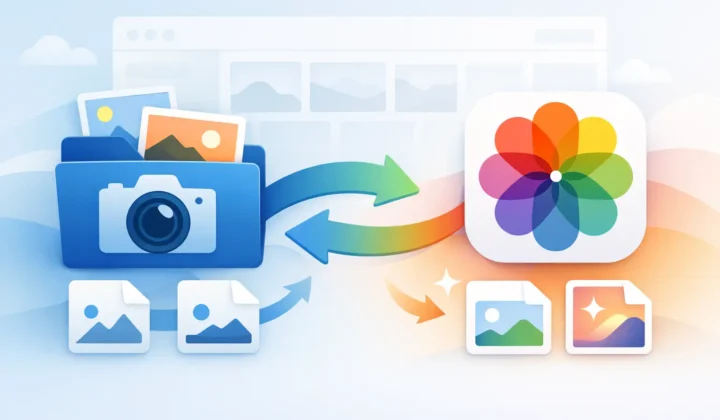
A Photos-native workflow can preserve the organizational context around the image while replacing storage-heavy RAW originals with compact HEIC versions. That includes the details people actually rely on: albums, favorites, captions, locations, metadata, and existing non-destructive edits. It removes the export-import-detangle cycle that turns a simple storage task into library maintenance.
How to decide photo by photo
A practical review does not require an elaborate rating system. Start with photos that are already edited or clearly complete. Ask one question: if I wanted a different result from this image next year, would I need the original RAW data?
If the answer is yes, keep the RAW. If the answer is no, HEIC is usually the more efficient home for that photo.
You can also use time as a filter. Recent projects may deserve a waiting period before conversion, especially if you are still making prints, client selections, or social crops. Older images that have been edited, enjoyed, and left untouched for a year are often strong candidates for a smaller final format.
For a large library, work in batches. Convert a completed vacation, a year of casual ProRAW shots, or an album of finished selects. Review the storage change, confirm the results in Photos, and continue at a pace that feels safe. The objective is control, not a rushed purge.
Protect your Photos library while reducing it
The safest conversion process includes verification before removing anything. A smaller HEIC is useful only if it is the correct photo, appears where you expect in Photos, and retains the information that matters to you.
RawToHEIC is built around that requirement. It converts supported camera RAW formats and iPhone ProRAW directly inside Photos on iPhone, iPad, and Mac, with on-device processing and no loose-file workflow. It also uses verified deletion safeguards, so removing a storage-heavy original is a deliberate final step rather than a leap of faith.
Privacy matters here too. Your photo library can contain years of personal images, locations, and moments. An on-device workflow keeps the conversion task on your Apple devices instead of sending your photos to a third-party server. There is no need to trade privacy for storage savings.
The better question than RAW or HEIC
The useful question is not which format wins universally. It is which format matches the photo’s next chapter.
RAW is the right format for possibility. HEIC is the right format for efficient everyday ownership. Keep the originals that deserve future creative freedom, and let finished photos become lighter, faster members of the library you already trust. That is how a growing Photos library stays both valuable and manageable.
Shrink your RAW library, right inside Photos.
RawToHEIC converts camera RAW and iPhone ProRAW to HEIC up to 10× smaller — keeping every edit, album, favorite, and location. On-device, no account, one purchase for iPhone, iPad, and Mac.

Not sure yet? Convert a few sample photos free — no install, nothing uploaded.
Try it free — no install →