Convert RAW to HEIC on iPhone
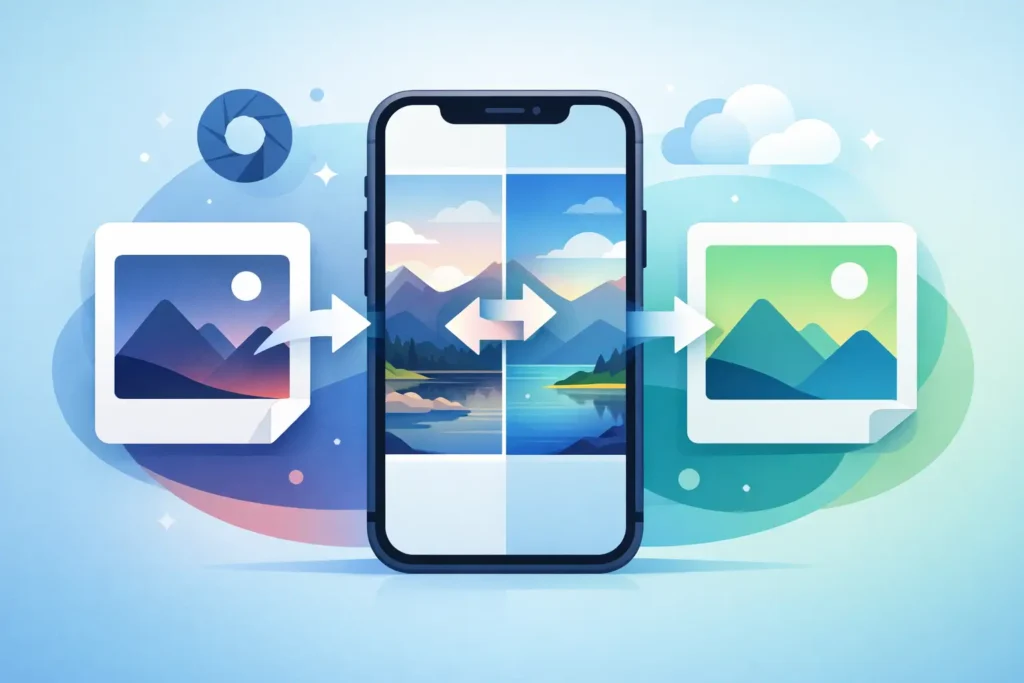
If you want to convert RAW to HEIC on iPhone, the real challenge is not the file conversion itself. It is keeping your library intact while cutting storage use in a way that still feels native to Photos. That means no exporting folders, no re-importing duplicates, and no guessing whether your captions, favorites, albums, or edits will survive.
For Apple users who actually live in the Photos app, that distinction matters. A RAW file can be worth keeping during capture and editing, but once you are done, it often becomes an expensive format to carry around. HEIC is usually the better long-term format for everyday access because it stays compact, supports modern Apple workflows well, and is far easier on iPhone storage.
Why convert RAW to HEIC on iPhone at all?
RAW exists for flexibility. It keeps far more image data than a processed format, which is why photographers use it for editing latitude, highlight recovery, and color work. But that flexibility comes with a cost. RAW files are large, they multiply fast, and they can turn a well-organized Photos library into a storage problem.
On iPhone, that problem shows up quickly. Your device storage fills, iCloud usage climbs, backups get heavier, and browsing a large library becomes less comfortable than it should be. If the image has already been edited, selected, or archived, keeping the original RAW file for every shot may no longer make sense.
HEIC is the practical answer for many finished images. It can be dramatically smaller while still preserving excellent visual quality. In many cases, the storage reduction is large enough to change how usable your library feels day to day.
The usual RAW conversion workflow is where things go wrong
Most conversion tools treat your photos like files first and library items second. That sounds minor until you try it.
Typically, you export RAW images out of Photos, convert them in a separate app, then import the new HEIC files back in. Now you have to clean up duplicates, restore albums, verify metadata, and hope you did not break anything important. It is slow, easy to mess up, and strangely out of place on Apple devices where Photos is supposed to be the center of everything.
That loose-file workflow creates friction in exactly the areas users care about most. You risk losing favorites, captions, keywords, locations, and the simple continuity of having one photo in one place. Even when the conversion works, the library often feels less organized afterward.
If your goal is just to free up space, that is too much overhead.
Convert RAW to HEIC iPhone users actually want
The best way to convert RAW to HEIC iPhone libraries can handle cleanly is to do it inside Photos, not around it.
That means selecting RAW images already in your library, converting them on device, preserving the information that matters, and only removing the original when the new HEIC has been verified. This is the difference between a technical conversion and a usable workflow.
For Apple-focused photographers, a good workflow should preserve albums, favorites, captions, locations, and metadata. It should also respect non-destructive edits where possible and avoid creating a disconnected pile of converted files. Just as important, it should happen entirely on device. Your photo library is personal. Sending RAW files through cloud processing for a storage-saving task is not a trade most people want.
What should stay intact after conversion?
This is where a lot of tools fall short. A smaller file is useful, but only if the converted image still belongs to your library in the same meaningful way.
When you convert a RAW image to HEIC in a Photos-native workflow, the ideal result is simple. The HEIC should remain part of your existing organization, not become a replacement you have to manually rebuild around. Albums should still make sense. Favorites should still be favorites. Captions, locations, and metadata should still be there. If you have already spent time curating your library, the conversion should respect that work.
There is also the question of edits. Many users shoot RAW for editability, then later decide the finished result does not need to remain in RAW forever. In that case, preserving the practical outcome of your edit history matters more than preserving maximum sensor data. The trade-off is real, but for a finished image, it is often the right one.
Quality versus file size is not an all-or-nothing decision
Some photographers hesitate to convert because they hear HEIC and assume compromise. That depends on what stage the image is in.
If you are still actively editing, RAW is the better format to keep. It gives you more room to revise decisions later. But if the image is finished, shared, archived for viewing, or simply kept as part of a personal library, HEIC is often the more efficient format with very little practical downside.
This is especially true on iPhone, where day-to-day value comes from how easy your library is to carry, search, sync, and browse. Saving massive amounts of space without visibly degrading your finished photos is not a niche benefit. It is the whole point.
There are edge cases, of course. Hero images, commercial selects, and photos you may re-edit extensively years later might still deserve their RAW originals. But a lot of photo libraries are full of images that have already served their RAW purpose.
iPhone ProRAW and camera RAW files both raise the same question
Whether the source is iPhone ProRAW or RAW files from a Canon, Sony, Nikon, Fujifilm, Olympus, or Panasonic camera, the storage logic is similar. RAW is ideal at capture and editing time. It is not always ideal forever.
For users who import camera RAW files into Photos on iPhone, iPad, or Mac, the pain is usually cumulative. A few large shoots do not seem serious at first. Then the library grows, device storage gets tight, and every cleanup option feels disruptive. The desire is not to abandon Photos. It is to make Photos sustainable.
That is why on-device conversion inside the Apple ecosystem is such a strong fit. It respects the way people already use their libraries instead of forcing a second system on top.
Safety matters more than speed
Any app can promise conversion. The important question is what happens before the original RAW is deleted.
A trustworthy workflow verifies that the HEIC has been created successfully and that the result is safely in place before removing the source file. That sounds obvious, but it is exactly the kind of detail that separates a utility you can trust from one you use nervously.
For photo libraries, safety is not just about crashes or corruption. It is about avoiding accidental loss during cleanup. Once you start reclaiming storage at scale, those checks matter. A fast tool with weak safeguards is not efficient. It is risky.
Privacy belongs in that same conversation. If conversion happens on device, your images stay on your device. No upload queue, no external processing, no analytics layer watching what you convert. For personal photography and client-sensitive work alike, that is the right default.
A simpler workflow looks like this
On iPhone, the cleanest process is straightforward. You select the RAW photos already in Photos, convert them to HEIC on device, verify the results, and then remove the original RAW files only after confirmation. No export folder. No duplicate library management. No detached assets to sort through later.
That simplicity is not cosmetic. It changes whether people will actually maintain their libraries over time. The more taps and workarounds required, the more likely the storage problem gets postponed until it becomes worse.
This is where a purpose-built app earns its place. RawToHEIC is designed specifically for this job inside Apple Photos, with support for major RAW formats, iPhone ProRAW, preserved library context, verified deletion safeguards, HDR preservation, and a one-time purchase option — no subscription required. For users who want storage relief without a loose-file workflow, that focus is the product.
Who should keep RAW, and who should convert?
If you are in the middle of editing, deliver work commercially, or expect to revisit a file with full RAW flexibility, keep the RAW version. If you are done editing, mostly view photos in Photos, and want your Apple devices to stay usable without paying a storage penalty forever, converting to HEIC makes a lot of sense.
It is not about declaring one format better in every case. It is about matching the format to the photo’s current role in your library.
For many iPhone and Apple Photos users, that is the missing piece. RAW is for capture and creative headroom. HEIC is for a finished library that stays light, organized, and easy to live with.
The smartest photo workflow is not the one that keeps every file in its largest possible form. It is the one that preserves what matters, removes friction, and gives you room to keep shooting.
Shrink your RAW library, right inside Photos.
RawToHEIC converts camera RAW and iPhone ProRAW to HEIC up to 10× smaller — keeping every edit, album, favorite, and location. On-device, no account, one purchase for iPhone, iPad, and Mac.

Not sure yet? Convert a few sample photos free — no install, nothing uploaded.
Try it free — no install →