Can HEIC Keep Captions in Apple Photos Libraries?

A finished RAW photo can take 25 MB, 50 MB, or far more. The caption you wrote for it might be only a sentence, but it can be the difference between finding that image next month and losing it in a library of 40,000 photos. So, can HEIC keep captions? Yes, but the reliable answer depends on where the caption lives and how you convert the photo.
For Apple Photos users, the best outcome is straightforward: convert the image inside the Photos library with a tool that explicitly preserves the asset’s existing context. That means the resulting HEIC remains connected to the caption, date, location, favorites status, albums, and edits you already organized. A loose-file conversion can produce a perfectly good HEIC while leaving that context behind.
Can HEIC keep captions on its own?
HEIC is an image container format. It can hold image data and common metadata, including camera details, capture dates, GPS location, and copyright information. It is not inherently incapable of carrying descriptive text.
The complication is that an Apple Photos caption is not just a generic text field attached to a file. Photos manages captions as part of its library database and can also map information to metadata when it exports a file. What survives therefore depends on the application, the conversion method, and whether the new photo is created as a properly managed Photos asset.
This distinction matters because “metadata preserved” is often too vague. One app may copy EXIF camera settings but omit captions. Another may write a description into an XMP or IPTC-style field that a different app does not display as a caption. A third may export a new file, then import it as a separate photo with none of the original Photos relationships.
A HEIC file can support descriptive information. But captions are only reliably preserved in your workflow when the software treats them as a specific item to transfer, not as an assumed side effect of image conversion.
Why captions can disappear during conversion
Most caption-loss problems begin with an export-import workflow. You export a RAW file or a rendered version to Files, Finder, or a desktop folder. A converter processes that file. Then you import the new HEIC into Photos.
At that point, Photos sees a new asset. It may recognize the capture date and location if those were embedded in the source or copied during conversion. It does not automatically know that this new HEIC should inherit the old photo’s caption, place in albums, favorite flag, or edit history.
Even when an exported file appears to retain a description, the result can vary by destination. Apple Photos, Finder, Preview, cloud services, social platforms, and third-party catalog apps do not always read or write the same metadata fields. A caption that looks intact in one app may be invisible in another.
There is also a practical issue with RAW. Many RAW formats contain extensive camera metadata, but a caption added later in Photos may exist primarily in the Photos library rather than in the original camera file. Converting the original RAW outside Photos cannot reliably recover organization that was added after import.
The Photos-native approach preserves the context you built
For photographers who manage their collection in Apple Photos, conversion should happen where the organization already lives. Select the RAW images in Photos, create smaller HEIC versions, confirm the new assets have inherited the context you need, and only then remove the oversized originals if that is your goal.
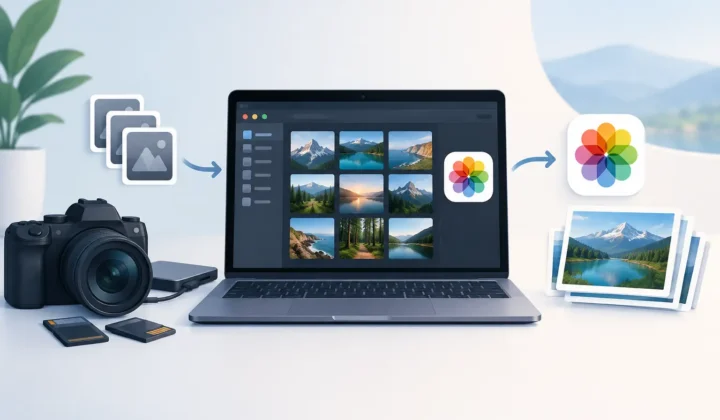
This is the model behind RawToHEIC. It converts supported camera RAW files and iPhone ProRAW directly in Photos on iPhone, iPad, and Mac, rather than sending your photos through a folder-based detour. The resulting HEIC stays in the library where your captions, albums, favorites, locations, and metadata are managed.
That approach is more than convenient. It avoids the common cleanup work that follows a traditional conversion: matching old and new files, restoring captions, rebuilding albums, checking dates, and hunting down accidental duplicates. Your library remains a library, not a pile of exports.
It also fits the reason many people convert RAW to HEIC in the first place. Once a photo is edited and you no longer need the original sensor data for future processing, HEIC can provide excellent image quality at a fraction of the storage size. For many libraries, the saving can reach up to 10x compared with RAW. Keeping the caption and organization makes that storage reduction useful instead of disruptive.
What stays in Photos and what may not travel
When you convert within Photos using a conversion workflow designed to preserve library context, the main concern is whether your new HEIC continues to work correctly inside Photos. Check the caption, date, location, albums, favorite status, and visual appearance before deleting anything.
Exporting the HEIC is a separate question. Apple Photos gives you export choices, and those choices affect metadata. If you need a caption to accompany a file outside your library, test one exported image first. Inspect it in the app or service where it will actually be used.
This is especially relevant for client delivery, stock submissions, shared archives, and migration to another photo manager. You may need a particular metadata standard, such as IPTC fields, rather than an Apple Photos caption alone. HEIC may be the right image format, but it cannot force every receiving platform to interpret descriptive metadata the same way.
Non-destructive edits deserve the same care. An edit you see in Photos is part of the Photos workflow. A rendered HEIC can preserve the edited appearance, while the ability to revisit the exact original RAW adjustment history is a different matter. If future re-editing from the RAW is essential for a hero image, keep the RAW. If the edit is final and storage is the priority, an HEIC version is often the better everyday asset.
A safe caption-preserving conversion routine
Start with a small batch, not your entire library. Choose a few RAW photos with meaningful captions, location data, edits, and album memberships. Convert them to HEIC inside Photos, then open each new image and verify the details panel.
Confirm that the caption reads correctly and that the photo appears where you expect. Search for a distinctive word from the caption. Check that the visible image reflects your intended edit and that location data remains present if you use it. If you plan to share files beyond Photos, export one HEIC and test it in the destination app.
Only after that check should you consider deleting originals. A conversion tool should make this safer with clear selection, visible results, and a verification step before removal. There is no benefit to reclaiming storage quickly if it introduces uncertainty about the images you value.
For an archive-first workflow, you may also choose to keep RAW originals for irreplaceable photos and convert the rest. Family events, travel selects, reference shots, and everyday iPhone ProRAW images are often excellent candidates for HEIC. Portfolio work, difficult lighting situations, and photos you expect to reprocess may justify retaining the RAW alongside the HEIC.
The practical answer for an Apple Photos library
HEIC can keep captions, but the format alone is not the guarantee. The conversion workflow is. If your photos are organized in Apple Photos, use a process that creates the HEIC in Photos and deliberately preserves the library context you already added.
Treat captions as part of the photo, not optional decoration. When a smaller HEIC still carries the words that explain where the image came from, who is in it, or why it matters, storage cleanup stops feeling like a compromise.
Shrink your RAW library, right inside Photos.
RawToHEIC converts camera RAW and iPhone ProRAW to HEIC up to 10× smaller — keeping every edit, album, favorite, and location. On-device, no account, one purchase for iPhone, iPad, and Mac.

Not sure yet? Convert a few sample photos free — no install, nothing uploaded.
Try it free — no install →