Convert Sony RAW on iPad Without File Exports

A Sony ARW file can be 25 MB, 50 MB, or far larger before you have even made a single edit. Multiply that by a weekend of shooting, then by years of photos in your iCloud library, and storage stops feeling abstract. If you want to convert Sony RAW on iPad, the real goal is not simply making a smaller file. It is keeping the work already done in Apple Photos while removing the storage pressure.
That distinction matters. Many conversion apps turn a photo-library task into a file-management task: export the RAW file, convert it somewhere else, import the result, rebuild albums, then decide whether it is safe to delete the original. On an iPad, that is slow and easy to get wrong.
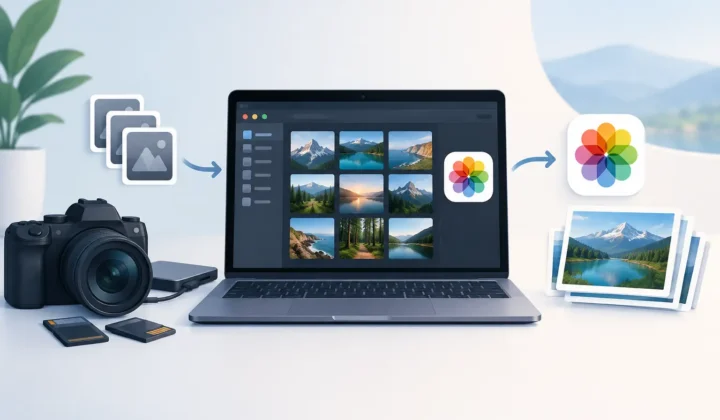
A Photos-native workflow gives you a cleaner option. Convert completed Sony RAW photos to HEIC directly in your library, keep the context that makes your library useful, and retain the RAW originals only when they still earn their space.
Why Sony RAW files become an iPad storage problem
Sony cameras produce ARW files with substantial image data. That is the point of RAW: it gives you more flexibility for exposure recovery, white balance, color grading, and detailed editing. But RAW is not automatically the best format for every finished photo you plan to keep.
Once an image is edited and approved, you may only need a high-quality version for viewing, sharing, printing at normal sizes, and revisiting in Photos. HEIC is designed for that role in the Apple ecosystem. It typically uses dramatically less storage than a Sony RAW file while maintaining excellent image quality.
The exact savings depend on the camera, resolution, subject detail, and edits. A compressed HEIC will not always be one-tenth the size of an ARW, but reductions of several times are common. Across a large library, that can mean real room on an iPad and lower pressure to upgrade iCloud storage.
There is a trade-off. A HEIC is a rendered image, not a RAW negative. You lose the deep RAW editing latitude available in the ARW. That makes conversion best for final selects, delivered work, personal favorites, and images whose edit is settled. Keep RAW files for portfolio images you may reprocess, difficult lighting situations, or photographs with long-term commercial value.
What should stay in Photos when you convert Sony RAW on iPad
A finished photo is more than its pixels. In Photos, it may have a date, location, caption, keywords, a favorite flag, album membership, and non-destructive adjustments. That organization often took longer to build than the edit itself.
A good iPad conversion process should preserve that context. The resulting HEIC should remain associated with the moment it belongs to, not arrive as an anonymous new import in Recents. It should carry the relevant metadata and stay usable in the albums and searches you already rely on.
This is why a loose-file workflow creates friction. Exporting to Files may produce a technically valid image, but it separates the conversion from your library. You are then responsible for importing, checking metadata, placing the new image in albums, and cleaning up duplicates. The more photos you process, the more opportunities there are for clutter and accidental deletion.
For photographers who treat Photos as their primary library, native integration is not a convenience feature. It is the workflow.
A practical workflow for Sony ARW files
Before converting a full shoot, start with a small, representative group. Choose photos with edits, location data, captions, and album placement. This gives you a clear way to confirm that the result matches what you expect.
1. Finish your edit before conversion
Make your exposure, crop, color, and retouching decisions first. When you create a HEIC from a Sony RAW photo, you are creating a compact version based on the image as it currently appears. If you are still experimenting with a dramatic edit, keep the RAW until the decision is final.
This does not mean every image needs museum-level scrutiny. It means separating active work from completed work. A useful habit is to favorite or place completed selections in an album before converting them.
2. Confirm your Sony camera format is supported
Sony RAW support can vary by camera model and iPadOS version. ARW is Sony’s common RAW extension, but camera support is determined by the underlying RAW compatibility available on your device. New camera models may require a newer iPadOS release before their files render correctly.
Open several ARW files in Photos and make sure they display and edit normally. Then test a conversion before processing hundreds of images. This is particularly worthwhile after buying a new Sony body or updating iPadOS.
3. Convert from within the Photos library
Use a tool built to work inside Photos rather than one that requires a Files export. With RawToHEIC, you select the RAW photos in your library and create HEIC replacements through a short, on-device process. There is no export-import loop and no need to manually reconstruct your photo organization afterward.
The benefit is simple: your iPad remains the place where the photos live, are edited, and are managed. You are not creating a second temporary library just to save space.
4. Verify the new HEIC before removing the RAW
Never treat deletion as an afterthought. Open the converted image and inspect the details that matter to you: appearance, date, location, caption, favorites, and album placement. If you work with HDR images, verify the result on your own display as well, since HDR handling depends on the source image and the capabilities of iPadOS.
A conversion utility should make this safer with verified deletion checks. The original RAW should only be removed after the HEIC has been created successfully and confirmed in the library. That safeguard is especially valuable when you are clearing hundreds of gigabytes, where one rushed tap can be expensive.
5. Let syncing finish before judging your storage
If iCloud Photos is enabled, library changes need time to synchronize across your Apple devices. Storage reporting can also lag while Photos updates thumbnails, local copies, and cloud status. Keep the iPad on power and Wi-Fi after a large batch, then check the library again later.
Do not be surprised if an iPhone or Mac briefly shows both versions while iCloud catches up. The important question is whether the final library contains the intended HEIC replacement and whether the RAW was removed only after verification.
Why HEIC is the sensible target format on Apple devices
JPEG is familiar, but HEIC is generally the more practical choice for Apple users. It offers efficient compression, supports modern image features, and is deeply integrated into iPhone, iPad, Mac, Photos, and iCloud. For a finished image library, it delivers a strong balance of visual quality and storage efficiency.
HEIC is not the right answer for every handoff. If a client, lab, publication, or legacy system specifically requires JPEG or TIFF, export the format they request. If you need maximum editing flexibility, keep the RAW. But for personal archives and day-to-day viewing inside Apple Photos, HEIC avoids carrying RAW-sized files when the RAW data is no longer needed.
It also keeps the library consistent with the rest of the Apple ecosystem. iPhone photos are already commonly HEIC, so converted Sony images fit naturally alongside images captured on your phone.
Privacy and safety are part of the conversion decision
A photo conversion tool sees personal material: family photos, travel locations, client work, and embedded metadata. That should not be uploaded to an unknown server simply to change a file format.
On-device processing keeps the conversion on your Apple hardware. It also avoids the delays and privacy questions that come with sending large RAW files to a cloud service. For a large Sony library, local conversion is usually faster in practice because there is no upload queue to wait through.
Look for clear privacy behavior as well as clear technical behavior. A utility that collects no analytics and works directly with Photos has less reason to know anything about your library beyond the access you grant for conversion.
Convert selectively, not blindly
The best storage strategy is not converting every ARW file the moment it arrives. Keep a deliberate RAW archive for images you may revisit, and convert the photos that have reached their final form. For many photographers, that means converting approved edits after a trip, a family event, or a completed personal project.
That approach preserves the value of RAW where it matters while making your everyday Photos library lighter, easier to sync, and less expensive to keep. Your Sony photos should remain easy to find and enjoyable to revisit – not become a storage problem you postpone solving.
Shrink your RAW library, right inside Photos.
RawToHEIC converts camera RAW and iPhone ProRAW to HEIC up to 10× smaller — keeping every edit, album, favorite, and location. On-device, no account, one purchase for iPhone, iPad, and Mac.

Not sure yet? Convert a few sample photos free — no install, nothing uploaded.
Try it free — no install →