HEIC Metadata Preservation Guide for Photos

A good HEIC metadata preservation guide starts with one distinction many converters miss: your photo data is not all stored in the image file. In Apple Photos, the information you care about may live in the HEIC file, in the Photos library database, or in the edit history attached to the asset. Convert through the wrong workflow and you can end up with a smaller file but a less useful library.
For photographers managing thousands of RAW files, that trade-off is rarely worth it. The goal is simple: reduce storage after an image is finished, while keeping the date, location, caption, favorite status, albums, and visual result you already organized in Photos.
What “metadata preservation” actually means
Metadata is often treated as one thing. It is not. A camera RAW file can carry technical capture data such as camera model, lens, shutter speed, aperture, ISO, date, orientation, and GPS coordinates. HEIC can store much of this standard image metadata too.
But Apple Photos adds another layer of library context. Captions, favorites, albums, keywords, people recognition, and some edit information are managed by Photos itself. They do not always travel with a file when you export it to Finder, convert it with a separate utility, and import it again.
That is why a file-based workflow can create friction even when the converted HEIC looks perfect. The new image may return as a separate asset, outside your albums, without the same favorite flag or caption. You may also have to find the original manually, confirm the conversion succeeded, and decide whether it is safe to delete anything.
The cleanest approach keeps the conversion inside the library where that context already exists.
Why exports are the weak point
A typical RAW-to-HEIC process looks harmless: export the RAW, convert it, then import the HEIC. The problems show up later, when you search by a caption, browse an album from a trip, or wonder why your edited version no longer appears where it should.
Exports can also change what you are working with. Depending on the export settings and app, you may receive an edited rendered file, an unedited original, a file with reduced metadata, or a duplicate that Photos treats as a completely new item. Some apps preserve EXIF fields well but cannot preserve the organization that only exists in your Photos library.
This does not mean exports are always wrong. They are useful when you need a file for a client, a shared drive, or another editing application. They are simply a poor default for reducing the size of a library you intend to keep managing in Apple Photos.
Preserve the photo before you preserve the file
Before converting, decide what role the RAW image has in your library. If it is a keeper with a finished edit, HEIC is often a practical format for long-term everyday access. It can be dramatically smaller than RAW while retaining high image quality, HDR support where available, and the metadata needed to understand how and when the image was made.
If the image may need serious re-editing later, keep the RAW. RAW retains more sensor data and gives you more room to recover highlights, adjust white balance, or revisit a demanding edit. HEIC is best viewed as an efficient finished-photo format, not a replacement for every master file.
That decision can be selective. Keep RAW for portfolio work, difficult lighting, major prints, and images you expect to reprocess. Convert completed travel photos, family images, event selects, and older edits that are taking up space without needing further RAW work.
A Photos-native workflow protects more context
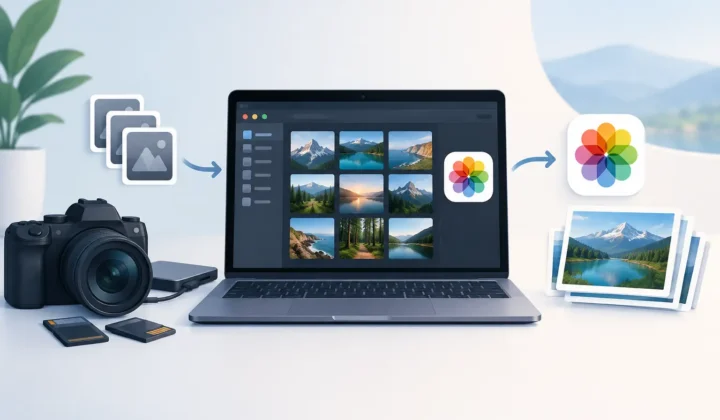
The safest conversion workflow begins and ends in Apple Photos. Select the RAW images already in your library, convert them to HEIC, inspect the results, and only then remove originals if that is your intention.
Because the work happens against your existing Photos library, the app can retain the organizational context attached to your selected assets instead of asking you to rebuild it after import. That means less time recreating albums, restoring favorites, copying captions, and checking locations.
RawToHEIC is built around this approach. It converts supported camera RAW files and iPhone ProRAW directly in Photos on iPhone, iPad, and Mac, without a loose-file export-import cycle. Processing stays on device, with no analytics collection and no photo uploads to a third-party server.
For a large library, this matters as much as compression. A smaller photo is only helpful if it remains easy to find.
Check the converted result before deleting originals
No conversion should rely on blind deletion. Review a small test batch first, especially if the images came from different cameras or were edited at different times.
Open several converted HEIC images in Photos and confirm the visual result, date, location, caption, favorite status, and album placement. Check a few technical details in the image information panel as well. If HDR is part of your workflow, view the image on a compatible Apple display and confirm it looks as expected.
Then test your deletion process. A conversion utility should verify that the new HEIC exists successfully before offering to remove the RAW original. That verification is a safety feature, not a convenience checkbox. Storage recovery should never come at the cost of an unconfirmed source-file deletion.
Metadata fields worth checking
You do not need to inspect every field on every image. A short validation routine catches the issues that affect real-world photo management.
For a representative set of photos, check these four areas:
- Capture details: Date, time, camera, lens, exposure settings, and orientation should be sensible for the converted image.
- Location data: Confirm the map location is still present for photos that had GPS information.
- Library organization: Check captions, favorites, and album membership, especially for images you use in Smart Albums or search frequently.
- Appearance and edits: Make sure the HEIC represents the look you intended, including crops, adjustments, and HDR output where relevant.
The exact result depends on the source file, the editing history, and the conversion method. A RAW photo with extensive edits should be judged by its rendered appearance, while a lightly edited image may also retain more familiar technical metadata. The practical question is not whether every private app field can be embedded in a new file. It is whether the converted asset still behaves correctly in the Photos library you rely on.
Avoid duplicate-library confusion
Conversions can create duplicates by design: you start with a RAW and create a HEIC. That is useful during verification, but it becomes messy if you convert in batches without a clear deletion plan.
Work in manageable groups, such as one camera roll, project, or year at a time. Keep the originals until you have confirmed the HEIC results. Once you decide the conversion is successful, remove only the RAW files you intended to replace and empty Recently Deleted only when you are fully comfortable with the outcome.
If you use iCloud Photos, allow time for the library to synchronize before judging storage totals across all devices. A converted image may be visible quickly while the original or its deletion status is still syncing elsewhere. Let the library settle before repeating the same batch on another device.
Protect privacy along with metadata
Photo metadata can be personally revealing. GPS coordinates may show where your home, school, or favorite hiking trail is located. Captions can contain names and event details. Keeping conversion on device limits who handles that information during processing.
Privacy and preservation are aligned here. An app that does not need to upload your RAW files has less access to your images and less opportunity for a transfer to fail, stall, or create another copy outside your library. You still control what to share later, including whether location data should remain attached to exports sent to other people.
Choose HEIC for the images you want to keep close
HEIC works especially well for the photos you want available everywhere in Apple Photos: finished edits, memories, travel collections, family images, and high-volume shoots that no longer need RAW flexibility. The storage reduction can be substantial, often up to 10x smaller than RAW depending on the source format and image content.
Keep a thoughtful exception list rather than treating conversion as an all-or-nothing cleanup. Preserve RAW where maximum editing latitude matters. Convert the finished work that deserves a permanent place in your library without permanently claiming a permanent amount of storage.
A well-managed Photos library should not force you to choose between keeping your history and keeping free space. Convert carefully, verify the context that matters to you, and let your finished photos stay organized exactly where you already use them.
Shrink your RAW library, right inside Photos.
RawToHEIC converts camera RAW and iPhone ProRAW to HEIC up to 10× smaller — keeping every edit, album, favorite, and location. On-device, no account, one purchase for iPhone, iPad, and Mac.

Not sure yet? Convert a few sample photos free — no install, nothing uploaded.
Try it free — no install →