ProRAW Storage Example: What 100 Photos Cost
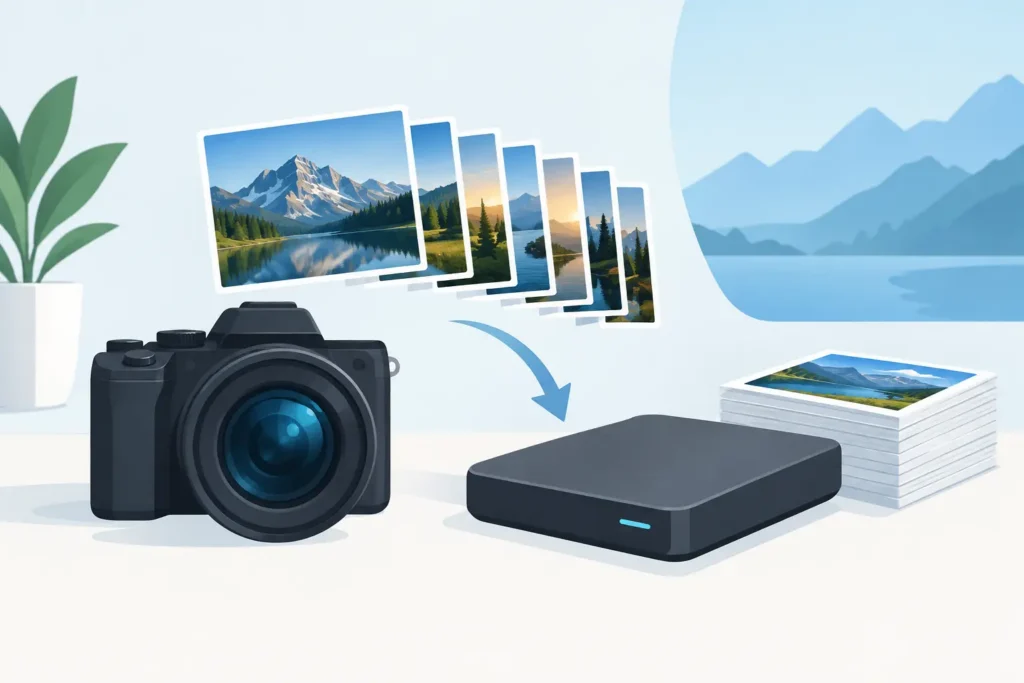
A ProRAW storage example gets real quickly when your iPhone starts warning that storage is almost full. One excellent 48-megapixel photo can be worth the space while you are editing it. A thousand finished photos left in ProRAW can turn a 256GB iPhone or iCloud library into a storage problem.
Apple ProRAW gives you exceptional editing latitude, combining RAW data with Apple’s computational photography pipeline. That flexibility has a cost: ProRAW files are dramatically larger than HEIC photos, and the difference compounds with every trip, family event, or daily photo walk.
ProRAW storage example: 100, 1,000, and 10,000 photos
A 48MP Apple ProRAW image is often around 60MB to 90MB, though individual files can fall outside that range. A darker scene, detailed foliage, a night shot, or a complex image can require more data. A typical 12MP ProRAW file is smaller, commonly around 20MB to 30MB.
Here is a practical estimate using a 75MB average for 48MP ProRAW and a 4MB average for high-quality HEIC. These are planning numbers, not guarantees, because subject matter and capture settings affect every file.
| Library size | 48MP ProRAW at 75MB each | HEIC at 4MB each | Approximate space saved | |—|—:|—:|—:| | 100 photos | 7.5GB | 400MB | 7.1GB | | 1,000 photos | 75GB | 4GB | 71GB | | 10,000 photos | 750GB | 40GB | 710GB |
That is why a library can feel manageable at first, then suddenly become expensive to sync, back up, and keep available on every device. Even if your average ProRAW file is closer to 50MB, 1,000 photos still occupy about 50GB. For a 128GB iPhone, that is not a minor difference.
HEIC is not RAW, and it is not meant to be. It is a highly efficient finished-image format. The useful question is not whether HEIC replaces ProRAW in every situation. It is whether every completed image needs to remain a giant working file forever.
Why ProRAW files vary so much
File size is not fixed by the word “ProRAW.” Resolution is the biggest factor. On supported iPhone models, 48MP ProRAW captures far more image data than 12MP ProRAW. Choosing 12MP can be a sensible middle ground when you want RAW flexibility but do not need maximum resolution for a particular shot.
Scene complexity matters too. Fine texture in leaves, hair, fabric, architecture, and low-light noise can increase file size. So can the computational data associated with Apple’s image pipeline. Two photos taken seconds apart may not occupy the same amount of space.
Your library behavior matters more than any single file. A photographer who captures 20 carefully selected ProRAW frames each month may never feel pressure. Someone who shoots a few hundred ProRAW images during a weekend trip, then repeats that habit all year, will. Burst-style experimentation, alternate compositions, and images you have already finished editing are where storage quietly disappears.
The cost is more than iPhone storage
Large ProRAW libraries take room on an iPhone, iPad, and Mac, but the knock-on effects can be more frustrating. iCloud Photos needs more capacity. Initial syncing takes longer. Device backups become heavier. A new iPhone may take longer to fully populate with your photo library.
Cloud storage tiers are often the first visible cost. But local storage matters just as much. When a device runs low, iOS has less room for apps, downloads, messages, offline media, and system operations. You may begin deleting things you actually use just to preserve a backlog of already-finished RAW files.
There is also a practical quality-of-life cost. A library full of large originals can make it harder to keep a complete photo collection downloaded on a Mac with limited internal storage. Optimized storage helps, but it is not the same as deciding which files truly need RAW headroom going forward.
Keep ProRAW when future editing is still valuable
There is no universal rule to convert every ProRAW image. Keep the original when it has meaningful future value as a RAW file. That can include a portfolio image, a paid shoot, an image you may print large, a difficult exposure you expect to revisit, or a once-in-a-lifetime photo where maximum editing flexibility matters.
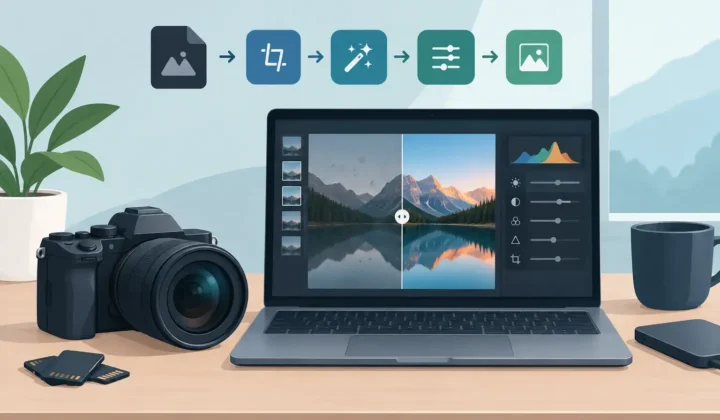
It also makes sense to keep ProRAW during an active editing period. RAW is useful precisely because you can revisit white balance, exposure, color, and highlight recovery with more latitude than a compressed finished image. Converting too early removes that option.
The more common case is a photo that is already done. You made the edits you want, added it to an album, favorited it, captioned it, or shared it. For these images, keeping a 50MB to 90MB ProRAW file may no longer earn its place in your everyday library. A high-quality HEIC version is often the better long-term format for viewing, sharing, and preserving space.
A better workflow than export, convert, and re-import
Traditional conversion tools create loose files. You export images from Photos, manage folders in Files or Finder, convert them elsewhere, then import the new copies and try to identify the correct originals. That workflow can produce duplicates and make it easy to lose captions, albums, favorites, locations, or the edits that made the photo final.
A Photos-native workflow avoids that detour. You select completed RAW or ProRAW photos in your existing library, convert them on-device, verify the result, and then remove originals only after the replacement is safely present. Your photo organization stays where it belongs: in Photos.
RawToHEIC is built for this specific cleanup job. It converts iPhone ProRAW and supported camera RAW formats directly inside Apple Photos, with no upload and no loose-file workflow. Processing stays on your device, and verified deletion safeguards are designed to prevent the most stressful mistake: removing an original before the converted photo is confirmed.
For Apple photographers, this distinction matters. Storage savings are useful only if the process does not create a new library-management problem.
How to estimate your own ProRAW storage savings
Start with your actual library rather than a generic estimate. In Photos, find a recent group of ProRAW images from a representative shoot. Look at the file sizes, add them together, and divide by the number of photos. That gives you a realistic average for how you shoot.
Next, count the photos that are genuinely finished. Do not include work still in progress or originals you want to retain for professional, archival, or print reasons. Multiply that count by your average ProRAW file size. Then compare it with a conservative HEIC estimate of roughly 3MB to 6MB per photo.
Suppose you have 2,000 finished 48MP ProRAW images averaging 70MB. They use about 140GB. If their HEIC replacements average 4MB, they use about 8GB. The potential reduction is roughly 132GB. Even allowing room for variation, that can be the difference between paying for more cloud storage and keeping your current plan, or between a crowded device and one with room to work.
Choose a retention rule you can maintain
The most effective storage plan is usually simple: keep ProRAW while an image is being edited, retain original RAW files for your best or business-critical work, and convert finished everyday photos that no longer need RAW flexibility.
You can apply that rule after each trip, at the end of every month, or when your library reaches a storage threshold. The timing depends on how you shoot. Consistency matters more than a one-time cleanup, because new ProRAW files arrive faster than most people expect.
Your best photos deserve the flexibility of ProRAW. Your finished memories deserve to stay easy to find, easy to share, and easy to keep. Treating RAW as a working format and HEIC as an efficient finished format gives both jobs the space they need.
Shrink your RAW library, right inside Photos.
RawToHEIC converts camera RAW and iPhone ProRAW to HEIC up to 10× smaller — keeping every edit, album, favorite, and location. On-device, no account, one purchase for iPhone, iPad, and Mac.


Not sure yet? Convert a few sample photos free — no install, nothing uploaded.
Try it free — no install →