ProRAW Storage Requirements: What to Plan For
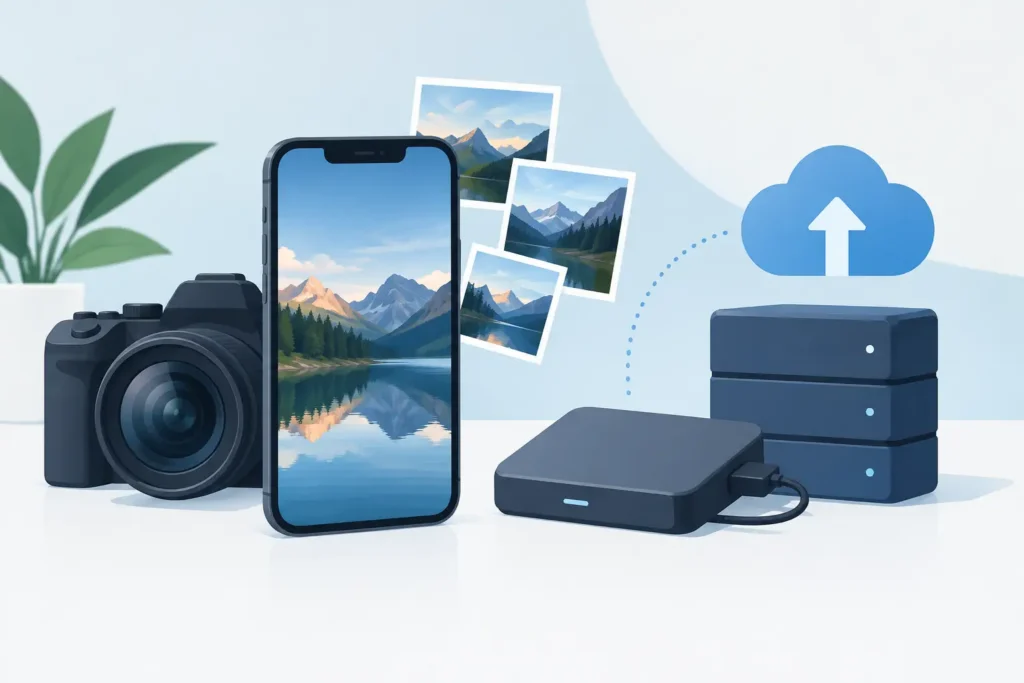
A great ProRAW image can be 25 times larger than the HEIC photo beside it. That gap is easy to ignore for one portrait or a weekend trip, then impossible to miss when your iPhone starts warning that storage is full. Understanding ProRAW storage requirements helps you decide when the editing flexibility is worth the space and when an edited image is ready to become a much smaller HEIC.
Why Apple ProRAW files use so much space
Apple ProRAW combines the flexibility of a RAW file with Apple’s computational photography data. It preserves far more image information than a standard HEIC, giving you more room to recover highlights, adjust white balance, refine color, and edit exposure without the limitations of a heavily compressed finished image.
That flexibility has a cost. A typical 12-megapixel ProRAW photo is often around 25 MB. On newer Pro iPhones, a 48-megapixel ProRAW capture can commonly reach 70 MB to 100 MB or more, depending on the scene and capture settings. By comparison, a standard HEIC image may be only 2 MB to 5 MB.
File size varies because RAW files store a large amount of sensor and processing data. Detailed scenes, low-light photos, and images with more visual complexity can require more space. The practical takeaway is simple: ProRAW is designed for editing latitude, not storage efficiency.
ProRAW Storage Requirements by shooting volume
The best way to plan storage is to start with how often you shoot, not with a single-file estimate. A few files are trivial. Hundreds of 48-megapixel captures add up fast.
Here is what that can look like when each ProRAW photo averages 75 MB:
- 100 photos: about 7.5 GB
- 500 photos: about 37.5 GB
- 1,000 photos: about 75 GB
- 5,000 photos: about 375 GB
A busy travel week, a family event, or an extended photo walk can easily produce hundreds of images. If you keep every ProRAW original indefinitely, a 256 GB iPhone can feel constrained sooner than expected, especially once apps, video, messages, downloads, and offline media are included.
The same pressure reaches iCloud Photos. iCloud is excellent at keeping a library available across your Apple devices, but it stores what is in your library. If your library contains 500 GB of ProRAW originals, that is the amount of cloud storage you need to accommodate. Optimize iPhone Storage can reduce the local footprint by keeping smaller device versions, but it does not reduce your total iCloud library size.
The hidden storage cost is often duplication
Many photographers do not stop at the original ProRAW image. They may create an exported JPEG for sharing, save an edited copy, send images through messaging apps, or move files into a separate folder before converting them. Each step can create another version and another place to manage.
This is where a file-based workflow becomes frustrating. You may save storage in one folder while losing albums, favorites, captions, locations, and the editing context already built in Apple Photos. The original remains in the library, the converted version lives elsewhere, and sorting out which file is safe to delete becomes a second project.
A better approach is to decide what each image needs to be after editing. Keep ProRAW when you expect to revisit the edit or need maximum flexibility. For finished keepers that you want to retain, share, and enjoy in Photos, a high-quality HEIC can be the more sensible long-term format.
When you should keep the ProRAW original
Converting every ProRAW image immediately is not always the right choice. RAW remains valuable when the image has lasting creative or commercial value, when you expect to print large, or when your current edit is only a first pass.
Keep the original for a portfolio image, an important family milestone, a client deliverable, or a photo with difficult lighting that you may want to reinterpret later. You may also want the original if your editing style changes over time. A new version of an editing tool can sometimes reveal more potential in a file you captured years ago.
For routine shots, near-duplicates, and completed edits that already look exactly as you want, the calculation changes. The question is not whether ProRAW is better at capture. It is whether you still need its extra editing headroom months or years later.
How much space can HEIC save?
HEIC is a modern, efficient image format used throughout Apple’s ecosystem. It is not RAW, so it does not retain the same deep sensor-level flexibility. But for an image whose edit is complete, it can preserve excellent visual quality at a fraction of the size.
The exact reduction depends on the source image and export settings, but moving from a 25 MB to 100 MB ProRAW original to a smaller HEIC can reduce the storage footprint dramatically. In many libraries, finished images take up up to 10 times less space after conversion.
That difference compounds over time. Reclaiming 50 GB is not only about postponing an iCloud upgrade. It can also make device backups faster, reduce pressure on a Mac or iPad, and leave more room to keep shooting without constantly checking storage settings.
Convert finished photos without breaking your Photos workflow
The format decision is easy. The workflow is usually the hard part.
A conversion process should not force you to export loose files, manually import them again, recreate albums, or guess whether the original can be deleted. Those steps make people postpone cleanup until their library becomes unmanageable.
RawToHEIC is built for this specific situation. It converts ProRAW and supported camera RAW files to HEIC directly inside Apple Photos, on device. Your library stays in Photos rather than becoming a collection of disconnected folders. The app preserves the organizational context you already rely on, including albums, favorites, captions, locations, metadata, and non-destructive edits.
That matters because a smaller library is only useful if it remains easy to find and trust. On-device processing also means your images do not need to be uploaded to a third-party server for conversion. No analytics are collected, and verified deletion safeguards help prevent the wrong original from being removed.
A practical ProRAW storage routine
You do not need to manage every photo the moment you take it. A simple review rhythm works better. Shoot in ProRAW when the scene benefits from it, then edit and review after a trip, event, or month of regular shooting.
Start by rejecting obvious misses and duplicates. For the images you want to keep, make your final adjustments in Photos. Then separate them into two groups: photos worth retaining as ProRAW originals and finished images that no longer need RAW-level flexibility.
Convert the second group to HEIC within your Photos library. Confirm that the new images look right, remain in the expected albums, and retain the information you care about before removing the larger originals. This gives you an intentional archive rather than an all-or-nothing choice between maximum quality and usable storage.
Don’t let capacity choose your format for you
ProRAW is one of the best reasons to own an iPhone Pro. It gives you serious editing latitude in a camera that is already with you. But its value is highest before and during the edit, not necessarily forever after it.
Treat ProRAW as your capture and editing format when the image deserves it. Treat HEIC as a practical home for finished photos when space, sync, and a clean Apple Photos library matter more. That small decision, repeated regularly, keeps your best images accessible without letting storage warnings dictate when you have to clean up.
Shrink your RAW library, right inside Photos.
RawToHEIC converts camera RAW and iPhone ProRAW to HEIC up to 10× smaller — keeping every edit, album, favorite, and location. On-device, no account, one purchase for iPhone, iPad, and Mac.

Not sure yet? Convert a few sample photos free — no install, nothing uploaded.
Try it free — no install →