ProRAW versus HEIC: Which Format Should You Use?
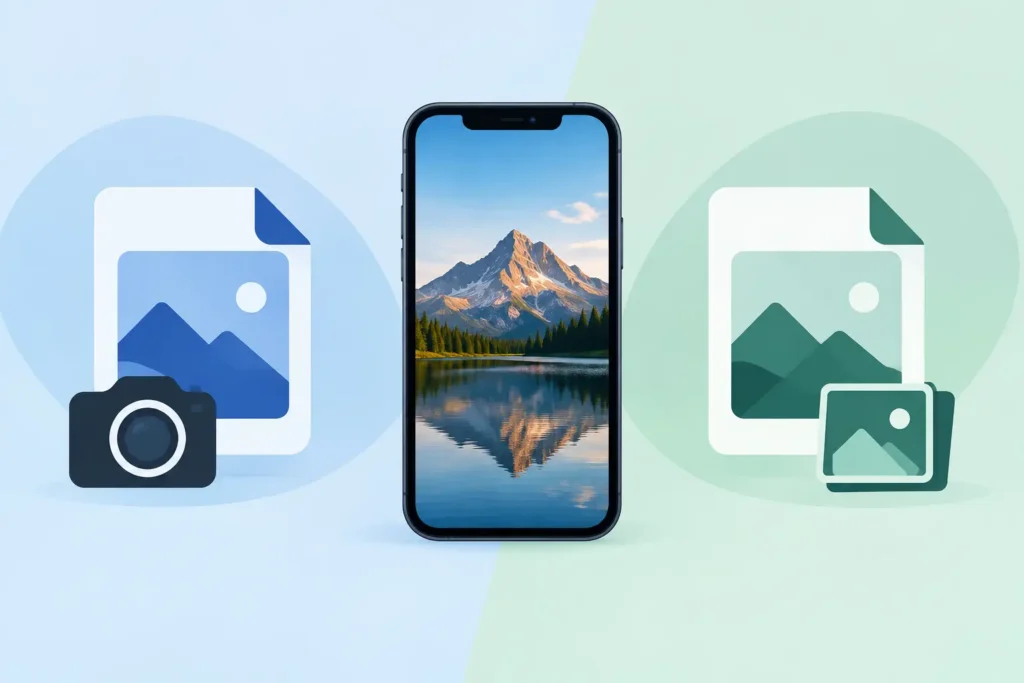
A single iPhone ProRAW photo can take as much space as dozens of HEIC shots. That is the real decision behind ProRAW versus HEIC: not which format is universally better, but how much editing latitude you need before your Photos library starts demanding more device and iCloud storage.
For Apple users who shoot often, the best answer is usually a two-format workflow. Capture ProRAW when the scene deserves it. Keep HEIC for everyday photography and for finished images you no longer need to reprocess from the sensor data.
ProRAW versus HEIC: the practical difference
Apple ProRAW is a DNG-based RAW format with Apple’s computational photography data included. It records substantially more image information than a finished photo file, giving you greater freedom to adjust exposure, white balance, highlights, shadows, and color after capture. That flexibility matters when light is difficult or when you intend to make deliberate edits.
HEIC is a highly efficient finished-image format. It uses modern compression to produce files that are far smaller than RAW while retaining excellent visual quality for viewing, sharing, printing, and normal editing. On supported Apple devices, HEIC can also retain high dynamic range information, so choosing HEIC does not automatically mean settling for a flat or low-quality image.
The trade-off is simple. ProRAW gives you more room to recover and reshape an image. HEIC gives you a photo that is ready to live in your library without consuming disproportionate storage.
A ProRAW file from an iPhone can commonly be tens of megabytes, and higher-resolution modes can go much larger. A HEIC version of a similar scene may be only a few megabytes. Exact results depend on the iPhone model, resolution, subject detail, lighting, and settings, but the storage gap is often dramatic.
When ProRAW earns its file size
ProRAW is most useful when you expect the final image to depend on editing decisions you have not made yet. Think of a sunset where the sky is bright but the foreground is dark, a backlit portrait, a night scene, or an indoor image with mixed lighting. These are situations where the additional tonal and color information can make a visible difference.
It also makes sense for images with personal or professional value: a once-in-a-lifetime trip, a family milestone, a product shoot, or a landscape you plan to print. If you know you will edit carefully in Photos or another RAW-capable editor, keeping the original ProRAW file is a sensible form of insurance.
That does not mean every technically challenging photo needs ProRAW. Computational processing in standard iPhone capture is already very capable. If the image looks right and you do not plan to push exposure or color very far, HEIC is often the more efficient choice.
ProRAW has limits, too
RAW is not a quality switch that improves every photo. It does not fix motion blur, missed focus, poor composition, or a subject that moved between frames. It also creates more work. A ProRAW image can look less finished at first because it is designed to be edited, not merely captured and shared.
There is also a storage cost beyond the file itself. Large originals slow down library growth, backups, device migrations, and available-space decisions. For a library containing years of photos, a habit of leaving every capture in ProRAW can become expensive fast.
When HEIC is the better choice
HEIC is the practical default for photos you want to take, enjoy, and keep without turning every shot into an editing project. Family moments, receipts, reference photos, casual travel images, pets, meals, and day-to-day snapshots are usually strong candidates.
It is also a smart format after an edit is complete. Once you have made the adjustments you want, the editing latitude in the original RAW file may no longer be worth its ongoing storage cost. A high-quality HEIC rendition can preserve the look you created while taking up far less room.
This is especially relevant for photographers who use Apple Photos as their main library. Photos keeps albums, favorites, captions, locations, people, search data, and edits together. The goal should not be to create a folder of converted loose files and then rebuild your organization around them. The goal is to reduce storage while keeping the library usable.
HEIC is not the same as throwing quality away
A well-rendered HEIC can look excellent on modern displays and in print at ordinary sizes. Its smaller footprint comes from efficient compression and a format designed for contemporary devices, not from simply making every image visibly poor.
What you give up is the full RAW original and its deeper recovery potential. That distinction matters most before editing, not after you have already committed to a final rendering. Keep the RAW when future re-editing is likely. Consider HEIC when the image is finished or when storage efficiency matters more than maximum flexibility.
A better workflow than choosing one format forever
The most efficient approach is to choose based on intent at the moment you shoot, then review later. Use HEIC as your everyday capture format. Turn on ProRAW for scenes you expect to edit heavily or preserve at the highest possible flexibility. After editing, keep the select RAW images that truly merit long-term archival and convert the rest to HEIC.
This approach avoids two common mistakes. The first is shooting everything in ProRAW, then discovering that a large portion of the library consists of casual frames that never needed RAW data. The second is shooting everything in HEIC and regretting it when an important image needs more highlight or white-balance recovery than the file can support.
Your keepers do not all need the same treatment. A portfolio image may deserve its ProRAW original. Ten similar photos from the same event may not. A favorite can remain RAW while the near-duplicates and completed edits become HEIC. That is a practical standard, not a rigid rule.
Converting finished RAW photos without breaking Photos
Traditional conversion tools often create friction. You export a RAW file, convert it elsewhere, import a new copy, then decide what to do with the old version. Albums, favorites, captions, location data, and edits can become difficult to track. Before long, the storage-saving task creates a library-management problem.
A Photos-native workflow is different. RawToHEIC converts supported camera RAW formats and iPhone ProRAW directly within Apple Photos, so the work stays on your device and inside the library you already use. The converted HEIC can retain HDR where supported, while the app checks that the new file exists before offering verified deletion of the original.
That safety check matters. A conversion should not be a leap of faith, especially for images you cannot reshoot. Review the HEIC result first, confirm that it looks right, and only then remove the larger RAW original if you are comfortable doing so. Keep your highest-value RAW files until you have a backup strategy you trust.
On-device processing is equally relevant. Your photo library is personal. A conversion utility should not need to upload your images to a server or collect analytics about your library simply to reduce file size.
How to decide photo by photo
Ask one question before keeping a large RAW original: will I realistically want to re-edit this from RAW data later? If the answer is yes, keep it. If the image is complete, visually approved, and unlikely to need major changes, HEIC is usually the efficient long-term version.
Use a little more caution with images that have difficult skies, subtle color work, deep shadow recovery, or planned large prints. Those are the files where ProRAW offers real future value. Be more decisive with routine images and completed edits. Storage savings add up fastest when you convert volume, not when you debate every file for ten minutes.
The right library is not the one with the most RAW files. It is the one where your important originals are protected, your finished photos remain easy to find, and your devices have room for what you want to shoot next.
Shrink your RAW library, right inside Photos.
RawToHEIC converts camera RAW and iPhone ProRAW to HEIC up to 10× smaller — keeping every edit, album, favorite, and location. On-device, no account, one purchase for iPhone, iPad, and Mac.

Not sure yet? Convert a few sample photos free — no install, nothing uploaded.
Try it free — no install →