HEIC versus DNG File Sizes for Apple Photos
A single afternoon of shooting can add 20 GB, 50 GB, or more to an Apple Photos library when every frame stays in DNG. The practical question behind HEIC versus DNG file sizes is not which format is universally better. It is which file you need to keep for each stage of your photo workflow.
For many photographers, DNG is the capture and editing format. HEIC is the efficient format for finished images you want available everywhere in Photos. Treating those roles differently can shrink a library substantially without giving up the albums, favorites, captions, locations, and edits that make the library useful.
HEIC Versus DNG File Sizes: The Real Difference
DNG is a RAW-based format. It stores far more of the original sensor data than a standard display-ready image, giving you latitude to adjust exposure, white balance, highlights, shadows, and color after capture. That flexibility has a storage cost.
HEIC is a highly efficient image format designed for viewing, sharing, and everyday photo management. Apple uses it as the default photo format on many devices because it can preserve excellent visual quality in a much smaller file than older formats such as JPEG. It is not a RAW negative, though. A HEIC contains a rendered image rather than the full set of editable sensor data found in a DNG.
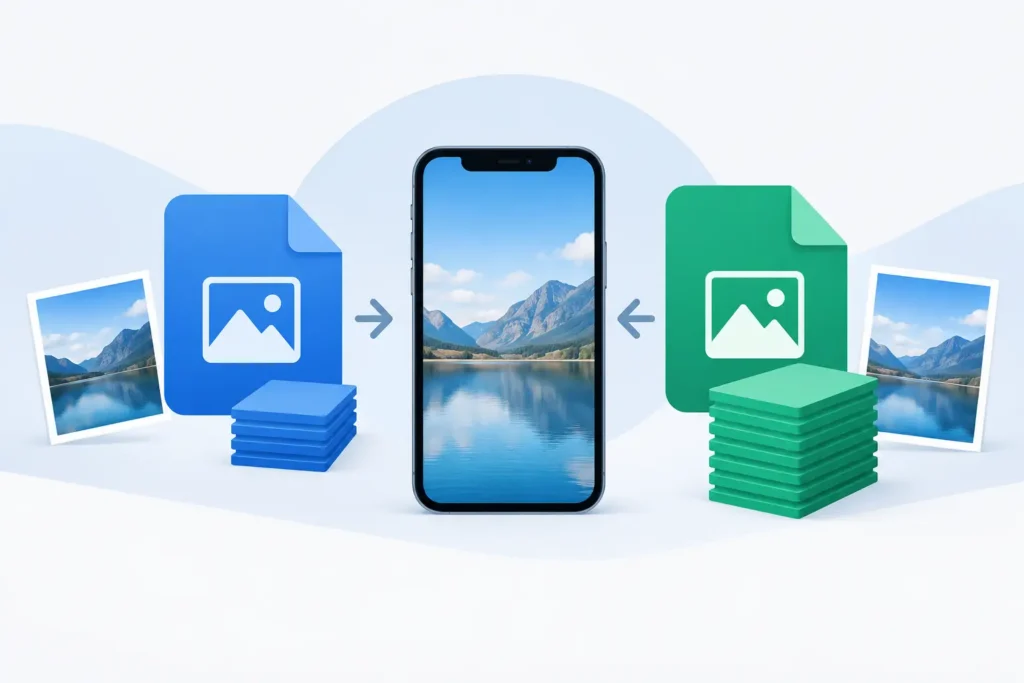
Actual sizes vary by camera, resolution, scene detail, compression setting, and whether the image includes HDR data. Still, the gap is usually clear. A DNG from a modern camera may range from roughly 20 MB to 80 MB or more per photo. An edited HEIC at a comparable viewing resolution may often land around 2 MB to 10 MB.
That means a finished HEIC can be several times smaller than its DNG source. In favorable cases, particularly with large ProRAW or high-resolution camera files, the storage reduction can approach 10x. The right expectation is not one fixed ratio. It is a meaningful reduction that compounds across hundreds or thousands of photos.
Why file size varies so much
Two DNG files from the same camera can have different sizes. Detailed foliage, low-light noise, and highly textured scenes can require more data than a clean studio background. Camera makers also use different RAW compression methods, and DNG files may be lossless compressed, uncompressed, or converted from other RAW formats.
HEIC size also changes with image content and export quality. A sunset with smooth gradients may compress differently from a city scene full of fine edges and signage. HDR content, Live Photo components, and auxiliary depth or portrait data can affect the total space used in Photos as well.
The useful comparison is therefore not a spreadsheet-perfect number. Compare your own library: select a representative group of photos, check the combined size of the originals, then compare it with the resulting HEIC versions. That gives you a number that reflects your camera and your shooting style.
What You Give Up When You Replace DNG With HEIC
The smaller file is not free. Once you convert a DNG to HEIC, you no longer have the same RAW editing headroom. You cannot revisit the original sensor data to make a dramatic white-balance correction or recover as much detail from a severely underexposed image.
This matters most for photos that may need serious future work: portfolio images, paid client work, important family milestones, difficult mixed-light scenes, or photos you plan to print large. Keep the DNG for those images, ideally with a separate backup strategy.
For the rest of a library, the calculus is often different. If you have already edited and approved an image, you may not need a 40 MB RAW file simply to revisit it in an album, search for it by location, send it to family, or enjoy it on an iPhone. A high-quality HEIC can preserve the finished look while making the entire library easier to keep on-device.
There is also a middle ground. Keep DNG files for your strongest selects and convert routine keepers, duplicates of edited variations, travel documentation, casual portraits, and older photos you are unlikely to reprocess. This approach protects creative flexibility where it has real value while reducing the storage burden everywhere else.
The Apple Photos Question: Files Are Only Part of the Library
A loose-file conversion workflow creates a second problem. You export a RAW file, convert it elsewhere, then import a new HEIC. Now you may have to rebuild albums, reapply favorites, check dates and locations, remove duplicates, and confirm that your edits survived the trip.
That friction is why file size alone is not the full decision. Your Photos library is more than a folder of images. It is an organized collection with relationships, context, and years of personal work.
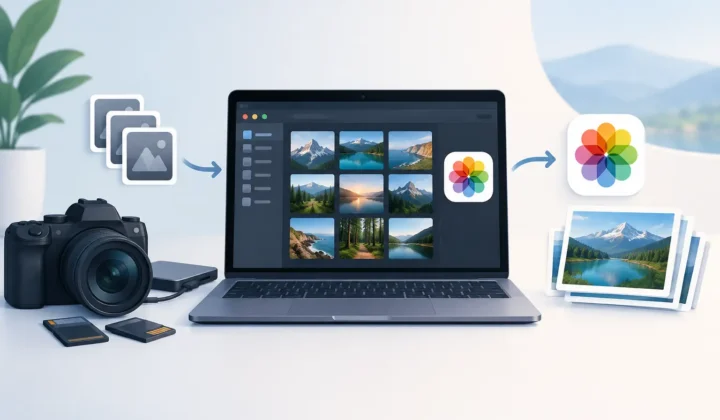
A Photos-native conversion workflow keeps the decision focused on storage rather than library repair. With RawToHEIC, you can convert supported RAW files, including iPhone ProRAW and major camera formats, directly in Apple Photos. The app is designed to preserve the photo’s place in your library while creating an efficient HEIC version, rather than sending you through an export-import routine.
For a large library, safety matters as much as convenience. Review the converted result first. Confirm that the image looks right, the metadata is present, and the new file is where you expect it to be. Only then should you remove an original you no longer need. Verified deletion safeguards are especially valuable when reclaiming space from thousands of files.
When DNG Is Worth the Storage
Keep DNG when the file is your master. That includes images with substantial editing potential, work you may license or print, photos with challenging exposure, and any image where you expect new editing tools to improve the result later.
DNG is also a sensible choice when storage is cheap relative to the image’s value. If a photo took real planning, travel, or effort to create, retaining the RAW source can be the safer long-term decision. A 50 MB file is small compared with the cost of losing the ability to reinterpret a one-time image.
If you use an external editor that depends on RAW data, do not convert your only original before finishing that work. HEIC is best treated as a finished deliverable or an efficient library version, not as a replacement for an active editing master.
When HEIC Makes More Sense
HEIC is often the better fit once an image is finished and its main job is to live in Photos. It is compact, fast to sync through iCloud Photos, practical for keeping more of your library downloaded to an iPhone or iPad, and well supported across Apple devices.
It is especially useful for photographers who shoot large volumes. A weekend event, family vacation, street photography walk, or ProRAW-heavy iPhone library can accumulate storage pressure quickly. Converting approved images to HEIC can make the difference between paying for more cloud storage, constantly offloading photos, or keeping a usable local library.
HEIC can also reduce the friction of sharing. Recipients are more likely to receive a manageable file, and you are less likely to wait on large transfers when sending a set of finished photos. That does not make HEIC a universal archival answer. It makes it a practical everyday format after the editing decision is complete.
A simple decision rule
Ask one question before converting: “Will I realistically need the original RAW data again?” If the answer is yes, keep the DNG. If the answer is no, a HEIC can preserve the image you chose while using far less space.
For uncertain photos, wait. Storage recovery does not need to happen all at once. Convert a completed album or an older year of your library first, verify the results, and use the savings to decide how aggressively you want to continue.
Choose File Size Savings Without Creating a Mess
The best HEIC versus DNG file sizes strategy is selective, not absolute. DNG protects future editing freedom. HEIC protects your available storage and keeps finished photos practical to carry across Apple devices. Both formats earn a place when they serve different jobs.
Start with images whose edits are final, whose originals are unlikely to be revisited, and whose size is creating real pressure on your library. A thoughtful conversion habit lets your Photos library stay personal, organized, and available – without making every memory carry the weight of a digital negative.
Shrink your RAW library, right inside Photos.
RawToHEIC converts camera RAW and iPhone ProRAW to HEIC up to 10× smaller — keeping every edit, album, favorite, and location. On-device, no account, one purchase for iPhone, iPad, and Mac.

Not sure yet? Convert a few sample photos free — no install, nothing uploaded.
Try it free — no install →