ProRAW Conversion Tools That Keep Photos Intact
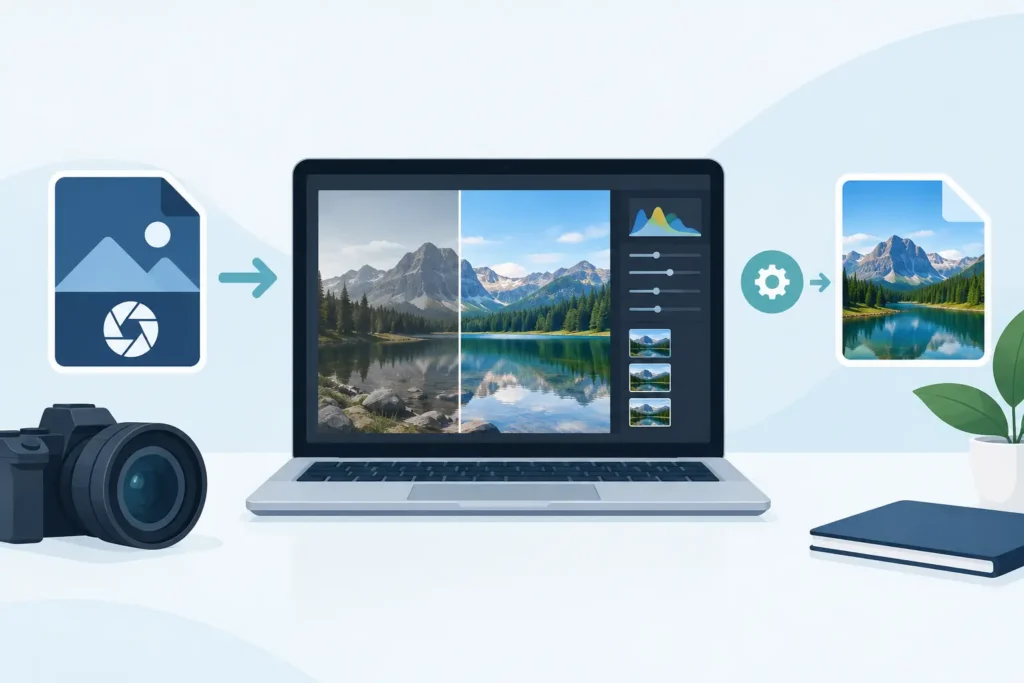
A single 48-megapixel ProRAW photo can take roughly 60 to 80 MB of space. Shoot a weekend trip, a family event, or a few months of everyday photos, and storage pressure arrives fast. The best ProRAW conversion tools reduce that pressure without turning your carefully organized Photos library into a folder of loose exports.
That distinction matters. A conversion tool can create a smaller file. A good Apple-focused tool also respects the work already inside Photos: albums, favorites, captions, locations, dates, and edits. If you use Photos as your primary library, the conversion workflow is as important as the resulting HEIC.
What ProRAW conversion tools should actually solve
Apple ProRAW is a DNG-based format designed to hold far more image data than HEIC. That flexibility is useful while you are editing. You can recover highlight detail, adjust white balance more aggressively, and refine color with more latitude than a compressed image usually allows.
But finished photos do not always need the storage footprint of an editable RAW original. Once you have reached the look you want, a high-efficiency HEIC can be a practical version to keep in your everyday library. It is typically much smaller, supports modern Apple viewing and sharing, and can preserve HDR when the conversion tool handles it correctly.
The catch is that ProRAW conversion is not one universal task. Some people want to archive finished images and remove large originals. Others want smaller copies for sharing while keeping every RAW. Some need to process hundreds of photos without losing their existing organization. The right tool depends on which problem you are solving.
The main types of ProRAW conversion tools
File-based converters
Traditional desktop converters work from files. You export a ProRAW image from Photos, choose a destination folder, convert it, then import the HEIC result back into Photos. This can work well when you are already using a folder-based workflow or need extensive output controls.
For a Photos-first library, though, every stage adds friction. You may need to reapply albums, favorites, captions, keywords, or locations after importing. You also need to confirm that the correct version came back, that HDR was retained, and that you did not accidentally create duplicates. The conversion itself may be fast; the cleanup rarely is.
Professional editing applications
Editors with RAW development features give you the most creative control. They are the right choice when the conversion is part of a broader editing session involving local adjustments, presets, retouching, or delivery requirements.
Their trade-off is complexity. Exporting is usually built around files, not the organizational context of Apple Photos. They can be excellent image editors and still be a poor fit for reducing the size of a finished Photos library. Use them when you need advanced image-making tools, not merely a smaller final file.
Photos-native conversion tools
Photos-native ProRAW conversion tools are designed for the point after editing, when your goal is storage efficiency without a loose-file workflow. Instead of sending images through export folders, they work within the Apple ecosystem and can preserve the information that makes a library usable.
This approach is especially useful on iPhone and iPad, where file management is possible but rarely pleasant. It also keeps the job close to the photos themselves, rather than creating a parallel archive that you have to maintain indefinitely.
What to check before converting ProRAW to HEIC
The phrase “convert to HEIC” can hide meaningful differences. Before processing a large batch, test a few photos that represent your real library: a portrait, a night photo, a bright HDR scene, and an image with edits and detailed metadata.
First, check HDR handling. A conversion that looks good in a standard preview can lose the brightness and color range that made the original scene convincing. If you shoot ProRAW on recent iPhone Pro models, HDR preservation should be a deliberate capability, not an assumption.
Next, inspect metadata. The date, location, camera details, and caption make images searchable and meaningful years later. Organizational context matters too. If an image is in a vacation album, marked as a favorite, or part of a shared workflow, a replacement should not force you to rebuild that work manually.
Then consider edits. Your need may vary. If you want a finished HEIC that reflects your current Photos adjustments, verify that the result looks exactly right. If you want the flexibility to revisit a RAW edit later, keep the ProRAW original. HEIC is a smart space-saving endpoint for completed photos, not a replacement for every capture you may want to reprocess.
Finally, assess safety. Deleting originals is where conversion tools earn trust or lose it. A responsible workflow should confirm that the new HEIC was created and saved successfully before offering to remove the larger ProRAW. You should also be able to review results rather than treating deletion as an automatic afterthought.
Why the native Photos workflow changes the decision
Storage conversion becomes complicated when the Photos library and the converted files live in different places. You export, convert, import, identify duplicates, move the new versions into albums, and only then decide whether it is safe to delete the originals. That is a lot of chances to lose context or make a mistake.
A Photos-native approach shortens the workflow to the job you actually intended: select finished ProRAW images, create smaller HEIC versions, verify the result, and reclaim space. There is no export folder to organize and no manual re-import cycle to clean up.
This is not only about convenience. It changes whether you will realistically maintain your library. A workflow that takes a few taps can become a regular habit. A workflow that requires a desktop, a cable, folder naming, and duplicate management often gets postponed until storage is already full.
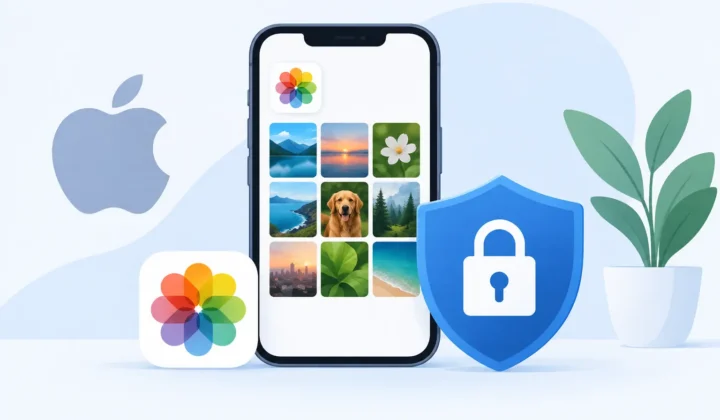
RawToHEIC is built around this Photos-first use case. It converts iPhone ProRAW and supported camera RAW photos directly within Photos on iPhone, iPad, and Mac, with on-device processing, no analytics, and verified safeguards before originals are removed. The result is a smaller library without abandoning the albums, metadata, and edits you already rely on.
When you should keep the ProRAW original
Not every ProRAW image should become HEIC. Keep the RAW when it is a client deliverable, an important personal image you may edit again, a difficult high-contrast scene, or a photo where you expect future editing tools to produce a better result. RAW files are your negative. They remain valuable when the image has long-term creative value.
For everyday keepers, the balance is different. A finished photo of a meal, a walk, a school event, or a vacation moment may deserve a place in your library without requiring a large DNG forever. Converting those completed images can reduce space dramatically, often by up to 10x depending on the image and settings, while keeping them easy to find and enjoy.
A hybrid library is usually the sensible answer. Keep ProRAW for your best work and works in progress. Convert finished images that you want available everywhere without carrying the full RAW footprint. This keeps storage under control without imposing a false choice between quality and practicality.
A safer way to start
Start with a small, representative selection rather than your entire library. Confirm image appearance, HDR, metadata, albums, favorites, captions, and edits. Check that the HEIC versions appear where you expect them to in Photos. Only after that should you consider removing originals.
It is also wise to confirm that your library backup is current before any large cleanup. A trusted conversion tool reduces risk, but a current backup is still the right foundation for valuable photos. Once you are comfortable with the results, process your library in manageable batches rather than treating storage cleanup as a one-time emergency.
The best ProRAW conversion tool is the one that lets you keep the photos worth keeping, not just the files. Choose a workflow that protects your library context, respects your privacy, and makes smaller storage feel like progress instead of a compromise.
Shrink your RAW library, right inside Photos.
RawToHEIC converts camera RAW and iPhone ProRAW to HEIC up to 10× smaller — keeping every edit, album, favorite, and location. On-device, no account, one purchase for iPhone, iPad, and Mac.


Not sure yet? Convert a few sample photos free — no install, nothing uploaded.
Try it free — no install →