Should You Delete RAW After HEIC Conversion?
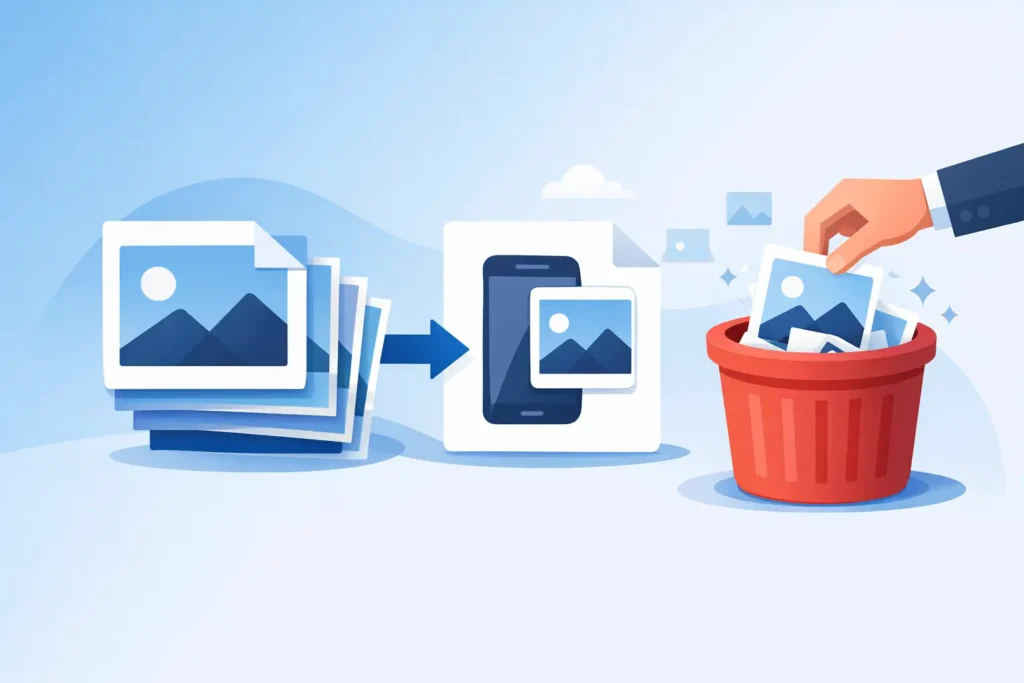
A 48MP ProRAW file can eat through storage fast. So can a library full of DSLR and mirrorless RAWs synced across iPhone, iPad, and Mac. If you are wondering whether to delete RAW after HEIC conversion, the real question is not just file size. It is whether you still need RAW flexibility, and whether your workflow lets you remove those originals without breaking organization, edits, or trust in your library.
When delete RAW after HEIC conversion makes sense
For many Apple users, RAW is a capture format, not a forever format. You shoot RAW for maximum editing latitude, make your adjustments, and then reach a point where the image is done. At that stage, keeping a file that is often several times larger than the final image may not add much value.
HEIC is a practical endpoint for that finished-photo stage. It is dramatically smaller, supports high image quality, and fits naturally into the Apple ecosystem. If your goal is to keep a polished photo in Photos without carrying the full storage cost of the original RAW, deleting the RAW after conversion can be the right move.
This is especially true when your library is built for day-to-day use rather than deep archival work. If you mostly revisit final images, share them, browse albums, and want your devices to stay responsive, keeping the HEIC and removing the RAW can be a smart storage decision.
The trade-off: storage savings vs editing latitude
The biggest benefit is obvious. RAW files are large. In many cases, HEIC versions are up to 10x smaller. Across hundreds or thousands of photos, that can mean reclaiming tens or even hundreds of gigabytes.
The cost is flexibility. RAW files preserve more sensor data, which gives you extra room for exposure recovery, white balance changes, shadow lifting, and more aggressive post-processing. Once the RAW is gone, you are committing to the converted result as your new master file.
That does not automatically make deletion risky. It just means timing matters. If you are still experimenting with edits, building a portfolio, or expect to reprocess the image later with different software or a different taste level, keep the RAW. If the edit is final and the photo is now part of your everyday library, HEIC is often enough.
What you should confirm before deleting RAW files
The safest decision starts with a simple check. Ask what needs to survive the conversion, not just whether the image looks good.
For Apple users who rely on Photos, the important pieces usually include albums, favorites, captions, locations, metadata, and existing edits. If your conversion method strips those out or forces a loose-file export and re-import process, deleting the RAW can create a mess. You may save space but lose the structure you already built.
That is why the workflow matters as much as the file format. A conversion process that stays inside Photos and verifies deletion conditions is fundamentally different from exporting folders to a desktop utility and manually cleaning up afterward. One is library-aware. The other depends on you not making a mistake.
Delete RAW after HEIC conversion only when the HEIC is a true replacement
This is the point many people miss. A HEIC should not just be a smaller copy sitting somewhere else. It should be a practical replacement in the same library context where you already manage your photos.
If the converted image keeps its place in Photos, carries forward the information you care about, and still behaves like part of your organized library, deleting the RAW becomes much easier to justify. If the HEIC lands in a separate folder, loses metadata, or requires you to rebuild albums and captions, the storage savings may not be worth the friction.
A good replacement also means visual confidence. Check that HDR is preserved where relevant, that color looks right, and that the output matches what you expect from the edited image. This is less about perfectionism and more about avoiding regret later.
Who should probably keep the RAW
Some photographers should be slower to delete. If you shoot paid work, client work, or irreplaceable events, keeping the RAW can still be the safer archival choice. The same goes for images with difficult lighting, mixed white balance, or shots you may want to print large later.
You may also want to keep RAWs for your top percentage of images and delete the rest. That middle ground works well for enthusiasts. Keep the files with long-term creative or sentimental value. Convert and remove the bulk that you mainly want available on all your Apple devices without paying the storage penalty forever.
There is also a device-level factor. If you have plenty of local and cloud storage, there is less pressure to delete immediately. If your Mac is constantly full, your iPhone cannot sync comfortably, or your Photos library has become a storage problem, the calculation changes.
Who benefits most from deleting RAW after conversion
If you use Photos as your main library, the answer is often simple. Once editing is complete, the RAW may be overkill.
That applies to iPhone Pro users shooting ProRAW for occasional difficult scenes, hobbyists importing camera RAWs into Photos, and families or travelers who want the quality of RAW capture without carrying every original forever. It also applies to anyone who has already felt the pain of bloated iCloud storage or a Mac that is dedicating far too much space to images they no longer actively edit.
For these users, HEIC is not a downgrade in daily use. It is the format that fits how the photos are actually consumed: browsed, shared, searched, favorited, and enjoyed inside Photos.
The safest workflow is the one that removes manual risk
Most of the anxiety around deletion comes from bad workflows. Exporting RAW files, converting them elsewhere, importing HEIC copies, checking for duplicates, and then manually deleting originals creates too many points of failure. It is easy to lose metadata, duplicate images, or remove something you did not mean to remove.
A Photos-native workflow is safer because it works where your library already lives. That means no loose-file workflow, no folder juggling, and no breaking the connection between your images and the way you organize them.
This is where a purpose-built utility matters. RawToHEIC converts supported RAW formats directly inside Apple Photos, preserves the library context users care about, and adds verified deletion safeguards before removing originals. Processing happens on device, with no analytics and no required subscription attached to a basic storage problem. That combination makes the decision to delete feel less like a gamble and more like routine maintenance.
A practical rule for deciding photo by photo
You do not need a philosophical system for every image. Use a simple threshold.
Keep the RAW if the photo is unfinished, commercially valuable, creatively important, or hard to recreate. Delete the RAW after conversion if the edit is done, the HEIC looks correct, and the image now belongs in your everyday library rather than your deep archive.
That approach respects both quality and storage. It also avoids the all-or-nothing trap that makes library cleanup feel overwhelming.
What happens after you reclaim the space
The benefit is not just a smaller storage number in Settings. A lighter library is easier to live with. Sync pressure goes down. Device free space improves. Backup overhead becomes less painful. And the Photos library starts matching the way most people actually use it – a place for finished images, not a permanent holding tank for giant source files.
For Apple users, that matters. The best workflow is usually the one you will keep using, and a simpler, native library is easier to trust over time than a patchwork system of exports, sidecar folders, and good intentions.
So should you delete RAW after HEIC conversion? Often, yes – but only once the HEIC is a real replacement, not just a smaller extra file. If the photo is finished and your workflow preserves what matters, deleting the RAW is less about giving something up and more about keeping your library usable.
Shrink your RAW library, right inside Photos.
RawToHEIC converts camera RAW and iPhone ProRAW to HEIC up to 10× smaller — keeping every edit, album, favorite, and location. On-device, no account, one purchase for iPhone, iPad, and Mac.

Not sure yet? Convert a few sample photos free — no install, nothing uploaded.
Try it free — no install →