Raw Photos App Conversion That Keeps Photos Intact
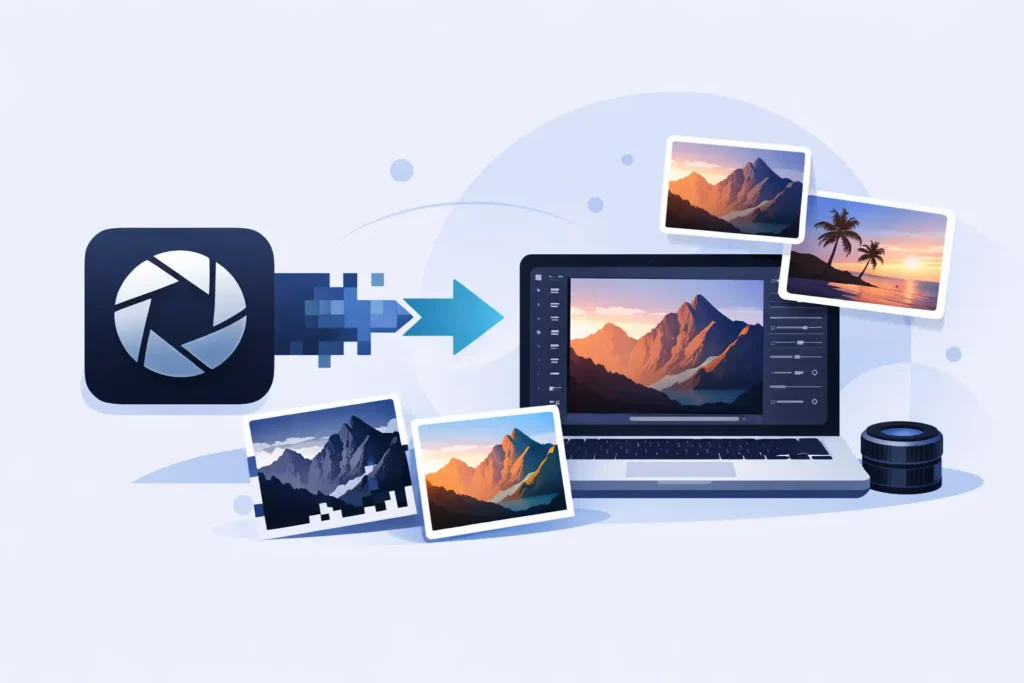
A bloated Photos library usually starts with good intentions. You shoot RAW for flexibility, keep everything in Apple Photos for convenience, and then one day your iPhone, iPad, or Mac is carrying tens or hundreds of gigabytes of files you no longer need in full RAW form. That is where raw photos app conversion becomes less of a nice-to-have and more of a practical fix.
The problem is not converting a file. Plenty of tools can do that. The problem is converting it without wrecking the library you already organized. Albums, favorites, captions, locations, edited versions, and the basic comfort of staying inside Photos matter just as much as file size.
Why raw photos app conversion usually gets messy
Most conversion tools were built around files, not photo libraries. They expect you to export your originals, process them somewhere else, then import the new versions back into Photos. Technically, that works. In practice, it creates a second workflow you now have to manage.
Once you leave Photos, the friction starts immediately. Exported files can lose context. Reimported images may no longer sit where you expect them. You can end up with duplicates, broken album organization, missing captions, or uncertainty about whether the converted version really replaced the original in a safe way. If your goal was to save storage without creating cleanup work, that trade-off feels wrong.
For Apple users who already rely on Photos as their main library, the better question is simple: can conversion happen where the photos already live?
What a good raw photos app conversion should actually do
A useful app should not ask you to rebuild your library around it. It should fit into the way you already work. That means the conversion happens inside Photos, on device, with the same Apple-native behavior you expect everywhere else.
The baseline requirement is obvious: convert RAW files into much smaller HEIC files while keeping image quality high. But that is only the start. If the converted photo comes back stripped of metadata, disconnected from albums, or detached from edits, the storage savings come with too much damage.
A stronger approach preserves the surrounding context. Your photo should still feel like the same photo in your library, not a loose replacement file you now need to babysit. That includes favorites, captions, keywords where supported, dates, locations, and the editing state you already created in Photos. For many users, that continuity is the difference between a tool they try once and a workflow they trust.
Privacy matters too. RAW libraries often contain personal travel, family, or client images. Sending those files to a cloud service just to make them smaller is unnecessary if the job can be done locally. On-device processing is not just cleaner. It is the safer default.
Why HEIC is usually the right destination format
If you are managing a large Apple Photos library, HEIC is the practical target. It was designed for efficient storage and strong visual quality, and Apple’s platforms handle it natively. That means you are not converting into an awkward side format that the system treats as second-class.
For finished or mostly finished images, HEIC often lands in the sweet spot. File sizes drop dramatically, sometimes by up to 10x depending on the original RAW and scene complexity, but the photo still behaves like a normal modern image in Photos. It is easier to sync, easier to back up, and easier to keep on device without constant storage warnings.
There are trade-offs, and they are worth stating clearly. RAW files still make sense when you expect heavy re-editing later or need maximum sensor data for a professional pipeline. Not every photo should be converted the moment it is captured. But many libraries include a large middle zone of images that have already been selected, adjusted, and effectively finalized. Those are the files that benefit most from conversion.
The real question: what happens to your library after conversion?
This is where most people hesitate, and for good reason. Storage savings are easy to promise. Library integrity is harder.
If your current setup in Photos includes years of albums, hand-picked favorites, places, and edits, you do not want a utility that treats each photo as an isolated file. You want one that respects the fact that Photos is a database-backed library, not a folder of images.
A good conversion app should preserve the library context users care about and make deletion of the original RAW deliberate and verifiable. Safety checks matter here. You should be able to confirm the new HEIC exists properly in the library before removing the larger source file. That reduces the anxiety that often keeps users stuck with oversized RAW archives longer than they want.
This is also why file-based batch converters can feel deceptively cheap. Even if the app itself is inexpensive, the hidden cost is your time and trust. Sorting exports, checking imports, reconciling duplicates, and confirming nothing got lost is work. For photographers with large Apple libraries, the cleaner solution is the one that avoids the loose-file workflow entirely.
How raw photos app conversion fits into a smarter Apple workflow
The most efficient workflow is not converting everything blindly. It is converting the right photos at the right stage.
For many users, that means shooting RAW when flexibility matters, making adjustments in Photos, and then converting selected keepers once editing is done. You keep the benefit of RAW when you need it, but you stop paying the storage cost forever. That is especially useful for iPhone ProRAW shooters, since those files grow quickly and can quietly consume device and iCloud storage.
The same logic applies to mirrorless and DSLR imports from Canon, Sony, Nikon, Fujifilm, Olympus, and Panasonic. Photos is often the easiest place to review and organize those images across devices. When the library starts swelling, converting completed shots to HEIC inside Photos keeps everything usable without forcing a second asset-management system on top.
This is also where a one-time purchase model makes sense. Conversion is not a novelty feature. It is maintenance for a library you plan to keep for years. Paying once for a tool that stays current with Apple devices and new RAW formats is easier to justify than adding another subscription to solve a narrow but recurring storage problem.
What to look for before choosing any conversion app
Not every tool marketed for RAW conversion is built for Apple-first users. Before choosing one, look closely at where processing happens, whether Photos integration is real or just indirect, and what exactly is preserved during conversion.
Support for major RAW formats matters, but so does support for iPhone ProRAW. HDR preservation matters if you care about the visual character of your images on Apple displays. Verified deletion safeguards matter if you do not want to manually audit every conversion. And a clear privacy stance matters because your photo library is one of the most personal datasets on any device.
This is the standard RawToHEIC is built around: on-device conversion inside the native Photos app, no loose-file workflow, no analytics collection, and no required subscription. That combination is what makes the app feel less like a utility you have to learn and more like a missing Photos feature Apple forgot to ship.
When conversion is the wrong move
There are still cases where you should keep the RAW. If you are actively editing for client delivery, planning major future adjustments, or maintaining a master archive for commercial work, full RAW retention may be the better call. Some photographers want both formats for a while, especially during active projects.
But that does not describe every image in most libraries. A lot of photos are simply finished. They have been edited, organized, and effectively approved. Keeping every one of those as RAW forever is often just expensive inertia.
The better approach is selective conversion with clear intent. Keep RAW where it provides real future value. Convert where it does not.
For Apple users, that is the difference between a Photos library that keeps growing heavier and one that stays fast, organized, and practical to live with. If your storage is under pressure, the smartest fix is not another export folder on your desktop. It is a conversion workflow that respects the library you already built.
Shrink your RAW library, right inside Photos.
RawToHEIC converts camera RAW and iPhone ProRAW to HEIC up to 10× smaller — keeping every edit, album, favorite, and location. On-device, no account, one purchase for iPhone, iPad, and Mac.

Not sure yet? Convert a few sample photos free — no install, nothing uploaded.
Try it free — no install →