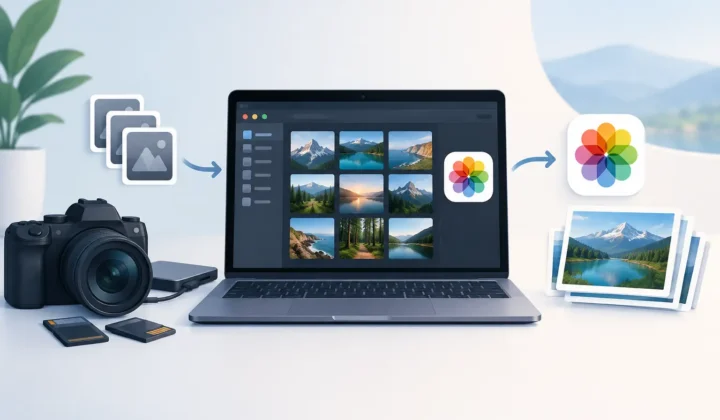
HEIC Batch Processing for Apple Photos Libraries
A large RAW library rarely grows one photo at a time. It grows after a vacation, a client shoot, a weekend with a new camera, or months of shooting ProRAW on an iPhone. HEIC batch processing gives Apple Photos users a practical way to reduce that storage pressure once the images they want to keep have already been edited and organized.
The goal is not to replace RAW while you are still deciding how an image should look. RAW remains the right format for maximum editing latitude. The better question is what happens after the edit is finished. If thousands of approved images are still occupying your library as large RAW originals, converting them to high-efficiency HEIC can make room without breaking the Photos workflow you already rely on.
Why HEIC Batch Processing Matters for RAW Libraries
RAW files are designed to hold a great deal of sensor data. That flexibility is valuable when you need to adjust exposure, white balance, highlights, or color with precision. It also comes with a cost: a single RAW photo may be many times larger than an HEIC image that looks excellent in day-to-day viewing, sharing, and printing.
For a library managed in Apple Photos, the storage problem is only part of the story. Your photos may already live in albums, be marked as favorites, include captions and locations, and carry non-destructive edits. A file-based converter often asks you to export images to a folder, convert them elsewhere, then import new files back into Photos. That creates duplicate versions, loses context, and turns a simple space-saving task into library maintenance.
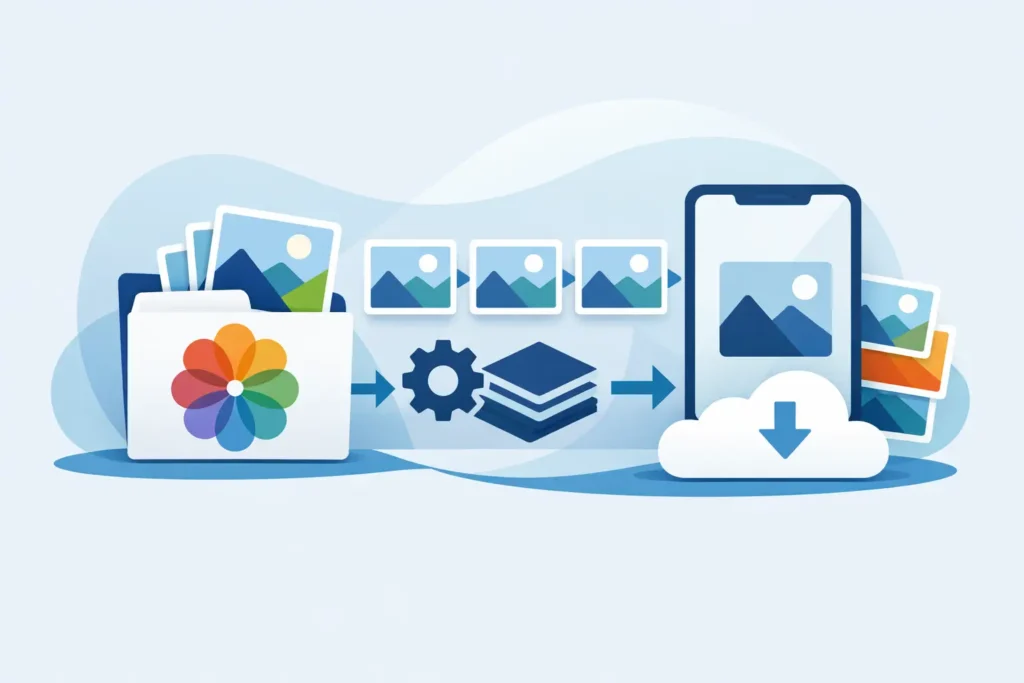
A Photos-native approach keeps the work where the library already lives. Instead of treating your images as loose files, it treats them as part of an organized collection. The conversion can happen on-device, with the finished HEIC version placed back in Photos while the organizational context remains intact.
For many photographers, that is the real value of HEIC batch processing: not just smaller files, but fewer workflow compromises.
Decide Which Photos Are Ready to Convert
Batch conversion works best when it is intentional. The safest candidates are images whose edit is complete and whose original RAW flexibility is no longer essential. That might include a finished travel album, a set of family photos, older ProRAW captures, or approved mirrorless-camera images that you mainly revisit in Photos.
It depends on how you use your archive. If a photo is likely to be re-edited for a large print, a commercial crop, or a different creative direction, keeping the RAW original may be worth the space. If it is a finished image you want to preserve, view, share, and enjoy without carrying the full weight of the original sensor file, HEIC is often the more sensible long-term format.
HEIC also makes particular sense for Apple-centric libraries. It is built for efficient storage and supports modern image features such as wide color and high dynamic range where supported. A well-made HEIC export is not a throwaway preview. It is a high-quality finished photo designed for the devices and apps you use every day.
How HEIC Batch Processing Should Work in Photos
The best conversion workflow is short enough that you will actually use it. Start by selecting a group of finished RAW images in Photos. Review the selection, choose the HEIC conversion option, and let the app process the batch locally. Once the new images have been verified, you can decide whether to retain or remove the larger originals.
That last step deserves care. Deleting RAW files before confirming the converted results is a risk no storage utility should ask you to take. A trustworthy workflow verifies that each HEIC has been created successfully before it presents deletion as an option. You stay in control of what leaves the library.
With RawToHEIC, this process is designed around the Photos library rather than a temporary export folder. It converts supported camera RAW formats and iPhone ProRAW to HEIC directly on iPhone, iPad, and Mac. Albums, favorites, captions, locations, metadata, and existing edits remain part of the experience instead of becoming details you must rebuild by hand.
That distinction matters after a large batch. If you have selected 500 images from a trip album, the useful outcome is not 500 new files sitting in Downloads. It is a lighter Photos library that still feels like your library.
Preserve the Context, Not Just the Pixels
Photo organization is work. A location you corrected, a caption you wrote, an album you curated, or a favorite you marked may be more valuable to your future self than the folder name used during export.
Loose-file conversion tools are built around documents. Photos is built around a library. Those are different models, and the difference becomes obvious when you process images in volume. Exporting and re-importing can create duplicates, alter capture dates, split images from albums, or leave you sorting through nearly identical versions to determine which one belongs.
Photos-native HEIC batch processing avoids that detour. You select photos from the place where they are already organized, create efficient HEIC copies in the same environment, and review the results before making any cleanup decision. The process is easier to trust because there are fewer moving parts.
This is also why batch size should be practical rather than maximal. A few dozen photos may be right for a recent shoot you want to review closely. Several hundred may be right for an older, completed album. Process in groups that make it easy to spot-check the result, especially if the images include HDR scenes, detailed landscapes, or edits you care about preserving.
Quality, HDR, and the Trade-Off You Are Making
Converting RAW to HEIC is a format decision, not a magic trick. HEIC delivers substantial storage savings because it is an efficient compressed format, while RAW keeps far more original capture data for future adjustment. You are choosing a polished, compact final image over the maximum editing headroom of the source file.
For finished photos, that is often the right trade. HEIC can be up to 10 times smaller than RAW in many real-world libraries, depending on the camera, resolution, and source format. The exact reduction varies, but even a smaller ratio adds up quickly across thousands of photos and can reduce pressure on device storage and cloud storage alike.
HDR adds another consideration. A sunset, bright window, or high-contrast indoor scene can look flat if converted through a workflow that does not respect modern Apple display capabilities. Use a converter that supports HDR preservation when your source and edited image call for it. Then inspect a few representative images on the Apple device where you normally view them.
Do not judge the result only by file size. Check skies for banding, fine detail in foliage or fabric, highlight detail, and the overall appearance of an edit. Finished images should still look like the images you chose to keep.
Privacy Is Part of the Workflow
Your photo library can contain far more than pictures. It can reveal where you have been, who you spend time with, and what you consider worth saving. Sending a batch to a remote processing service may be convenient, but it adds an unnecessary handoff for a task your Apple devices can handle locally.
On-device processing keeps the conversion within your own device environment. There is no upload queue, no waiting for a server, and no need to hand a personal archive to a third party. For photographers processing family photos, location-tagged travel images, or client-adjacent work, that is a practical privacy benefit.
Choose tools that are clear about data practices. “Data Not Collected” should be more than a label. It should match a workflow that does not require accounts, cloud transfers, or analytics tied to your photo library.
A Smarter Habit for a Lighter Library
You do not need to convert every RAW image immediately. Keep current shoots in RAW while you edit. When an album is complete, batch process the images you are confident are finished. Review the HEIC results, confirm the saved space, and only then remove originals if that fits your archive plan.
That rhythm protects creative flexibility without allowing completed work to consume storage forever. It also keeps Photos usable as your library grows, whether you shoot on an iPhone Pro, a Canon, Sony, Nikon, Fujifilm, Olympus, or Panasonic camera.
The best photo-management system is the one you can maintain without exporting your life into folders. Keep the finished photos, keep the context that makes them meaningful, and let your storage reflect the images you actually need to carry forward.
Shrink your RAW library, right inside Photos.
RawToHEIC converts camera RAW and iPhone ProRAW to HEIC up to 10× smaller — keeping every edit, album, favorite, and location. On-device, no account, one purchase for iPhone, iPad, and Mac.

Not sure yet? Convert a few sample photos free — no install, nothing uploaded.
Try it free — no install →