Best HEIC Converter for Photographers
A bloated RAW library usually starts as a quality decision and turns into a storage problem. If you shoot on an iPhone Pro, mirrorless camera, or DSLR and keep everything in Apple Photos, choosing the right heic converter for photographers is less about file conversion and more about protecting your library, edits, and time.
What photographers actually need from a HEIC converter
On paper, conversion sounds simple. Take a large RAW file, make it smaller, move on. In practice, most photographers are not just converting files. They are managing years of albums, favorites, captions, locations, and edited images inside Photos.
That changes the standard. A good converter should shrink storage use dramatically while preserving the context you already built. If it creates loose files on your desktop, strips metadata, or forces a re-import process, it solves one problem by creating three more.
This is where many generic tools fall short. They may convert image formats correctly, but they treat your library like a folder of disconnected files. That is fine for batch exports on a workstation. It is a poor fit for Apple users who rely on Photos as their main system for organizing and editing images.
Why a typical HEIC converter for photographers falls short
Most converters were designed around file handling, not library integrity. You export the RAWs, choose a destination folder, wait for conversion, then import the new HEICs back into Photos. After that, you still need to verify what carried over and what did not.
The friction adds up fast. Albums may not transfer cleanly. Favorites can disappear. Captions and location data may survive in some cases but not others. Non-destructive edits are especially fragile because they often belong to the library context, not just the file itself.
There is also the deletion problem. Once you have a converted copy, what happens to the original RAW? If you delete too early, you risk losing work. If you keep both forever, the storage savings become less meaningful. A converter built for photographers needs to handle that step carefully, with verification rather than guesswork.
Privacy matters too. Many photographers are rightly cautious about cloud-based conversion services. Images often contain location information, client work, or personal archives that should stay on-device. For this use case, local processing is not a bonus feature. It is part of the requirement.
The better approach: convert inside Photos
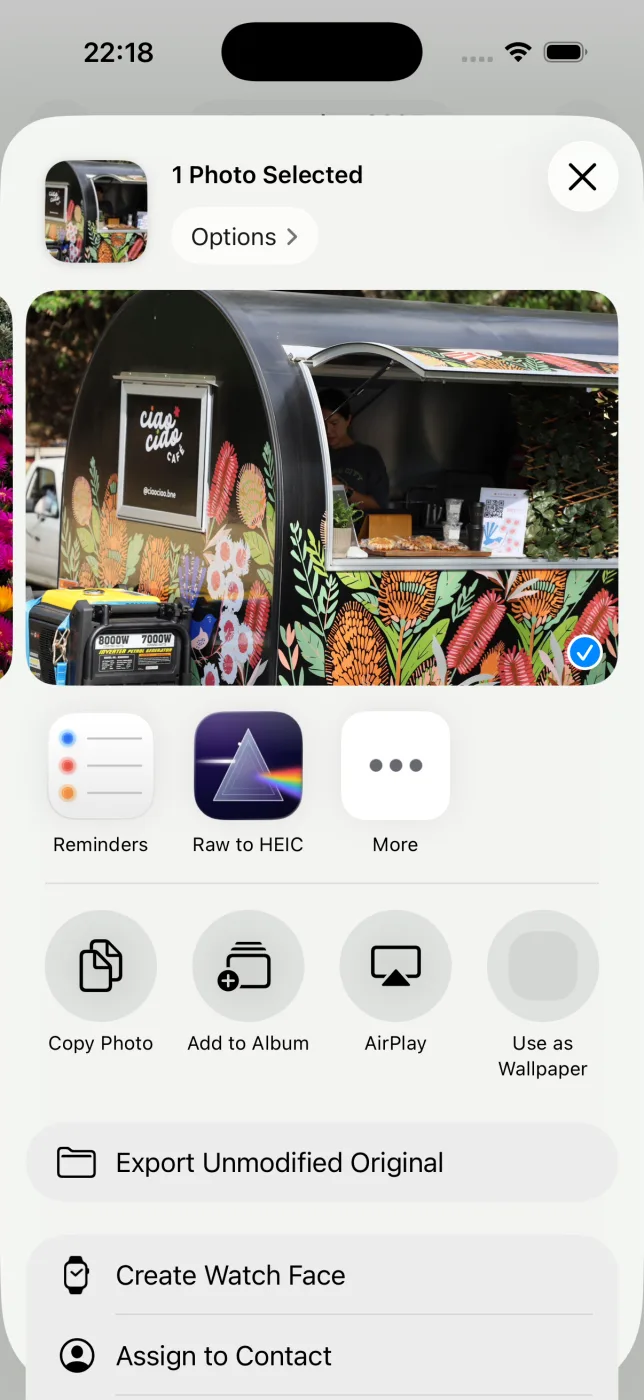
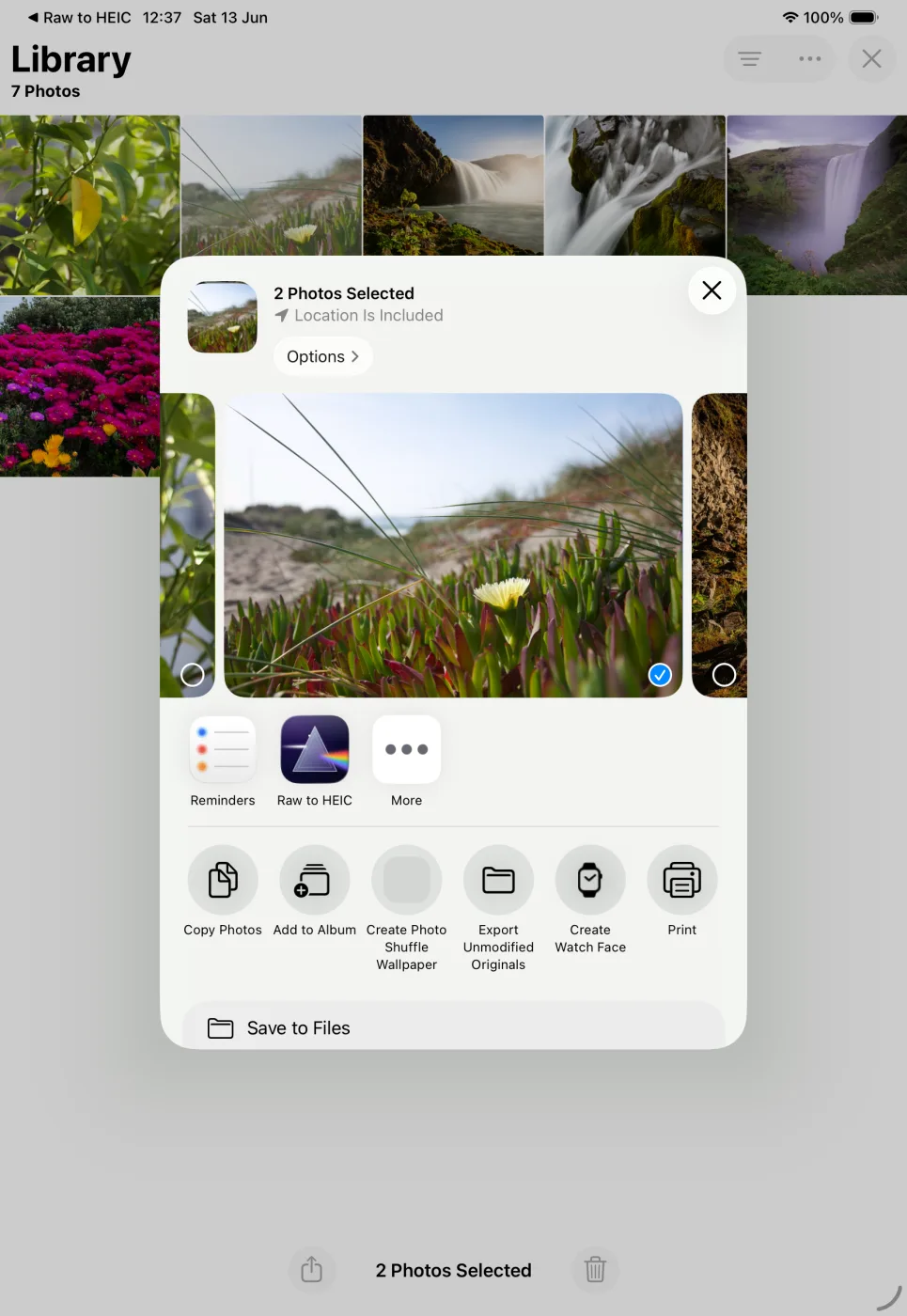
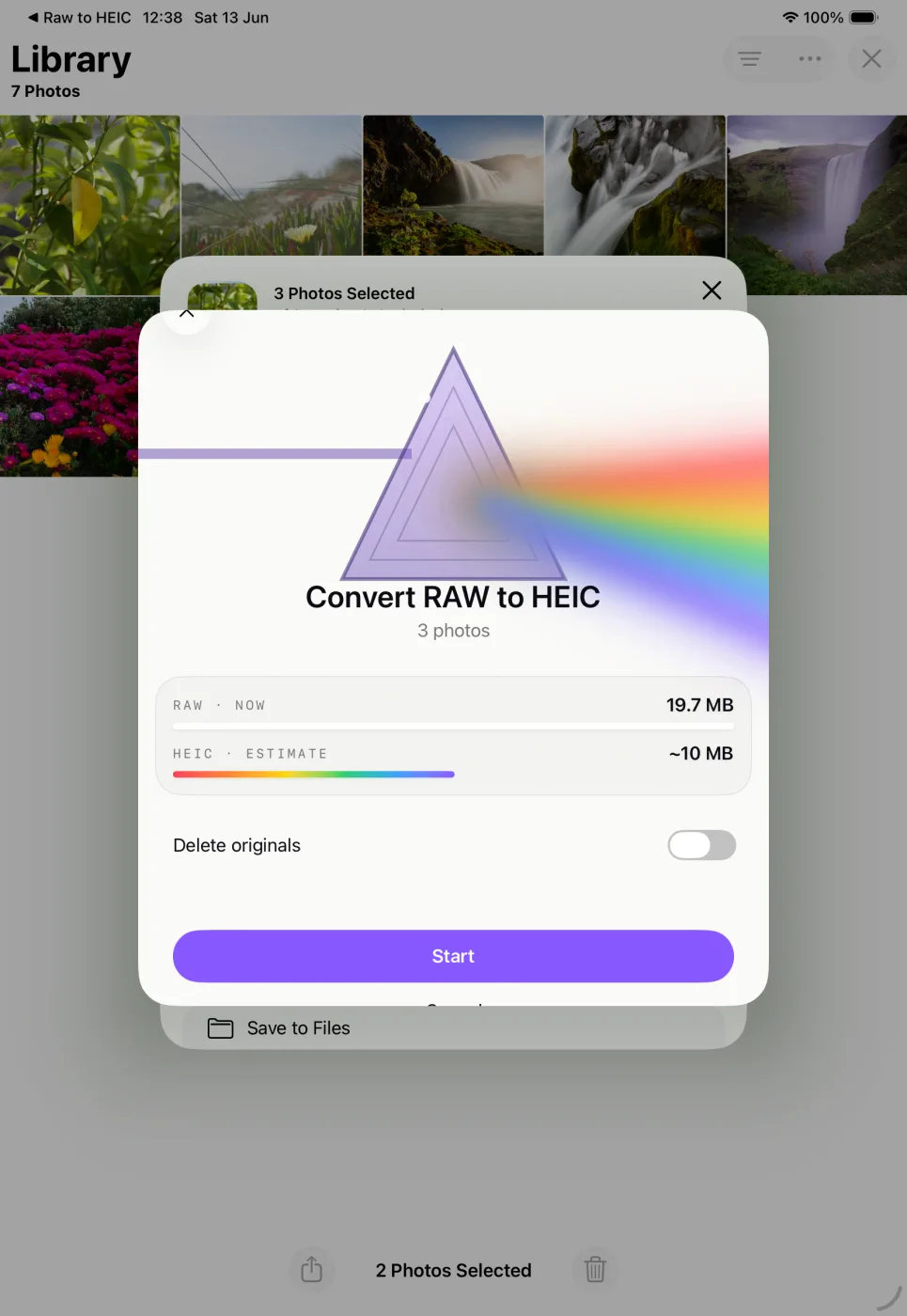
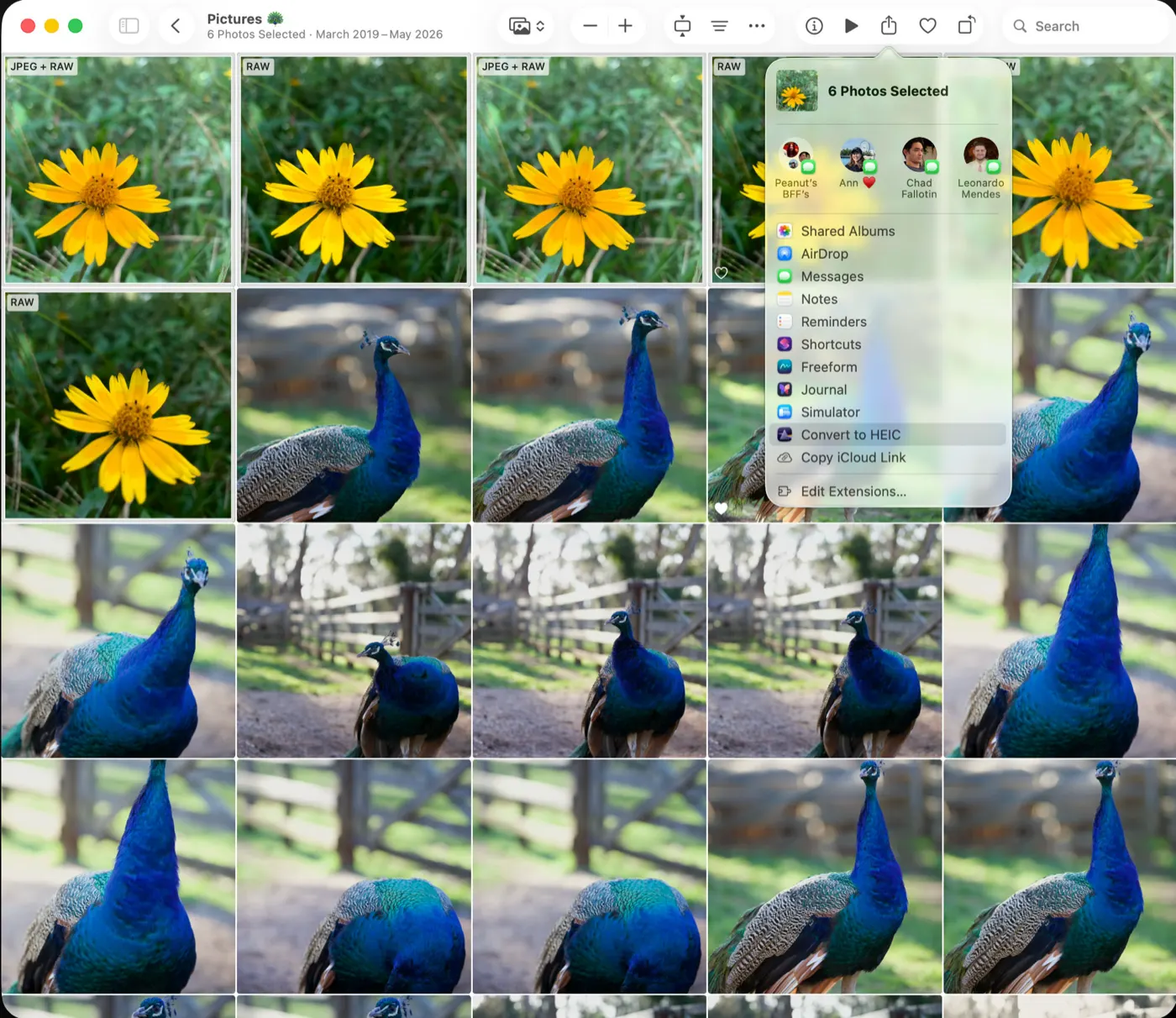
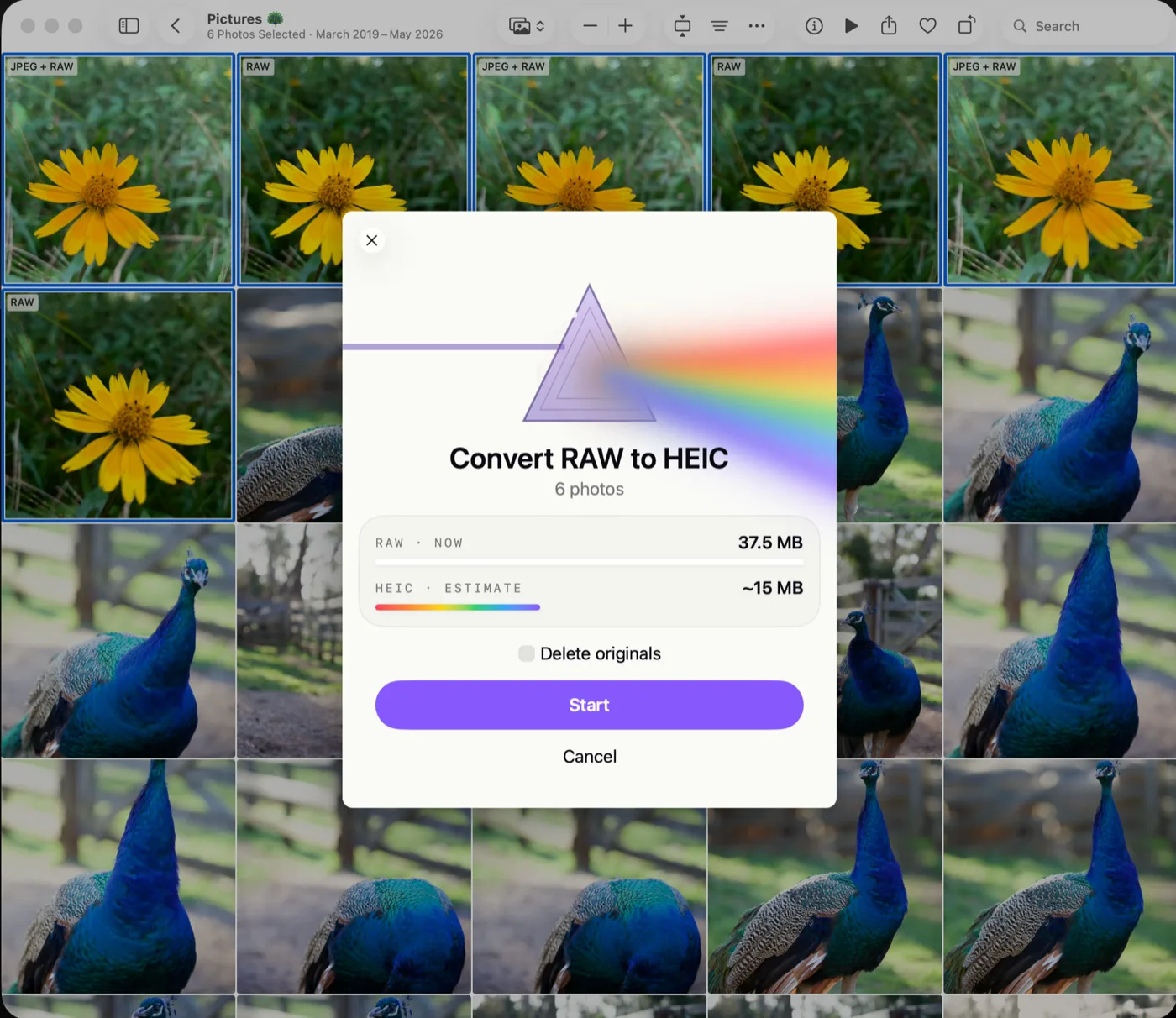
If your photo library lives in Apple Photos, the cleanest workflow is conversion inside Photos itself. That means no export folder, no duplicate import pass, and no hunting for the right version later.
This approach matters because it preserves the way photographers actually work. Your albums stay where they are. Your organizational structure remains intact. Your converted HEIC can continue living in the same library environment instead of becoming a detached copy that needs to be managed separately.
For Apple users, this is the difference between a tool that technically works and one that feels native. Native matters. It reduces mistakes, shortens the process, and makes conversion practical enough to use regularly instead of only when storage pressure becomes urgent.
What to look for in the best HEIC converter for photographers
Start with image quality. HEIC is efficient, but quality depends on implementation. A photographer-focused converter should retain excellent visual fidelity and, where supported, preserve HDR content. If your edits are finished and your goal is long-term storage efficiency for day-to-day use, HEIC can be an excellent final format.
Next, check metadata handling. Camera information, timestamps, captions, keywords, and location data are not minor details. They are part of how you search, sort, and trust your archive. If a converter cannot preserve that information reliably, it is not ready for a serious photo library.
Library continuity is just as important. Can the app keep favorites, albums, and Photos context intact? Can it work where your images already live, rather than forcing a detour through the Finder and back? For many Apple photographers, this is the feature that determines whether a converter saves time or wastes it.
Then there is safety. Deleting large RAW files after conversion is where users get nervous, and for good reason. A strong tool should verify that the HEIC version exists and is usable before any original is removed. This is one of those details that sounds small until it prevents a very bad day.
Finally, look at the business model. A utility like this should be simple to own. A one-time purchase fits the job better than a recurring subscription, especially when the app performs a specific task on your device rather than providing an ongoing cloud service.
HEIC makes sense after editing, not before
There is an important trade-off here. RAW still has a clear place in photography. If you expect to revisit exposure, white balance, or deep tonal adjustments later, keep the RAW. It remains the best source file for flexible editing.
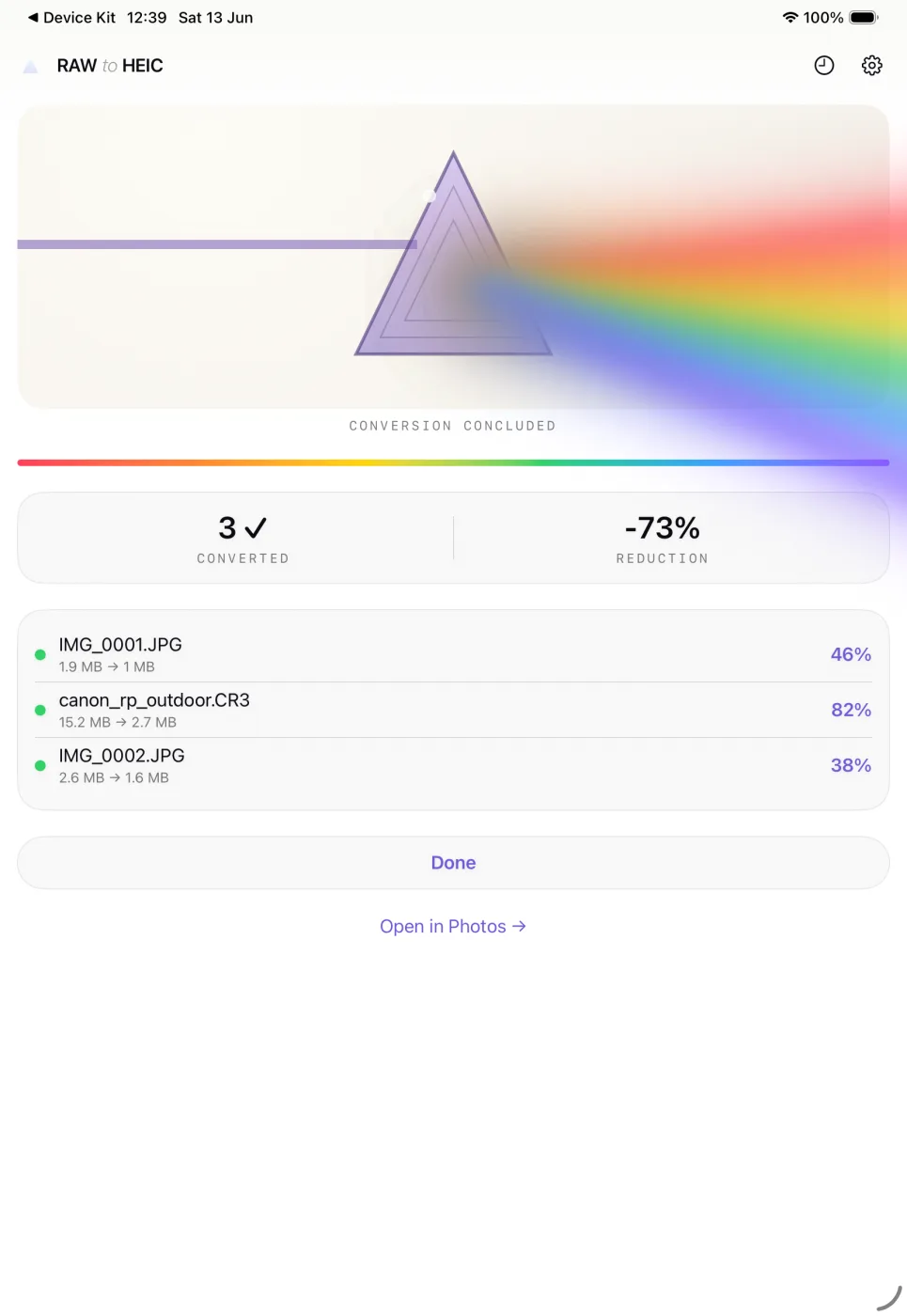
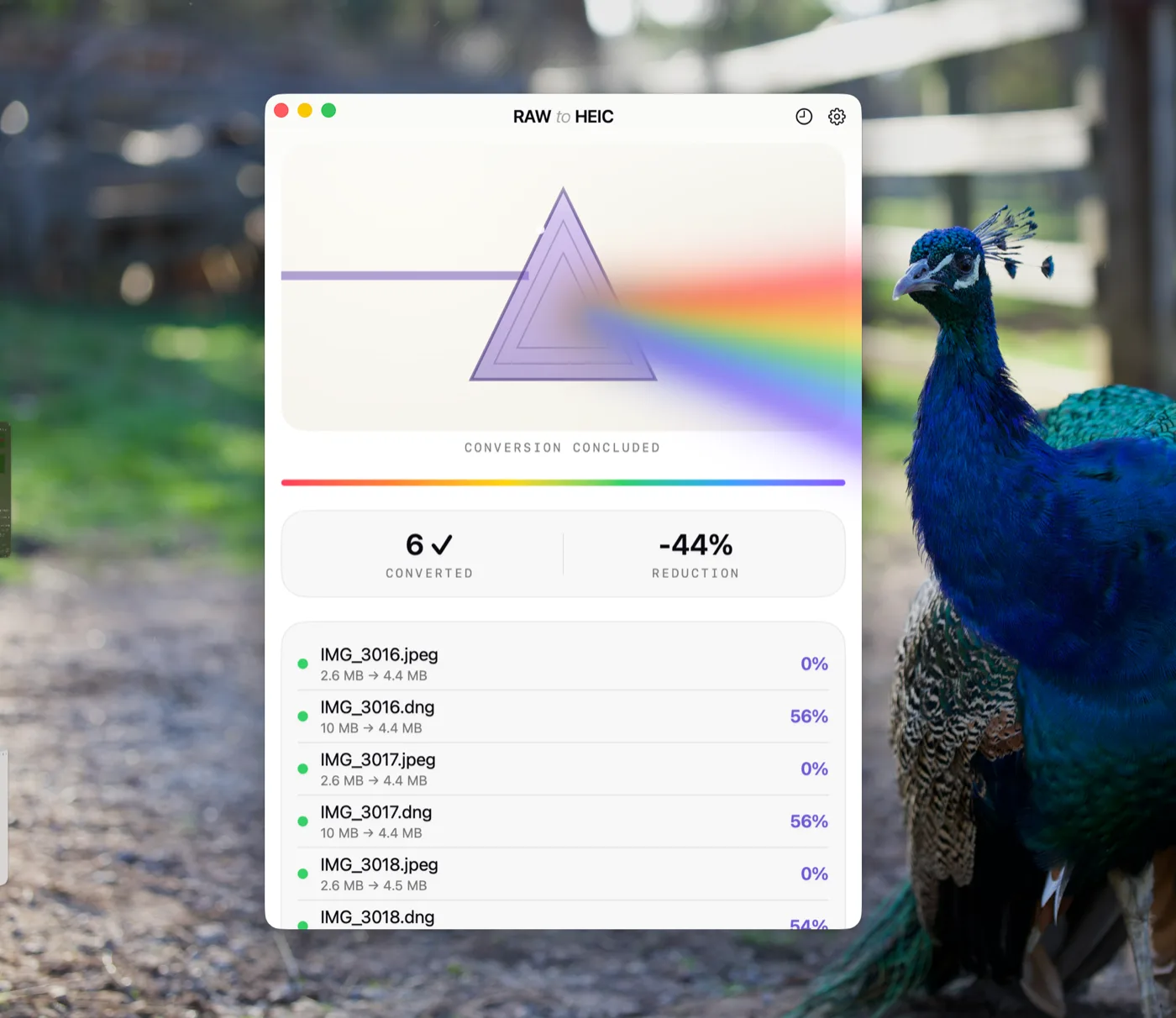
But that does not mean every RAW deserves permanent front-line storage. Once an image is edited, delivered, or simply settled, converting it to HEIC can be a smart next step. You keep strong visual quality while reducing storage use substantially. For many photographers, that is the difference between a manageable library and one that constantly pushes them toward larger iCloud plans or external storage workarounds.
This is especially true for iPhone ProRAW users. ProRAW is powerful, but the file sizes add up quickly. If a photo has already served its editing purpose and now just needs to live well in your library, HEIC is often the more practical format.
Apple users need a Photos-native workflow
The Apple ecosystem rewards tools that respect native workflows. When an app works directly with Photos on iPhone, iPad, and Mac, it removes the usual points of failure. You are not bouncing between apps, juggling exported folders, or trying to reconstruct metadata after re-import.
That is why a Photos-native converter stands out. It fits the way Apple photographers already organize their work. It also makes storage cleanup less intimidating, because the process happens in the place you trust and use every day.
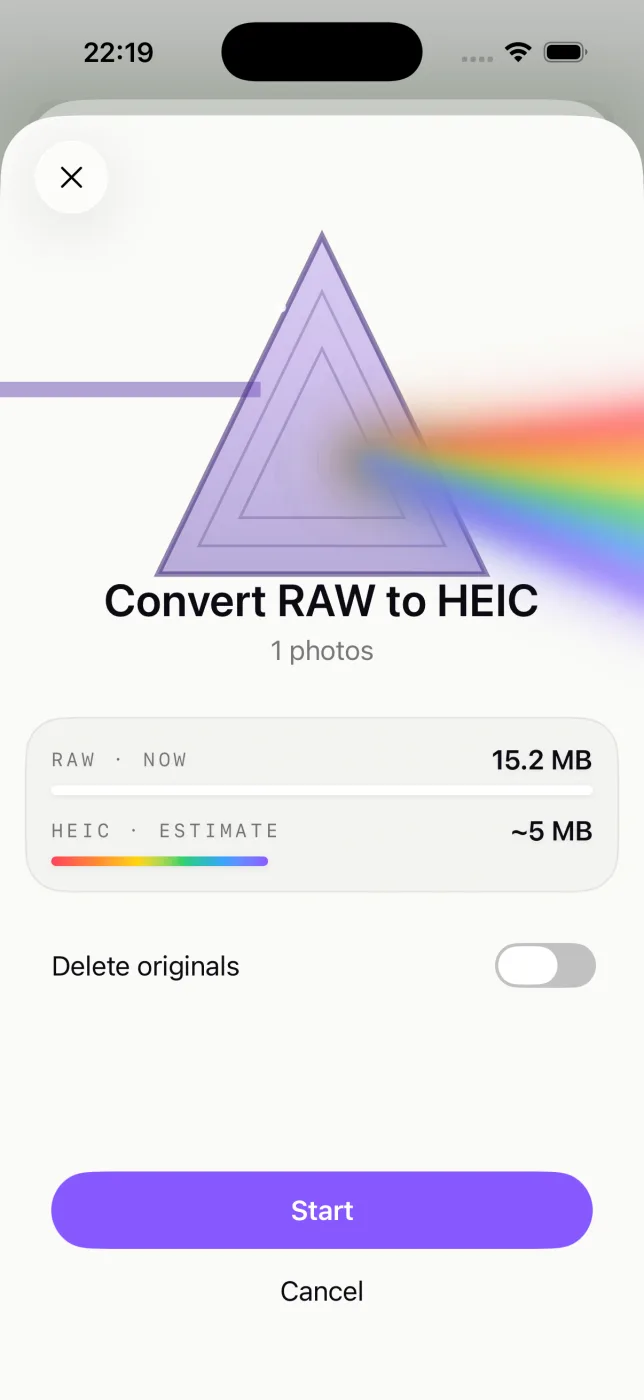
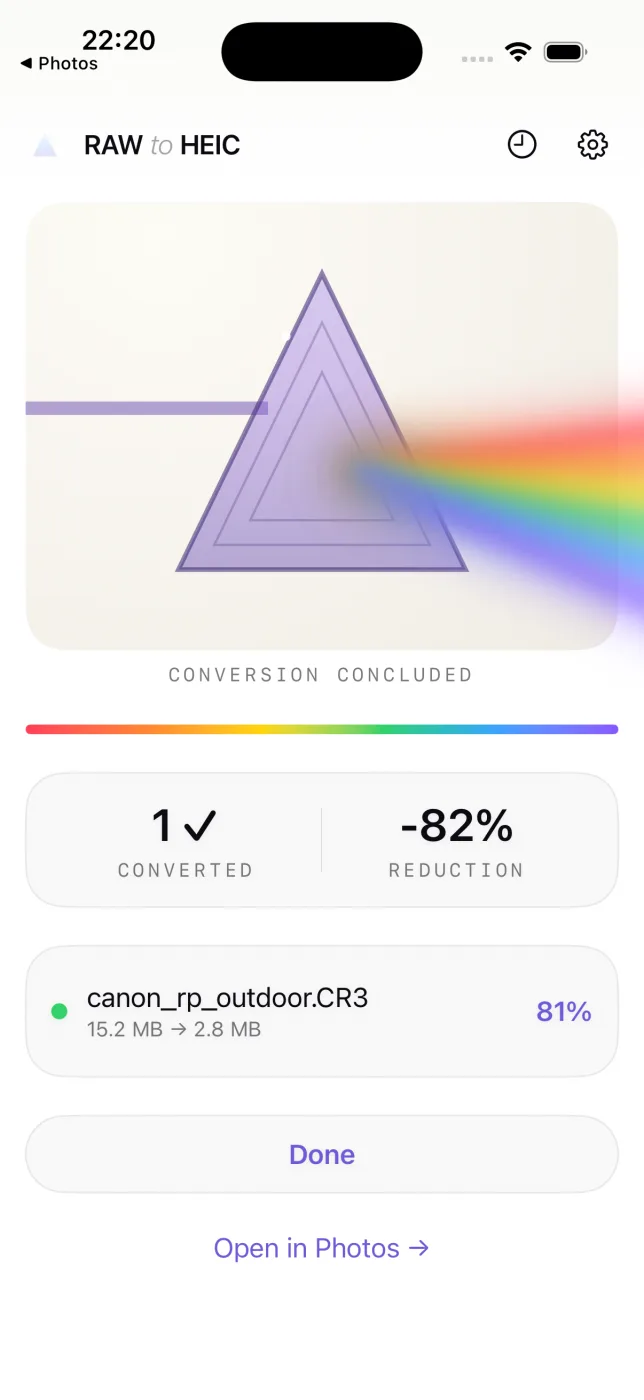
RawToHEIC is built around that exact principle. It converts supported RAW files and iPhone ProRAW directly inside Apple Photos, keeps the existing library context intact, processes on-device, and uses verified safeguards before deletion. For photographers who want up to 10x smaller files without a loose-file workflow, that design choice matters more than a long feature list.
Compatibility matters more than marketing claims
Photographers should also be skeptical of broad promises. “Supports RAW” is not specific enough. Different cameras produce different RAW formats, and compatibility can vary by manufacturer and model.
A serious converter should support major camera brands commonly used by Apple-based photographers, including Canon, Sony, Nikon, Fujifilm, Olympus, and Panasonic, along with iPhone ProRAW. Ongoing format updates matter too, because camera support is not static.
Device coverage matters as well. If you manage your library across Mac, iPhone, and iPad, the best experience comes from a universal app that works across all three. That keeps the workflow consistent and lets you handle conversion wherever it is most convenient.
The real benchmark is trust
Photographers do not need another generic file utility. They need a tool they can trust with thousands of images, years of organization, and a library that already works.
That trust comes from small but meaningful details. On-device processing. Data not collected. Clear safety checks before deletion. No subscription hanging over a straightforward utility. These are not flashy features, but they are exactly what make a conversion app feel reliable.
A heic converter for photographers should reduce storage pressure without introducing new uncertainty. It should preserve what makes your library useful, not just make the numbers smaller.
If your Photos library is starting to feel heavier than it should, the right move is not just converting files. It is choosing a workflow that keeps quality, metadata, privacy, and organization in place while making your library easier to live with. That is the kind of upgrade you notice every time you open Photos.