Can iPhone Open CR3 Files? What Actually Works
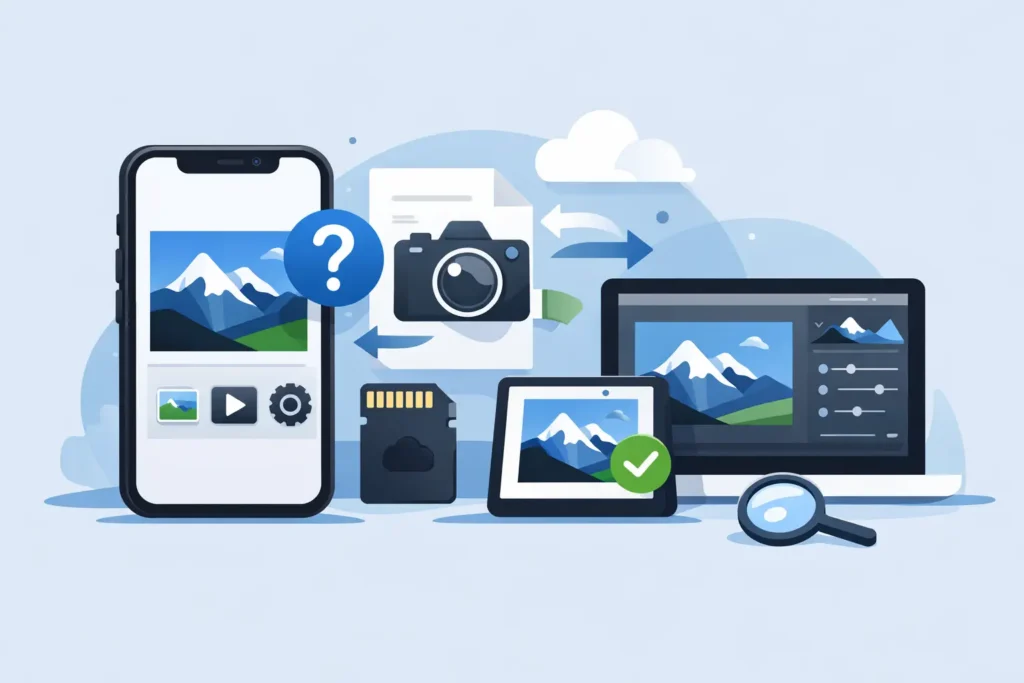
A Canon CR3 file can look like a dead end when it lands on an iPhone: no thumbnail, a blank preview, or a message that the file cannot be opened. So, can iPhone open CR3 files? Yes, often – but the real answer depends on the specific Canon camera, the version of iOS, and whether you are opening the photo in Photos or treating it like a loose file in Files.
For photographers who use Apple Photos as their library, that distinction matters. A CR3 that feels awkward in Files may import, display, and edit properly in Photos. The goal is not simply to get a RAW file open once. It is to keep your images visible, organized, protected, and practical to store over time.
Can iPhone Open CR3 Files in Photos?
CR3 is Canon’s modern RAW format. It stores far more image data than a finished JPEG or HEIC, giving you greater latitude for recovering highlights, adjusting white balance, and refining color after capture. That flexibility also makes each file substantially larger and more demanding to decode.
Apple supports many Canon RAW cameras in Photos on iPhone, iPad, and Mac. When your camera model is supported, you can generally import its CR3 files into Photos, view them, make adjustments with Apple’s editing tools, and keep the original RAW file in your library.
Support is not based on the .CR3 extension alone. Two files can both be CR3 files while only one opens correctly, because Apple adds RAW support by individual camera model. A newer Canon body may need a newer iOS release before its files are recognized. Firmware, unusual shooting modes, and third-party transfer methods can also affect what you see.
If a CR3 file imports into Photos but appears soft at first, give the device a moment. Photos may initially show an embedded JPEG preview while it processes the RAW data. This is especially common with large files, cloud-synced libraries, or imports from external storage.
What you can do when a CR3 is supported
With compatible Canon RAW files, Photos gives you a familiar Apple workflow. You can place images in albums, mark favorites, search by date or location, add captions, and apply non-destructive edits. The original RAW data remains available behind those edits, so you can revisit your adjustments later.
That is a meaningful advantage over a file-by-file workflow. Once a shoot is inside Photos, your library context travels with it across your Apple devices when iCloud Photos is enabled. You are not managing duplicate folders, exported JPEGs, and a separate set of edited files just to keep your images usable.
Why a CR3 File May Not Open on iPhone
When a CR3 file will not display, start with the simplest explanation: camera compatibility. If your Canon model is not included in the RAW support available on your installed version of iOS, Photos cannot fully decode the file. Updating iOS is the first practical step, particularly if the camera was released recently.
The second issue is the app you are using. Files is designed for document access and file management. It is not a full RAW photo library or a guaranteed RAW editor. A CR3 may be stored perfectly safely in Files, an SD card reader, or an external drive while still lacking a usable preview there. That does not automatically mean the image is corrupt.
Transfer method matters, too. Wireless camera transfers may create JPEG copies, reduced previews, or app-specific versions rather than moving the original CR3. If you need the actual RAW file, verify the file extension and size after import. A full-resolution CR3 from a modern Canon camera is usually much larger than the JPEG preview that may accompany it.
Finally, storage pressure can complicate imports. RAW files are large, and iPhone storage fills faster than many photographers expect. An import can fail or remain incomplete if the device does not have enough free space to receive and process the images.
A quick compatibility check
Open the CR3 in Photos, not only Files. If Photos displays the image and opens the Edit screen, your iPhone recognizes the RAW file. If it does not, update iOS and try again with a freshly transferred original from the camera or card.
If the same file still fails after an update, the most likely cause is unsupported camera-specific RAW data rather than a general iPhone limitation. Keep the original safely stored until Apple adds support or until you can process it with software that recognizes that camera.
Importing Canon CR3 Files Without Creating a Mess
For small selections, importing from an SD card reader into Photos is straightforward. Connect a compatible reader, open Photos, choose Import, select the images, and confirm the destination. Photos is the better home if you want your Canon files alongside iPhone photos, albums, edits, and shared library habits.
For larger shoots, be deliberate before importing everything. A RAW library can grow into hundreds of gigabytes quickly. That is not a reason to avoid CR3 – it is a reason to decide which images need to remain RAW and which images have already reached their final edited state.
A practical approach is to keep RAW files for active projects, portfolio candidates, and images you may want to re-edit substantially. Once an image is edited and you are happy with the result, a high-efficiency HEIC version can be a better everyday library format. It is dramatically smaller than RAW while preserving excellent quality for viewing, sharing, and normal edits.
The key is avoiding a loose-file conversion process. Exporting an image to a folder, converting it elsewhere, then importing it back into Photos creates duplicates and often leaves metadata, albums, captions, favorites, and editing history disconnected from the version you actually use.
When Converting CR3 to HEIC Makes Sense
Converting every CR3 immediately is not always the right choice. RAW is still the best format when you expect major editing work, need the widest recovery range, or want to preserve a camera original for long-term archival purposes. A finished HEIC is not a replacement for every master file.
But many images stop needing RAW flexibility once the edit is complete. They may be family photos, travel selections, client proofs already delivered, or images you simply want available across your devices without carrying the storage cost of a full RAW library.
This is where a Photos-native converter is useful. RawToHEIC converts supported RAW images, including Canon CR3 and iPhone ProRAW, to HEIC directly inside the Photos library. There is no export-import loop and no need to organize a second folder of converted files. The workflow is designed to retain the Photos context you already built, including albums, favorites, captions, locations, metadata, and non-destructive edits, while reducing storage use by up to 10x.
That trade-off is clear: you gain meaningful space and a lighter library, while choosing a rendered image instead of keeping all original sensor data. For images that are already finished, that is often exactly the point.
Protect the original before you remove it
Any conversion workflow should make deletion a deliberate step, not an assumption. Confirm that the converted HEIC is present, opens correctly, and looks right at full size before removing a RAW original. If the original is irreplaceable, keep it in a separate archive even after adding a HEIC version to Photos.
On-device processing also matters for personal photo libraries. Your camera images can include location details, faces, travel records, and private moments. A workflow that processes photos locally rather than uploading them to an unknown server gives you more control over where that data goes.
The Best CR3 Workflow Depends on Your Goal
If you are actively editing a Canon shoot, keep the CR3 files in Photos when your camera is supported. You get the most flexibility, and Apple’s non-destructive editing keeps your original available.
If you cannot open a CR3, update iOS, verify the camera model is supported, and test the original file in Photos rather than relying on a Files preview. If it remains unsupported, retain the RAW original and process it later with compatible software.
If your problem is storage rather than compatibility, do not turn your library into a collection of scattered exports. Keep the images you need in RAW, then convert finished selects to HEIC within Photos so the library remains organized and familiar.
Your iPhone can be a capable home for Canon CR3 files, provided the camera is supported and the library has room to breathe. The smartest long-term setup is not keeping every image in the biggest format forever. It is keeping the right originals, preserving the work you have already done, and making the rest easy to find and enjoy.
Shrink your RAW library, right inside Photos.
RawToHEIC converts camera RAW and iPhone ProRAW to HEIC up to 10× smaller — keeping every edit, album, favorite, and location. On-device, no account, one purchase for iPhone, iPad, and Mac.

Not sure yet? Convert a few sample photos free — no install, nothing uploaded.
Try it free — no install →