How to Convert RAW in Apple Photos
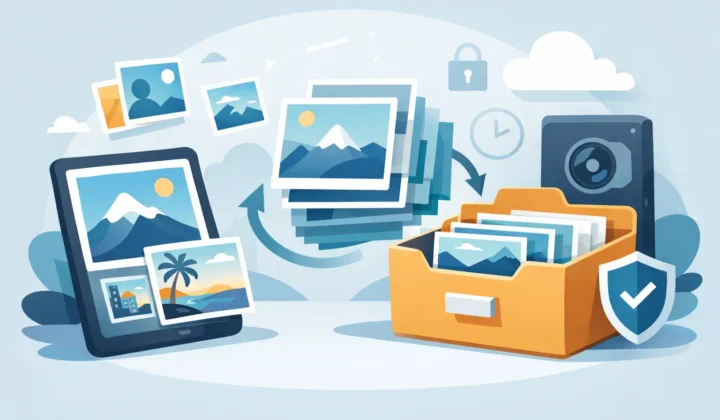
A RAW library feels great right up until your iPhone storage fills, your Mac photo library balloons, and iCloud starts asking for more space. That is usually the moment people start searching for a way to convert raw in Apple Photos without breaking albums, losing edits, or creating a pile of duplicate files.
The problem is not converting the image itself. Plenty of apps can do that. The hard part is doing it inside the Photos workflow you already use, while keeping everything that makes your library useful – favorites, captions, locations, metadata, and the edits you have already made.
Why people want to convert RAW in Apple Photos
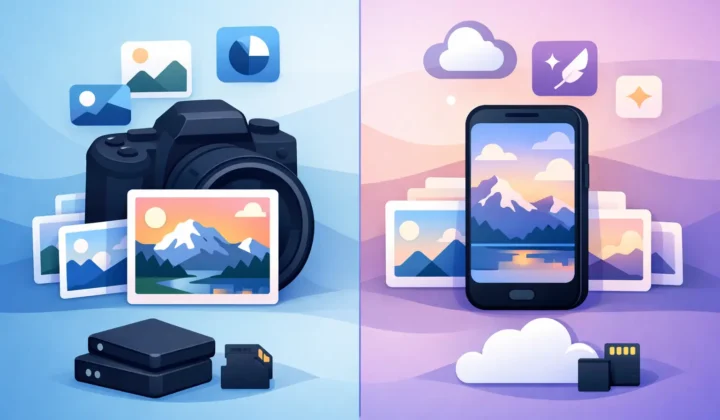
RAW is excellent for capture and editing. It gives you more dynamic range, more flexibility with white balance, and more room to recover highlights and shadows. That matters when you are shooting a high-contrast sunset, editing an iPhone ProRAW portrait, or pulling detail out of a difficult indoor scene.
But once you are done editing, RAW often becomes expensive to keep around. Files are large. Libraries grow fast. Syncing takes longer. Device storage disappears sooner than expected. If Photos is your main library, this becomes a daily workflow issue, not just a technical detail.
That is why many Apple users do not actually want a traditional export. They want a simpler outcome: keep the photo in Photos, keep the organization, and reduce the storage footprint.
The default Apple Photos limitation
Apple Photos is great at managing and editing images, but it does not offer a built-in one-tap way to replace RAW originals with smaller HEIC versions while preserving the full context of your library.
You can export edited images. You can create JPEGs or HEIC files in some workflows. But that usually turns into a loose-file process. You export, save somewhere else, re-import, compare versions, manually clean up, and hope you did not lose captions, dates, albums, or adjustment history along the way.
For casual users, that is annoying. For anyone with thousands of images, it is a mess.
The trade-off is simple. Apple gives you a polished photo library experience, but not a complete built-in archival conversion workflow. If your goal is to convert RAW in Apple Photos itself, the gap becomes obvious pretty quickly.
What a good conversion workflow should preserve
If you are converting finished RAW photos to save space, the file size is only one part of the decision. The real question is what happens to everything attached to the photo.
A good workflow should preserve your place in Photos. That means albums should stay intact. Favorites should remain favorites. Captions, keywords, timestamps, and location data should not disappear. If you have already cropped, adjusted tone, or fine-tuned color, those changes should remain part of the result.
This is where file-based tools usually fall short. They may produce a smaller image, but they do not understand your Photos library as a living system. They treat the image as a file on disk, not as an organized asset inside Apple Photos.
That difference matters more than most people expect.
How to convert RAW in Apple Photos without a loose-file workflow
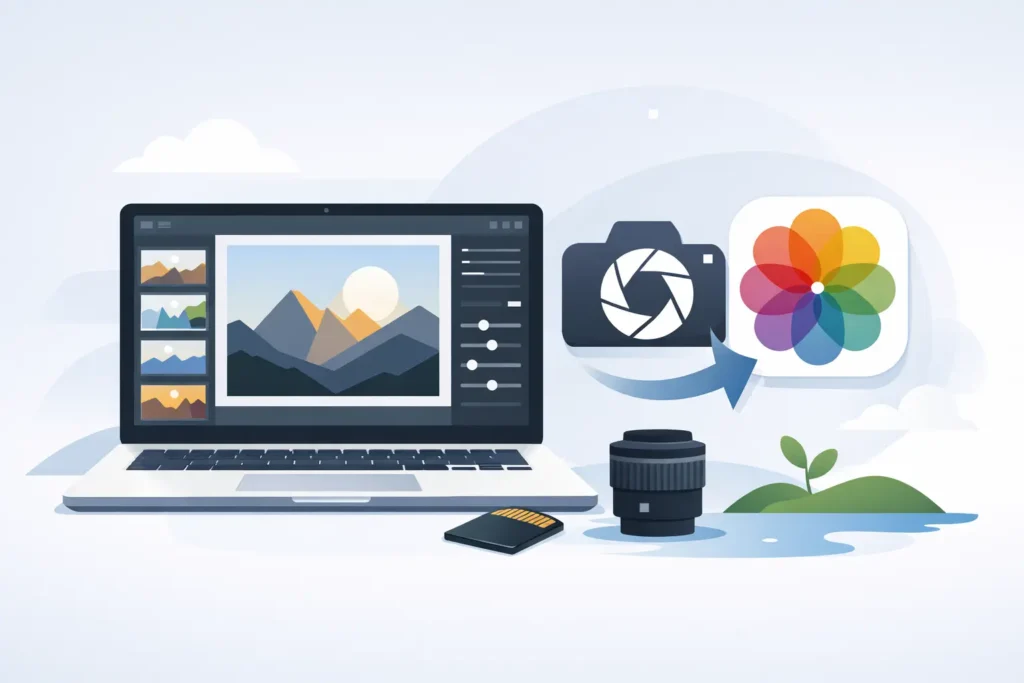
The most practical approach is to use a Photos-native utility that performs the conversion on device and works directly with your existing library. Instead of exporting RAW files out of Photos and rebuilding your organization later, the conversion happens where the photo already lives.
That changes the experience completely. You select the RAW images you no longer need at full size, convert them to HEIC, verify the result, and keep moving. No finder folders. No temporary exports. No re-import cleanup.
For Apple users, this is the cleanest answer because it matches how Photos is meant to be used. Your library stays your library.
If privacy matters, on-device processing is another major advantage. Your photo archive does not need to be uploaded to a server just to shrink file sizes. For many people, especially those with family photos, client work, or travel images with embedded location data, that is not a small detail. It is a requirement.
Convert RAW in Apple Photos to HEIC – why HEIC makes sense
HEIC is usually the right target format for Apple users because it offers a better balance of quality and file size than older formats like JPEG. In many real-world libraries, HEIC can reduce storage dramatically while still looking excellent in Photos, across Apple devices, and in everyday sharing.
The exact savings depend on the source file. ProRAW, mirrorless RAW, and DSLR RAW all compress differently. A heavily detailed landscape will behave differently than a portrait with smooth backgrounds. But the overall pattern is clear: when a photo has already been edited and finalized, keeping only the RAW version is often overkill for day-to-day use.
That does not mean RAW is pointless after editing. If you expect to re-edit aggressively later, print large, or revisit commercial work, keeping the RAW may still be worth it. But for many personal libraries, travel albums, family photos, and finished selects, HEIC is the practical format. Smaller files, faster syncing, less storage pressure.
What to watch for before converting
Not every RAW photo should be converted immediately. Some deserve to stay RAW, at least for a while.
If a shot is a portfolio image, a client deliverable, or something you may want to reprocess from scratch later, holding onto the original makes sense. The same is true for technically difficult images where future editing latitude could matter. RAW still gives you the most flexibility.
But a large percentage of libraries are not built from those edge cases. They are built from everyday excellent photos that have already been edited, shared, and effectively finished. Those are the images where conversion pays off fastest.
You should also check what the tool preserves. Metadata handling, HDR behavior, edit retention, and deletion safeguards are not all equal across apps. A smaller file is only useful if the result still feels native inside Photos.
The safest way to handle original deletion
Deleting the RAW original is the part that makes people hesitate, and fairly so. Nobody wants a one-way mistake in a library that took years to build.
That is why verified safeguards matter. A trustworthy workflow should confirm that the converted HEIC exists correctly in Photos before removing the original RAW. It should be obvious what is being replaced and what is being kept. Safety is not a bonus feature here. It is the entire basis for trusting the conversion.
This is also where native integration helps. When the app understands the Photos environment directly, it can handle the replace-and-cleanup process in a way that is far more predictable than manual export and deletion.
Who this workflow is actually for
If you use Lightroom as your central archive and only sync a few finals into Photos, you may not need this. Your bottleneck is probably elsewhere.
But if Apple Photos is your real home base, this workflow makes a lot of sense. That includes iPhone Pro users shooting ProRAW, hobbyists importing Canon, Sony, Nikon, Fujifilm, Olympus, or Panasonic RAW files, and anyone trying to keep a long-running library usable across iPhone, iPad, and Mac.
It is especially useful for people who like Apple-quality simplicity but have outgrown Apple’s default storage behavior. You still want the native experience. You just do not want every finished image taking up RAW-level space forever.
A tool like RawToHEIC exists for exactly that gap. It converts supported RAW files directly inside Photos, keeps the workflow on device, preserves library context, and avoids the subscription model that has become standard in too many photo utilities.
The practical payoff
When people talk about photo conversion, they often focus on format specs. In practice, the real benefit is calmer library management.
Your Photos app stays organized. Your storage lasts longer. iCloud pressure drops. You do not have to create side folders or remember which version is the keeper. The photos you care about remain where you expect them to be, with the details you already added.
That is what makes this kind of workflow worth adopting. Not just smaller files, but less friction.
If your library is full of finished RAW images, converting them inside Photos is often the cleanest next step. Keep RAW for the images that still need RAW. For the rest, smaller files and the same familiar library is usually the better trade.
Shrink your RAW library, right inside Photos.
RawToHEIC converts camera RAW and iPhone ProRAW to HEIC up to 10× smaller — keeping every edit, album, favorite, and location. On-device, no account, one purchase for iPhone, iPad, and Mac.

Not sure yet? Convert a few sample photos free — no install, nothing uploaded.
Try it free — no install →