How to Find Large Photos in Your Apple Library
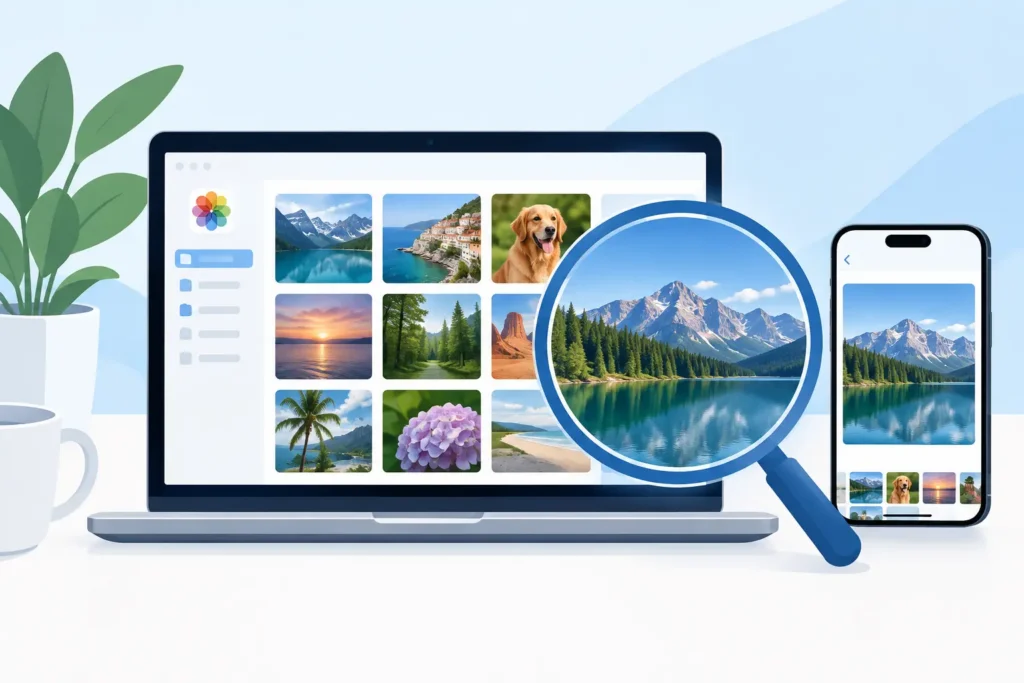
Your Photos library can look perfectly organized while quietly consuming hundreds of gigabytes. A handful of ProRAW shots, imported camera RAW files, long videos, and burst sequences often account for far more storage than thousands of everyday images. Learning how to find large photos is less about locating one oversized file and more about spotting the groups of media that create storage pressure without adding much day-to-day value.
For Apple users, there is one complication: Photos is designed around your library and its memories, not a file-manager view. It does not provide a simple, universal way to sort every asset by file size. The practical approach is to identify the formats and capture types that are usually largest, review them in context, and decide what should remain RAW, what can become HEIC, and what can be removed.
Start With the Storage Signals in Photos
Before changing anything, check how much room Photos is using on the device where space matters most. On iPhone and iPad, open Settings, then General, then iPhone Storage or iPad Storage. Photos shows its overall footprint, including local copies managed by iCloud Photos.
That number does not identify individual large photos, but it gives you a useful baseline. If Photos is taking 80 GB and you mostly shoot with an iPhone, ProRAW, Live Photos, videos, and screenshots are the likely places to investigate. If it is taking 500 GB or more after importing from a mirrorless camera or DSLR, camera RAW files are usually the first category to review.
Do not assume every large item is a problem. A RAW original from a paid shoot, a once-in-a-lifetime landscape, or an image you may heavily re-edit later has a clear reason to stay. The goal is to separate intentional storage from accidental storage.
How to Find Large Photos on iPhone and iPad
On iPhone and iPad, Photos does not offer a per-photo file-size sort. Instead, use the library views that surface the media most likely to be large.
Open Photos and start with Media Types. Review RAW, Live Photos, Bursts, Screen Recordings, and Videos. RAW is especially useful if you shoot Apple ProRAW or import files from another camera. A single RAW photo can be many times larger than a standard HEIC image, while a short high-resolution video can outweigh an entire day of still photography.
Search also helps narrow the library by camera model, location, month, or subject. For example, searching for a camera name can isolate imports from a specific trip or camera body. You can then review that group rather than scrolling through your complete library.
Look for clusters, not isolated images
Storage problems tend to arrive in batches. One weekend of ProRAW shooting, a full memory card imported from a Fujifilm or Sony camera, or repeated burst captures of the same scene can create a large concentration of heavy files.
Open an image, swipe up, and inspect its information. Photos can show details such as format, dimensions, camera, lens, and capture settings. While this is not a complete size-ranking tool, it tells you whether you are looking at a compact HEIC, a RAW original, a large TIFF or JPEG import, or a photo with a Live Photo component.
Then make decisions at the album or event level. If 200 RAW images from a completed vacation are already edited and safely represented by finished versions, that group is a stronger candidate for conversion than a single randomly selected file.
Review Videos separately
Large photos are not always photos. Video can dominate iPhone storage, especially 4K, slow-motion, Cinematic mode, and long screen recordings. In Media Types, open Videos and sort mentally by duration, date, and purpose. A 30-minute screen recording you no longer need may recover more space than dozens of photo changes.
For videos you want to keep, consider whether the original needs to live locally on every device. iCloud Photos with Optimize iPhone Storage can reduce local pressure, although it does not reduce the total size of your iCloud library.
Find Storage-Heavy Photos on Mac
Mac offers more room to inspect and organize, but Photos still prioritizes library management over raw file-size reporting. Start in the Photos app, where your edits, albums, favorites, captions, and metadata remain intact.
Create a Smart Album to isolate likely large originals. Useful rules include File Type is RAW, camera model is a particular body, or date is within a specific import period. This does not sort files by megabytes, but it gives you a focused working set with the highest storage potential.
Select a photo and open the Info panel to verify its format and capture details. For imported images, this is often enough to distinguish RAW files from JPEG, HEIC, PNG, or TIFF files. TIFFs deserve attention too. They are commonly created by editing tools and can be much larger than the final image actually needs to be.
Avoid the loose-file trap
You can export originals to Finder and inspect their file sizes there. This can be useful for an audit, especially when comparing a few formats side by side. But exporting every original just to sort by size creates a second workflow and, potentially, a second copy of your library.
That trade-off matters. Loose folders are easy to measure, but they can lose the convenience of Photos-based organization. You may end up with exported files that no longer reflect the album placement, favorites, captions, or non-destructive edits you rely on.
For most people, it is more efficient to identify likely large groups inside Photos first, then inspect a small sample in Finder only if the decision is unclear.
Decide What Should Stay RAW
RAW is not wasted space by default. It contains more editing latitude than HEIC or JPEG, which is valuable when exposure, white balance, or color may need serious adjustment later. Keep RAW originals for work in progress, portfolio images, client deliverables, technically difficult captures, and photographs you genuinely expect to revisit.
The case for reducing RAW storage is strongest after editing is complete. If you have a large set of finished photos that you view, share, and occasionally crop in Photos, keeping every heavyweight original may not be necessary. A high-quality HEIC can be up to 10x smaller than a RAW file while remaining excellent for viewing, sharing, and normal Photos edits.
This is not an all-or-nothing choice. Keep the RAW files that protect future creative options. Convert the completed library sections that are occupying space without serving a current purpose.
Reduce Size Without Breaking Your Photos Workflow
The safest storage workflow respects the fact that a Photos library is more than a folder of images. Your albums, Favorites status, captions, locations, keywords, and edits are part of the value of the library. A conversion process that requires repeated export, conversion, import, and manual cleanup adds risk at every step.
For finished RAW and ProRAW images, use a Photos-native conversion workflow that creates HEIC versions where you already manage your images. RawToHEIC converts supported camera RAW files and Apple ProRAW directly inside Photos, preserving the organizational context you already built. It processes on device, with no analytics, and includes safeguards before removing originals.
Before converting a large selection, try a small representative batch. Check the resulting HEIC images on your iPhone, iPad, and Mac. Confirm that the color, HDR appearance, metadata, and edits meet your expectations. Then convert by project, trip, camera import, or completed year rather than selecting your entire library at once.
Keep a backup before making broad changes. iCloud Photos is synchronization, not a substitute for an independent backup. A Time Machine backup of your Mac Photos library or another verified backup gives you room to make deliberate decisions without anxiety.
The best library is not the smallest possible library. It is the one that keeps your best originals where they matter, makes finished work easy to enjoy, and leaves enough storage for the next photographs worth taking.
Shrink your RAW library, right inside Photos.
RawToHEIC converts camera RAW and iPhone ProRAW to HEIC up to 10× smaller — keeping every edit, album, favorite, and location. On-device, no account, one purchase for iPhone, iPad, and Mac.

Not sure yet? Convert a few sample photos free — no install, nothing uploaded.
Try it free — no install →