A Better Mobile RAW Workflow for Apple Photos
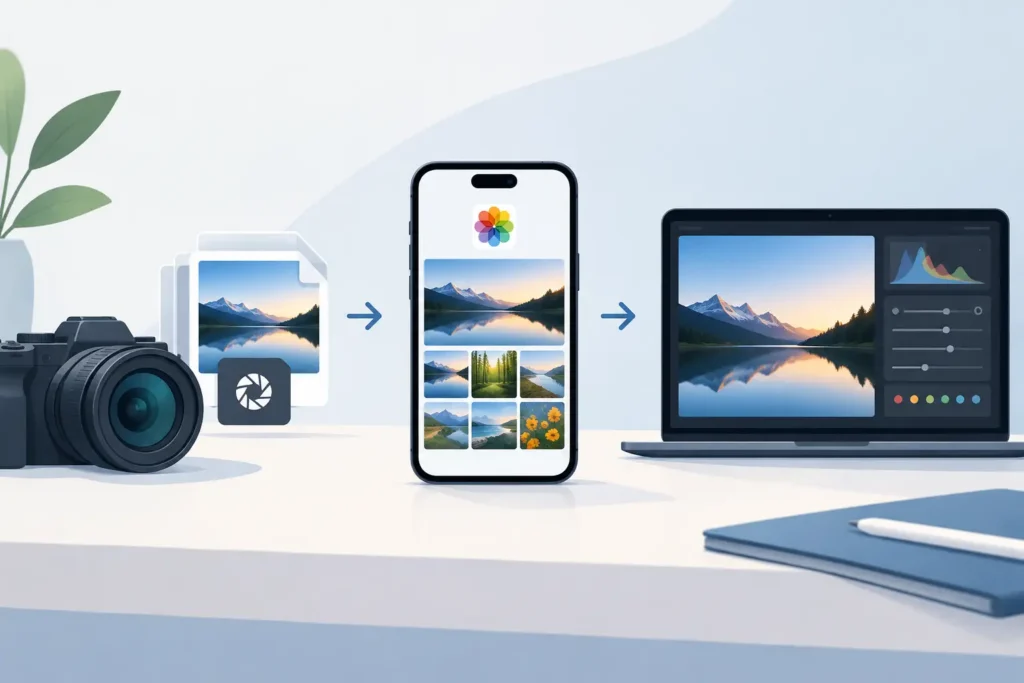
A 48-megapixel ProRAW photo can take up far more space than the finished image needs. The same is true when you import a weekend of Canon, Sony, Nikon, Fujifilm, Olympus, or Panasonic RAW files into Photos. A practical mobile RAW workflow lets you keep the flexibility of RAW while preventing your iPhone, iPad, Mac, and iCloud library from becoming an expensive archive of files you no longer need.
The goal is not to convert everything blindly. RAW still earns its place when a photo needs more editing latitude, when you are working through a client shoot, or when a frame may need a larger print later. But once an edit is finished and a photo has become part of your everyday library, HEIC can be the smarter format for storage, sharing, and long-term access in Apple Photos.
What a Mobile RAW Workflow Should Protect
A good workflow starts with a simple rule: your library is more than its image files. Albums, favorites, captions, locations, dates, people, keywords, and non-destructive edits all represent real work. If converting a photo means exporting it as a loose file, importing a replacement, rebuilding albums, and hoping you did not lose anything, the process is not efficient. It is a workaround.
That is why a Photos-native approach matters. The conversion should happen where the photo already lives, not in a separate folder system that creates duplicates and confusion. Your finished image should remain part of the same library context you have already organized.
Privacy matters too. Your personal photo library should not need to be uploaded to a server just to change formats. For Apple users, on-device processing keeps the workflow direct: select photos, convert them locally, review the result, and reclaim storage without sending images through a third-party cloud service.
Build Your Mobile RAW Workflow Around Photo Status
The easiest way to manage RAW is to stop treating every image the same. Think in terms of status: active edits, final keepers, and long-term originals.
Keep RAW while the edit is still active
RAW files are working files. They retain more image data and give you more room to recover highlights, adjust white balance, refine color, and change exposure without the limits of a compressed finished format. Keep RAW when you are still deciding on the edit or expect to revisit it soon.
This is especially useful for travel photos, portraits, difficult lighting, and images you may print. If you are unsure whether a frame is a keeper, there is no urgency to convert it. Storage management should not force a creative decision before you are ready.
Convert finished keepers to HEIC
Once a photo is edited, shared, delivered, or simply settled into your personal library, converting it to HEIC can dramatically reduce its footprint. Depending on the source format and image content, the result can be up to 10× smaller than RAW while remaining excellent for viewing, sharing, and everyday use.
HEIC is a natural fit for Apple Photos because it supports high-quality imaging efficiently and works across iPhone, iPad, and Mac. For many completed photos, the difference is immediate: less local storage pressure, fewer iCloud storage warnings, and a library that stays responsive as it grows.
Archive only the originals that truly matter
Some RAW originals are worth retaining indefinitely. This might include portfolio images, paid work, major family milestones, or photographs you expect to re-edit for large output. The right answer depends on the image and your future needs.
The point is selective retention. Keeping every RAW forever is simple, but it is not always useful. Converting every RAW and deleting every original is equally blunt. A better workflow preserves RAW where it has lasting value and uses HEIC for the far larger group of finished photos that no longer need RAW-level flexibility.
Avoid the Loose-File Conversion Trap
Most conversion tools were built around files, not photo libraries. Their usual pattern is familiar: export RAW files from Photos, locate the exported files in Files or Finder, convert them, import the new versions, check for duplicates, then manually delete the originals. Along the way, it is easy to lose organizational context or end up with multiple versions scattered across devices.
That workflow also creates uncertainty. Did the imported image retain the correct capture date? Is it still in the right album? Did the location survive? Does the new copy have the edits you approved? Which version is safe to delete?
A better approach works inside the native Photos library. You select the photos you want to convert, create efficient HEIC versions on device, and keep the result tied to the library structure you already use. There are no loose files to sort and no separate asset-management system to maintain.
RawToHEIC is designed for exactly this use case. It converts supported camera RAW files and iPhone ProRAW to HEIC directly in Photos on iPhone, iPad, and Mac, while preserving the Photos context that makes a library useful. It also uses verified deletion safeguards, so removing a source is a deliberate, checked step rather than an act of faith.
A Safer Way to Reclaim Storage
Deleting originals is the part of any conversion workflow that deserves caution. A smaller replacement is only helpful if you can trust what happened before the source file disappears.
Start with a small batch. Choose a group of already-edited photos that you know you will not need in RAW, such as a completed vacation album or older ProRAW shots that are taking up device space. Confirm the converted versions look right in Photos, open them on another Apple device if you use iCloud Photos, and make sure their organization remains intact.
Once you are comfortable with the result, work in batches that match how you organize your library. An album-by-album process is easier to review than selecting thousands of photos at once. It also gives you a clean decision point: this trip is finished, these images are approved, and these RAW files no longer justify their storage cost.
For especially valuable work, keep an independent backup before removing originals. That is sensible photo hygiene, not a failure of the conversion process. A backup protects against more than conversion mistakes – it also helps with accidental deletions, device loss, and library issues.
HDR, Edits, and Other Details That Change the Decision
Not every image should be treated as a standard SDR photo. If you shoot iPhone ProRAW or HDR content, preserving the intended tonal range matters. A conversion tool should respect HDR where supported rather than flattening an image into a less expressive result.
Edits deserve the same care. Apple Photos is built around non-destructive editing, which means your adjustments are part of the library experience rather than a pile of manually named export files. When you convert a completed image, the question is not just whether the pixels look good. The question is whether the image remains useful in the way you actually use Photos.
Compatibility also matters. Camera manufacturers update bodies and RAW formats over time, and support varies by app and operating system. Before planning a large cleanup, test a few files from the cameras you use most. A workflow that handles your iPhone ProRAW images perfectly may need a separate check for a newer mirrorless camera.
Make RAW Management a Habit, Not a Rescue Project
The best time to deal with RAW storage is shortly after a project is complete. Waiting until your phone is full turns a simple review into a stressful cleanup session. A light monthly routine is usually enough: review finished albums, keep the RAW files with real future value, and convert the completed photos that are ready for efficient everyday storage.
This also makes storage costs easier to control. Instead of immediately paying for more cloud capacity or moving years of photos into an external drive, you can reduce the space used by images that are already finished. Your library stays where you want it – in Photos, available across your Apple devices, and organized the way you expect.
Your RAW files should support your photography, not dictate how much storage you buy. Keep the originals that preserve future creative options. Let finished photos become compact HEIC images that remain easy to find, safe to share, and right at home in your Apple Photos library.
Shrink your RAW library, right inside Photos.
RawToHEIC converts camera RAW and iPhone ProRAW to HEIC up to 10× smaller — keeping every edit, album, favorite, and location. On-device, no account, one purchase for iPhone, iPad, and Mac.

Not sure yet? Convert a few sample photos free — no install, nothing uploaded.
Try it free — no install →