7 Best Non Destructive Image Tools for Apple
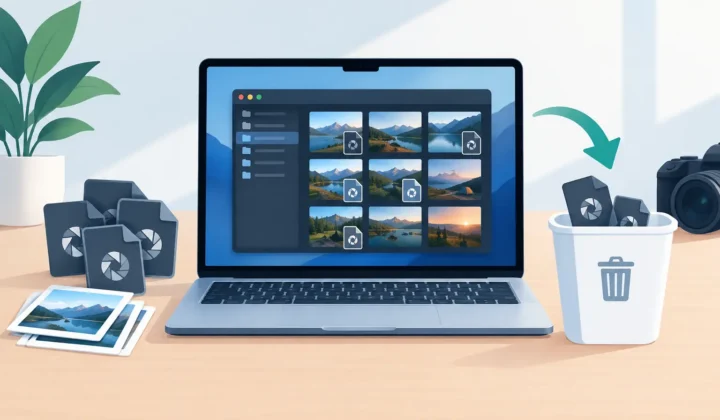
A RAW library can grow from manageable to expensive faster than most photographers expect. A few weekends with a mirrorless camera, a year of iPhone ProRAW, and suddenly Photos is holding hundreds of gigabytes of originals. The best non destructive image tools help you edit, organize, and reduce that pressure without flattening your work, losing metadata, or breaking the library you already trust.
Non-destructive does not mean every tool does the same thing. Some preserve the original while storing edit instructions. Others create managed versions, synchronize catalogs, or convert finished RAW files into smaller formats while keeping the surrounding Photos context intact. The right choice depends on where your photos live and what you need to preserve.
What “non-destructive” should mean in practice
At a minimum, non-destructive editing leaves the source image untouched. Exposure adjustments, crops, color grading, noise reduction, and local masks are saved as instructions that can be changed or removed later. Your original RAW file remains available.
For an Apple Photos library, the definition should be broader. A safe workflow also protects albums, favorites, captions, locations, keywords, dates, and the edits already attached to the image. A tool that preserves pixels but forces you to export loose files, rebuild albums, and reimport everything is technically non-destructive, but it is not a low-friction workflow.
There is also a useful distinction between keeping a RAW original and keeping every RAW forever. Once an image is edited, delivered, or simply retained for personal memories, a high-quality HEIC may be the more practical everyday version. The key is making that transition deliberately, with clear verification before anything is removed.
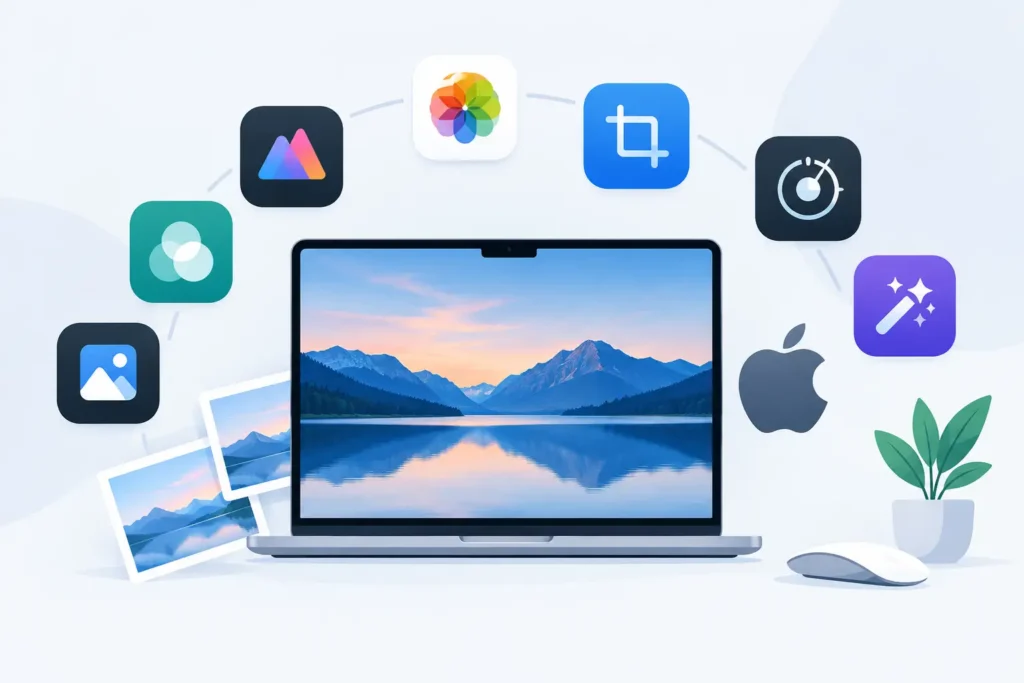
7 best non destructive image tools for Apple users
These tools solve different parts of the photo workflow. Several can work together. The best setup is usually the smallest one that protects your originals and removes unnecessary manual steps.
1. Apple Photos
Apple Photos is the natural foundation for anyone who wants one library across iPhone, iPad, and Mac. Its built-in edits are non-destructive: crop an image, adjust highlights, apply a filter, then revert to the original whenever you need to. Edits, albums, people recognition, locations, captions, favorites, and shared library context stay tied to the photo rather than scattered across folders.
Photos is especially strong when your priority is access. You can make a quick adjustment on an iPhone, refine it on a Mac, and see the result across your devices. It also handles ProRAW and many camera RAW formats through Apple’s RAW support.
Its limitation is depth. For demanding retouching, advanced masking, tethered capture, or highly specific color workflows, you may want a dedicated editor. Still, Photos is hard to beat as the place where a personal library stays organized.
2. Adobe Lightroom
Lightroom remains a leading choice for photographers who want detailed RAW control with a catalog-driven workflow. Its edits are parametric, meaning the application records adjustment settings rather than permanently changing the source file. Virtual copies let you create multiple looks from one image without duplicating the RAW.
The tool is particularly useful for large shoots, consistent presets, selective adjustments, and cross-device editing. Its search and organization features are capable, especially for photographers who work with thousands of captures at a time.
The trade-off is library complexity and ongoing cost. Lightroom is built around Adobe’s ecosystem, not Apple Photos. Moving images between the two can introduce exports, duplicate files, or separate organizational systems. It is a strong editor, but not always the simplest long-term home for an Apple-first photo library.
3. Capture One
Capture One is a focused option for photographers who care deeply about RAW rendering, color editing, and controlled studio workflows. Sessions and catalogs can both support non-destructive adjustments, while layers, masks, and color tools offer substantial precision.
It is often a good fit for portrait, product, fashion, and commercial work where color accuracy matters and each image receives careful attention. Tethered capture is another reason many professionals choose it.
For casual library management, it can be more application than you need. Capture One also works best when you are comfortable managing a dedicated photo workflow. If Photos is your primary archive, consider whether the extra organization layer improves your process or simply adds one more place for images to live.
4. Pixelmator Pro
Pixelmator Pro is well suited to Mac users who need powerful image editing without leaving the Apple ecosystem. It supports non-destructive color adjustments, effects, vector shapes, and layer-based work. Its clean interface makes serious retouching feel less intimidating than traditional desktop editors.
This is a good companion to Photos for images that need more than a crop or exposure correction. You can perform detailed cleanup, composite work, text treatments, and selective edits while maintaining an editable document structure.
The distinction matters: a layered editing document is not the same as a Photos-native RAW workflow. You may still create a separate project file or rendered output. That is fine for hero images and print work, but it is not the best answer for reducing the size of an entire RAW library.
5. Affinity Photo 2
Affinity Photo 2 offers a deep, purchase-based alternative for high-resolution retouching, compositing, panorama work, focus stacking, and advanced layer control. Its adjustment layers and live filters are designed to remain editable, which gives photographers room to experiment without committing edits too early.
It is a sensible choice for users who prefer owning desktop software rather than paying for an editing subscription. It can also handle complex work that would be awkward in a library app.
The learning curve is real. Affinity Photo is closer to a professional image editor than a simple photo organizer, and it does not replace Photos as a synced personal library. Use it when individual images need precision, not when the main problem is storage or duplicate workflow steps.
6. Darktable
Darktable is a capable non-destructive RAW editor for photographers who want an open-source option. It provides a detailed editing pipeline, module-based adjustments, tagging, and file management controls. Its workflow is designed around preserving source files while storing edit history separately.
It can be compelling for experienced users who want technical control and do not mind investing time in the interface. It also gives photographers an alternative outside subscription ecosystems.
For most Apple Photos users, however, the interface and workflow can feel less direct than native Mac software. It is best for someone who wants a dedicated RAW workstation, not someone trying to make Photos simpler.
7. RawToHEIC
RawToHEIC addresses a different non-destructive problem: what to do with finished RAW photos that are taking up too much space in Apple Photos. It converts supported camera RAW files and iPhone ProRAW to efficient HEIC directly inside Photos, preserving the organizational context you have already built, including albums, favorites, captions, locations, metadata, and non-destructive edits.
That native approach avoids the usual export-to-files, convert, import-again cycle. Processing stays on device, with no analytics collection, and verified deletion safeguards help ensure a new HEIC is in place before you choose to remove the original RAW. For many completed images, HEIC can be up to 10x smaller while retaining excellent quality and HDR support where available.
This is not a replacement for a RAW editor. It is the practical next step after editing, when you want a lighter library without turning your Photos organization into a cleanup project.
How to choose the right tool
Start with the moment your workflow needs help. If you want to preserve reversible edits across all Apple devices, Apple Photos is the baseline. If you need advanced RAW development and batch consistency, Lightroom or Capture One may earn their place. If the task is detailed pixel editing, Pixelmator Pro or Affinity Photo 2 are better suited.
If your real issue is that edited RAWs are consuming device and cloud storage, use a Photos-native conversion tool rather than a file-based workaround. The difference is not just convenience. Keeping the converted photo in its existing albums and preserving its metadata protects the organizational work you have already done.
Also consider your recovery plan. Keep untouched RAW originals for work you may revisit, client images, major trips, or photographs likely to benefit from future editing tools. Convert routine keepers, completed personal edits, and images you want readily available across devices. Non-destructive workflows are strongest when they give you choices, not when they force one storage policy on every photo.
A safer workflow for a growing RAW library
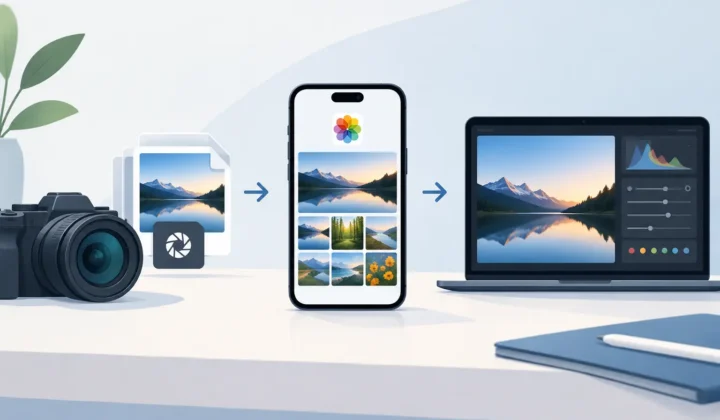
A practical Apple-first workflow begins with importing and organizing in Photos. Edit non-destructively there, or send only the images that need deeper work to a dedicated editor. Once an image is finished, decide whether the full RAW still has a purpose.
For photos you want to keep but no longer need as heavyweight originals, convert to HEIC inside Photos and verify the new version before deleting anything. Check the image at full size, confirm the date, location, caption, and album membership, then remove the RAW only when you are comfortable. Keep a backup of irreplaceable originals outside your active library.
The best tool is not necessarily the one with the most sliders. It is the one that lets you keep editing freedom where it matters, save storage where it does not, and continue enjoying your photos instead of managing loose files.
Shrink your RAW library, right inside Photos.
RawToHEIC converts camera RAW and iPhone ProRAW to HEIC up to 10× smaller — keeping every edit, album, favorite, and location. On-device, no account, one purchase for iPhone, iPad, and Mac.

Not sure yet? Convert a few sample photos free — no install, nothing uploaded.
Try it free — no install →