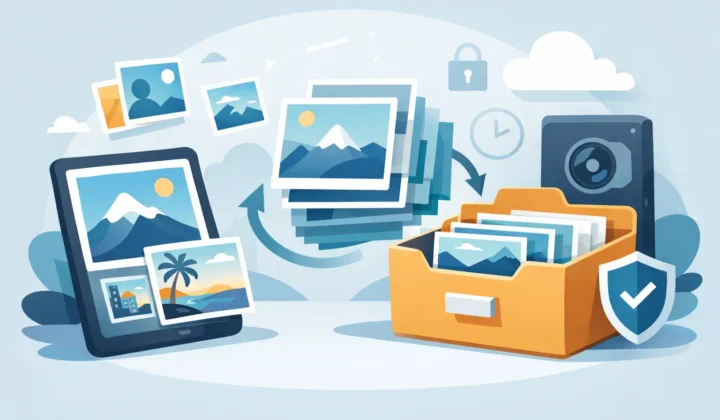
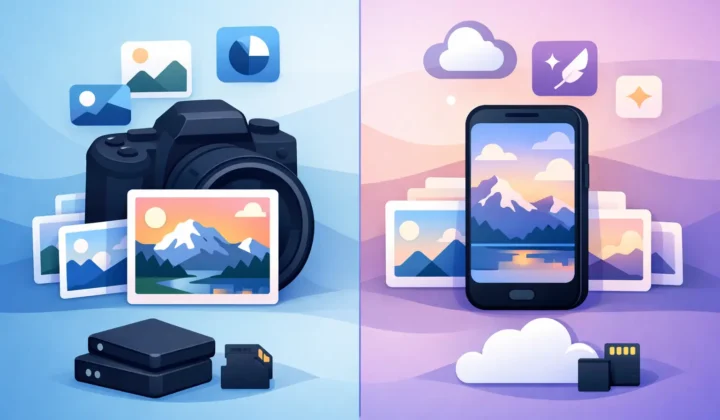
Best Raw Converter for Apple Photos?
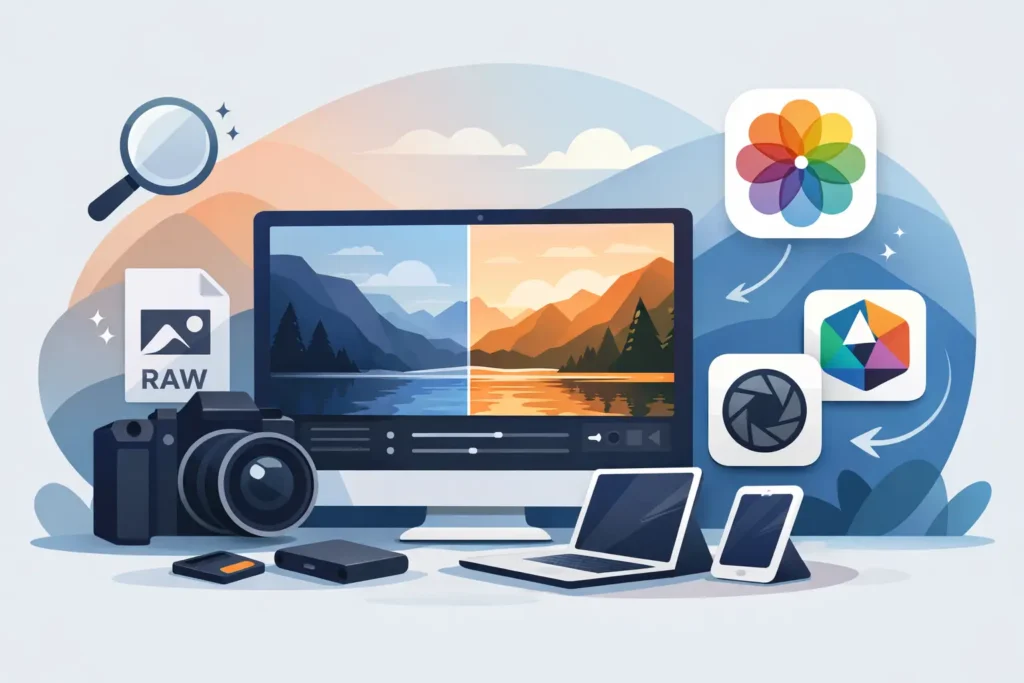
If your Photos library is full of RAW files, you already know the problem is not image quality. It is weight. A few shoots, a few imports from a mirrorless camera, a few ProRAW sessions on iPhone, and suddenly iCloud storage starts feeling expensive. That is why the search for the best raw converter for Apple Photos is really a search for something more specific – a tool that reduces size without blowing up the way you already organize, edit, and manage photos on Apple devices.
That detail matters. Many photo converters are built around files and folders. Apple Photos is built around a library. Albums, favorites, captions, locations, memories, edits, and metadata all live inside that system. So the right converter is not simply the one with the longest format list or the most export options. It is the one that works with Photos the way Photos is meant to work.
What makes the best raw converter for Apple Photos
For Apple users, conversion quality is only one piece of the decision. The real test is what happens before and after the conversion. Do you need to export images out of Photos first? Do you need to re-import them later? Do you lose album placement, metadata, or edit history? Do converted files come back as duplicates with none of the context you already built?
That is where a lot of otherwise capable tools fall short. They can convert RAW files. They just do it outside the library. If your workflow is based on Finder folders, that may be fine. If your workflow lives inside Photos on Mac, iPhone, or iPad, it creates friction fast.
The best option for most Apple Photos users should do five things well. It should convert on device, keep your library organized, preserve key metadata, reduce storage meaningfully, and make deletion safe after conversion. If any one of those pieces is missing, the process starts to feel like cleanup work instead of simplification.
The trade-off most converters ignore
A traditional RAW workflow assumes you want maximum file flexibility at every stage. That is ideal for ongoing editing. It is not always ideal for finished photos sitting in your library long term.
Once an image is edited, selected, and worth keeping, the question changes. You are no longer asking how to preserve every possible sensor-level adjustment forever. You are asking how to keep the photo in your Apple library without paying the storage penalty of the original RAW. That is especially true for users who shoot a lot on iPhone ProRAW or import bursts from Sony, Canon, Nikon, Fujifilm, Olympus, or Panasonic cameras.
This is where HEIC becomes a practical target format. It is efficient, native to Apple platforms, and well suited for everyday use in Photos. In the right workflow, converting RAW to HEIC can cut storage dramatically while keeping the photo easy to browse, sync, and share across devices.
The key phrase there is in the right workflow. If converting to HEIC means exporting to a desktop app, creating loose files, manually checking metadata, then re-importing everything into Photos, you may save space but lose time and trust.
Apple Photos needs a Photos-native converter
The strongest case for a Photos-native raw converter is not convenience alone. It is preservation of context.
Your library is more than image files. It includes the way you sorted a trip into albums, the portrait you favorited, the captions you added for family shots, the location data you rely on later, and the edits you already made. When a conversion tool sits outside that environment, those details become fragile.
A Photos-native converter works from inside the library instead of around it. That means fewer chances for mismatch, duplication, or accidental loss. It also means the workflow feels like an Apple feature rather than a workaround.
For many users, that is the dividing line between a tool they try once and a tool they actually keep using.
Why loose-file workflows are a poor fit
Loose-file workflows still make sense for photographers who manage projects in Finder, Lightroom catalogs, or external archive drives. But for Apple Photos users, they introduce extra steps that solve the wrong problem.
You export RAW files. You convert them elsewhere. You compare output. You re-import. You check whether dates, captions, and locations survived. Then you decide whether it is safe to delete the originals. None of that improves the photo itself. It only adds risk around a task that should be simple.
If your goal is reclaiming space while keeping your Photos library intact, file-based conversion is usually too indirect.
How to evaluate raw converters for Apple Photos
When comparing options, start with workflow fit rather than feature volume. A converter can support dozens of formats and still be the wrong choice if it breaks your library structure.
First, look at where conversion happens. On-device processing is the cleanest option for privacy and control. If photos need to be uploaded to a server, that changes the trust model immediately. For many Apple users, especially those keeping personal or client images in Photos, local processing is the safer standard.
Next, check whether the app works directly with the Photos library. This matters more than many comparison pages admit. Direct integration eliminates a lot of manual handling and makes the result far more predictable.
Then look at what is preserved. Metadata support should not be treated as a bonus. Dates, locations, captions, and library context are part of the value of your collection. If conversion strips that away, storage savings come with a hidden cost.
You should also pay attention to deletion safeguards. Converting files is easy. Deleting the originals confidently is harder. The best tools verify that the new file exists and is saved correctly before offering any cleanup path.
Finally, consider the pricing model. A subscription can make sense for a broad editing suite. For a focused utility, a one-time purchase often matches the job better. You pay once, solve the storage problem, and keep using the tool as your library grows.
Where most alternatives are strong, and where they miss
Desktop photo editors and catalog apps are often excellent at RAW development. They give you detailed control over color, tone, profiles, and local adjustments. If you are still actively editing a shoot, those tools are valuable.
But that is not the same as being the best raw converter for Apple Photos. Editing power and library fit are different categories. A converter for Apple Photos should prioritize native organization, low friction, and storage efficiency after editing is done.
Some general-purpose converters can batch process efficiently, but they tend to treat the result as a new file set. Some cloud-based services reduce local work, but they ask you to trade privacy for convenience. Some photo apps integrate with Apple devices loosely, but not deeply enough to preserve the structure people actually care about.
That is why the winning option for Apple Photos users is often more specialized than the broader market expects.
The practical case for a dedicated Apple-first converter
A dedicated Apple-first converter is built around one specific outcome: smaller photos inside Photos, without the export-import mess. That focus changes everything.
Instead of asking users to manage folders, it works with the library they already use. Instead of pushing images through external services, it processes on device. Instead of treating metadata preservation as best effort, it makes that part of the core job. Instead of turning cleanup into guesswork, it adds safety checks before originals are removed.
That is the logic behind RawToHEIC. It is not trying to replace a full editor or asset manager. It solves the narrow, high-friction part of the workflow that Apple users run into once RAW files start consuming too much space. For people who already like Photos and want to keep using it, that narrow focus is a strength.
It also reflects how many people really shoot now. They may edit selectively, but they archive broadly. They want finished images to stay accessible on iPhone, iPad, and Mac without carrying the full storage cost of RAW forever.
So what is the best raw converter for Apple Photos?
If you use Apple Photos as your main library, the best choice is usually not the converter with the most knobs. It is the one that respects the library, keeps everything on device, preserves your organizational work, and makes storage savings immediate.
That means a Photos-native converter has a real advantage over traditional file-based tools. For users who want to keep albums, favorites, captions, metadata, and edits in place while shrinking RAW-heavy libraries, that approach fits the way Apple devices are actually used.
There is still an it depends here. If you are doing intensive RAW development on every image, a dedicated editor should remain part of your workflow before conversion. But if the photo is finished and your next problem is library size, a specialized Apple-first converter is the better answer.
A good tool should feel boring in the best way. No loose files. No broken organization. No mystery about what happened to your photos. Just more free space and the same library you already trust.
When a converter does that, it stops being another photo utility and starts feeling like something Apple Photos should have had all along.
Shrink your RAW library, right inside Photos.
RawToHEIC converts camera RAW and iPhone ProRAW to HEIC up to 10× smaller — keeping every edit, album, favorite, and location. On-device, no account, one purchase for iPhone, iPad, and Mac.

Not sure yet? Convert a few sample photos free — no install, nothing uploaded.
Try it free — no install →