HEIC Compatibility on Apple Devices Explained
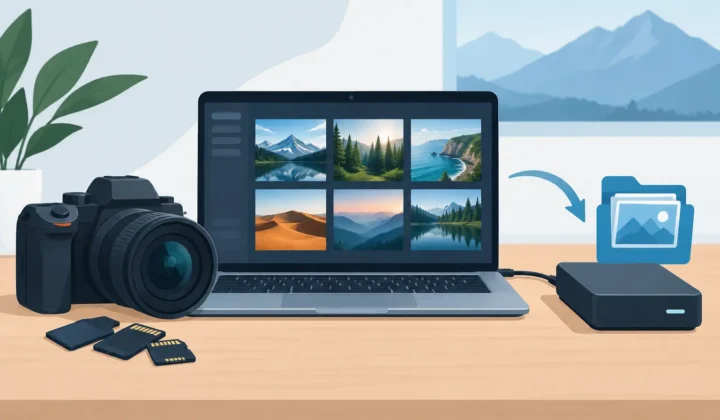
A 45 MB RAW file can be worth keeping while you are editing. It is much harder to justify when thousands of finished images are filling your iPhone, iPad, or Mac. HEIC compatibility on Apple devices makes a smaller, high-quality photo library practical, but only when you understand where the format works best and where sharing still needs a little planning.
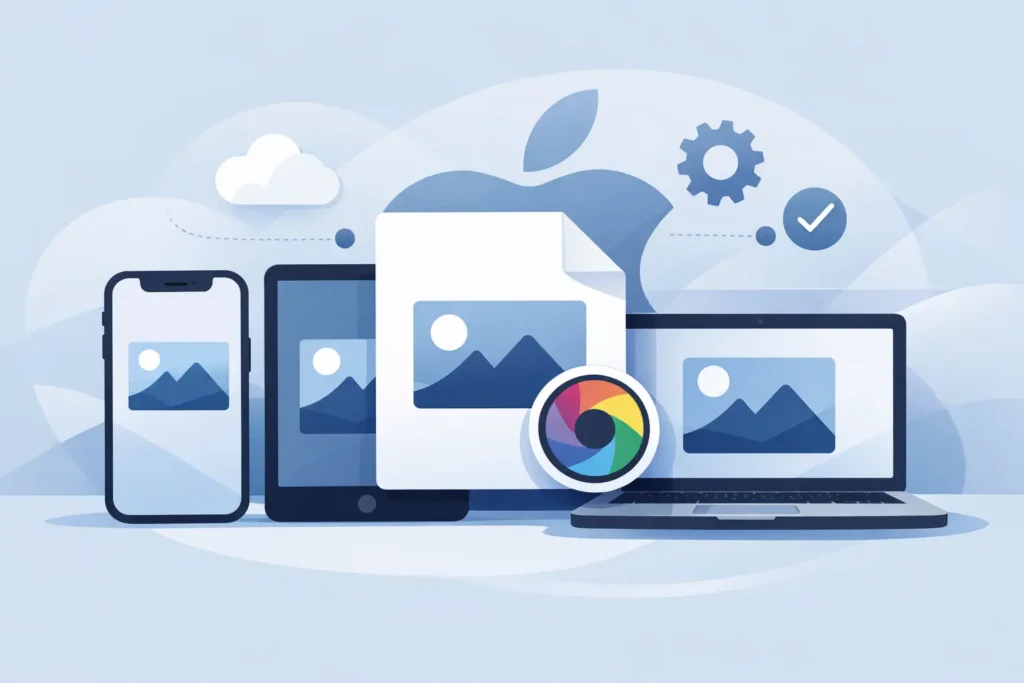
For Apple users, HEIC is not a workaround or a second-class export. It is a native photo format used throughout the Apple ecosystem. Photos, iCloud Photos, editing tools, and modern Apple hardware are designed around it. That makes HEIC a strong destination for completed RAW edits, especially when your priority is reclaiming storage without leaving the Photos library you have already organized.
What HEIC Means on Apple Devices
HEIC is the file extension commonly used for images stored with HEIF, or High Efficiency Image File Format. It delivers significantly better compression than JPEG while retaining excellent image quality. In practical terms, a HEIC photo can often be far smaller than a high-quality JPEG and dramatically smaller than a camera RAW file.
Apple adopted HEIF and HEIC across its platforms years ago, so support is built into the experiences most Apple users rely on every day. You can view HEIC photos in Photos on iPhone, iPad, and Mac; organize them into albums; mark favorites; add captions and locations; search your library; and sync them with iCloud Photos.
HEIC also supports capabilities that JPEG does not handle as efficiently, including wide color, depth information in supported images, and modern HDR workflows. That matters if you shoot on a recent iPhone or work with images intended for Apple displays.
The key distinction is simple: broad Apple support does not mean every device creates HEIC images in every situation. Capture support depends on the hardware, camera mode, and software version. Viewing, organizing, and editing support is much wider across supported Apple operating systems.
HEIC Compatibility on Apple Devices: What Works Where
On iPhone and iPad, HEIC is deeply integrated with the Camera and Photos apps. Many iPhones and iPads can capture photos in High Efficiency format when the relevant Camera format setting is enabled. Photos stored as HEIC behave like the rest of your library: they sync through iCloud Photos, appear in albums, participate in Memories and search, and can receive non-destructive adjustments.
On Mac, Photos handles HEIC as a first-class library format. You can import, edit, duplicate, export, and sync HEIC images without managing separate loose files in Finder. Modern versions of macOS also support HEIC in common built-in viewing and editing contexts, including Quick Look and Preview.
Apple TV and other Apple services can generally display HEIC-based photo libraries through Photos and iCloud integration. The experience depends on your software version and the destination device, but within an actively updated Apple household, HEIC is usually the default-friendly choice.
Older Apple hardware is the main exception. If a device cannot run a reasonably current version of iOS, iPadOS, or macOS, its HEIC support may be limited. Before converting an entire family archive, check the oldest device that needs direct access. This is especially relevant for a shared Mac that has not been updated or an older iPad kept as a photo frame.
HEIC Is Ideal for Finished RAW Photos
RAW files hold more image data than HEIC. That is their purpose. They give you greater latitude for exposure recovery, white balance changes, and detailed color work during editing. If an image is still a work in progress, keeping the RAW original is often the right decision.
Once an image is finished, the calculation changes. A RAW file from a mirrorless camera, DSLR, or iPhone ProRAW capture can consume tens of megabytes per photo, sometimes much more. A HEIC version can be up to 10× smaller while remaining more than capable for everyday viewing, sharing, printing at reasonable sizes, and preserving the result you actually want to revisit.
This is not a claim that HEIC replaces RAW for every purpose. It depends on your archive. Keep RAW files for portfolio work, client deliverables that may need future re-editing, technically difficult shots, and images you may print very large. Convert the completed photos that are consuming storage without delivering ongoing editing value.
That approach is particularly useful for iPhone ProRAW. ProRAW offers impressive editing flexibility, but a large ProRAW library can put pressure on device storage and iCloud capacity quickly. Moving finished selects to HEIC lets you keep your Photos library responsive and accessible across devices without treating every completed image like a working master.
The Photos Library Context Is Part of the Photo
A file conversion is easy. Preserving the context around that file is the hard part.
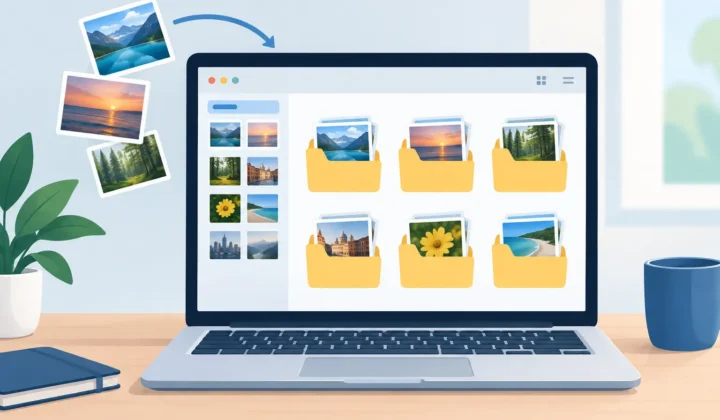
Your Photos library is more than a folder of image files. Albums, favorites, captions, keywords, locations, dates, people recognition, and edits are part of how you find and use your work. Traditional converters often force an export-import cycle: export the RAW to a folder, convert it elsewhere, import a new file, then sort out duplicates and rebuild organization. That workflow creates clutter and invites mistakes.
A Photos-native conversion workflow keeps the task where the library already lives. RawToHEIC converts supported camera RAW formats and iPhone ProRAW directly inside Apple Photos on iPhone, iPad, and Mac. The goal is not simply to make a smaller file. It is to retain the Photos context you have already built, including albums, favorites, captions, locations, metadata, and non-destructive edits.
That matters when you are managing years of photography. A smaller library is only useful if it remains recognizable, searchable, and safe to maintain.
HDR and Editing Need Extra Attention
HEIC is well suited to modern Apple photo workflows, including HDR in supported scenarios. But compatibility is not only about whether an image opens. It is also about whether it continues to look right after syncing, editing, and sharing.
If you work with HDR photos, use a conversion process that explicitly preserves HDR when the source and output support it. Otherwise, a conversion may flatten the appearance you intended, particularly in bright highlights and high-contrast scenes. Check a few representative photos first, including sunsets, indoor window light, and night shots with bright signage.
Edits deserve the same caution. Photos uses non-destructive editing, which means the library can preserve your adjustments separately from the original image data. When converting completed RAW photos, choose a tool designed to respect that Photos-based workflow rather than one that treats your library as an export source.
A sensible first test is 20 to 50 photos. Include favorites, images in multiple albums, edited RAW files, photos with captions or locations, and a few HDR examples. Confirm the results across your iPhone, iPad, and Mac before processing a larger batch.
When HEIC Sharing Requires a Backup Plan
Inside Apple devices, HEIC is straightforward. Outside the Apple ecosystem, compatibility depends on the app, service, browser, or recipient device.
Most current platforms can handle HEIC, but not every workflow does. An older Windows computer, a legacy print service, a client upload portal, or a social tool with outdated image handling may reject the format or display it inconsistently. Email and messaging apps may also convert images automatically, depending on the recipient and sharing settings.
That does not make HEIC a poor archival choice for an Apple-centered library. It simply means you should export JPEG only when a specific destination requires it. Keeping HEIC as your efficient Photos-library format and creating a JPEG copy for the occasional incompatible recipient is usually cleaner than storing a JPEG duplicate of every image forever.
For professional delivery, follow the client or platform requirements. JPEG remains the safer universal handoff format. For your personal library, HEIC is often the better balance of quality, storage efficiency, and Apple-native support.
A Safer Way to Reduce Library Size
Storage recovery should never depend on blind deletion. Before removing a RAW original, confirm that the HEIC result exists, looks correct, carries the expected library context, and has synced if you use iCloud Photos. A verified workflow matters more than shaving a few extra taps off the process.
Start with a focused album of finished work rather than your entire library. Convert a manageable group, review it on more than one Apple device, then decide whether the RAW originals still earn their storage cost. This gives you a clear rollback point and helps you establish rules for what stays RAW.
The best long-term setup is not necessarily all RAW or all HEIC. It is a library where working files remain available when they matter, while finished images stay compact, organized, private, and ready to enjoy wherever you use Apple Photos.
Shrink your RAW library, right inside Photos.
RawToHEIC converts camera RAW and iPhone ProRAW to HEIC up to 10× smaller — keeping every edit, album, favorite, and location. On-device, no account, one purchase for iPhone, iPad, and Mac.


Not sure yet? Convert a few sample photos free — no install, nothing uploaded.
Try it free — no install →