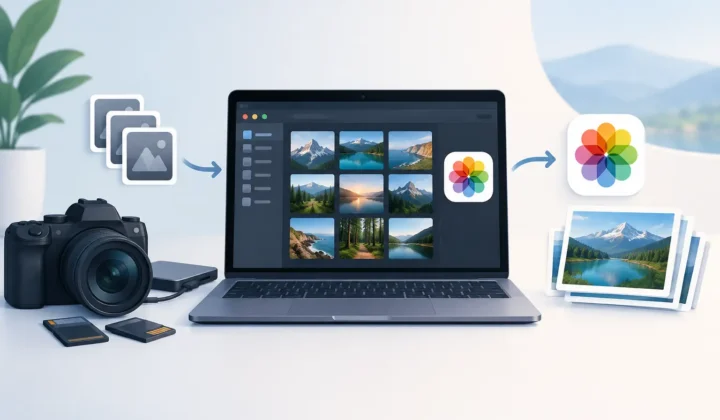
Native Photos Optimization Guide for RAW
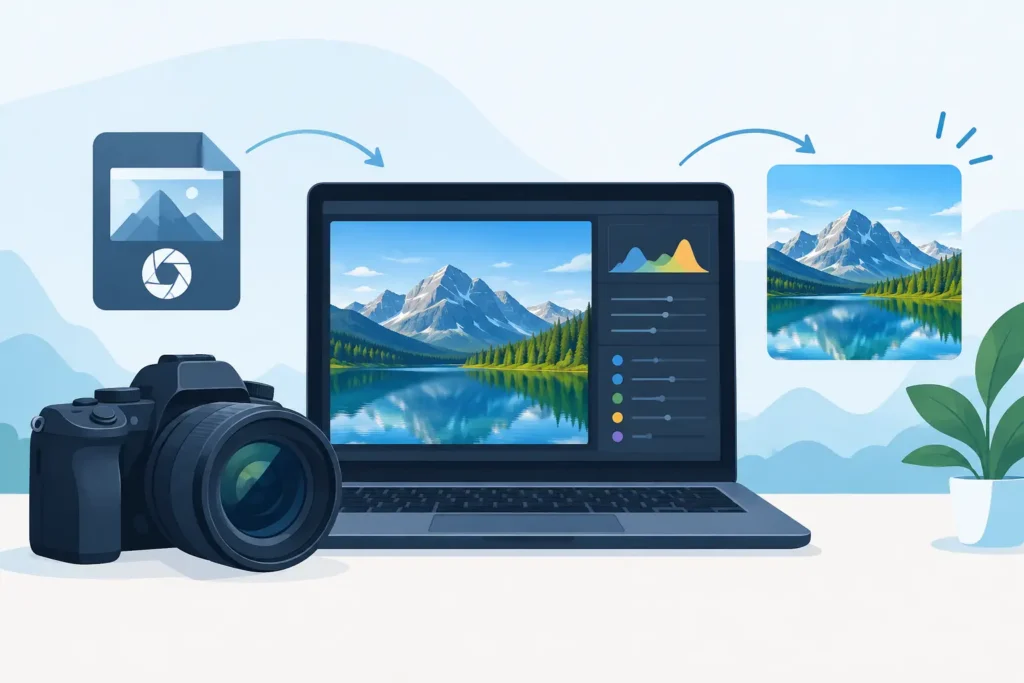
A 48MP ProRAW photo can take up far more space than the edited image you actually want to keep. Multiply that by a few trips, family events, or mirrorless camera imports, and a Photos library can pressure both device storage and iCloud storage quickly. This native Photos optimization guide is for photographers who want smaller libraries without breaking the albums, edits, captions, locations, and favorites that make Photos useful.
What Photos optimization should preserve
Optimizing a photo library is not simply about deleting large files. If your library is organized, it already contains valuable work beyond the pixels: non-destructive adjustments, album placement, dates, people recognition, keywords, captions, and location data. A file-based conversion workflow can reduce storage while scattering that context across exported folders, duplicate imports, and filenames that mean nothing six months later.
The better goal is to reduce the weight of finished images while keeping them where you already manage them. For many Apple photographers, that means retaining a high-quality HEIC version in Photos after the RAW file has done its job.
This is a practical distinction. RAW is the capture format and editing safety net. HEIC is often the better format for a photo you have completed, shared, and want available across your Apple devices without carrying the full size of the original sensor data.
Native Photos optimization guide: decide what belongs in RAW
Not every RAW image should become HEIC. The right choice depends on whether the image is still a working file or a finished photograph.
Keep RAW when you expect to revisit the edit, make a large print, submit work to a client, or need maximum recovery latitude from shadows and highlights. Keep it for your best images, portfolio candidates, and shots where the original capture has ongoing value. RAW is also sensible for an image with a difficult exposure that you may want to reinterpret later.
Convert when the edit is complete and the photo’s main job is viewing, sharing, printing at normal sizes, or staying accessible in your everyday library. Vacation photos, family images, reference shots, and successfully edited selects are common candidates. If you have hundreds of near-identical RAW captures, converting the keepers and removing rejected originals can change the storage picture fast.
HEIC is not a replacement for RAW in every situation. It is a high-efficiency delivery and library format. Treating it that way lets you preserve the flexibility that matters without paying the RAW storage cost for every finished image.
Find the storage pressure before changing anything
Start with the parts of your library that create the most pressure. iPhone ProRAW and imported DSLR or mirrorless files are usually the obvious sources, but long editing histories and duplicate imports can contribute too. Look for older trips, completed projects, or albums you revisit often but no longer expect to edit from scratch.
This approach is safer than making a blanket decision based on file format alone. A small set of important RAW originals may be worth keeping indefinitely, while thousands of ordinary completed images may not be.
It also helps to separate active work from archive material. An active project can stay entirely in RAW until delivery or final selection. Once it is complete, you can decide whether the RAW originals belong in a separate long-term archive or whether high-quality HEIC versions are enough for your Photos library.
Avoid the loose-file conversion trap
The traditional conversion process sounds simple: export a RAW file, convert it in another app, save the result, import it back into Photos, then find and delete the original. In practice, it creates four problems at once.
First, the converted photo may return as a separate item with a new import date. Second, albums, favorites, captions, and location details may need cleanup. Third, you can end up with both versions taking space while you verify the result. Finally, deleting the wrong item can remove the version containing the work you meant to protect.
A Photos-native workflow avoids turning a library-management task into file management. The conversion should happen where your images already live, with the library context retained rather than rebuilt. This matters even more when iCloud Photos is syncing a library across an iPhone, iPad, and Mac.
RawToHEIC is designed around that principle: convert supported RAW files directly inside Photos, on device, instead of sending files through an export-import loop. The point is not merely fewer taps. It is preserving the organization you already trust while reducing the storage consumed by completed RAW images.
Convert with a clear safety sequence
A good conversion process should feel deliberate, not risky. First, select a small group of representative RAW images. Include an image with edits, one in an album, and one with location or caption information. Review the converted result in Photos before processing a larger batch.
Next, inspect the details that matter for your work. Check the visible edit, dimensions, HDR appearance where applicable, date, location, and album membership. On a photo you care about, zoom in and compare fine detail. HEIC is highly efficient, but it is still an encoded output, so the correct quality threshold is your own use case.
Then confirm the original is handled only after the replacement has been created and verified. This is where deletion safeguards matter. A conversion tool should not treat deletion as a casual background action. It should verify that a usable output exists before allowing the source RAW file to be removed.
For a large library, work in meaningful batches. Finish one event, trip, or completed project at a time. This gives you a natural review point and makes it easy to pause if you decide a category deserves a different archive policy.
HDR, edits, and metadata deserve separate checks
A smaller library is only an improvement if the photos still look right and remain findable. For iPhone photographers, HDR preservation is especially worth checking. A bright sky, backlit portrait, or high-contrast interior can reveal issues that are not apparent in an evenly lit test image.
Edits require the same care. If you use Photos adjustments to crop, straighten, correct color, or apply a look, confirm that the converted image reflects the result you approved. The desired outcome is a finished photo that retains its place in your library, not a generic conversion with the visual work stripped away.
Metadata is equally practical. Location data helps Photos surface a trip on the map. Captions make an image searchable. Favorites and albums are often how people actually find photographs years later. Preserving these details makes optimization feel invisible in daily use, which is exactly what a good library workflow should do.
Expect meaningful savings, not identical files
RAW files contain far more image data than a finished HEIC needs for normal viewing and sharing. Depending on the camera, subject, and capture format, converting completed RAW images to HEIC can make them up to 10x smaller. The exact result varies. A detailed landscape, a noisy low-light frame, or a high-resolution ProRAW image will not compress the same way as a clean daylight portrait.
Storage savings also depend on what you delete. Creating HEIC copies alone does not reduce the library’s footprint if the originals remain beside them. The gain comes after you have reviewed the output and chosen a policy for the RAW source.
If you want a permanent RAW archive, move only selected originals to separate storage after confirming your backup strategy. If you do not need that level of flexibility, verified removal of completed RAW sources may be the cleaner option. There is no universal rule, only the right trade-off for the photo’s future value.
Keep the library sustainable
The easiest library to optimize is one that has a routine. After a trip or photo session, cull obvious misses, edit your selects, and decide which finished images can move from RAW to HEIC. This prevents storage pressure from becoming an emergency six months later.
Privacy belongs in that routine too. Your personal library can include faces, homes, travel patterns, and private moments. On-device processing keeps conversion work on your Apple device rather than making a cloud upload part of an otherwise simple task. A clear data policy and zero analytics are not extras when the content is your photo library.
A smaller Photos library is not about keeping less of your life. It is about keeping the version of each image that still earns its space, with the context that lets you enjoy it again when you need it.
Shrink your RAW library, right inside Photos.
RawToHEIC converts camera RAW and iPhone ProRAW to HEIC up to 10× smaller — keeping every edit, album, favorite, and location. On-device, no account, one purchase for iPhone, iPad, and Mac.

Not sure yet? Convert a few sample photos free — no install, nothing uploaded.
Try it free — no install →