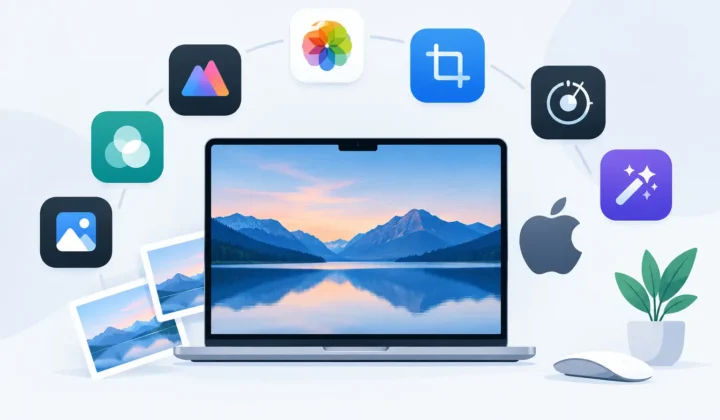
On-Device Versus Desktop Converter Compared
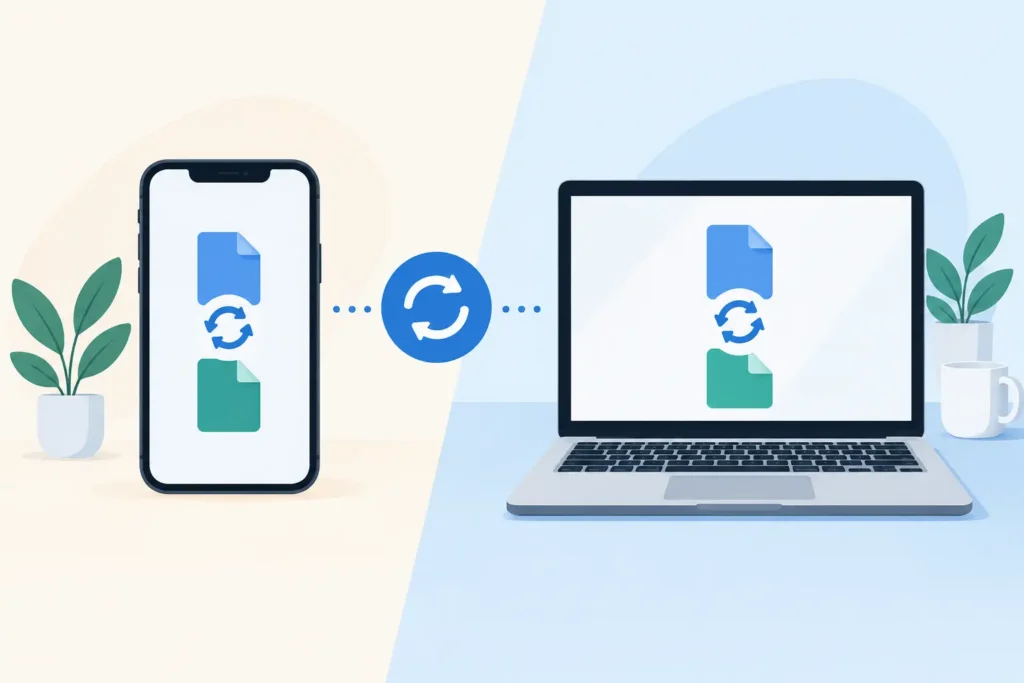
A 48MP ProRAW frame, or a folder of mirrorless-camera RAW files, can consume storage faster than most people expect. Once the edit is finished, keeping every full-size source file in your Photos library may not be the best use of iPhone, iPad, Mac, or iCloud space. The on device versus desktop converter decision comes down to more than conversion speed. It determines whether your photo library stays intact or turns into a pile of exported files.
For Apple users who organize real life in Photos – albums, favorites, captions, locations, faces, and edits included – the converter should fit the library, not force the library to fit the converter.
On-device versus desktop converter: the real difference
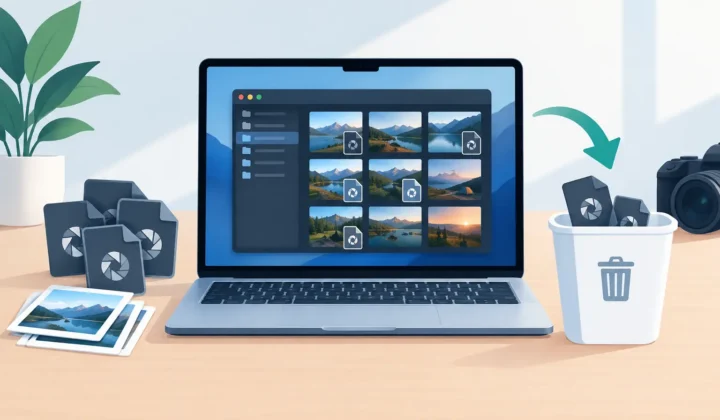
A desktop converter usually treats a RAW photo as a file. You locate it in Finder, copy or export it from Photos, convert it, then import the result. If you want the smaller version in the same album, you organize it again. If you want to remove the original, you need to be certain the replacement imported correctly and that you are not deleting the only valuable copy.
That model works well when you are managing a production folder, delivering a client gallery, or processing thousands of images from a dedicated workstation. Desktop software can offer specialized batch controls, custom naming, folder automation, and unusual output formats. For photographers whose source of truth is a file system or a professional cataloging application, those options can be useful.
An on-device converter designed for Apple Photos starts from a different premise: the photo is already where it belongs. Rather than creating a loose-file workflow, it works with the selected images in your library and returns the converted image to that same library. The objective is not just to make a HEIC file. It is to reduce storage while preserving the context that makes a photo easy to find and enjoy later.
Why Photos context is the deciding factor
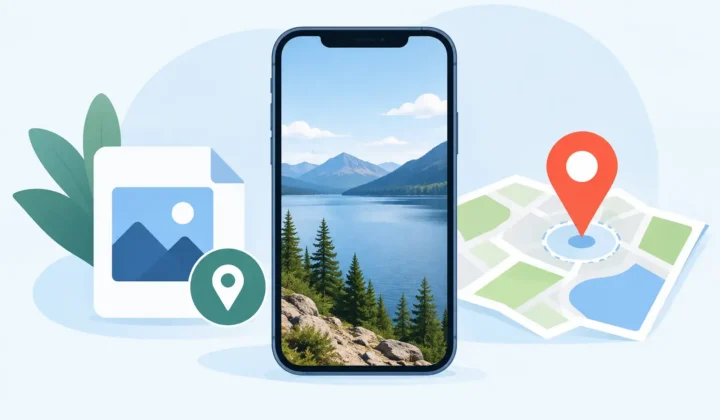
A RAW image in Photos is rarely just an image. It may be part of a trip album, marked as a favorite, assigned a caption, placed on a map, and adjusted with non-destructive edits. Exporting it to a desktop can flatten that rich context into a file that must be reconstructed after import.
The risk is not always dramatic. More often, it is slow library drift. A converted photo lands in Recents but not in the original album. A caption is missing. The date or location needs attention. The original remains because deleting it feels unsafe, so storage savings never materialize. Repeat this across a few hundred images and the supposed conversion workflow becomes another maintenance task.
Photos-native conversion avoids much of that friction. When the converted HEIC remains connected to the organizational context you already created, the result feels like a sensible library update rather than a separate export project. This is especially valuable for people who shoot on iPhone and edit on iPad or Mac, but want one familiar library across all three devices.
HEIC is often the practical post-edit format
RAW is the right capture format when you need editing latitude. It preserves far more image data than a finished photo needs for everyday viewing, sharing, and long-term access in Photos. But RAW files are large by design, particularly iPhone ProRAW files and high-resolution files from current mirrorless cameras.
HEIC is a strong destination once your edit is complete. It delivers efficient compression, supports modern Apple workflows, and can preserve HDR where supported. Depending on the original file and image content, moving from RAW to HEIC can reduce storage dramatically – often by several times and, in favorable cases, up to 10x smaller.
That does not mean every RAW should be converted immediately. Keep originals when you expect to revisit a demanding edit, print at large sizes, submit work, or retain a full archival master outside Photos. The better question is which images still need RAW flexibility and which are ready to become compact, finished photos.
Privacy and speed are connected
Many conversion services route files through a server. That introduces upload time, download time, account concerns, and a basic privacy question: where did your personal images go while they were being processed?
On-device processing keeps conversion on your Apple hardware. Your photos do not need to leave the device for a third-party server, which is meaningful for family images, travel photos, and any work that should remain private. It also makes the workflow more dependable when connectivity is limited or iCloud syncing is still catching up.
Desktop conversion can also be private when it is done locally. The difference is convenience. A Mac-only workflow asks you to wait until you are at the Mac, locate the right images, and handle exports and imports. An Apple-native on-device approach lets you process a selected set where you already review photos: on iPhone, iPad, or Mac.
Safety matters more than a fast Convert button
The irreversible part of conversion is not creating a HEIC. It is deciding what happens to the original RAW. A converter should never make that decision casually.
A careful workflow creates and verifies the converted result before offering to remove the source. It should make the status clear, so you know which images converted successfully and which need attention. The original should remain available until the replacement has been confirmed. This is a small design detail with a large practical benefit: storage savings should not require blind trust.
RawToHEIC is built around this Photos-first model. It converts major camera RAW formats and iPhone ProRAW directly within Apple Photos, preserves the information that makes a library useful, and uses verified deletion safeguards before originals are removed. Processing stays on device, with no analytics collection. The app is free to try with daily conversions, with unlimited use available through a lifetime purchase or annual plan across iPhone, iPad, and Mac.
When a desktop converter is still the better choice
A desktop converter is not obsolete. It is simply optimized for a different job.
Choose desktop software when you need outputs beyond HEIC, must apply elaborate presets to a large commercial shoot, or work from a structured folder hierarchy shared with collaborators. It is also appropriate when your RAW archive lives on external storage and Photos is only a delivery destination, not your main library.
The desktop path can be worthwhile for a photographer preparing a client handoff or generating TIFFs, JPEGs, and web derivatives from a master folder. In that scenario, files are the workflow. Extra export and import steps are expected.
Choose on-device conversion when your priority is reclaiming storage from photos already in Apple Photos without breaking the way you browse, search, edit, and organize them. It is the better fit for a personal library, a travel collection, a growing ProRAW archive, or an enthusiast library built from Canon, Sony, Nikon, Fujifilm, Olympus, or Panasonic RAW files.
A simple test before you convert
Select a small set of images that represent your typical library. Include a favorite, a photo in an album, one with a caption or location, and an edited image. Convert them, then inspect the result in Photos on the device you use most.
Check the practical details: Does the image look right? Is HDR retained where expected? Does it appear in the intended album? Are the date, location, and other useful details present? Can you find it using the same library habits as before? Only then decide whether to remove the originals.
This test reveals the true cost of a converter. A tool that makes a smaller file but adds cleanup work is not saving much time. A tool that keeps your library coherent gives you the storage savings without creating a second system to manage.
Your RAW files earned their space while you were editing. After that work is done, your photo library should be free to become lighter, easier to sync, and just as familiar to use.
Shrink your RAW library, right inside Photos.
RawToHEIC converts camera RAW and iPhone ProRAW to HEIC up to 10× smaller — keeping every edit, album, favorite, and location. On-device, no account, one purchase for iPhone, iPad, and Mac.

Not sure yet? Convert a few sample photos free — no install, nothing uploaded.
Try it free — no install →