iPad Photographer Storage Guide for More Space
A 48MP ProRAW frame, a burst from a mirrorless camera, and a few edited duplicates can fill an iPad far faster than most photographers expect. This iPad photographer storage guide focuses on the storage that actually matters: your working library, your iCloud plan, and the originals worth keeping.
The goal is not to delete aggressively. It is to keep Photos responsive, preserve the organization you already built, and avoid paying for storage because your library contains files you no longer need in their largest form.
Start with the three places photos consume space
Photographers often see one full-storage warning and assume there is one problem. On an iPad, there are usually three separate limits: device storage, iCloud storage, and temporary or duplicate files outside Photos.
Your iPad’s local storage controls how much can stay downloaded for offline editing, viewing, and sharing. A full iPad can slow imports, prevent camera roll captures, and leave too little working room for Lightroom, Photoshop, or video apps. Device storage is the immediate problem when Photos reports a large library or Settings shows Photos using tens or hundreds of gigabytes.
Your iCloud storage is different. If iCloud Photos is enabled, it holds the full-resolution library and keeps your iPhone, iPad, and Mac in sync. Turning on Optimize iPad Storage can reduce what is stored locally, but it does not reduce the amount your library occupies in iCloud. It is a device-space setting, not a library-size strategy.
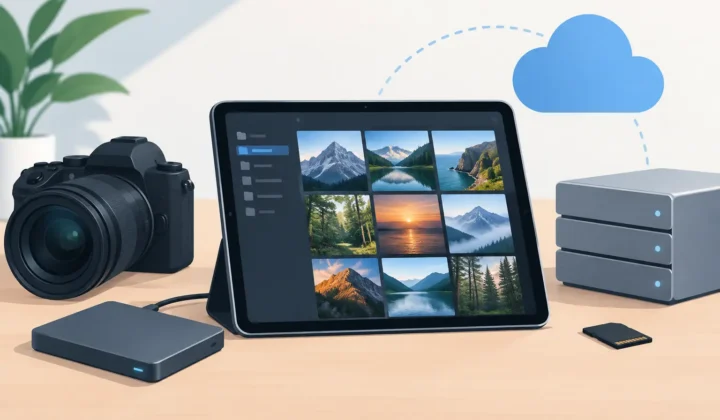
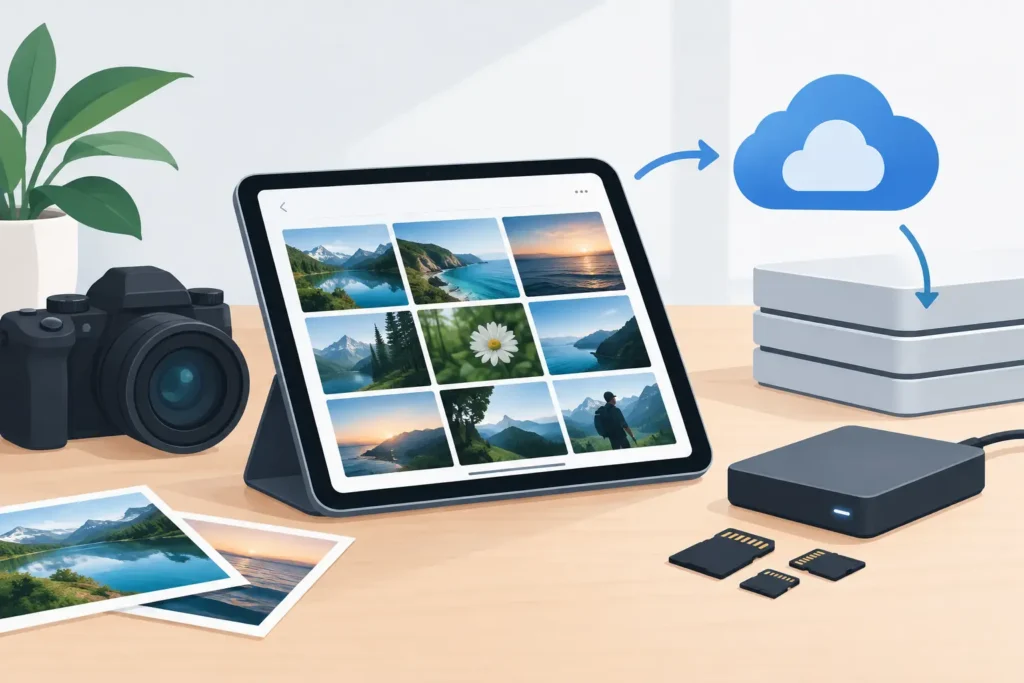
Finally, check Files and any camera-import folders. Importing RAW files from an SD card, USB-C reader, or external SSD may leave a second copy in Files after you import into Photos. That duplicate can be useful until you confirm the Photos import is complete. After that, it is often just hidden storage pressure.
Know which images need RAW originals
RAW is valuable because it preserves far more sensor data for editing. It is not automatically the best long-term format for every image you have already finished.
Keep the RAW original when you may revisit the edit, make a large print, deliver to a client, or need the maximum latitude for exposure and color changes. Keep it, too, if the photo is personally irreplaceable and you want the strongest possible archival master.
But many RAW files are working files, not permanent masters. Test shots, near-duplicates, old edits you would not revisit, and images already delivered in their final form can consume enormous space without adding much value. An edited 24MP or 48MP RAW can be many times larger than a high-quality HEIC version that looks excellent in Photos, on Apple displays, and in everyday sharing.
This is the central trade-off: reducing a RAW to HEIC means giving up the ability to reprocess that image from RAW data later. The right choice is selective, not absolute. Preserve RAW where its flexibility has future value. Use an efficient final format where the edit is done.
HEIC is a practical finished-photo format
HEIC is Apple’s high-efficiency image format. It can preserve strong visual quality at a much smaller file size than many traditional alternatives, and it works naturally across the Apple ecosystem. For photographers who use Photos as their primary library, that matters more than a theoretical compression comparison.
A finished HEIC is especially useful for images you want to keep visible, searchable, favorited, and ready to share without carrying the full cost of a RAW original. Depending on the camera, resolution, and scene detail, the savings can be substantial – often several times smaller, and in some cases up to 10× smaller than RAW.
The exact result depends on the source file. A compressed camera RAW, a detailed night scene, and an iPhone ProRAW image will not all shrink by the same amount. Check representative images from your own camera before setting a library-wide policy.
Build a storage workflow around your editing stage
The easiest way to avoid a bloated library is to separate capture, editing, and retention. Do not decide what to archive while importing 800 images after a trip.
First, import everything and make a quick reject pass. Delete accidental captures, missed-focus frames, and truly redundant bursts. Be conservative with similar images until you have had time to review them on a larger screen, but do not keep obvious misses out of habit.
Next, edit and organize your keepers in Photos. Add them to albums, mark favorites, write captions where they help, and confirm location data is correct. This is the context that makes a Photos library useful months later. A storage workflow should protect it, not force you to rebuild it in a folder system.
Then make a retention decision. Keep RAW for top selects and unfinished work. For completed photos that you want available every day, consider converting the final image to HEIC and removing the larger RAW only after verifying the result. This approach reduces storage without turning your entire photo history into a low-flexibility archive.
RawToHEIC is designed for exactly this stage of the workflow. It converts supported camera RAW files and iPhone ProRAW directly inside Photos, without exporting images to a separate folder and importing them again. Your albums, favorites, captions, locations, metadata, and Photos-based non-destructive edits stay where you already manage them. Processing happens on device, with no analytics collection, and verification safeguards help confirm the new image exists before the original is removed.
That distinction matters. A file-based converter may create a good image, but it can also leave you matching versions, recreating albums, and wondering which copy is safe to delete. A Photos-native workflow keeps storage management from becoming library maintenance.
Configure iPad storage for the way you shoot
If you shoot regularly on multiple Apple devices, enable iCloud Photos and use Optimize iPad Storage on the iPad that is not your primary editing machine. Your iPad will retain smaller local versions when space is needed while full-resolution originals remain in iCloud. Recent and frequently viewed items may stay downloaded, so local use can still grow over time.
If the iPad is your main editor and you travel without reliable internet, downloading originals may be the better choice. It gives you predictable offline access, but you need enough free capacity for imports, edits, exports, and app caches. A useful rule is to avoid running an editing iPad close to full. Leave meaningful headroom rather than treating the last few gigabytes as usable workspace.
External storage can help with active shoots and a deep RAW archive. It is best for projects you do not need constantly in Photos. It is less convenient as a substitute for a well-organized working library because files stored externally are not as immediately available for browsing, search, or sharing in Photos.
Find the space that is safe to reclaim
Before changing formats or buying more storage, inspect the low-risk sources of waste. Start with Recently Deleted in Photos. Deleted photos remain there for up to 30 days and still occupy storage until you remove them permanently.
Review duplicate imports in Files, old exports from editing apps, and downloaded camera files that have already been imported. Also look for repeated exports created for social media or client delivery. Keep the final deliverable if you need it, but do not let multiple full-resolution versions accumulate without a purpose.
Be careful with shared albums and shared libraries. Their behavior can differ from your personal library, and deleting an item may affect other people or remove a version you intended to retain. Confirm ownership and backup status before making large deletions.
Protect against the wrong kind of cleanup
Storage cleanup should never be your only copy strategy. iCloud Photos syncs changes, including deletions. It is excellent for keeping a library current across devices, but it should not be treated as a separate, untouched archive.
For images with professional, financial, or family value, maintain another copy outside the active library. That might be an external drive, a separate archival system, or both. Test that you can open representative RAW files and exported finals before relying on any archive.
Also avoid deleting a RAW immediately after conversion just because a smaller version appears. Open the HEIC, inspect detail at 100 percent, confirm HDR behavior where relevant, and make sure the photo is in the albums and collections you expect. Once that check is complete, reclaiming the original becomes a considered decision rather than a gamble.
A well-managed iPad library should feel light without feeling fragile. Keep the RAW files that carry future editing value, keep efficient finished versions for the photos you live with, and let your Photos organization remain intact. Storage is most useful when it gives you room to keep shooting.
Shrink your RAW library, right inside Photos.
RawToHEIC converts camera RAW and iPhone ProRAW to HEIC up to 10× smaller — keeping every edit, album, favorite, and location. On-device, no account, one purchase for iPhone, iPad, and Mac.


Not sure yet? Convert a few sample photos free — no install, nothing uploaded.
Try it free — no install →