Photos Extensions Versus Converter Apps
A 45 MB RAW file is useful while you are editing it. It is far less useful when hundreds of finished photos are filling your iPhone, iPad, or Mac – especially when those photos already live in carefully organized albums. Photos extensions versus converter apps is not a minor interface choice. It determines whether conversion fits your library or creates a second, loose-file workflow to manage.
For Apple photographers, the best answer depends on what happens after the conversion. If you need a one-off file for a client, an external converter may be fine. If your goal is to reduce an established Photos library while keeping its structure intact, a Photos-native workflow has a clear advantage.
What separates Photos extensions versus converter apps?
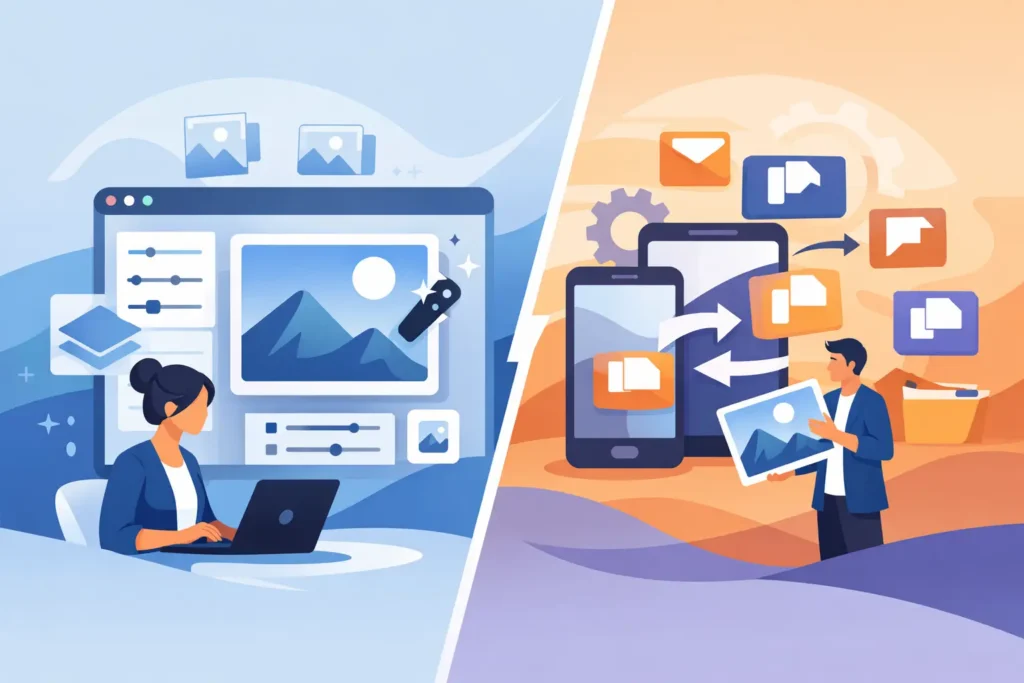
The practical difference is where the work happens. A traditional converter app usually starts in Files, Finder, or its own import screen. You select RAW files, choose export settings, wait for new files to appear in an output folder, then manually import those files into Photos if that is where you keep your library.
That process works, but it introduces decisions that have nothing to do with photography. Which folder received the output? Did every image import? Are the originals and converted copies both still consuming storage? Did the new files retain the date, location, caption, and metadata you rely on to find them later?
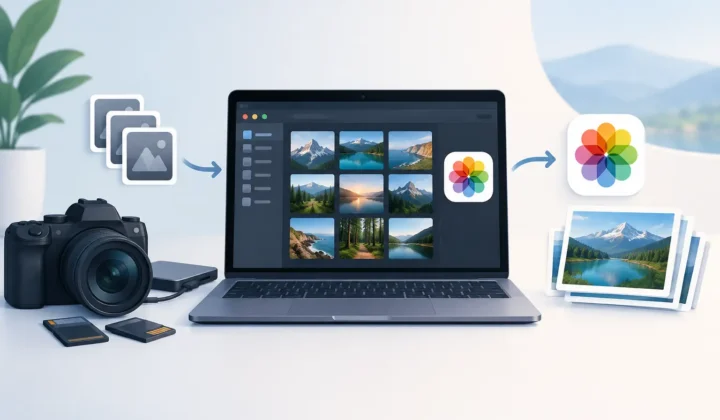
A Photos-integrated conversion workflow begins with the library you already use. You select images in Photos, create smaller HEIC versions, and keep working in the same place. There are no loose folders to reconcile afterward. That matters when you organize family archives, travel shoots, or a growing mirrorless camera library across multiple Apple devices.
There is a useful distinction here. Not every app that appears near Photos is a full library-aware conversion tool, and not every Photos extension can handle every RAW format or export decision. Apple’s extension system and Photos permissions define what an app can access and modify. The feature that matters is not the label. It is whether the app can safely create the converted result in your library and handle the original according to your explicit choice.
The real cost of the export-import workflow
Converter apps are often built around a file-first model. For photographers who already archive projects in Finder, use external drives, or deliver folders to clients, that can be appropriate. You may want a TIFF, JPEG, PNG, or another format with highly specific output controls.
But Photos users pay a hidden cost for that flexibility. Exporting RAW files can flatten the workflow into disconnected copies. Re-importing can create duplicates, alter sorting behavior, or leave you unsure which version is the one to keep. If your library contains favorites, captions, locations, album placement, and non-destructive adjustments, every extra handoff is another opportunity to lose context or spend time rebuilding it.
The problem gets larger with volume. Converting ten files through Finder is manageable. Converting 2,000 completed RAW photos is a library-management project. You need available local storage for both source and output files, a way to verify the results, and a reliable deletion process after import. A cheap converter can become expensive when it consumes a weekend and still leaves duplicate RAWs behind.
Photos-native conversion reduces those steps. The intended result is simple: select finished RAW photos, create efficient HEIC versions in the library, verify them, and remove originals only when you are confident the converted files are present and usable. The closer the tool stays to that sequence, the less administrative work the photographer has to do.
HEIC is often the right destination for finished RAWs
RAW is a capture format, not necessarily an archive format for every finished image. It preserves extensive sensor data and gives you latitude for white balance, exposure, and color edits. Keep RAW files when you expect to revisit an edit, make a large print, or need the greatest possible flexibility.
For photos whose editing is complete, HEIC offers a different value. It can deliver excellent image quality at a fraction of RAW file sizes, often up to 10x smaller depending on the camera and source format. On Apple hardware, HEIC is also a native format for viewing, sharing, syncing, and everyday use.
HEIC is not a universal replacement for RAW. A professional working on a commercial campaign may need original RAWs for contractual, retouching, or archival reasons. A photographer who frequently moves photos to Windows-based production systems may prefer JPEG for broad compatibility. The point is to match the format to the photo’s next job, rather than keeping every image in its largest possible form by default.
HDR deserves separate attention. A conversion tool should not casually strip the visual range that makes HDR images look right on Apple displays. If HDR capture and playback matter to you, confirm that the app supports HDR-preserving conversion rather than assuming every HEIC export behaves the same way.
Privacy and safety are workflow features
Photo conversion can involve personal images, location data, and years of family history. Cloud conversion services may be convenient, but they require uploading files to someone else’s infrastructure. That can be a poor trade for large libraries, slow connections, or privacy-sensitive photos.
On-device processing keeps the conversion on your Apple device. It avoids waiting for uploads, reduces exposure to third-party servers, and makes the workflow more useful when you are traveling or working without dependable internet. An app with no analytics and no collected data provides a clearer privacy posture than one that treats your library activity as product telemetry.
Safety also means treating deletion as a separate, verified action. A converter should never assume that making an output file automatically makes the source disposable. First confirm that the HEIC exists in Photos, opens correctly, and carries the information you need. Then decide whether to retain the RAW, remove it, or keep it in an external archive.
This is where a library-aware tool earns trust. The conversion itself is only half the job. The other half is ensuring you do not accidentally delete the only copy of a meaningful image or leave behind a library that is harder to search and understand.
What to look for in a Photos-native converter
Start with format support. Camera RAW is not one format but a broad family of manufacturer-specific files. Canon, Sony, Nikon, Fujifilm, Olympus, Panasonic, and Apple ProRAW all have different requirements. A useful converter should clearly state which formats it supports and continue updating compatibility as cameras and Apple operating systems change.
Next, check how the app handles library context. The strongest workflows respect the information that gives a Photos library its value: capture dates, locations, favorites, captions, albums, and edits where the platform makes that possible. If an app forces you to export first, ask whether it is truly reducing friction or simply putting a nicer interface on the same old file shuffle.
Then look at the pricing model. RAW compatibility needs maintenance, but that does not automatically mean every user should be locked into a subscription. A free trial allowance is a practical way to test your own images, particularly challenging files from your camera. A lifetime purchase option gives frequent converters a straightforward long-term cost.
RawToHEIC is designed around this Photos-first use case. It converts supported camera RAW and Apple ProRAW photos to HEIC on device, works across iPhone, iPad, and Mac, and includes verification safeguards before originals are removed. The result is a smaller library without asking you to abandon the organization you have already built.
When a traditional converter still makes sense
A file-based converter remains the better tool when the file itself is the deliverable. You may need batch naming rules, a particular folder structure, multiple output formats, print-oriented TIFFs, or automated handoff to another editing application. Those are legitimate needs, and Photos integration is not meant to replace a production pipeline built around folders and desktop asset management.
It is also reasonable to use both approaches. Keep active assignments and master RAWs in your professional archive. Use a Photos-native HEIC workflow for completed personal work, mobile photography, travel images, and older shoots that you want to keep accessible without paying for storage you no longer need.
The right tool should make your chosen workflow smaller, safer, and easier to maintain. If your photos already belong in Photos, conversion should feel like part of managing the library – not like an export project you have to clean up afterward.
Shrink your RAW library, right inside Photos.
RawToHEIC converts camera RAW and iPhone ProRAW to HEIC up to 10× smaller — keeping every edit, album, favorite, and location. On-device, no account, one purchase for iPhone, iPad, and Mac.

Not sure yet? Convert a few sample photos free — no install, nothing uploaded.
Try it free — no install →